Restrict Client Access by IP Address
Allow or block client portal sign-ins from specific IP addresses with a per-client whitelist and blacklist.
Written By voiceaiwrapper
Last updated 26 days ago
IP rules control where a client's users can sign in to the portal from. Use a whitelist to allow sign-ins only from known networks, such as the client's office, or a blacklist to block specific addresses. Rules are set per client account and apply to all of that client's users.
Available on: plans that include Client IP access control. Without it, the Security tab doesn't appear on client accounts, and existing rules aren't applied.
Before you start
- The IP addresses to allow or block. Ask your client for their office's public IP address. Many internet connections have both an IPv4 address (like
203.0.113.10) and an IPv6 address (like2001:db8::1); get both if you can. - A plan for people who travel or work from home. With a whitelist on, anyone signing in from an address that isn't listed is refused.
How the rules work
- Each list has its own switch. You can use one, both or neither.
- If both are on, the blacklist is checked first. An address on the blacklist is refused even if it's also on the whitelist.
- Rules are checked when a user signs in. Someone already signed in isn't signed out when you add a rule.
- A refused user sees: Your device IP appears to be restricted. Please change your device or contact an administrator.
Step 1: Open the Security tab
- In the sidebar, open Client Accounts and click the client.
- Open the Security tab.
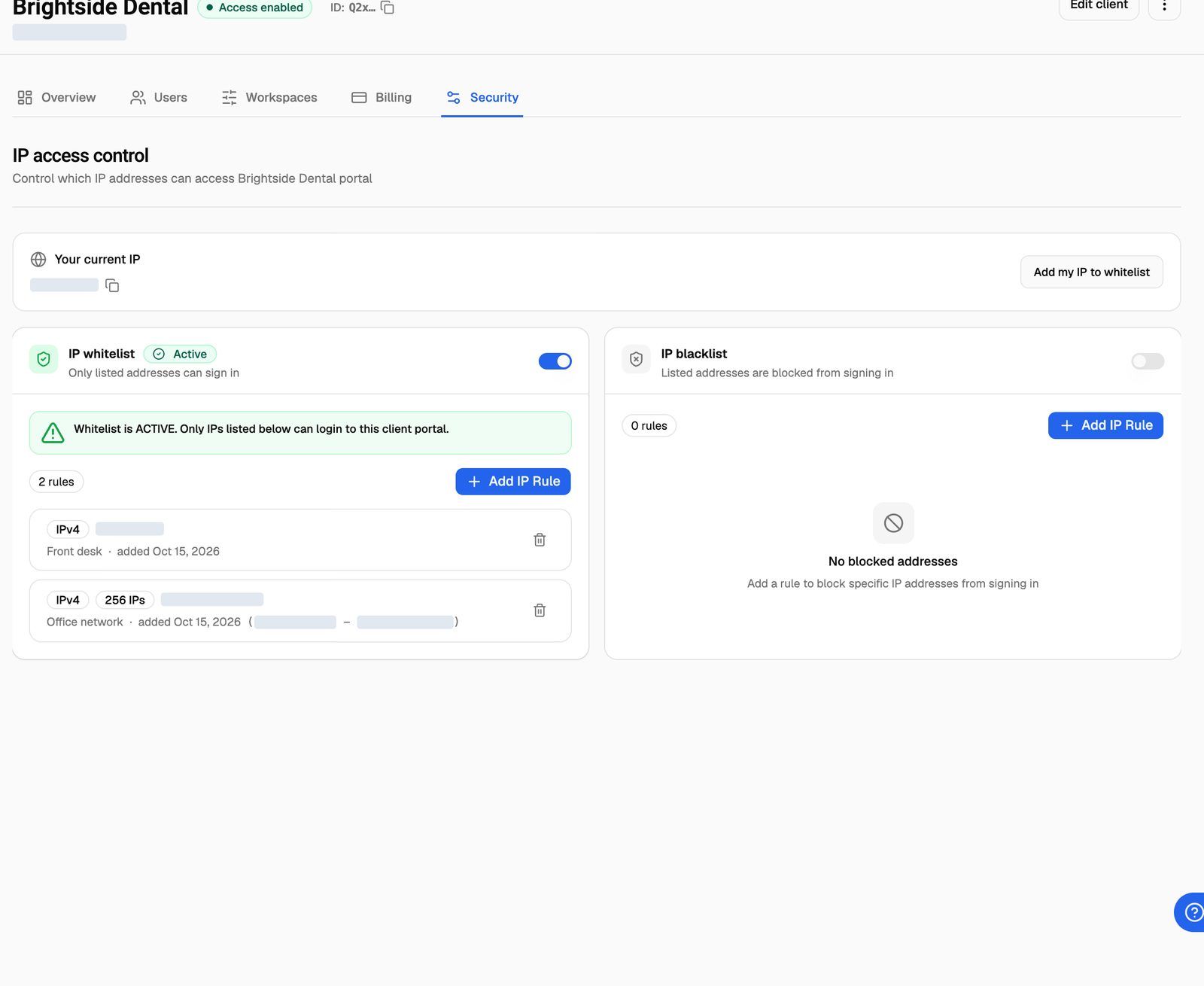
The Your current IP card shows the address of the computer you're using now.
Step 2: Add addresses
- On the IP whitelist or IP blacklist card, click Add IP Rule.
- Enter an IPv4 Address, an IPv6 Address, or both. Enter at least one.
- Optionally add a Description, such as
Head Office Network, so you know later what the address is. - Click Add Rule.
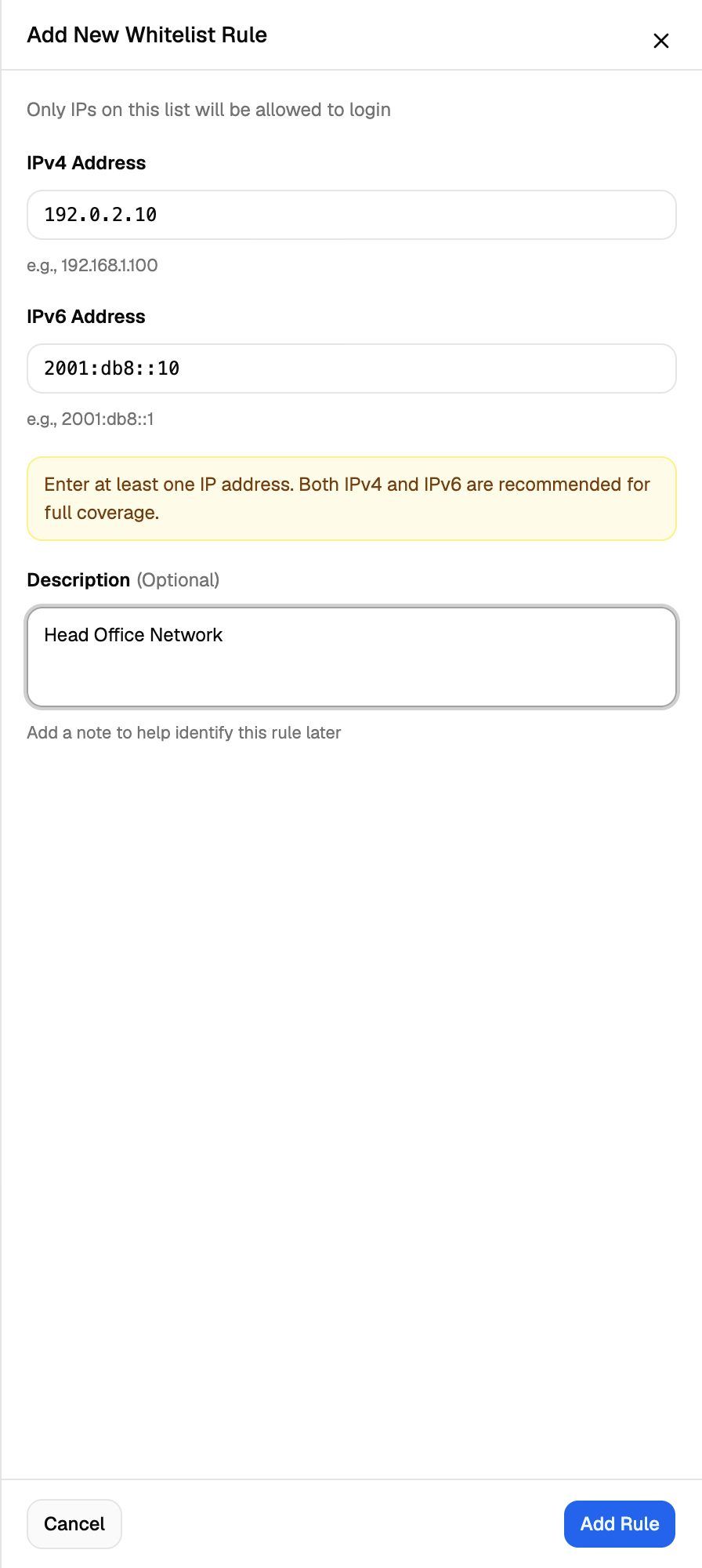
The form takes single addresses, not ranges. Add one rule per address.
If you or your team sign in to this client's portal with a password, click Add my IP to whitelist before you turn the whitelist on. It adds your current address with the description "Device IP of" and your email.
Step 3: Turn the list on
Turn on the switch on the card. The card shows an Active badge and a note:
- Whitelist is ACTIVE. Only IPs listed below can login to this client portal.
- Blacklist is ACTIVE. IPs listed below will be blocked from login.
You can only turn a list on once it has at least one address.
Your IP isn't whitelisted yet means the whitelist is on and your current address isn't on it. If you sign in to this client's portal from this network with a password, you'll be refused. Click Add my IP to whitelist to fix it.
Remove an address or turn a list off
- To remove an address, click the bin icon on its rule. It's removed straight away, without a confirmation.
- To stop applying a list, turn its switch off. The addresses stay saved, so you can turn it back on later.
Turn the whitelist off before you remove its last address. A whitelist that's on with no addresses refuses every sign-in.
Troubleshooting
My client is refused from an address I whitelisted.
My client is refused from an address I whitelisted.
Their connection may be using a different address than you added, often IPv6 instead of IPv4 or the other way round. Ask them to tell you both addresses (searching "what is my IP" in a browser shows them), and add both to the same rule. Also check the address isn't on the blacklist, which wins.
My client's address keeps changing.
My client's address keeps changing.
Many home and mobile connections get a new address from time to time. A whitelist works best for fixed office connections. For changing addresses, use the blacklist for known bad addresses instead, or turn the whitelist off.
It says "Cannot enable whitelist without any IP entries".
It says "Cannot enable whitelist without any IP entries".
Add at least one address with Add IP Rule, then turn the switch on. The same applies to the blacklist.
There's no Security tab on the client.
There's no Security tab on the client.
Your plan doesn't include Client IP access control. See Plan Limits and Upgrade Prompts.
Related articles
Was this helpful?
Still need help? Share an idea