My Custom Domain Won't Verify
Your portal subdomain is stuck on DNS not added, Incorrect value or Connecting? Find the cause, fix the DNS record and get it to Live.
Written By voiceaiwrapper
Last updated 26 days ago
Your portal subdomain only goes live once VoiceAIWrapper can see the right DNS record and has issued an SSL certificate for it. When it stays stuck, the cause is almost always the DNS record: missing, saved in the wrong place, pointing to the wrong value, or blocked by a Cloudflare proxy or a CAA record. This article helps you find which one and fix it.
For the full setup steps, see Connect Your Custom Domain.
Before you start
- Open Client Portal → Portal Configuration → Domain Settings. Most checks start here.
- Have access to the DNS settings for your domain, or someone who can make changes for you.
Step 1: Read the status
The badge at the top right of the Domain Settings card tells you where you're stuck:
If you see a red message saying CAA records are blocking the certificate, go to Check 6. If your domain shows several DNS records and a Verify DNS records button, it uses the older setup: see Check 8.
Each row in the DNS table has its own Status badge: Added, Incorrect value or Not added. Hover over a badge to see Expected: (what VoiceAIWrapper is looking for) and, when a record was found, Actual: (what your DNS returns).
Step 2: Work through the checks
Check 1: You entered a root domain or a reserved name
If Add subdomain stays greyed out with an error under the field, or an error appears when you click it, the name isn't allowed:
Check 2: The record is missing or saved in the wrong place
When the badge says DNS not added, VoiceAIWrapper asked your domain's own DNS servers for the CNAME and got no answer. Check that:
- The record is saved. Some DNS providers need a separate Save or Publish step.
- The type is CNAME, not A, TXT or a redirect.
- You edited the right DNS provider. If your domain's nameservers point to another service, such as Cloudflare, records added at the registrar where you bought the domain are ignored. Add the record wherever your nameservers point.
- Nothing else uses the same name. An A, AAAA or second CNAME record on the same subdomain blocks the CNAME. Delete the old record.
Check 3: The Name is wrong
The Name column usually shows only the subdomain part, such as portal, because most DNS providers add your domain automatically. If you type the full portal.yourbrand.com into such a provider, the record becomes portal.yourbrand.com.yourbrand.com.
For a few DNS providers, such as Azure DNS, the Name column shows the full subdomain instead, because those providers want the full name. If you're not sure which your provider wants, check its help pages.
For a subdomain with several parts, such as voice.clients.yourbrand.com, the name is everything before your domain: voice.clients.
Check 4: Cloudflare's proxy is on
If your DNS is on Cloudflare, the CNAME must be set to DNS only (grey cloud). With the proxy on (orange cloud), Cloudflare hides the CNAME, so VoiceAIWrapper can't see it and the certificate can't be issued.
- In Cloudflare, open your domain's DNS records.
- Click Edit on the CNAME.
- Switch Proxy status to DNS only, then save.
- Back in VoiceAIWrapper, click Refresh DNS Status.
Check 5: The record has the wrong value
Incorrect value means the CNAME exists but points to something other than the Value in the table. You'll also see "DNS record has the wrong value" below the table.
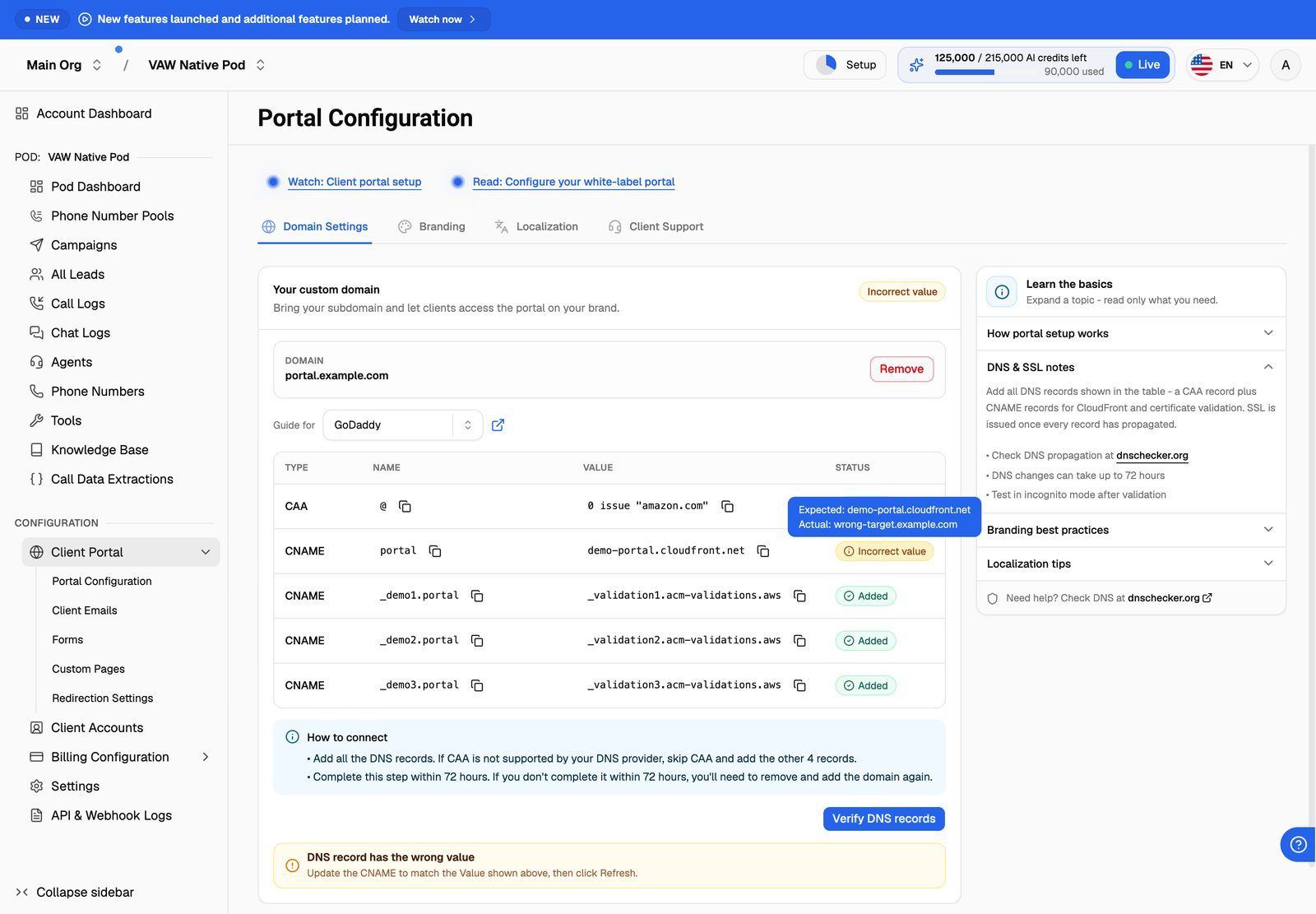
- Hover the Incorrect value badge in the table and compare Expected: with Actual:.
- In your DNS provider, edit the CNAME so its value matches the Value column exactly. Use the copy button next to the value, so there are no typos or extra spaces.
- Save the record and click Refresh DNS Status.
Common causes: the subdomain still points to an old service, the value was copied from an old setup, or a trailing character was added by mistake.
Check 6: A CAA record is blocking the certificate
A CAA record on your root domain lists which certificate authorities may issue certificates for it. If yours doesn't include the one used for your portal, the certificate can't be issued. A red message below the table says that CAA records are blocking the certificate. The exact wording comes from the certificate provider.
VoiceAIWrapper also adds a CAA row to the DNS table:
- Name:
@, which means your root domain. - Value: for example
0 issue "pki.goog"or0 issue "letsencrypt.org". Use the value shown in your table.
To fix it:
- In your DNS provider, add a new CAA record with that name and value. Keep your existing CAA records; this one goes alongside them.
- If your provider has separate fields for a CAA record, the table splits the value into Flag:, Tag:, CA domain name: and Raw value: (it does this when it detects Cloudflare or Netlify). Put only the domain, such as
pki.goog, into your provider's CA domain field. Pasting the whole raw value there creates a broken record. - Click Refresh DNS Status. The CAA row's badge changes to Added when the record is found.
Domains without any CAA records never hit this problem.
Check 7: It's been on Connecting for a long time
Connecting means your CNAME is correct and the certificate is being set up. The page shows "DNS propagation in progress" with "Record detected. This usually takes 2–5 minutes, sometimes up to a few hours. No action needed."
- Wait, then reload the page. Once the certificate is ready, the page checks every 20 seconds for a few minutes until your portal answers, then switches to Live.
- Keep the CNAME in place. If you remove it or turn on Cloudflare's proxy while it's connecting, the setup can't finish.
If it's still on Connecting after a few hours, the certificate may have failed or timed out. Contact support first (see the end of this article). If you decide to start again, remove the domain and add it again:
- Click Remove next to your domain, then confirm Remove in the Remove Custom Subdomain dialog.
- Add the same subdomain again with Add subdomain.
- Check your CNAME still matches the new Value, then wait for Live.
Removing the domain also deletes the portal settings saved with it: your brand name, logo, page title and description, and theme on the Branding tab, and your portal languages on the Localization tab. They aren't restored when you add the domain again, and this can't be undone. Note them down first. Until the domain is live again, clients can't reach the portal at that address.
Check 8: Your domain uses the older setup with several records
Domains connected a while ago use an older method. The DNS table lists several records instead of one CNAME, and the page says: "Add all the DNS records. If CAA is not supported by your DNS provider, skip CAA and add the other 4 records."
- Add every record in the table with the exact Name and Value shown.
- Complete this within 72 hours of adding the domain: "If you don't complete it within 72 hours, you'll need to remove and add the domain again."
- When the records are in place, click Verify DNS records.
If more than 72 hours have passed, remove the domain and add it again, as in Check 7. The new setup uses a single CNAME record. Read the warning in Check 7 before you remove anything.
Check the record yourself
To see what the internet sees for your subdomain, look it up with a public DNS lookup tool, such as Google Public DNS or whatsmydns.net. Search for your subdomain with the record type CNAME. The answer should match the Value in Domain Settings.
VoiceAIWrapper asks your domain's own DNS servers directly, so a correct record usually shows up within minutes of saving it. Public lookup tools may take longer to catch up. After each Refresh DNS Status, there's a 10-second wait before you can refresh again.
Still stuck?
Open Need help? → Help Chat and include:
- Your subdomain.
- A screenshot of the Domain Settings tab, with the status badge and DNS table visible.
- The name of your DNS provider, and whether Cloudflare's proxy is on.
- Your Tenant ID from Settings → General ("Reference this when contacting support.").
Related articles
Was this helpful?
Still need help? Share an idea