Assign a Plan and Manage a Client's Subscription
Assign a Stripe billing plan to a client, follow their subscription status and minutes, and cancel at period end or immediately.
Written By voiceaiwrapper
Last updated 26 days ago
Once your billing plans are ready, you assign one to each client. The client then subscribes in their portal, and Stripe bills them from then on. Everything about one client's subscription lives on their Billing → Current Plan tab: what they're on, its status, how many minutes they've used, and the buttons to cancel it.
This article covers clients on Stripe billing. For External billing, see External Billing: Plans, Usage Packs and Payment Requests.
Before you start
- The client is set to Stripe billing. See Ways to Bill Your Clients: Stripe or External Billing.
- At least one billing plan with an active price. See Create a Billing Plan.
Step 1: Assign a plan
- In the sidebar, open Client Accounts and click the client.
- Open the Billing tab. Current Plan opens first.
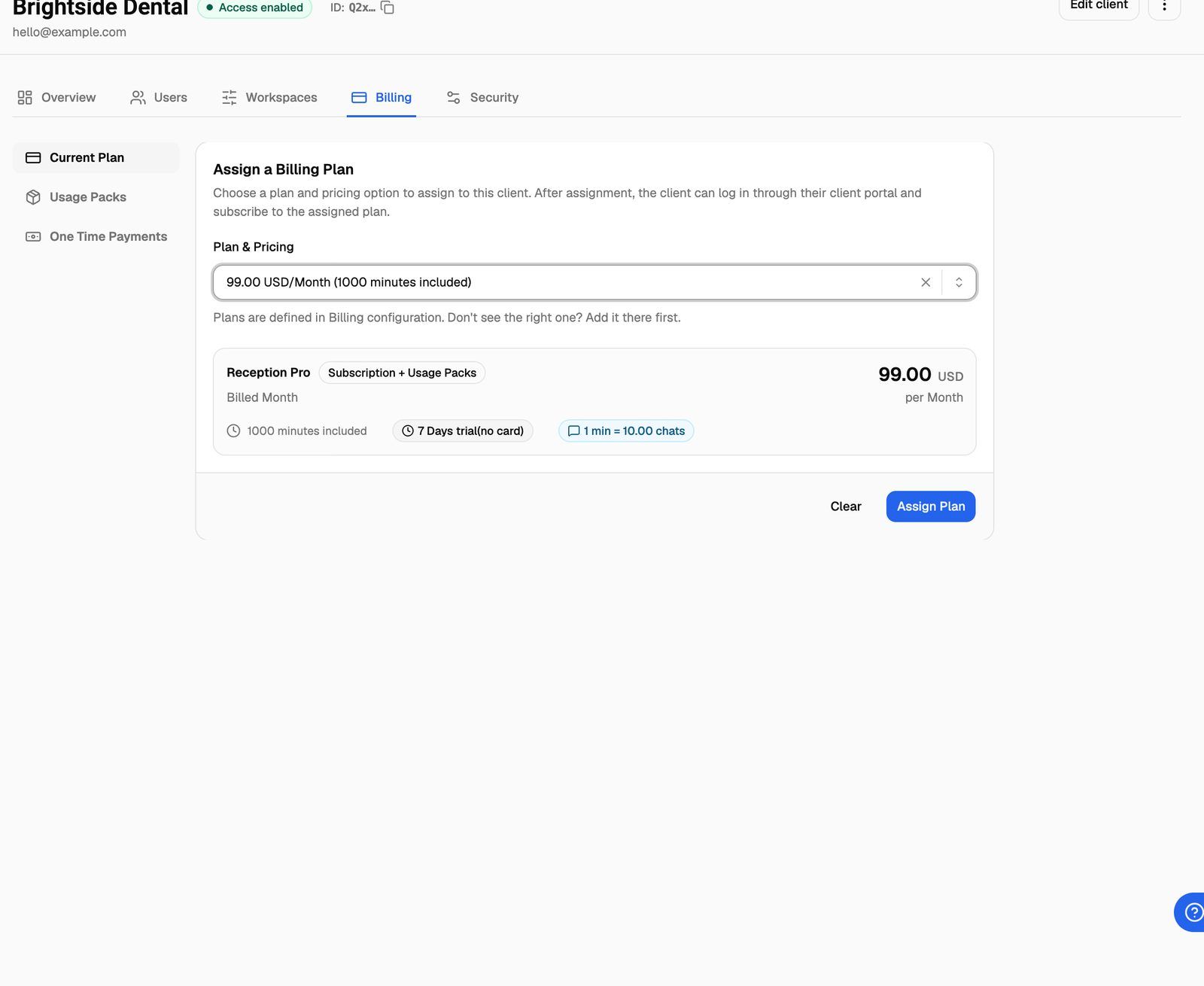
- Under Assign a Billing Plan, open Plan & Pricing and pick the plan and price (for example, the monthly price). A preview card shows the price, included minutes, any trial and whether chats are billed.
- Click Assign Plan.
- Read the confirmation: "Once the subscription starts, the amount cannot be changed." Click Assign Plan again to confirm.
The tab now shows Currently assigned to client: "The client can now log in and subscribe to the billing plan at the following price."
Assigning a plan doesn't charge the client. Billing starts when the client subscribes in their portal. Calls and chats aren't charged until then. No email goes out when you assign a plan, so let the client know it's waiting for them.
If the plan list is empty, you'll see No billing plans yet or No active pricing available, with a button to go to your billing plans.
Step 2: The client subscribes
The next time the client logs in to the portal, they see a full-page screen until they subscribe:
Once they've paid or started the trial, the portal opens as normal and the Current Plan tab shows their subscription. See What Clients See When Payment Is Due for every screen.
To change the plan before the client subscribes, click Remove Assignment and assign a different one.
Step 3: Read the subscription
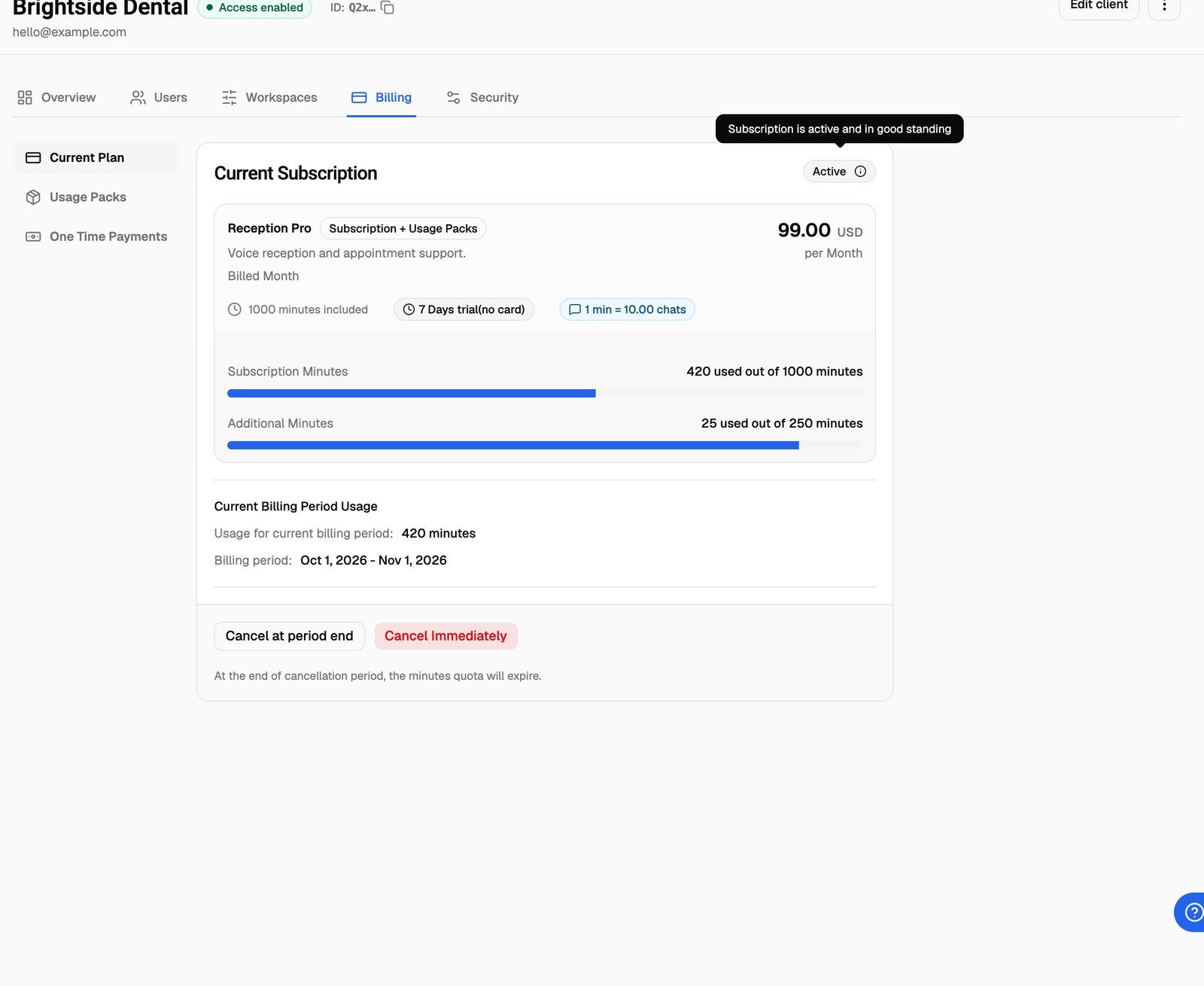
The Current Subscription card shows the plan, the price the client subscribed at, and a status badge. Hover over the badge for a short explanation.
Minutes used
What the card shows depends on the plan's pricing model:
- Subscription + Usage Packs: Subscription Minutes and Additional Minutes bars, each reading "{used} used out of {limit} minutes". Additional minutes come from usage packs. See Usage Packs and Auto-Recharge for Clients.
- Usage Only, Subscription + Overage and Subscription + Usage: Current Billing Period Usage, with the minutes used so far and the Billing period dates.
- Minutes trial: Currently in Trial, with Minutes Remaining and Minutes Consumed, and a Cancel Trial button.
Step 4: Cancel a subscription
You have two options:
- Cancel at period end: the client keeps their plan until the current billing period ends, then the subscription ends. The status doesn't change until then. The badge's tooltip reads "Subscription is active but will end at the current period", and the card says when it will end. You can still click Cancel Immediately in the meantime.
- Cancel Immediately: the subscription is cancelled in Stripe right away and removed from the client's Current Plan tab.
Cancel Immediately doesn't ask you to confirm, and it can't be undone. The subscription ends at once, not at the end of the period the client has already paid for. To bill the client again, they have to subscribe again.
Either way, the card's footer reminds you: "At the end of cancellation period, the minutes quota will expire."
When a subscription ends, the client gets a "subscription ended" email if you've set up client emails. See Customize Email Templates and Check Delivery Logs.
After a subscription ends
The plan you assigned stays assigned. The Current Plan tab goes back to Currently assigned to client, and the client sees Payment Pending - Action Required in the portal until they subscribe again. A client who has already had a free trial doesn't get a second one.
To stop billing the client completely, also click Remove Assignment. With no plan and no subscription, the client can still log in, but their calls and chats aren't charged. To block their access, disable the client instead. See Enable, Disable or Delete a Client.
Remove Subscription
For a subscription that's Canceled or Incomplete Expired, click Remove Subscription to clear it from the tab. You can then remove the assignment or let the client subscribe again.
Frequently asked questions
How do I move a client to a different plan?
How do I move a client to a different plan?
There's no plan switch. End the current subscription (Cancel at period end or Cancel Immediately), then click Remove Assignment and assign the new plan. The client subscribes to the new plan in their portal.
I changed the price on a plan. Does the client's subscription change?
I changed the price on a plan. Does the client's subscription change?
No. Existing subscriptions keep the price the client signed up on. Only clients who subscribe after the change get the new price.
The status is Past Due and there are no cancel buttons.
The status is Past Due and there are no cancel buttons.
The client's last payment failed. The client can update their card from Manage Billing & View History in their portal. If you'd rather end the subscription, cancel it in your Stripe Dashboard; the webapp removes it once Stripe reports the cancellation. See What Clients See When Payment Is Due.
Can a client cancel their own subscription?
Can a client cancel their own subscription?
Clients manage their card and invoices through Manage Billing & View History in the portal, which opens Stripe's customer portal. Whether they can cancel there depends on your Stripe customer portal settings.
Related articles
Was this helpful?
Still need help? Share an idea