Getting Help: Support Chat, Book a Call and Feature Requests
Where to get help in the webapp: support chat, the help center, tutorials, booking a call, your Tenant ID for support, and requesting features.
Written By voiceaiwrapper
Last updated 26 days ago
Help is available from the webapp. Use the Need help? button to chat with our support team, search the help center, watch tutorials or book a call. 24/7 support is available on the Scale plan only. This article also shows you where to find your Tenant ID, which helps support find your account quickly, and how to tell us what to build next.
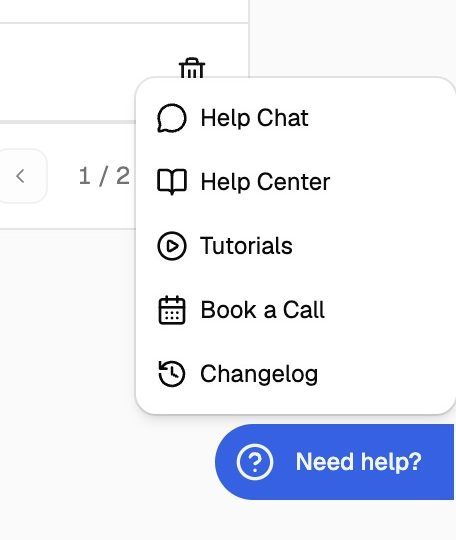
The Need help? menu
Look for the round ? button on the right edge of the screen, near the bottom. Hover over it and it slides out to read Need help?. Click it to open the menu:
The button is on every page except the onboarding wizard, which has its own option to book a call. If you're signed out (for example on the sign-in page), the menu only shows Help Chat and Help Center.
When you're signed in, Help Chat shares your name, email and organization with the support team automatically, so you don't need to explain which account you're writing from.
Book a free onboarding call
If your account shows Book a free onboarding call, use it to open the booking page and ask for setup help, such as connecting your custom domain or Stripe. Growth and Scale offer 7-day plan trials; Pay-as-you-go itself is not a time-limited trial. See Free Trials Explained for the current trial terms.
Find your Tenant ID
Your Tenant ID is your organization's unique ID. Include it whenever you contact support outside Help Chat, so we can find your account without asking.
In the sidebar, click Settings.
In the General section, find Tenant ID ("Reference this when contacting support.").
Click the copy button at the end of the field.
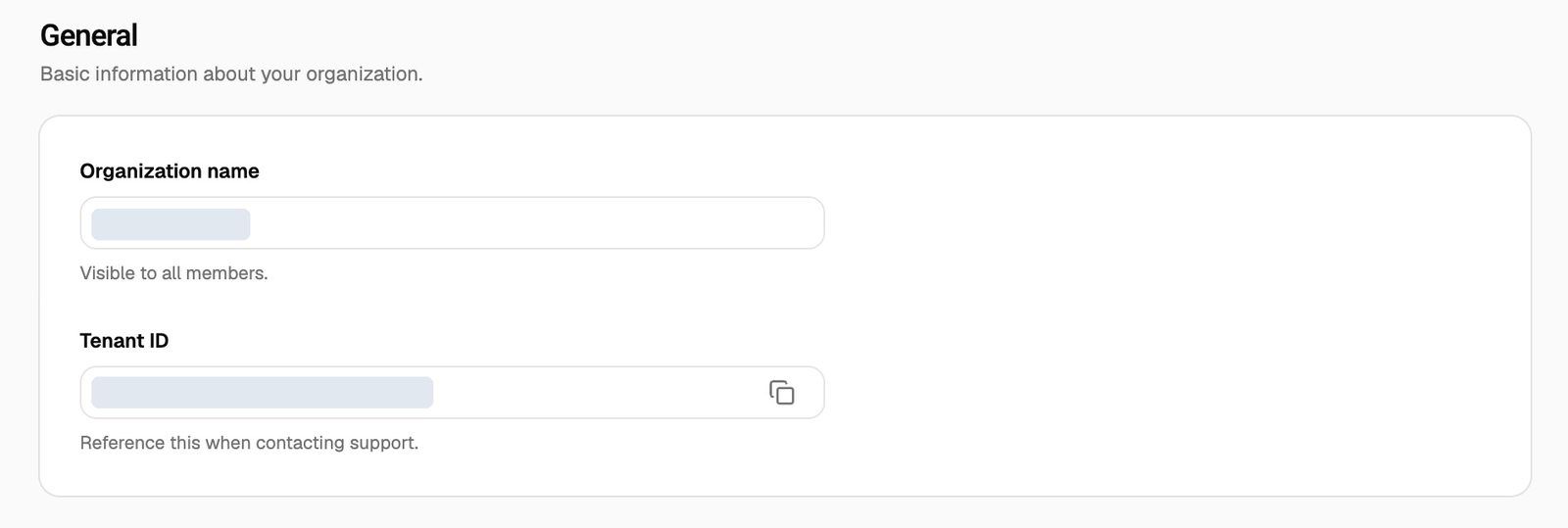
Only organization owners and admins can use Settings. If you're a member, click the organization name at the top left of the header instead. The You are currently in card shows the same ID with a copy button.
What to include when you ask for help
Support can help faster when your first message includes:
Your Tenant ID, if you're not using Help Chat.
The Pod you're working in, and the name of the agent, campaign or client involved.
For a call problem: the time of the call and the phone number, or a link to the call in Call Logs.
What you expected to happen and what happened instead.
A screenshot of the page, with API keys and other secrets hidden.
Request a feature
Tell us what you'd like us to build on our feedback board. To suggest a feature or vote for one:
Open our feedback board at https://voiceaiwrapper.featurebase.app/.
Search to see if someone has already asked for it. If they have, upvote it and add your use case in a comment.
If not, post a new request. Describe the problem you're trying to solve, not only the feature you have in mind.
The sign-in page links to the same board as Tell us what to build. New features are announced in the Changelog (under Need help?).
Frequently asked questions
I can't see the Need help? button.
I can't see the Need help? button.
It's hidden while you're in the onboarding wizard. Finish or skip the wizard and it appears on every page. If you're on a small screen, check the right edge near the bottom; the button only shows its ? icon until you hover over or tap it.
Is VoiceAIWrapper down, or is the problem on my side?
Is VoiceAIWrapper down, or is the problem on my side?
Check our status page at https://voiceaiwrapper.betteruptime.com/. It's also linked as Platform Uptime on the sign-in page. If everything shows as working, contact us through Help Chat.
Can my clients use this support chat?
Can my clients use this support chat?
No. The Need help? menu is part of your agency webapp and connects you to our team. To give your clients their own support channel in the client portal, see Add Your Own Support Widget.
Related articles
Was this helpful?
Still need help? Share an idea