Attach Knowledge to Agents and Choose an Answering Mode
Attach knowledge bases to VAW Native agents from either side, and choose whether each agent gets everything up front or looks things up when asked.
Written By voiceaiwrapper
Last updated 26 days ago
A knowledge base does nothing until an agent is attached to it. Once attached, the agent can answer callers from your documents instead of guessing. You can attach from either side: from the agent, or from the knowledge base. For each attachment you also choose an answering mode, which decides whether the agent reads the whole knowledge base up front or looks things up as questions come in.
Applies to: VAW Native Pods. For Vapi, Retell AI and ElevenLabs, see Provider Knowledge Bases and Tools in VoiceAIWrapper.
Before you start
- A knowledge base with documents in it, in the same Pod as the agent. Agents can only use knowledge bases from their own Pod. See Create a Knowledge Base and Upload Files.
- Knowledge bases on calls turned on in the Pod's settings. It's on by default. While it's off, agents answer from their prompt alone, even with a knowledge base attached. See Manage Pods: Rename, Update Keys, Switch and Delete.
Attaching a knowledge base uses AI credits. While Knowledge bases on calls is on, each call to an agent with a knowledge base attached costs an extra 5 AI credits per minute of answered call time, whether or not the knowledge base is used on that call. In chats, it's an extra 0.5 credits per agent reply. See Credit History and Per-Call Costs.
Limits:
Option A: Attach from the agent
Use this when you're setting up one agent.
- In the sidebar of your VAW Native Pod, open Agents and click the agent.
- Open the Knowledge tab. The Knowledge base card shows how many are attached, for example "2 of 5 attached".
- Click Attach. The Attach knowledge bases panel opens.
- Tick the knowledge bases this agent should answer from. You can search by name. Each one shows how many documents it has and how many agents already use it.
- Click Done. New rows show attaches on Apply.
- On each row, choose an answering mode from the dropdown (see "Choose an answering mode" below).
- Click Apply in the yellow bar. You'll see "Knowledge bases updated".
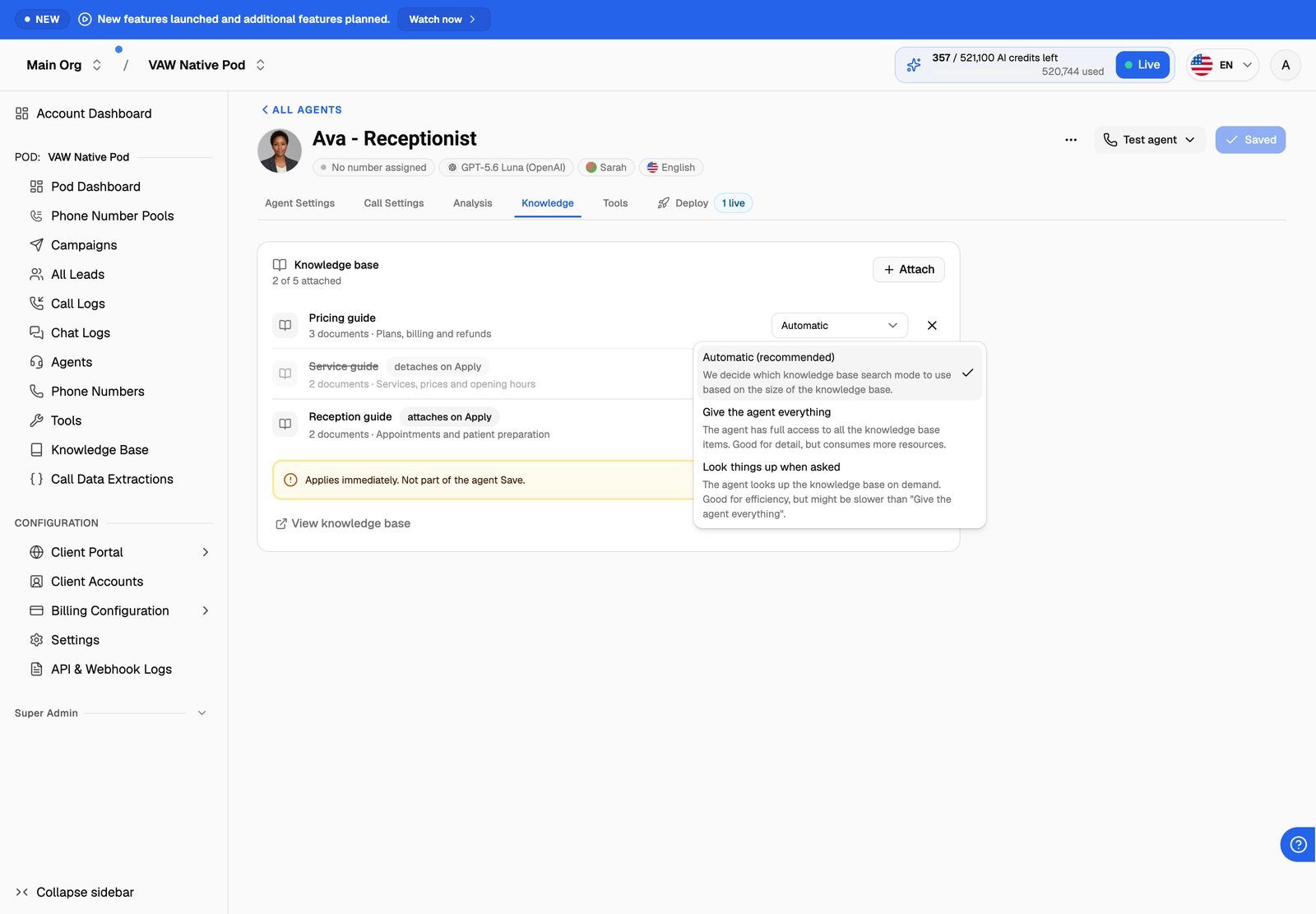
The Knowledge tab saves separately from the rest of the agent. Its yellow bar says "Applies immediately. Not part of the agent Save." Clicking the agent's main save button doesn't save knowledge changes, and Apply doesn't save other unsaved agent edits.
To detach a knowledge base, click the X on its row, then Apply. Changed your mind before applying? Click Undo on the row, or Discard to drop all pending changes.
If a row shows No content yet, that knowledge base has no documents. The agent can be attached to it, but it won't find anything until you add some.
Option B: Attach from the knowledge base
Use this to give one knowledge base to several agents at once, for example a shared FAQ.
- Open Knowledge Base and click the knowledge base.
- Open the Agents tab.
- Click Assign agents. The Assign to agents panel opens.
- Tick the agents that should answer from this knowledge base, then click Done.
- Choose an answering mode for each agent from its dropdown.
- Click Apply in the yellow bar ("Not saved yet. Apply and it takes effect on the next call."). You'll see "Agents updated".
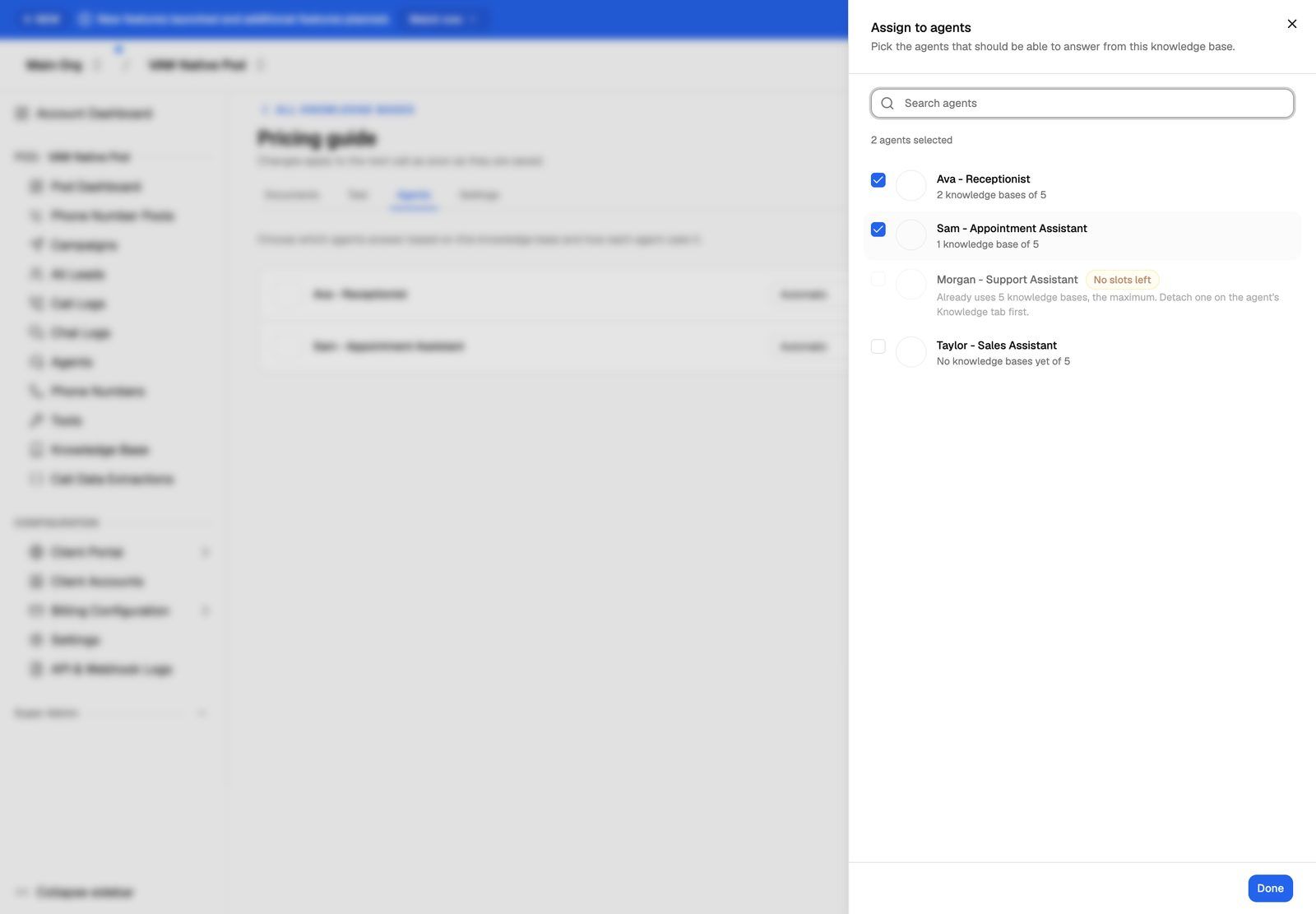
An agent that already uses 5 knowledge bases shows No slots left and can't be ticked. Detach one on that agent's Knowledge tab first. If the Pod has no agents yet, Assign agents is greyed out.
To stop an agent using this knowledge base, click the X on its row, then Apply.
Both screens edit the same link. A change made on one shows up on the other.
Choose an answering mode
The mode belongs to each agent-and-knowledge-base pair. The same knowledge base can be given in full to one agent and looked up by another.
The dropdown shows a short name for the chosen mode: Automatic, Give everything or Look things up.
The size limit for giving everything
Automatic only gives a knowledge base in full while it's under a size ceiling of about 20,000 tokens (very roughly 80,000 characters of text). Above that, an agent set to Automatic looks things up instead.
You don't need to work out the size yourself. When a knowledge base is too large:
- The knowledge base shows "This knowledge base is too large to put in front of the agent all at once. Agents set to Automatic will look up the relevant parts when a caller asks instead."
- Each Automatic row shows "Too large to hand over in full, so this agent looks things up instead."
The ceiling is shared by everything one agent is given in full. The agent's knowledge bases are taken in the order you attached them. Each one on Automatic is given in full only if it still fits in what's left of the ceiling; otherwise it's looked up. The row message above only checks each knowledge base on its own, so it doesn't warn you when several small knowledge bases add up to more than the ceiling.
If you choose Give the agent everything, the agent gets the full text whatever its size, and that knowledge base still uses up its share of the ceiling. Large full-text knowledge bases use more resources on every call, so use Automatic unless you have a reason not to.
When an agent looks things up, Results per question and Match threshold on the knowledge base's Settings tab decide what it finds. See Tune Retrieval: Results per Question and Match Threshold.
When changes take effect
Changes apply as soon as you click Apply. The next call uses them. Calls already in progress keep the knowledge bases and answering modes they started with.
Frequently asked questions
Can I attach knowledge while creating an agent?
Can I attach knowledge while creating an agent?
Yes. The AI Agent Builder lets you add your site, files or text to a new knowledge base, or pick existing ones, as part of creating the agent. See Create an Agent with the AI Agent Builder.
I attached a knowledge base, but the agent doesn't use it.
I attached a knowledge base, but the agent doesn't use it.
Check that:
- You clicked Apply. Rows marked attaches on Apply aren't saved yet.
- Knowledge bases on calls is on in the Pod's settings.
- The knowledge base has documents that are Ready. See Document Statuses, Syncing and Failed Documents.
- The question is actually covered. Ask it on the knowledge base's Test tab. See Test Your Knowledge Base.
Why is the Attach button greyed out?
Why is the Attach button greyed out?
The agent already has 5 knowledge bases attached, the maximum. Detach one, click Apply, then attach the new one.
What happens to agents if I delete a knowledge base?
What happens to agents if I delete a knowledge base?
They carry on working without it. Deleting removes the documents and everything built from them, including the original files, and can't be undone.
Can my clients attach knowledge bases themselves?
Can my clients attach knowledge bases themselves?
Only if you allow it. Client permissions on VAW Native workspaces control whether a client sees the agent's Knowledge tab, can attach knowledge bases, and can see or change the answering mode. See Set Client Permissions on VAW Native Workspaces.
Related articles
Was this helpful?
Still need help? Share an idea