Embed the Widget on a Website
Copy your widget's embed code, paste it into any site or funnel, serve it from your own domain, and test it before visitors use it.
Written By voiceaiwrapper
Last updated 26 days ago
Once your widget looks right in the builder, you put it on a site by pasting two lines of code. Visitors then see the widget on every page you added it to and can talk or chat with your agent.
You paste the code once. Changes you save in the builder later show up on the site the next time a page loads, so you don't need to paste it again.
Before you start
- A widget. Create one on a VAW Native agent or in an inbound widget campaign. See Add a Widget to a VAW Native Agent or Create an Inbound Widget Campaign.
- A plan that includes Web widget. Without it, the builder shows an upgrade prompt, and VAW Native widgets that are already embedded tell visitors the assistant isn't available.
- Access to the site's code, or to a setting that adds custom code (most site builders and funnel tools have one). If someone else manages the site, send them the code from Step 1.
- Optional: your custom domain. If you want the code to load from your own domain instead of a VoiceAIWrapper address, connect it first and wait until it shows Live. See Connect Your Custom Domain.
Step 1: Copy the embed code
- Open the widget builder:
- For a VAW Native agent: open the agent, then Deploy → Widget.
- For a campaign: open the campaign, then the Web Widget tab.
- If you have unsaved changes, click Update Widget Configuration first.
- In the right-hand column, switch from Live Preview to Embed Code.
- Click Copy. You'll see "Embed code copied to clipboard".
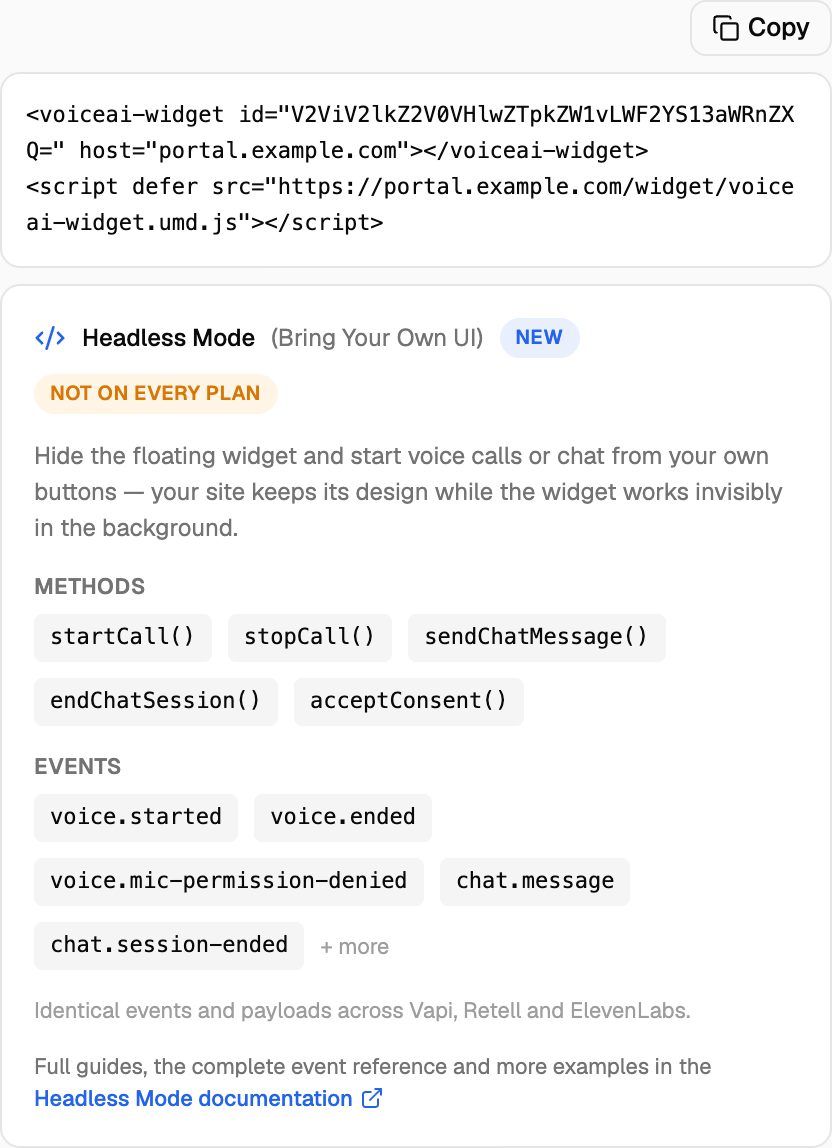
The code looks like this, with your own widget id and domain:
<voiceai-widget id="YOUR_WIDGET_ID" host="YOUR_DOMAIN"></voiceai-widget>
<script defer src="https://YOUR_DOMAIN/widget/voiceai-widget.umd.js"></script>
Each widget has its own code. If you have several widgets (for example one per client), copy the code from the right widget.
Step 2: Paste it into the site
Paste the code immediately before the closing </body> tag of each page that should show the widget. To show it on every page, put it in the part of the site that every page shares, usually the footer or a "custom code" setting for the whole site.
Where to find that setting on common platforms:
Paste the code exactly as copied. Some editors change quotes into "smart quotes" or strip <script> tags from normal text blocks. If the widget doesn't show, check that the code is in a block meant for HTML or custom code.
Step 3: Test it on the live page
- Open the page in a private (incognito) window, so you see it the way a new visitor does.
- Check that the widget shows in the position you chose.
- Click it and accept the consent notice, if you have one switched on.
- Start a call or chat and make sure the agent answers.
- Look for the conversation in your logs. See Chat Logs.
Test calls and chats are real conversations. On VAW Native they use AI credits, and on Vapi, Retell AI and ElevenLabs they're billed by your provider account.
Voice calls need the visitor's permission to use their microphone, and browsers only ask for it on secure (https://) pages. Test on the real site, not a page opened from a file on your computer.
Using your own domain
The code loads the widget from your organization's custom domain when you have one. Without one, it loads from client.voiceaiwrapper.app. Your clients' visitors only see the domain if they look at the page's code.
- Connect the domain before you copy the code. The code uses your custom domain as soon as it's added, even while it's still connecting. If you paste it before the domain shows Live, the widget won't load until it does.
- Copied the code before you had a domain? It keeps working. To switch to your domain, copy the code again and replace the old code on the site.
- Changed or removed your domain? Copy the code again and update every site that uses it.
Removing the widget from a site
To stop showing the widget on one site, delete the code from that site.
Clicking Remove widget on a VAW Native agent's Widget tab deletes the widget itself. Every site that uses its embed code stops showing it, and this can't be undone: adding a widget again gives you a new code to paste. Past conversations stay in your logs.
Troubleshooting
The widget doesn't show at all.
The widget doesn't show at all.
Check that:
- Both lines of the code are on the page, unchanged. The
<voiceai-widget>line places the widget and the<script>line loads it. - The page was published or republished after you added the code, and you aren't looking at a cached copy.
- Your custom domain shows Live in Domain Settings, if the code uses it.
- Your site doesn't block scripts from other domains (some security settings do). Ask whoever manages the site.
If you're comfortable with the browser's developer tools, open the console. Messages that start with "VoiceAIWidget:" (for example "VoiceAIWidget: id attribute is required") point to the problem.
The widget shows, but visitors see "Our assistant isn't available right now".
The widget shows, but visitors see "Our assistant isn't available right now".
This is the general message for account problems on VAW Native widgets, such as no AI credits left, all lines busy or a plan without web widgets. See Visitor Limits and Page Variables for the full list.
An alert says "Widget headless mode isn't available for this widget."
An alert says "Widget headless mode isn't available for this widget."
The code has a hide-launcher attribute, which needs a plan that includes Headless web widget. Remove the attribute to show the normal widget, or see Headless Mode: Build Your Own Widget UI.
The microphone doesn't work.
The microphone doesn't work.
Check that the page uses https:// and that the visitor allowed microphone access when the browser asked. If they blocked it, they need to allow it in the browser's site settings and reload the page.
Related articles
Was this helpful?
Still need help? Share an idea