Built-In Tools: End Conversation, Transfer Call and Send SMS
The three tools every VAW Native agent has: end the conversation, transfer a caller to a person, and text the caller. What each does and where it works.
Written By voiceaiwrapper
Last updated 26 days ago
Every VAW Native agent comes with three built-in tools. They let the agent hang up when a conversation is done, hand a caller to a person on your team, and text the caller something they asked for. You don't build or attach them: you switch each one on and tell the agent when to use it.
This article explains what each tool does and where it works. Each tool has its own setup article, linked below.
Applies to: agents in a VAW Native Pod (an engine or provider connection). For agents on Vapi, Retell AI and ElevenLabs, see Provider Knowledge Bases and Tools in VoiceAIWrapper.
Before you start
- An agent in a VAW Native Pod. See Create an Agent from Scratch.
- For Transfer call and Send SMS: a connected Twilio account and at least one active phone number on it. Both tools work through your own Twilio account. Transfers also need Elastic SIP Trunking on that account, and texts need a number that can send SMS. See Connect Your Twilio Account to VAW Native.
Where to find them
- In your VAW Native Pod, open Agents and choose the agent.
- Open the Tools tab.
- Look under Built-in system tools. Each tool has a row with an On or Off badge and a one-line summary.
- Click a row to open its settings.
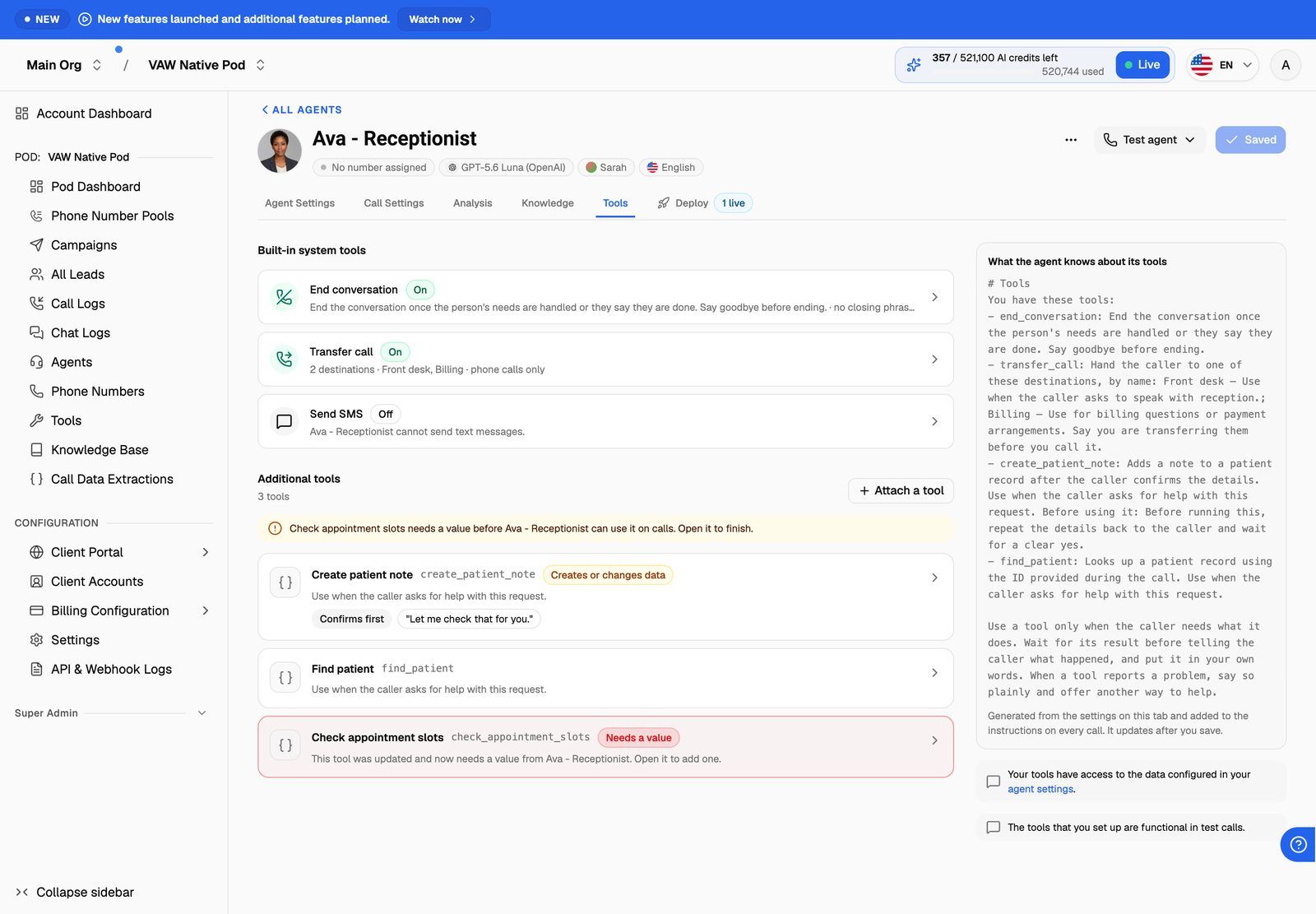
Each tool saves on its own. Click Save changes inside the tool's panel. The agent's main save bar doesn't save these settings, and saving another tab won't overwrite them.
The three tools at a glance
End conversation
With this on, the agent can end a call or chat once the person's needs are handled. It records a reason, which the other person never hears, and can say goodbye first. With it off, only the other person or a limit (silence or maximum call length) ends the conversation.
New agents start with End conversation on. See End the Conversation Automatically.
Transfer call
The agent hands the caller to a person you've set up as a destination, such as your front desk or billing team. The agent picks the destination by name. It never chooses or invents the number, because the numbers stay in your settings. See Transfer Calls to a Person.
Send SMS
The agent texts the caller something they asked for, such as a confirmation, an address or a link. Before texting the caller, it always asks whether it may. You decide what number the text comes from, who it goes to and what it says. See Send Text Messages During a Call.
Phone calls only: Transfer call and Send SMS
Transfer call and Send SMS need a real phone line, so the agent is only offered them on phone calls:
- Offered on: inbound calls, outbound calls (including campaigns and Call a number), and a Phone call test from Test agent, which is a real call.
- Not offered on: a Web call test, voice calls from a web widget, and chats.
On calls where these tools aren't offered, the agent isn't told about them either. Avoid promising a transfer or a text in your prompt, or the agent may offer something it can't do on a web call or chat.
End conversation works everywhere: phone calls, web calls (including the web widget) and chats.
To test a transfer or a text, use Test agent → Phone call. It places a real call from one of your numbers, so Twilio charges apply.
Costs
- End conversation has no extra cost.
- Transfers dial out through your Twilio account, so Twilio charges you for the transferred leg. The original call also stays open, and keeps running, until both people hang up.
- Texts are sent from your Twilio account and charged by Twilio. They aren't charged as AI credits.
See what the agent is told
The What the agent knows about its tools panel on the right of the Tools tab shows the exact text added to the agent's instructions on every call. It's built from your settings on this tab and updates after you save. Read it after changing a tool to check the agent got the message you meant.
More tools
Below the built-in tools, Additional tools is where you attach your own tools, such as a custom HTTP request or Cal.com booking. See Attach Tools to an Agent.
Frequently asked questions
The agent says it will transfer me, but nothing happens on a web call.
The agent says it will transfer me, but nothing happens on a web call.
Transfers only work on phone calls. On a web call or chat, the tool isn't available, so the agent can only talk about it. Remove any promise of a transfer from the prompt, and test transfers with Test agent → Phone call.
Could the agent dial or text a number I didn't set up?
Could the agent dial or text a number I didn't set up?
No. For a transfer, the agent only says the destination's name, and the number comes from your settings. For a text, the sender and recipient come from your settings and the call's own data, never from the agent. The agent only fills in the blanks you leave in the message, or writes the message itself if you choose that option.
Do my changes apply to calls already in progress?
Do my changes apply to calls already in progress?
No. Changes apply from the next call. For example, a removed transfer destination stops being offered from the next call, and past calls are unchanged.
Related articles
Was this helpful?
Still need help? Share an idea