Capture Structured Data with Call Data Extractions
Pull names, dates, amounts and answers out of every VAW Native call into fields you define, and attach them to your agents.
Written By voiceaiwrapper
Last updated 26 days ago
A Call Data Extraction pulls specific facts out of each call and saves them as structured data: the caller's name, the appointment date, their budget, whether they want a callback. You define the fields once, attach the extraction to your agents, and every call's report gets those fields filled in. You can then read the facts at a glance or send them to your CRM through a webhook.
Applies to: agents on a VAW Native Pod (an engine or provider connection). For Vapi, Retell AI and ElevenLabs agents, see Capture Lead Details from Provider Calls.
How extractions work
- An extraction belongs to a Pod and can be attached to any of that Pod's agents.
- After a call ends, post-call analysis runs first. If it completes, each extraction attached to the agent runs on the transcript.
- Extractions use the agent's AI model for analysis and extractions, set on the agent's Analysis tab.
- Each extraction is its own run and uses AI credits, added to that call's cost. Calls that are skipped, or that don't meet the extraction's run conditions, aren't charged for it.
- Chats with your agent are processed the same way.
Before you start
- An agent on a VAW Native Pod, with Analyze calls turned on. If analysis is off, attached extractions don't run. See Post-Call Analysis: Summary, Sentiment and Call Success.
- A list of the facts you need from each call, and roughly what form each takes (a date, a number, a yes or no).
Built your agent with the AI Agent Builder? It may already have an extraction named after the agent, ending in ": call details". Check Call Data Extractions before you create a new one.
Step 1: Create an extraction
- In the sidebar, open Call Data Extractions.
- Click New extraction. On an empty Pod, pick a template card or click Start from scratch instead.
- In Create an extraction, choose a template or Start from scratch. You can search the 13 templates by name or field. See Extraction Templates, Run Conditions and Backfills for the full list.
- Check the Name, the Description and the field names and types. The description guides the model, so say what to look for: "Tell the model what to look for. This text guides the extraction."
- Click Create. The full editor opens.
Required flags, choices, run conditions and agents are all set in the editor.
Step 2: Define the fields
Under Fields to extract, each field is one fact you want from the call. Builder is selected by default.
For each field:
- Enter a Field name, such as
appointment_date. Names must be unique. Use short, lowercase names with underscores, since they become the keys in your data and webhooks. - Choose a Type (see the table below).
- Tick Required if the field must always appear in the result.
- Add a Description: "What should the model put here? Optional, guides the extraction." For example, "Date and time that was agreed".
Click Add field for more fields, or the bin icon to remove one.
A required field is always included in the result. Any field, required or not, comes back empty when the call never mentioned it, rather than with a guessed value.
The The data this produces panel on the right shows the shape of the result with sample values, so you can check it before saving.
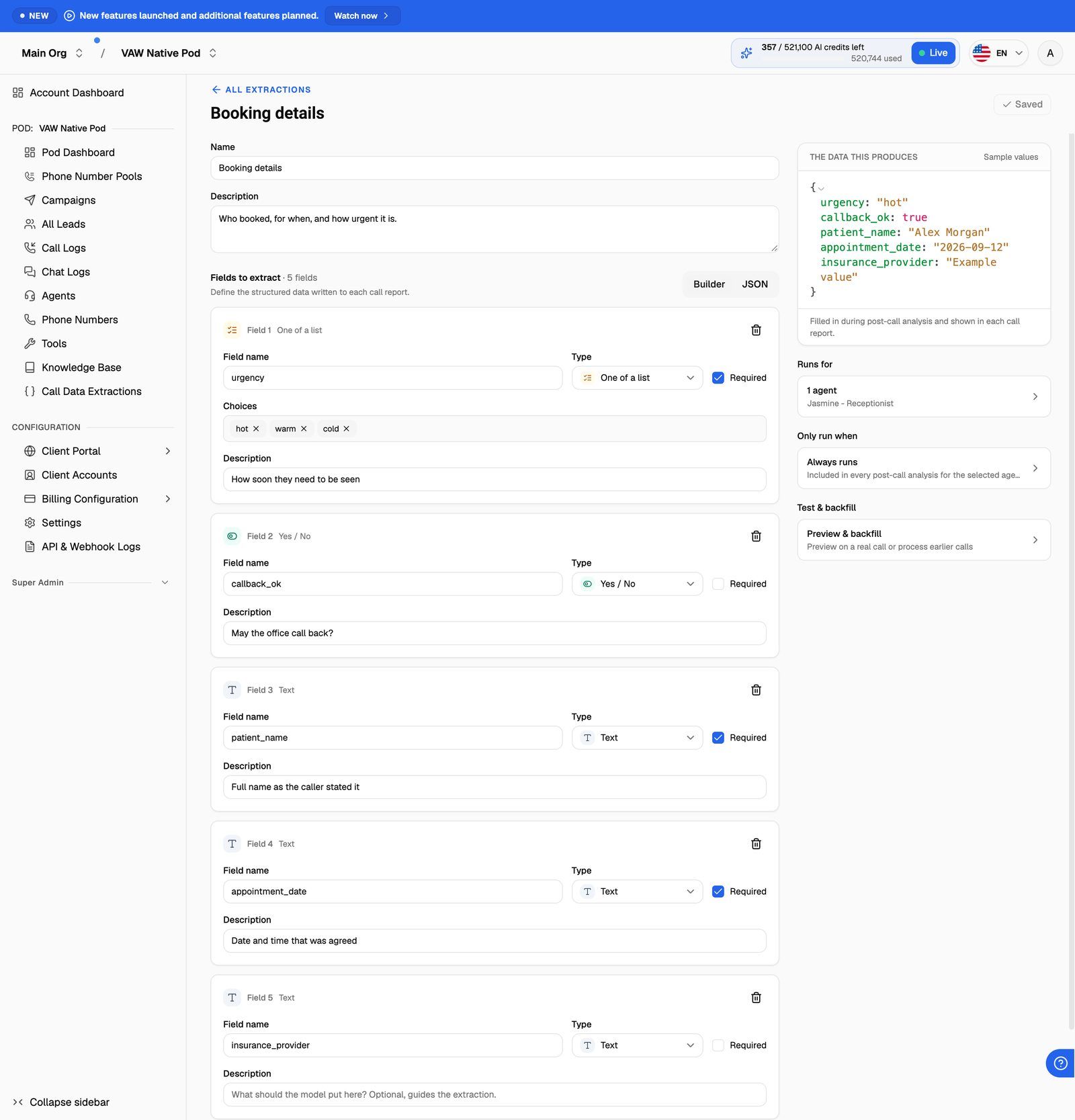
Builder or JSON
Switch to JSON to edit the definition as a JSON Schema. Its root must be {"type": "object"} with at least one property, and it can be up to 16 KB. JSON mode allows nested objects, which Builder can't show. If you open a nested schema, the editor stays in JSON mode and says so. Most extractions don't need JSON mode.
Step 3: Attach it to agents and save
- Click Runs for and pick the agents whose calls should include this data. Each agent can have up to 10 extractions.
- Click Done, then click Save at the top of the page. The button changes to Saved.
Calls that end after you save include the new data. To fill it in for earlier calls, run a backfill. See Extraction Templates, Run Conditions and Backfills.
If saving fails, the message tells you what to fix:
Attach extractions from the agent instead
You can also manage extractions from the agent itself:
- Open Agents, click the agent and open the Analysis tab.
- In the Call Data Extractions card, choose how to add one:
- Add existing: select the Pod's extractions you want, click Done, then click Apply in the bar that appears (or Discard to cancel).
- New: pick a template or start from scratch, check the name and fields, then click Create & attach.
Changes in this card apply straight away. They're not part of the agent's Save changes. To set required flags, choices or run conditions, open the extraction from Call Data Extractions afterwards.
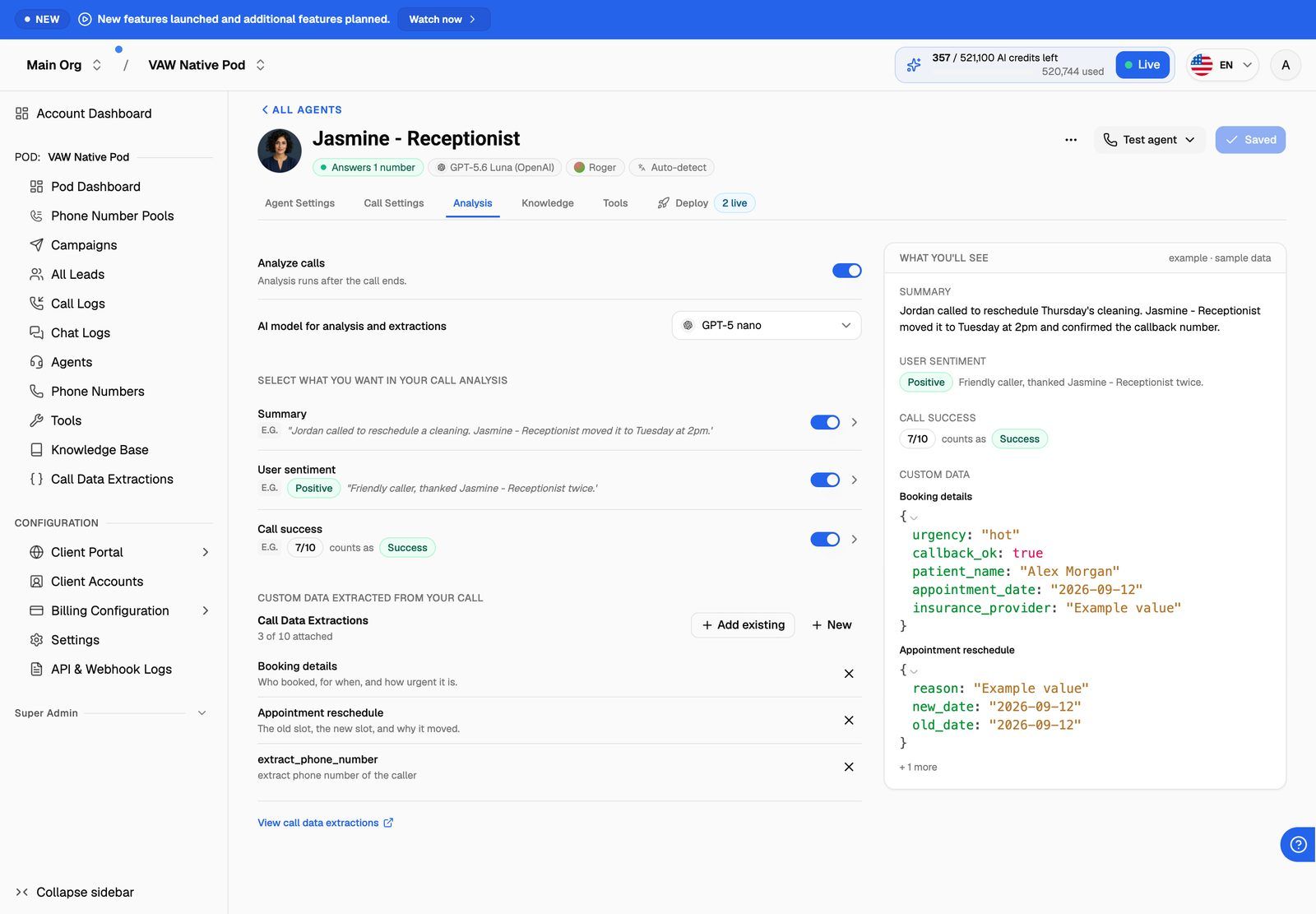
Where extracted data appears
On each call. Open a call in Call Logs and select the Analysis tab. Under Custom data, each extraction shows its status (Pending, Running, Completed, Skipped or Failed), the model that ran it, the extracted values, and a short reason for each field. A skipped extraction says which condition wasn't met.
In your agent's webhook. When post-call work finishes, the call.analyzed event includes every extraction's values, grouped by extraction name, plus each one's status. Use this to send the data to a CRM, a spreadsheet or an automation tool. See VAW Native Agent Webhooks: Events and Delivery.
Edit, detach or delete an extraction
- Edit: open it from Call Data Extractions, change it and click Save. Calls that end afterwards use the new version. Earlier results stay as they were.
- Detach: remove the agent under Runs for and click Save, or click Detach extraction in the agent's card and then Apply. Past results are kept.
- Delete: in the Call Data Extractions list, click the bin icon (Delete extraction) on the row, then click Delete.
Deleting an extraction also deletes its results on every past call, and this can't be undone. To stop it running but keep the history, detach it from your agents instead.
Frequently asked questions
A field came back empty even though the caller mentioned it.
A field came back empty even though the caller mentioned it.
Make the field's Description more specific, for example "The date the caller agreed to, as spoken" rather than "Date". Then use Preview on the latest call (under Test & backfill) to check the result before waiting for new calls. A field also stays empty when the call never mentioned it, even if it's marked Required.
I can't create another extraction.
I can't create another extraction.
A Pod can hold 50 extractions. When it's full, New extraction is disabled and the page says so. Delete one you no longer need.
I can't attach another extraction to an agent.
I can't attach another extraction to an agent.
An agent can have 10 extractions. Detach one from the agent first, or combine two related extractions into one with more fields.
Related articles
Was this helpful?
Still need help? Share an idea