Add Your Own Support Widget
Show your own Intercom, Zendesk, Crisp or similar chat widget inside the client portal, so clients reach your support team.
Written By voiceaiwrapper
Last updated 26 days ago
Give your clients a way to reach your support team without leaving the portal. You paste the embed code from the chat or help-desk tool you already use, such as Intercom, Zendesk or Crisp, and the widget appears inside the client portal. Clients talk to your team, under your brand.
It takes a couple of minutes once you have the embed code.
Available on: plans that include Support widget in client portal. Without it, clicking Support Widget opens an upgrade prompt.
Before you start
- An account with a support widget provider, such as Intercom, Zendesk or Crisp.
- The widget's embed code. Your provider shows it in its installation or "install on your site" settings. It's usually a
<script>snippet, sometimes an<iframe>.
You don't need a custom domain for this. The widget shows in the portal whether or not you've connected one.
Set the widget's look, position, welcome message and office hours in your provider's settings. VoiceAIWrapper loads the widget exactly as your provider delivers it.
Add the widget
- In the sidebar, open Client Portal → Portal Configuration.
- Open the Client Support tab. With no widget yet, you'll see No Support Widget Configured.
- Click Support Widget.
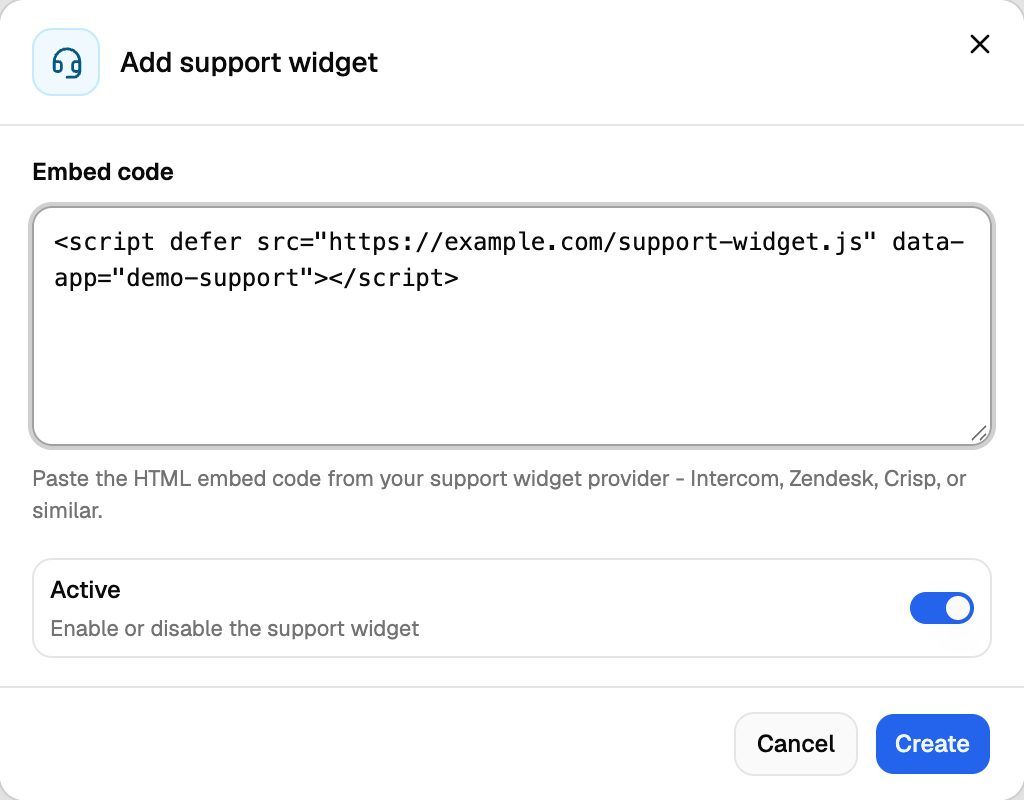
- In Embed code, paste the full code from your provider.
- Leave Active on to show the widget right away, or turn it off to save it hidden for now.
- Click Create. You'll see "Support widget created successfully".
You can have one support widget for your organization.
Where the widget appears
- On every page of the portal once a client has logged in, for every client account and workspace.
- Not on the login page. It loads after the client signs in.
- Not in your own webapp. It's only added to the client portal.
The portal doesn't pass the client's name or email to the widget. Clients identify themselves in the widget the same way visitors would on any site.
Some providers only load their widget on domains you've approved. If the widget doesn't appear, add your portal domain (for example portal.yourbrand.com) to the allowed domains in your provider's settings.
Show, hide, edit or delete the widget
After you save, the Client Support tab shows a Support widget card with an Active or Inactive badge and your embed code.
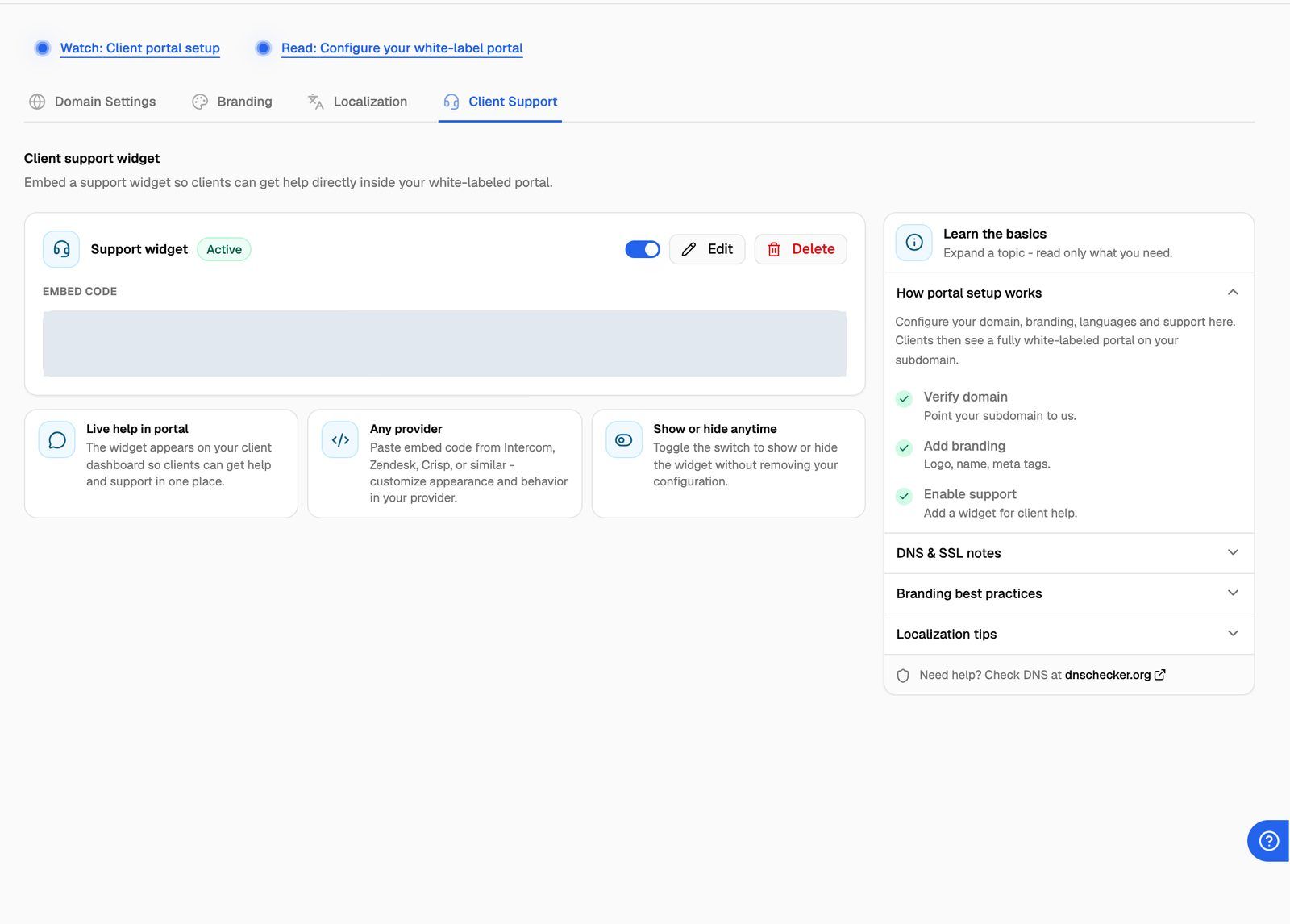
- Hide or show it: use the switch on the card. The widget disappears from the portal but your embed code is kept, so you can turn it back on later.
- Change the code: click Edit, update Embed code, then click Update.
- Remove it: click Delete, then click Delete again in the Delete Support Widget dialog.
Deleting the support widget removes it from the portal and deletes your saved embed code. This can't be undone. To hide it for a while, turn it off with the switch instead.
Troubleshooting
The widget doesn't appear in the portal.
The widget doesn't appear in the portal.
Check that:
- The card shows the Active badge.
- Your plan includes Support widget in client portal.
- You're looking at the portal after logging in, not the login page.
- You pasted the full embed code, including the opening and closing
<script>tags. - Your provider allows your portal domain (see the tip above).
Then reload the portal. Log in as a client to check: see Log In as a Client to Preview Their Portal.
I see "You've discovered a premium feature! Upgrade your plan to access this and other advanced features."
I see "You've discovered a premium feature! Upgrade your plan to access this and other advanced features."
Can I show a different widget to different clients?
Can I show a different widget to different clients?
No. One widget applies to the whole portal. To give some clients a separate help page or link, add a custom page instead. See Add Custom Pages and Links to the Portal.
Related articles
Was this helpful?
Still need help? Share an idea