Choose the Agent's Language
Set the language your VAW Native agent listens for: auto-detect for mixed callers, or a fixed language for accuracy and boosted words.
Written By voiceaiwrapper
Last updated 26 days ago
The Language setting tells your agent which language callers will speak, so it can understand them accurately. You can let the agent detect the language on each call, or fix it to one language. This article explains which to choose and how the choice affects your voice, your voice model and your boosted words.
Applies to: agents on a VAW Native Pod (an engine or provider connection). For Vapi, Retell AI and ElevenLabs agents, language is set in the provider's own account. See How Provider Agents Appear in VoiceAIWrapper.
Before you start
- An agent on a VAW Native Pod. See Create an Agent from Scratch.
- Know who will call. Are your callers all one language, or a mix?
How the language setting works
The language setting controls how the agent hears callers: it turns their speech into text. It doesn't make the agent reply in that language. The agent speaks the language of your greeting and prompt, so write those in the language you want, or tell the agent in the prompt which language to use. See Write the Prompt and Greeting.
Agents you create from scratch start on Auto-detect. The AI Agent Builder sets the language from your answers.
Auto-detect or a fixed language?
Choose a fixed language when:
- Your callers speak a language Auto-detect doesn't cover, such as Arabic, Chinese, Korean, Polish or Turkish. Auto-detect won't understand them.
- You use boosted words. Boosted words help the agent recognise names and terms like product names. They only work with a fixed language. See Fine-Tune Conversation Behaviour.
- You want a specific regional variant, such as English (UK) or Portuguese (Brazil).
- You want the English-only voice model. Flash v2 can only be used when the language is set to English. See Choose a Voice for Your Agent.
Languages you can choose
Besides Auto-detect, the list offers:
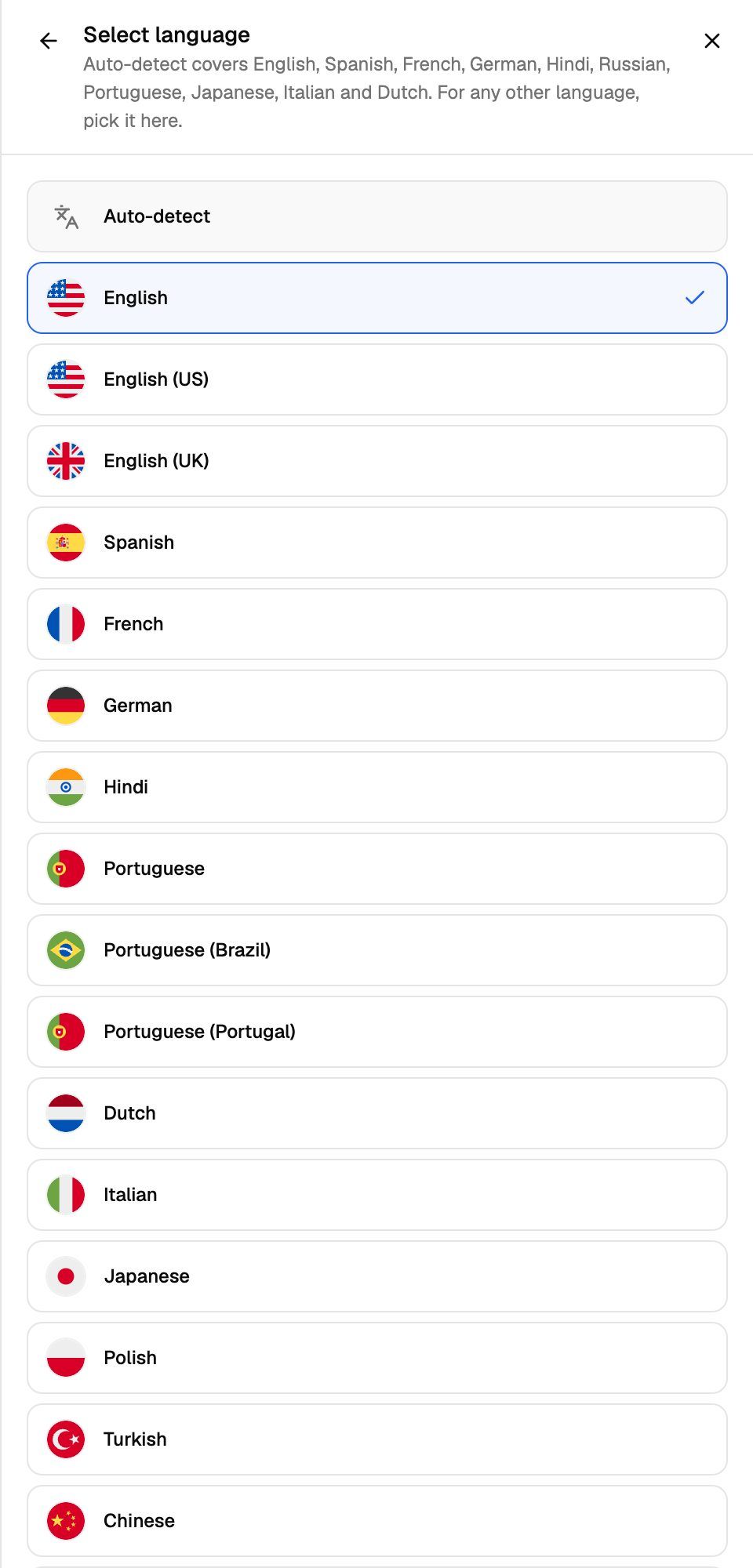
- English, English (US), English (UK), Spanish, French, German, Hindi, Portuguese, Portuguese (Brazil), Portuguese (Portugal), Dutch, Italian, Japanese, Polish, Turkish, Chinese, Korean, Russian, Indonesian, Danish and Hungarian.
- Arabic, Bulgarian, Croatian, Czech, Filipino, Finnish, Greek, Malay, Norwegian, Romanian, Slovak, Swedish, Ukrainian and Vietnamese.
- Afrikaans, Armenian, Belarusian, Bosnian, Cantonese, Catalan, Estonian, Georgian, Hebrew, Kazakh, Latvian, Lithuanian, Macedonian, Mongolian, Nepali, Pashto, Persian, Serbian, Slovenian and Thai. Only the Eleven v4 Turbo, Eleven v3 Conversational and Eleven v3 voice models can speak these. See "The voice model must speak the language" below.
Change the language
- In the sidebar, open Agents and click your agent.
- On the Agent Settings tab, click the Language row. The Language sheet shows your Current language.
- Click the current language to open Select language.
- Click the language you want. The sheet returns to its main view.
- Click Save changes in the sheet's footer or on the Unsaved changes bar.
Test a call in the new language before you send real callers to the agent. See Test Your Agent: Web Calls, Phone Calls and Chat.
Match the voice to the language
Every voice can speak every language, but a voice made for your language sounds the most natural. Once you fix a language:
- The voice library opens on the voices made for that language. If none is made for it yet, the library says so and shows every voice.
- If your current voice isn't made for it, the Voice sheet warns: "{name} isn't made for {language}, so callers may hear a slight accent." Click See {language} voices to pick a better match.
For agents on Auto-detect, choose a voice that is made for several languages. The Language sheet notes: "Multilingual voices work with any language. Voices marked for specific languages sound best in those." See Choose a Voice for Your Agent.
The voice model must speak the language
The voice model is what turns the agent's replies into speech, and not every model speaks every language. For example, Flash v2.5 (the default) doesn't speak Thai or Hebrew, and Flash v2 only speaks English.
- If you never picked a voice model, you don't need to do anything. The agent automatically uses a model that speaks the new language.
- If you picked a model that can't speak the new language, the Language and Voice sheets show an amber note, for example "Flash v2.5: Doesn't speak Thai, your agent's language." Click Use {model} in the note to switch to one that can, then save. You can't save the language change until you do.
Frequently asked questions
I set the language to Spanish, but the agent still answers in English.
I set the language to Spanish, but the agent still answers in English.
The language setting only controls how the agent understands callers. Write the greeting and prompt in Spanish, or add an instruction such as "Always reply in Spanish" to the prompt. Then save and test again.
My callers speak a language that isn't in the list.
My callers speak a language that isn't in the list.
The agent can only understand the languages in the list. If you choose Auto-detect for a language outside its ten, the agent won't understand those callers reliably.
I can't save after changing the language.
I can't save after changing the language.
Your saved voice model probably doesn't speak the new language. Open the Language or Voice sheet, click Use {model} in the amber note, and save again.
My boosted words don't seem to work.
My boosted words don't seem to work.
Check the Language row on the Agent Settings tab. If it says Auto-detect, boosted words are ignored. Pick a fixed language and save.
Can one agent handle English and Spanish callers?
Can one agent handle English and Spanish callers?
Yes. Leave the language on Auto-detect, pick a voice made for both languages, and tell the agent in the prompt to reply in the caller's language. Boosted words won't apply in this setup.
Related articles
Was this helpful?
Still need help? Share an idea