Voice and Chat Settings
Control how widget calls and chats behave: animation style, live transcript, typing during a call, microphone messages, chat timeout and every text visitors see.
Written By voiceaiwrapper
Last updated 26 days ago
Once your widget looks right, set how its calls and chats behave. This article covers the voice settings (animation, live transcript, typing during a call, microphone messages), the chat settings (inactivity timeout) and every piece of text visitors see during a conversation.
All of these are in the widget builder. Settings for a mode only appear when that mode is on, so pick the Interaction mode on the Configuration tab first.
Before you start
- A widget to edit. See Add a Widget to a VAW Native Agent or Create an Inbound Widget Campaign.
- The agent's greeting set up. The widget has no first-message setting of its own (see below).
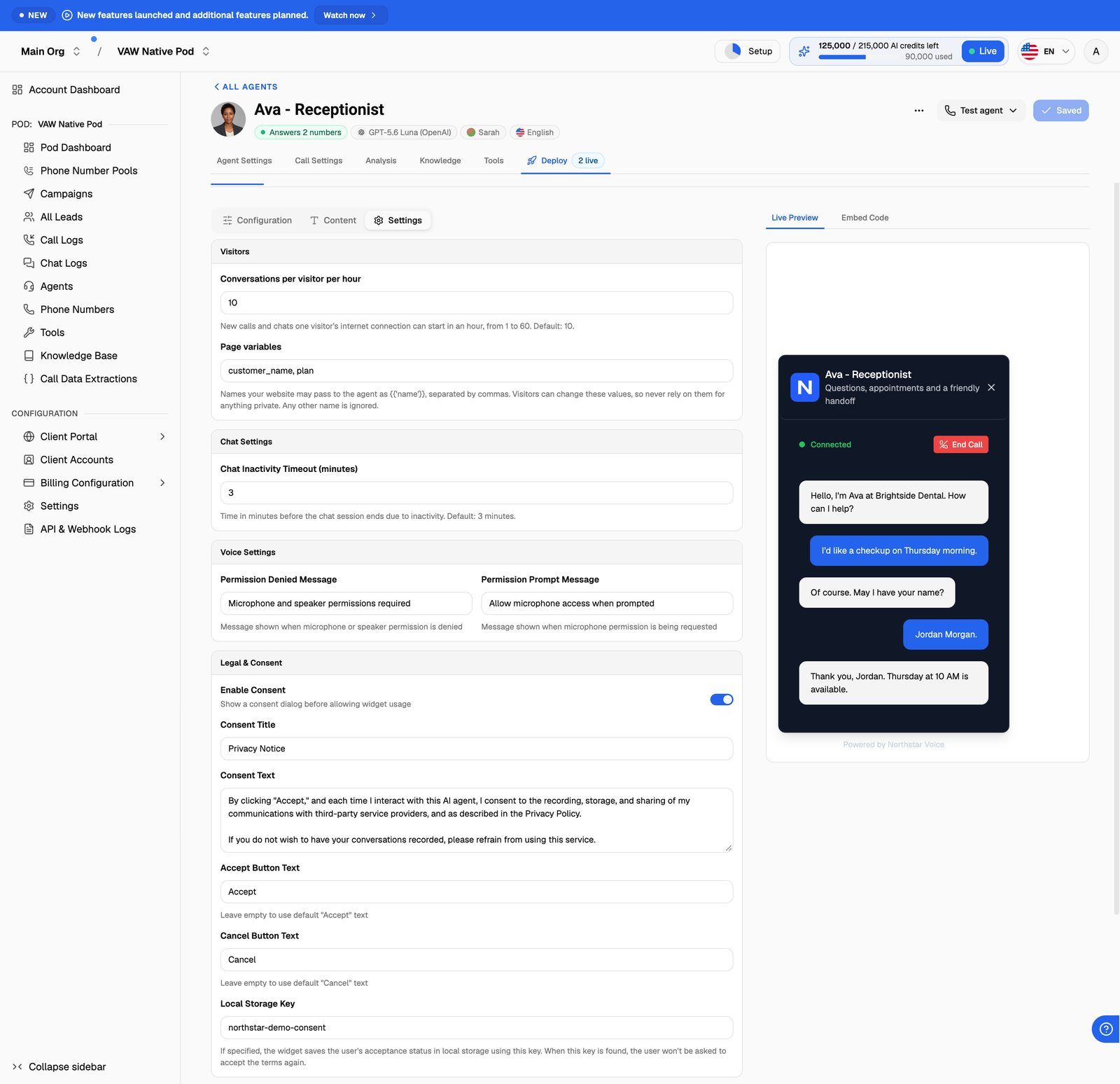
Where each setting lives
The agent's first message
There's no first-message field in the widget. Who speaks first, and what the agent says, come from the agent's own greeting settings:
- VAW Native: set it on the agent's Agent Settings tab, under How do you want your agent to greet callers?, where you also choose Agent speaks first or Caller speaks first. See Write the Prompt and Greeting.
- Vapi, Retell AI, ElevenLabs: set it on the agent. See Edit Prompts and Greetings for Provider Agents.
Voice settings
Voice Animation Style
The animation visitors see while the agent talks. Choose Default, Glob or Siri. It's in the Theme section of the Configuration tab.
Interface (VAW Native and ElevenLabs)
When Realtime transcript of the call and Send text while on call are both on, the animation is hidden to make room for the transcript and text box. A new VAW Native agent widget starts with both turned on.
Voice Settings (Settings tab)
Before a call, the widget checks the visitor's microphone. You can change the two messages it shows:
Chat settings
Chat Inactivity Timeout (minutes)
How long a chat can sit with no messages before it ends. Enter a whole number from 1 to 60. The default is 3 minutes.
On VAW Native, a widget chat also ends 12 hours after it started, whatever the timeout. See Visitor Limits and Page Variables for the other chat limits.
Texts visitors see
All of these are on the Content tab. Leave a field as it is to keep the default.
Chat (chat on)
Mode Selection (Voice + Chat only)
Mode Selection Text is the question shown when visitors choose between voice and chat. The default is "How would you like to interact?".
Voice (voice on)
Writing the widget for a non-English site? Translate every text here as well as the title and subtitle, and make sure the agent's greeting and language match.
Save and test
- Click Update Widget Configuration. You'll see Widget updated successfully.
- Start a call and a chat in Live Preview to check the texts and behaviour. Preview conversations are real, so they use AI credits on VAW Native.
Frequently asked questions
I don't see the Interface section.
I don't see the Interface section.
It appears only when voice is on and the widget runs on VAW Native or ElevenLabs. Vapi and Retell AI widgets don't offer a live transcript or typing during a call.
I don't see Chat Settings or the chat texts.
I don't see Chat Settings or the chat texts.
Chat is off. Set Interaction mode to Chat or Voice + Chat on the Configuration tab.
Visitors' chats end too quickly.
Visitors' chats end too quickly.
Raise Chat Inactivity Timeout (minutes) on the Settings tab, up to 60, then save.
Related articles
Was this helpful?
Still need help? Share an idea