Bulk Actions on Leads
Select leads in a campaign and mark them answered or unanswered, do not call, callable again, valid, or delete them in one step.
Written By voiceaiwrapper
Last updated 26 days ago
Bulk actions let you change many leads in a campaign at once instead of one row at a time. Use them to stop calling a group of leads, put leads back in the calling queue, retry leads that failed with an error, or clean out leads you no longer need.
Before you start
- You need a campaign with leads in it. See Add Leads Manually or Import Leads from a CSV File.
- To use Mark Valid, the campaign can't be active. Pause it first. See Campaign Statuses and the Campaign Switch.
Run a bulk action
- Open your Pod (an engine or provider connection), select Campaigns, and click the campaign.
- Open the Leads tab.
- Narrow the list if you need to. Pick a status tab (for example Invalid or Do not call), type in the search box, or add a filter.
- Tick the checkbox at the start of each lead you want to change. To select every lead on the current page, tick the checkbox in the table header.
- Click Bulk Actions (n) at the right end of the status tabs row. The number shows how many leads you've selected. The button only appears once at least one lead is ticked.
- Choose an action. Most actions ask you to confirm first.
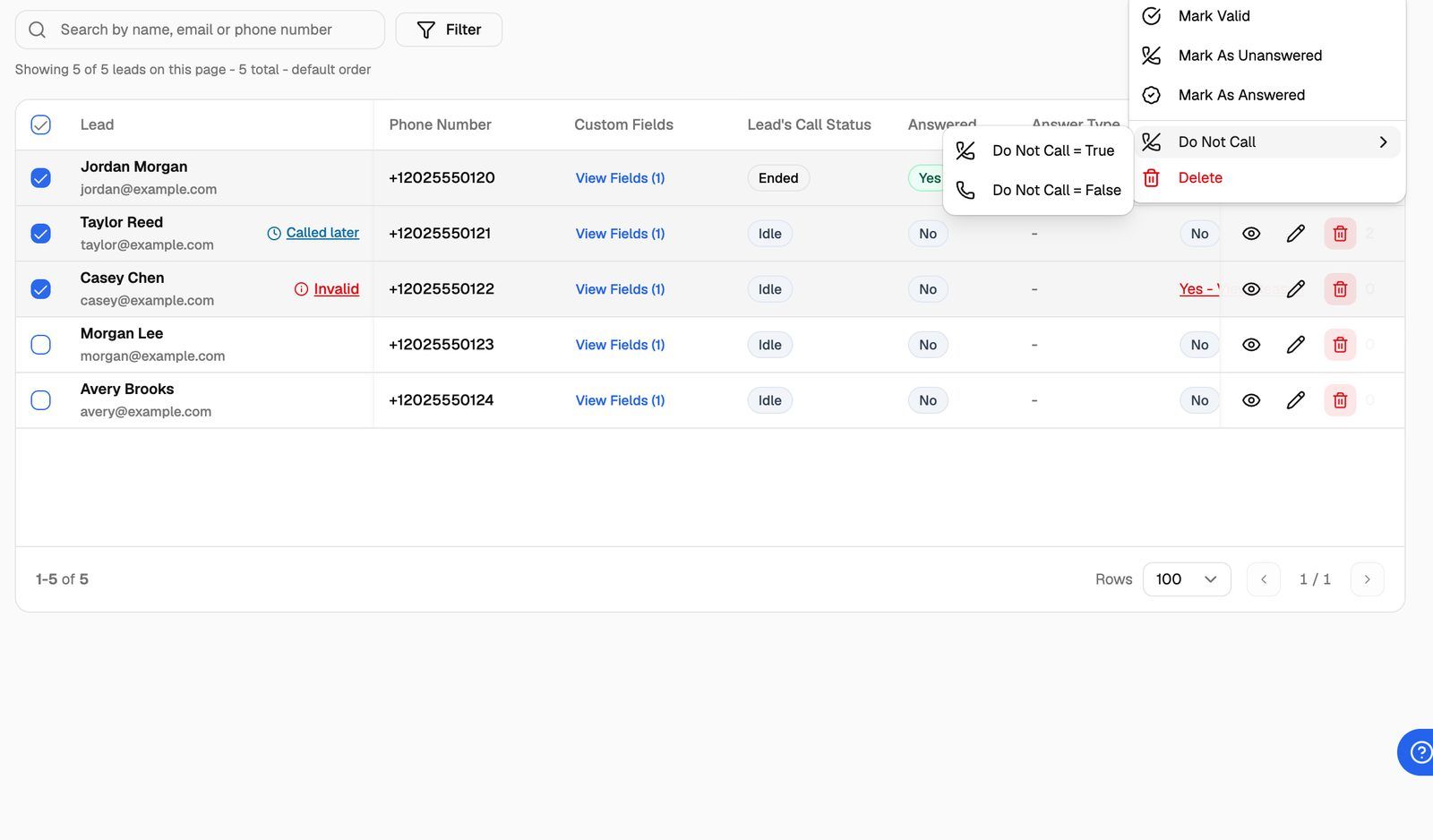
A message confirms how many leads were changed, and the table refreshes. Your selection is cleared after each action. It's also cleared when you switch status tab or change the search or filters.
What each action does
A few details that matter:
- Mark Valid and Mark As Unanswered don't reset attempts. A lead that has already used every attempt the campaign allows stays under Max attempts and won't be called again. See Lead Statuses Explained.
- Mark Valid also sends your Leads event webhook, if you've set one up, with the leads that were marked valid. See Leads Event Webhook.
- Do Not Call = True keeps an existing reason. If a lead is already do-not-call (for example because the lead asked not to be called), it keeps that original reason. Leads you mark yourself show Turned on by a user. See Do-Not-Call: Sources and Reasons.
Delete can't be undone. It permanently removes the selected leads from the campaign, along with all their call logs and schedules. If you might need the data later, export the leads first.
Change a single lead
You don't need bulk actions for one lead. Each row in the Leads tab has its own controls:
- The Do not call switch turns do-not-call on or off for that lead (outbound campaigns).
- The eye icon (View calls) opens the campaign's calls for that lead.
- The pencil icon (Edit Lead) opens the lead's details.
- The red bin icon deletes the lead after you confirm.
Frequently asked questions
I see "Campaign Must Be Paused" when I choose Mark Valid.
I see "Campaign Must Be Paused" when I choose Mark Valid.
Mark Valid only works while the campaign isn't active. Pause the campaign, run Mark Valid, then resume the campaign.
I don't see the Bulk Actions button.
I don't see the Bulk Actions button.
The button only appears after you tick at least one lead. Tick a row's checkbox and it shows up at the right end of the status tabs row, after Export leads (and Add leads on outbound campaigns).
Can I select more than one page of leads at once?
Can I select more than one page of leads at once?
The header checkbox selects the leads on the current page only. To work on a large group, narrow the list first with a status tab, the search box or filters, then select and run the action page by page.
I marked a lead valid but it still isn't being called.
I marked a lead valid but it still isn't being called.
Check the lead's other fields. A lead is only called when it's not answered, not invalid, not do-not-call, and still has attempts left. If Attempts has reached the campaign's limit, the lead stays under Max attempts. Also check that the campaign is running again after you paused it.
Can my clients use bulk actions in their portal?
Can my clients use bulk actions in their portal?
Yes, on campaigns you've assigned to them. The Bulk Actions button stays greyed out unless the client user is allowed to edit leads, and Delete only appears for client users who are allowed to delete leads. See Set Client Permissions on Vapi, Retell and ElevenLabs Workspaces or Set Client Permissions on VAW Native Workspaces.
Related articles
Was this helpful?
Still need help? Share an idea