Create a Workspace and Assign Assets
Add a workspace to a client account, connect it to a Pod, and choose which agents, numbers, campaigns and other assets the client gets.
Written By voiceaiwrapper
Last updated 26 days ago
A workspace is what your client actually sees when they log in: one Pod, and only the agents, numbers, campaigns and other assets you choose from it. This article walks you through the Add Workspace wizard and explains the rules for assigning assets. Setting one up takes a few minutes.
Before you start
You'll need:
- A client account. See Add a Client Account.
- A connected Pod with the agents, phone numbers and campaigns you want to give this client already in it.
- For Vapi, Retell AI and ElevenLabs Pods: webhooks synced on the agents and numbers you'll assign, so VoiceAIWrapper can track their calls. You can also sync them from inside the wizard. See Sync Webhooks So VoiceAIWrapper Can Track Calls.
The wizard has four steps: General Settings, Asset Assignment, Access Control and Review.
Step 1: Name the workspace and choose its Pod
- Open Client Accounts and click the client.
- Open the Workspaces tab and click Add Workspace.
- In Workspace Name, type a name. Your client sees it as their workspace name, and uses it to switch between workspaces if they have more than one.
- In VoiceAI Pod, choose the Pod. Each Pod is listed by its name with the engine in brackets, for example "Main (VAW Native)".
- Click Next.
Keep in mind:
- The Pod can't be changed after you save. You can rename the workspace later, but to use a different Pod you need a new workspace.
- A client can have one workspace per Pod. Pods this client already has a workspace on don't appear in the list.
- Workspace names must be unique within the client account.
Step 2: Assign assets
Asset Assignment lists everything in the Pod that you can give to this client. Pick items from each section. Your client sees only what you pick here.
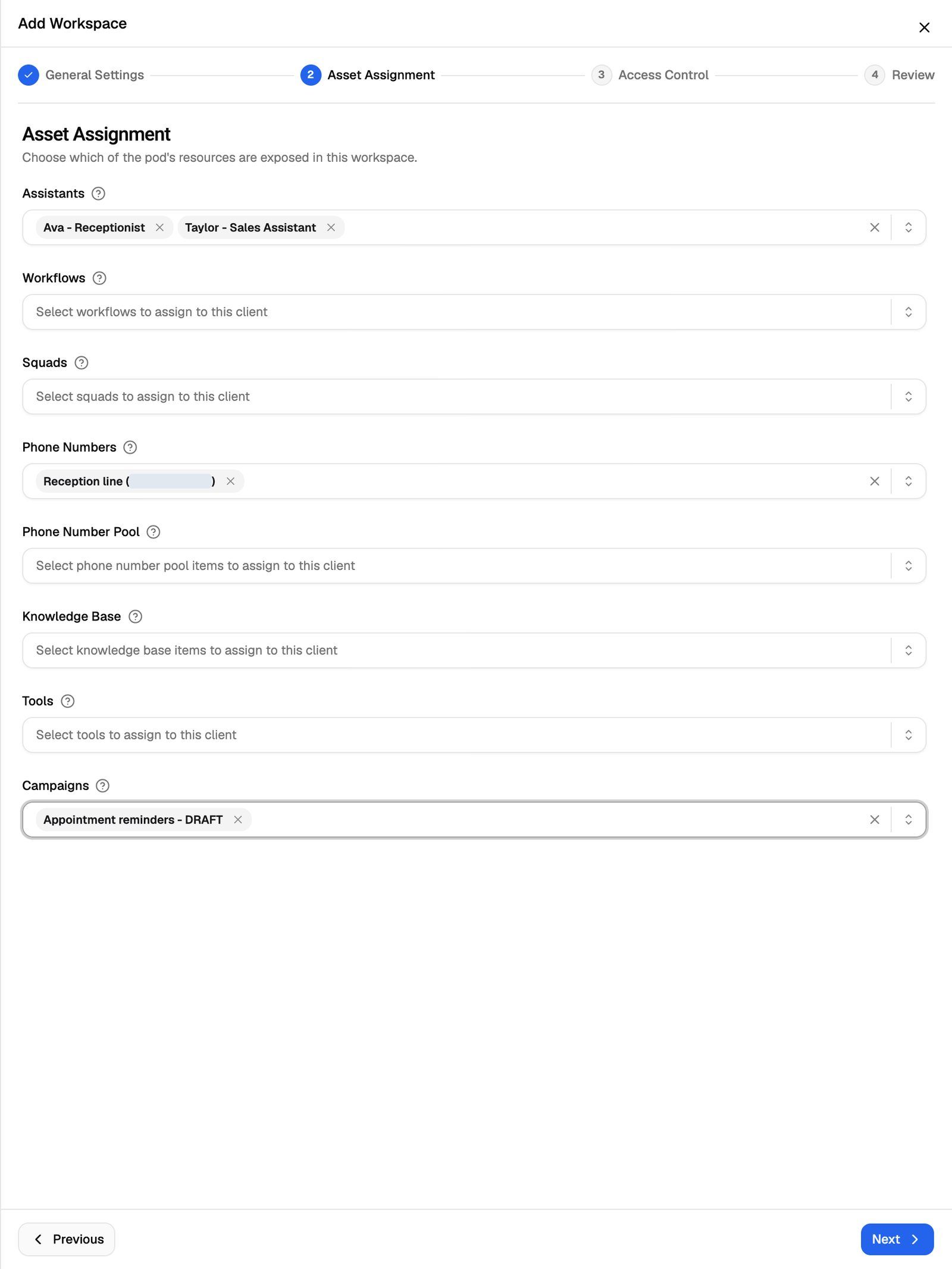
The sections you see depend on the Pod's engine:
Hover over the ? next to a section name for a short description.
Assign at least one campaign and one agent. Until a workspace has both, the client's Overview marks it Empty, and the client sees no calls or data in it.
When you're done, click Next.
Vapi, Retell AI and ElevenLabs: sync webhooks first
VoiceAIWrapper tracks calls through a webhook on each agent and number in your provider account. If a selected item isn't pointing at VoiceAIWrapper, a Webhook Sync Required box appears under its section, for example "1 assistant needs to be synced with our webhook URL before proceeding."
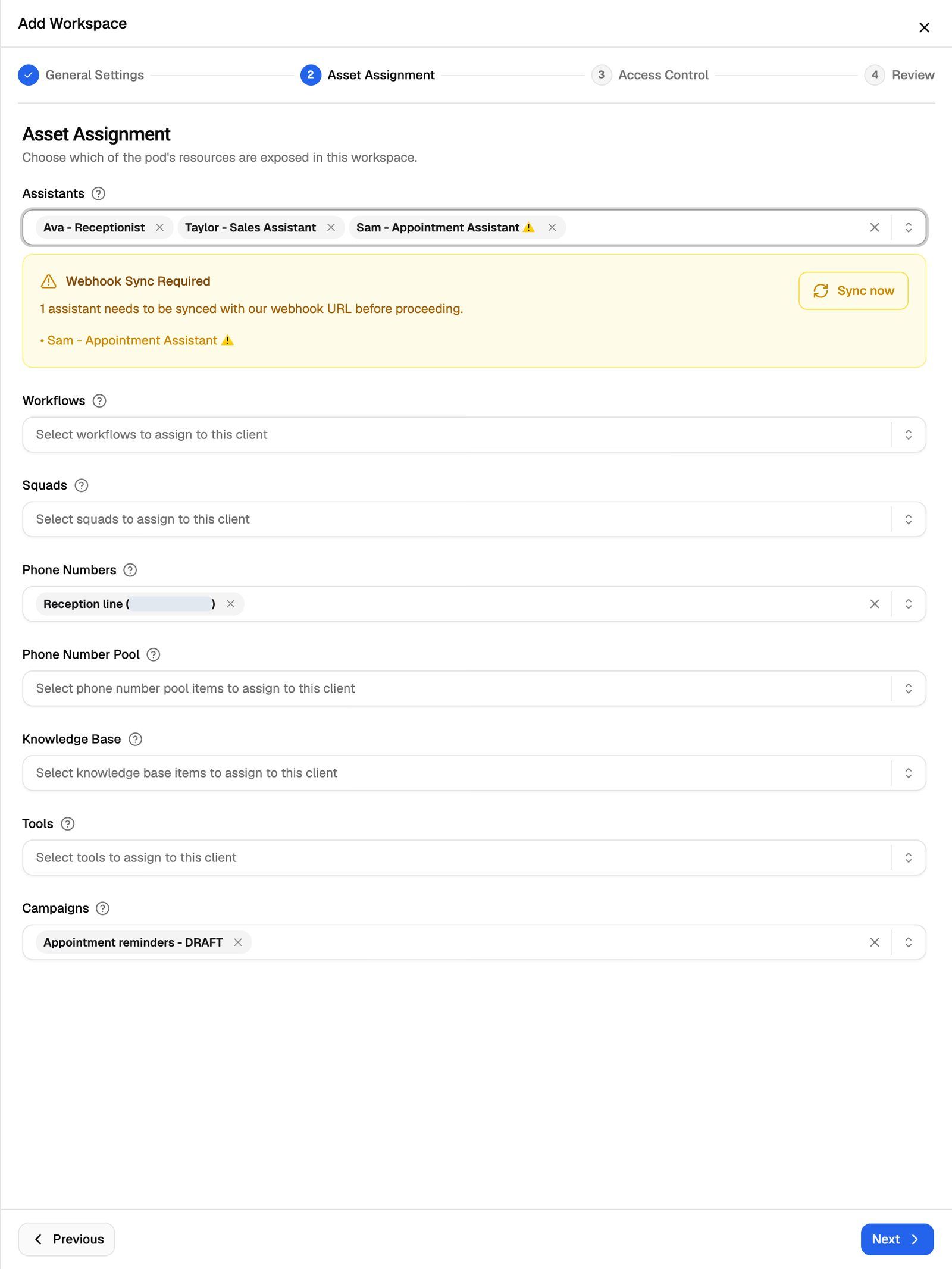
Click Sync now in the box. This updates the agent or number in your provider account so its calls are sent to VoiceAIWrapper. Then click Next.
You can't move past this step while a selected item is unsynced. Clicking Next shows an error such as "Some selected assistants/agents have invalid webhook URLs. Please sync them first." The same applies to phone numbers, Vapi squads (every assistant in the squad must be synced) and Vapi workflows.
On Vapi and Retell AI, the box for phone numbers says they need to be synced "and have default destination removed". Sync now does both in your provider account: it points the number at VoiceAIWrapper and removes the agent (or squad or workflow) the number was set to ring.
Syncing a Vapi or Retell AI number changes how it answers straight away. Incoming calls then go to the agent of the active inbound campaign that uses the number. If no inbound campaign uses it yet, set one up before you rely on the number. See Run an Inbound Phone Campaign.
VAW Native: ownership rules and limits
VAW Native Pods don't need webhook syncing. Two other rules apply instead:
- An agent belongs to one client. If you pick an agent that's already in another client's workspace, saving fails with "Agent name already belongs to Client name. Remove it there first, then add it here." An agent can be in several workspaces of the same client.
- A tool a client created stays theirs. Assigning it to another client's workspace fails with a message that the tool "belongs to another client and can only be assigned to their workspaces".
VAW Native workspaces also have limits, such as Maximum agents and Maximum phone numbers. They start at 1. If you select more than the limit, a warning appears under the section: "n selected but this workspace is limited to limit. Remove excess, or raise the limit on the Access Control step before saving." Raise the limit in the next step. The Maximum tools box only appears once Tools is at View & Edit with Create tools on. See Set Client Permissions on VAW Native Workspaces.
Step 3: Set access control
Access Control decides what the client can see and change in this workspace. The options depend on the engine:
- Vapi, Retell AI and ElevenLabs: see Set Client Permissions on Vapi, Retell and ElevenLabs Workspaces.
- VAW Native: see Set Client Permissions on VAW Native Workspaces.
Every workspace starts with default settings, so you can click Next and adjust them later. Check them before your client logs in: on Vapi, Retell AI and ElevenLabs, for example, Show prompt to client starts on.
Step 4: Review and save
Review summarises the workspace in three parts: General (name and Pod), Assigned Assets and Client Access.
- Check each part. Click Previous to go back and change anything.
- Click Save Workspace.
You'll see "Client account configuration created successfully", and the workspace appears in the list.
Two messages can appear here:
- "This workspace assigns more than its limits allow, so it cannot be saved yet." (VAW Native.) Save Workspace stays greyed out, and the summary lists each limit you're over. Remove assets or raise the limits, then save.
- "Every feature is hidden from the client. They will see a default empty-state message." This is a warning, not a block. The client will see nothing useful until you give them access to something.
Change a workspace
On the Workspaces tab, each row shows Name, ID, Pod and Created At. Use Search workspaces or the Pod Type filter to find one.
To change a workspace:
- Click Update on its row.
- Choose General Settings, Assets or Access. The wizard opens at that step.
- Make your changes, step through to Review, and click Update Workspace.
When you save new asset choices, VoiceAIWrapper replaces the assets you assigned with your new selection. Items your client created themselves in a VAW Native workspace, such as their own knowledge bases or extractions, stay in place.
Delete a workspace
- On the Workspaces tab, click the trash icon on the workspace's row.
- Confirm with Delete.
Deleting a workspace removes it and its asset assignments from the client account. The client's users lose access to everything in it straight away. The agents, numbers and campaigns themselves stay in your Pod. This can't be undone.
Frequently asked questions
The Pod I want isn't in the VoiceAI Pod list.
The Pod I want isn't in the VoiceAI Pod list.
Either this client already has a workspace on that Pod (each client can have one per Pod), or the Pod isn't connected to your organization. To change what an existing workspace shows, use Update → Assets on it instead.
My client logs in and sees nothing.
My client logs in and sees nothing.
Check two things. First, the workspace needs at least one campaign and one agent: the client's Overview tab shows Empty next to workspaces that don't. Second, check Access Control: an area set to No Access doesn't appear in the portal. Log in as the client to see exactly what they see.
Can I assign a campaign from the campaign itself?
Can I assign a campaign from the campaign itself?
Yes. You can assign a campaign to a client and workspace from the campaign's page. See Assign a Campaign to a Client.
Sync now didn't clear the warning.
Sync now didn't clear the warning.
The sync updates the item in your provider account. If it fails, check that the Pod's API key is still valid, then try again. See Sync Webhooks So VoiceAIWrapper Can Track Calls.
Related articles
Was this helpful?
Still need help? Share an idea