How Knowledge Bases Work
What a knowledge base is, how VAW Native agents use it on calls and chats, the limits, what it costs, and the Pod switch that turns it on or off.
Written By voiceaiwrapper
Last updated 26 days ago
A knowledge base is a collection of your own material (files, web pages and pasted text) that your agents can answer from. When a caller asks something it covers, such as your prices, opening hours or refund policy, the agent answers from your documents instead of guessing.
This article explains how knowledge bases fit together, how agents use them, the limits, and what they cost. The rest of this collection walks through each step.
Applies to: VAW Native Pods. Vapi, Retell AI and ElevenLabs Pods show their own knowledge bases read-only. See Provider Knowledge Bases and Tools in VoiceAIWrapper.
Where knowledge bases live
Each knowledge base belongs to one Pod (an engine or provider connection). Any agent in that Pod can use it.
To see them, open your VAW Native Pod in the sidebar and click Knowledge Base. The Knowledge bases page lists every knowledge base in the Pod.
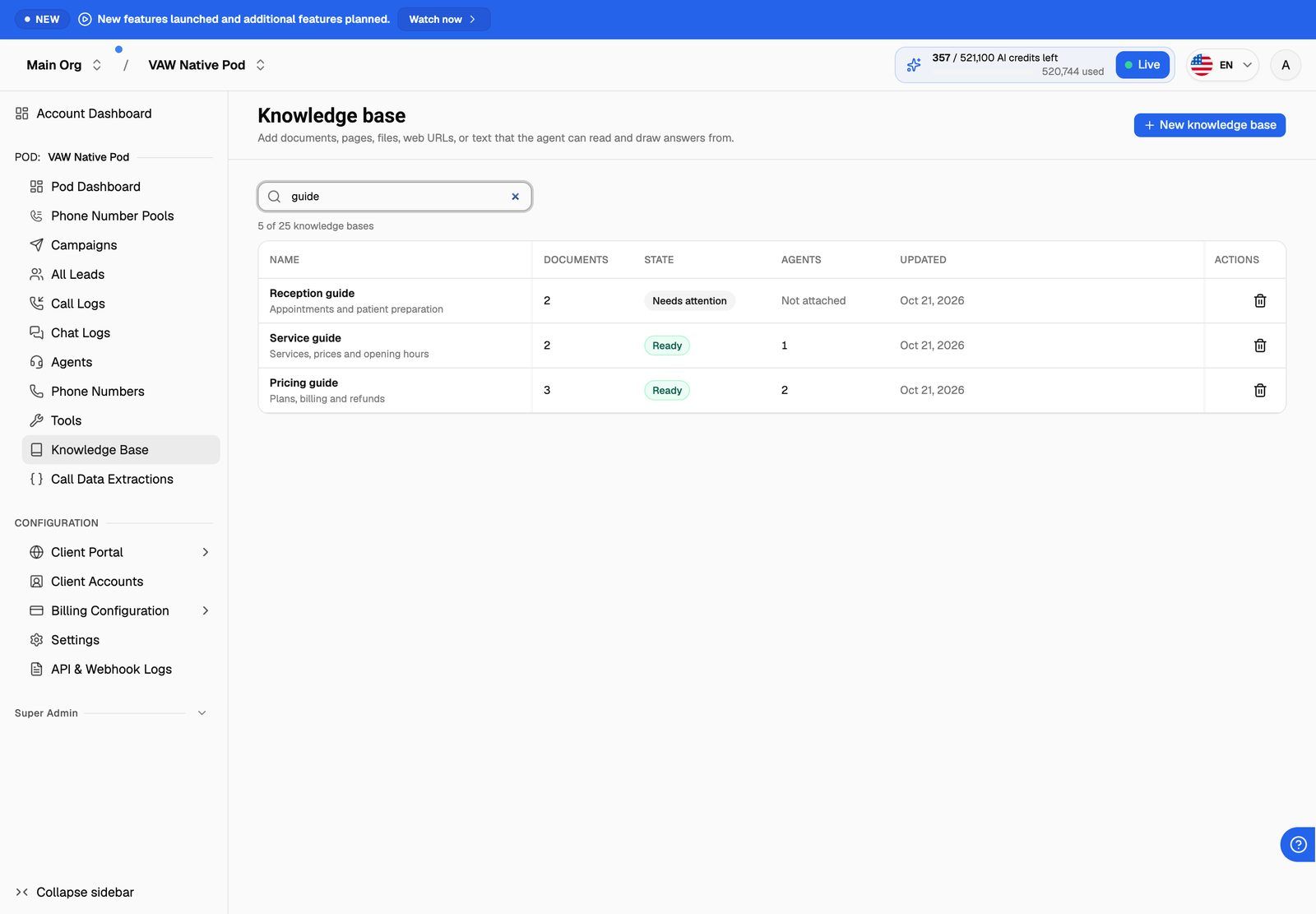
Click a row to open the knowledge base. It has four tabs: Documents, Test, Agents and Settings.
What the state means
To fix a document that needs attention, see Document Statuses, Syncing and Failed Documents.
What you can add
You add documents with Add to knowledge base on a knowledge base's page. There are three kinds:
- File: PDF, Word, text, Markdown, HTML or CSV, up to 25 MB. See Create a Knowledge Base and Upload Files.
- Web address: one page, or a page and every page underneath it. Web pages sync again every day. See Add Website Pages and Crawl a Site.
- Paste text: a title and up to 500,000 characters. It's the only kind you can edit later. See Add and Edit Pasted Text.
How agents use a knowledge base
A knowledge base does nothing until you attach it to an agent. You can attach up to 5 to each agent, from the agent's Knowledge tab or the knowledge base's Agents tab.
For each attached knowledge base, you choose how the agent uses it:
When a knowledge base is too large to hand over in full, agents set to Automatic look up the relevant parts instead. The knowledge base page tells you when this happens. For details, see Attach Knowledge to Agents and Choose an Answering Mode.
When the agent looks something up, two settings on the Settings tab decide what it gets back: Results per question and Match threshold. The defaults suit most knowledge bases.
Knowledge bases work the same way in chats (for example, chat on a web widget) as on calls.
Changes to a knowledge base apply to the next call as soon as they're saved. A chat that's already running keeps the knowledge it started with.
Limits
When a Pod has 25 knowledge bases, New knowledge base is turned off and you'll see "This Pod has reached the maximum of 25 knowledge bases. Delete one you no longer need before creating another."
What it costs
Knowledge bases use AI credits from your balance.
- Calls: 5 credits per minute of answered call time, billed per second. This applies whenever the agent has a knowledge base attached and the Pod's knowledge base switch is on, whether or not the agent looks anything up.
- Chats: 0.5 credits per agent reply, under the same rule.
A call that's never answered has no answered time, so there's no knowledge base charge. To see what each call cost, see Credit History and Per-Call Costs. For how credits work in general, see How AI Credits Work.
If an agent doesn't need reference material, detach its knowledge bases so you aren't charged for them.
Turn knowledge bases on or off for a Pod
Each VAW Native Pod has a Knowledge bases on calls switch in its settings. It's on by default.
To change it, open the Pod selector in the header and click the pencil icon (Edit) on your VAW Native Pod. In the Update VoiceAI Pod drawer, scroll down to Knowledge bases on calls, turn it on or off, and click Next to save.
While it's off, agents in the Pod answer from their prompt alone, even with knowledge bases attached, and the knowledge base charge doesn't apply. Despite the name, the switch covers chats as well as calls. Your knowledge bases and their attachments stay in place, so turning it back on restores everything.
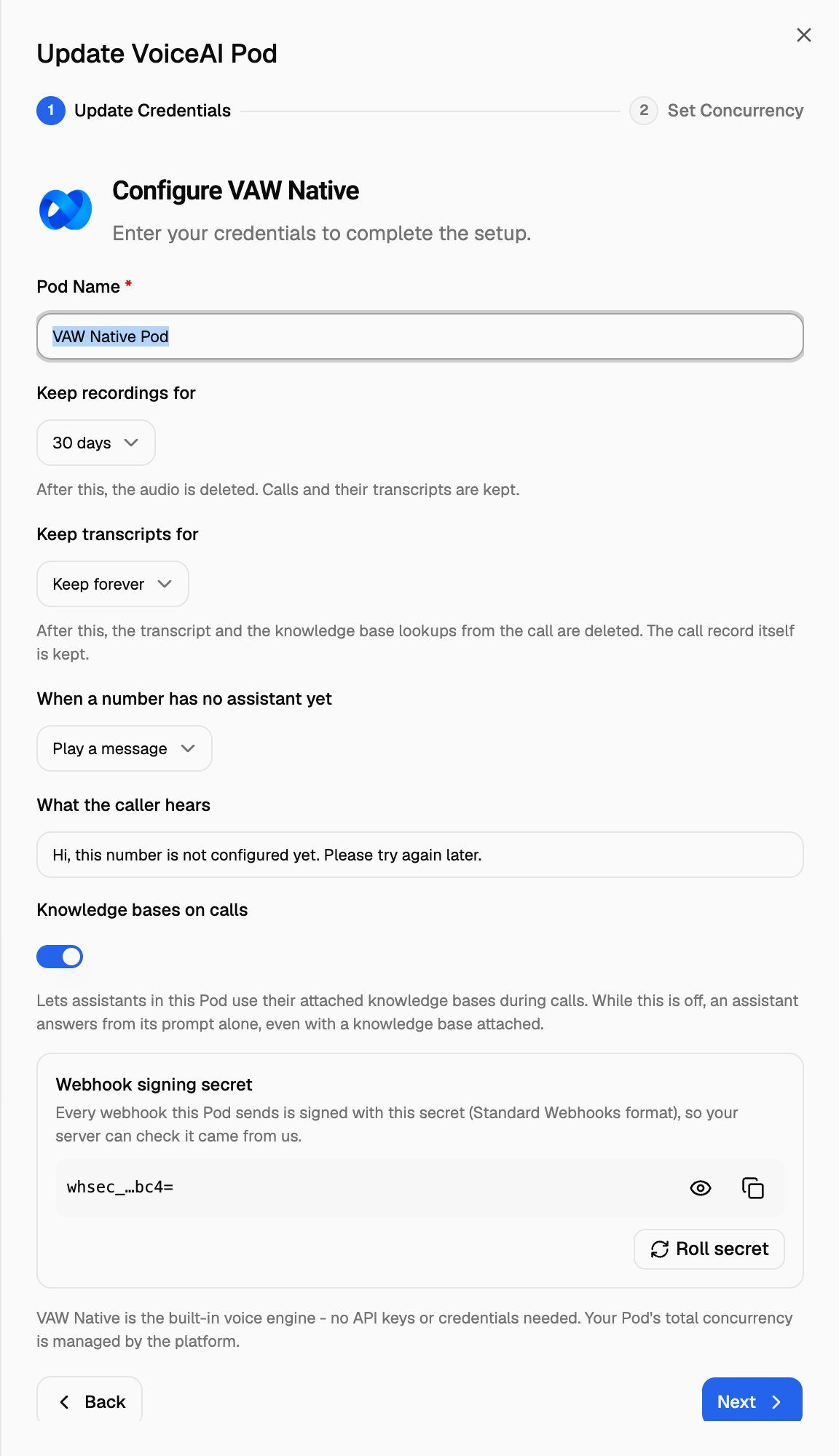
For more on the Pod drawer, see Manage Pods: Rename, Update Keys, Switch and Delete.
Delete a knowledge base
Open the knowledge base, go to the Settings tab and click Delete under Delete this knowledge base. You can also click the bin icon on its row in the list. Confirm with Delete.
Deleting a knowledge base removes its documents and everything built from them, including the original files you uploaded. It can't be undone. Agents that use it keep working, but they can no longer answer from it.
Frequently asked questions
Can I use one knowledge base with several agents?
Can I use one knowledge base with several agents?
Yes. A knowledge base belongs to the Pod, so any agent in that Pod can use it. Each agent can have up to 5.
I use Vapi, Retell AI or ElevenLabs. Can I build knowledge bases here?
I use Vapi, Retell AI or ElevenLabs. Can I build knowledge bases here?
No. On those Pods, the Knowledge Base page shows the knowledge bases from your provider account, read-only. Create and edit them in the provider's own dashboard. See Provider Knowledge Bases and Tools in VoiceAIWrapper.
How do I check what the agent will find before going live?
How do I check what the agent will find before going live?
Use the Test tab on the knowledge base. Ask a question the way a caller would and see which passages come back and how closely they match. See Test Your Knowledge Base.
Related articles
Was this helpful?
Still need help? Share an idea