Create a Knowledge Base and Upload Files
Create a knowledge base for a VAW Native Pod and upload PDF, Word, text, Markdown, HTML or CSV files for your agents to answer from.
Written By voiceaiwrapper
Last updated 26 days ago
Give your agents reference material by creating a knowledge base and uploading the documents you already have: price lists, product sheets, FAQs, handbooks and policies. Once a file is read, any agent you attach the knowledge base to can answer from it.
Applies to: VAW Native Pods. Vapi, Retell AI and ElevenLabs Pods show their own knowledge bases read-only. See Provider Knowledge Bases and Tools in VoiceAIWrapper.
Before you start
- A VAW Native Pod with fewer than 25 knowledge bases.
- Your files in a supported format (see the table in Step 2), each up to 25 MB.
- PDFs with real text in them. If you can't select the text in a PDF viewer, it's a scanned image and can't be read.
Step 1: Create the knowledge base
- Open your VAW Native Pod in the sidebar and click Knowledge Base.
- Click New knowledge base. If you don't have any yet, click Create a knowledge base in the middle of the page.
- Enter a Name that says what it covers, such as
PricingorSupport FAQ. - Optionally, fill in Description (optional). It's for your team only. Agents never see it.
- Click Create.

You'll see Knowledge base created, and the new knowledge base opens on its Documents tab.
Choose the name before you add documents. It's written into every passage the agent reads from this knowledge base, so a clear name like "Pricing" helps the agent find the right answers. You can rename it later on the Settings tab, but documents that were already read keep the old name until they're read again.
Step 2: Upload a file
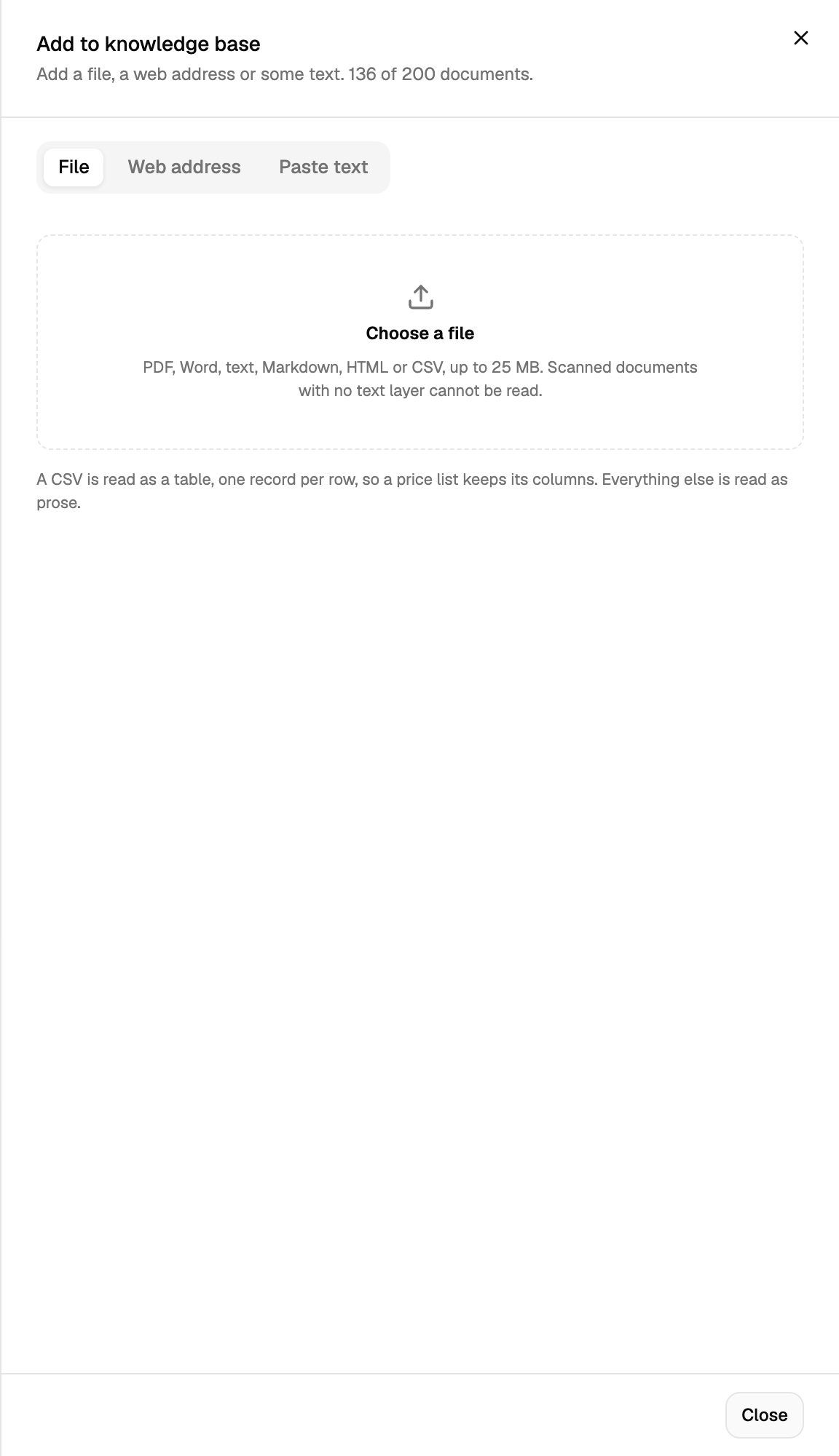
- Click Add to knowledge base (top right, or in the middle of an empty knowledge base).
- Make sure File is selected.
- Click Choose a file and pick a file from your computer.
The upload starts as soon as you pick the file, and the box shows Uploading.... When it's done you'll see File queued and the sheet closes. Repeat for each file you want to add.
Supported files
Each file can be up to 25 MB, and a knowledge base can hold up to 200 documents. The sheet shows how many you've used.
For price lists, product catalogues and anything else with rows and columns, upload a CSV. A table inside a PDF is read as plain text and loses its columns, which makes single-row questions ("How much is the BH74?") harder to answer.
Step 3: Wait for the file to be ready
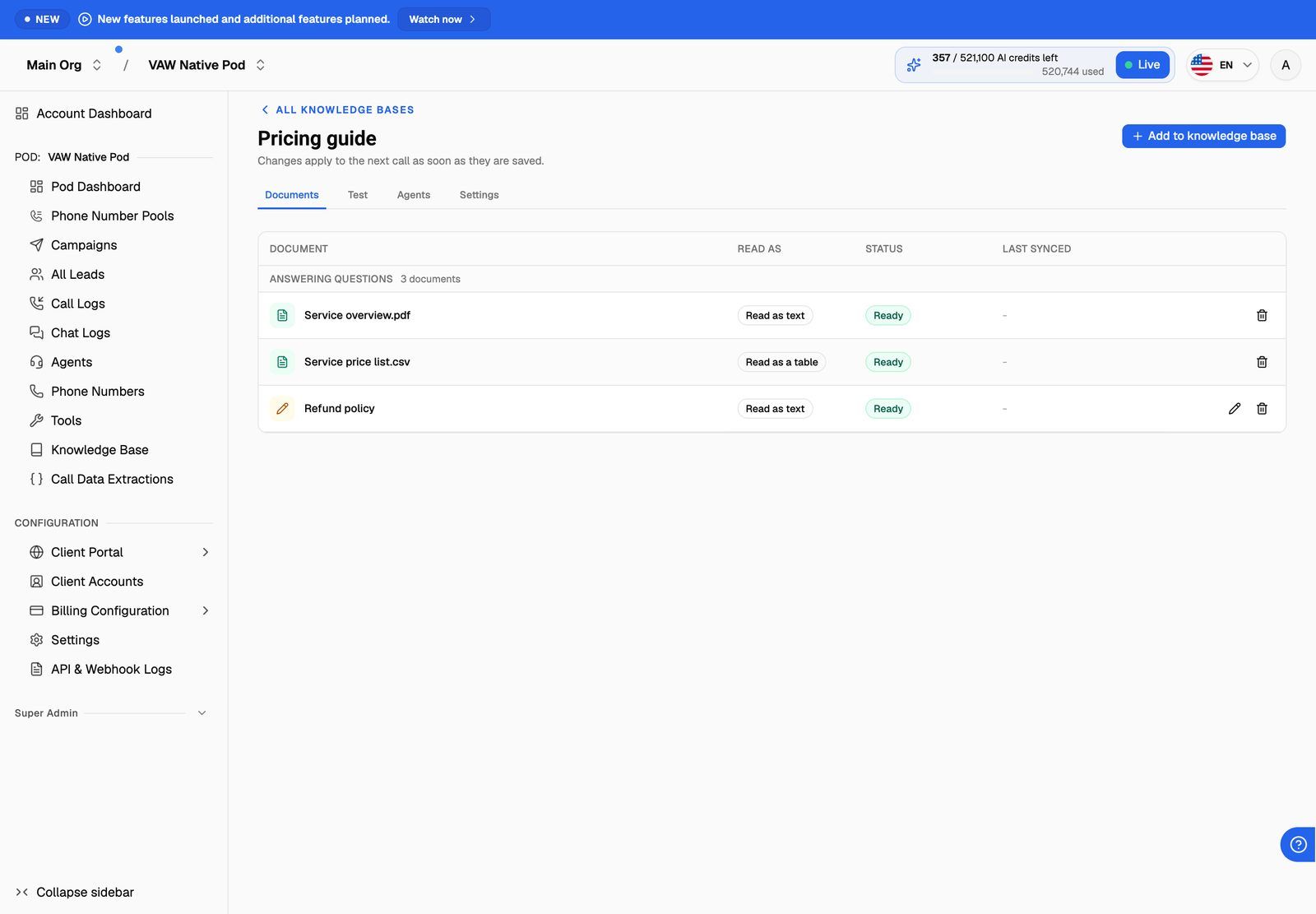
Each file goes from Waiting to Reading to Ready. The page updates by itself while files are being read, so you don't need to refresh.
The Documents tab groups files by what, if anything, you need to do:
- Needs your attention: something went wrong. Hover over the status, or click the question-mark icon, to see why.
- Being read: still in progress.
- Answering questions: ready to use.
The Read as column shows what was made of each file: Read as text, Read as a table or Text and tables. Check that a price list says Read as a table.
Files never sync on a schedule, so Last synced shows a dash. A file only changes when you replace it.
Step 4: Attach it and test it
A knowledge base isn't used until it's attached to an agent.
- Attach it from the agent's Knowledge tab or the knowledge base's Agents tab. See Attach Knowledge to Agents and Choose an Answering Mode.
- Ask it a few questions on the Test tab before going live. See Test Your Knowledge Base.
Attaching a knowledge base adds a per-minute AI credit charge to that agent's calls, and a small charge per chat reply. See the cost section of How Knowledge Bases Work.
Update or remove a file
You can't edit an uploaded file in place. To update one, remove it and upload the new version.
- Download the original with the download icon on its row.
- Remove it with the bin icon, then click Remove to confirm. Your agents stop being able to answer from it.
Removing a file also deletes the original we stored. It can't be undone, so download a copy first if you don't have one.
If you change the same short text often, consider pasting it instead. Pasted text can be edited in place. See Add and Edit Pasted Text.
Troubleshooting
"That file type is not supported. Use PDF, Word, text, Markdown, HTML or CSV."
"That file type is not supported. Use PDF, Word, text, Markdown, HTML or CSV."
The file's extension isn't on the list above. Convert it first:
- Old Word
.docfiles: save as.docx. - Excel or Google Sheets: export as CSV.
- Slides, images and other formats: export or save as PDF (with real text, not images of text).
"That file is too large. The limit is 25 MB."
"That file is too large. The limit is 25 MB."
Split the document into smaller files, or remove images from it and export again. Images aren't read, so they only add size.
The file shows Failed: "No readable text could be extracted."
The file shows Failed: "No readable text could be extracted."
The file had no text we could read. This is almost always a scanned PDF (a picture of a page). Run it through a text-recognition (OCR) tool and upload the result, or copy the text and use Paste text instead.
My price list says "Read as text" instead of "Read as a table".
My price list says "Read as text" instead of "Read as a table".
Tables inside PDF files are read as plain text. Remove the file, export the table as CSV (or a Word .docx table), and upload that.
"This knowledge base has reached the maximum of 200 documents."
"This knowledge base has reached the maximum of 200 documents."
Remove documents you no longer need, or create a second knowledge base and attach both to the agent (up to 5 per agent). Pages from a site crawl count toward the 200, including pages that were left out.
New knowledge base is greyed out.
New knowledge base is greyed out.
The Pod already has 25 knowledge bases. Delete one you no longer need first.
For other statuses, see Document Statuses, Syncing and Failed Documents.
Related articles
Was this helpful?
Still need help? Share an idea