Test Tools and Monitor Usage
Run a tool once before an agent relies on it, then watch how it performs on real calls: attempts, success rate, response time, failures and which agents use it.
Written By voiceaiwrapper
Last updated 26 days ago
Test a tool before an agent depends on it, and keep an eye on it once it's live. The Test tab sends one real request and shows exactly what the agent would get back. The Usage tab shows how the tool performs on real calls, so you can spot a broken API key or a slow endpoint before callers complain.
Applies to: tools in a VAW Native Pod (an engine or provider connection).
Before you start
- A tool in your Pod's Tools library. See Create a Custom HTTP Tool or Book Appointments with Cal.com.
- Test values ready, such as a real customer ID or order number from a test account.
- Ideally, a sandbox connection if the tool creates or changes data. See Store API Keys with Tool Connections.
Test a tool
- In your VAW Native Pod, open Tools and click the tool. You can also choose Test from the row's menu.
- Open the Test tab, or click Test at the top of the tool's page.
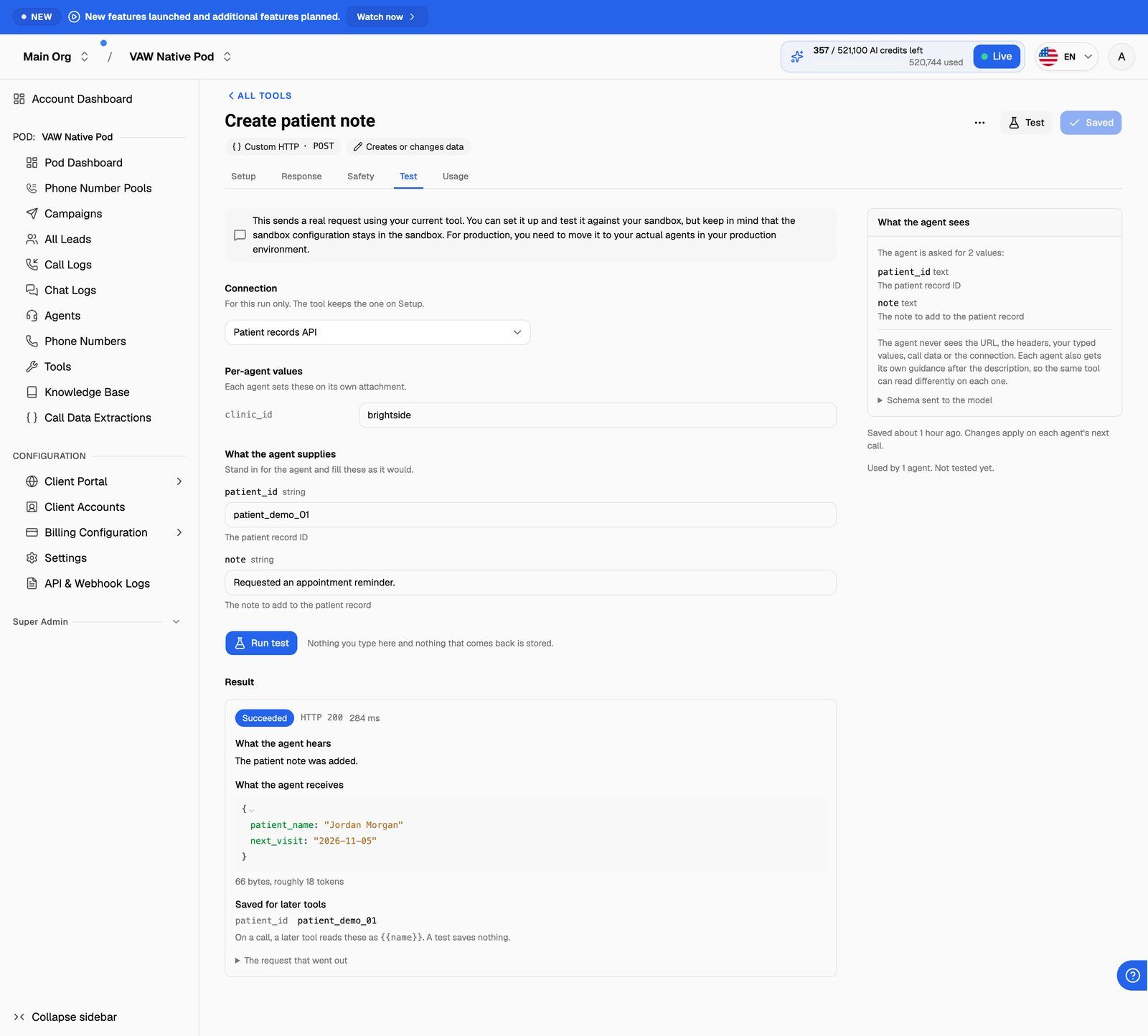
- Under Connection, choose which API key to send with. It defaults to the tool's saved connection. A different choice applies to this run only, and the tool keeps the one on Setup.
- Under Call data, type the values a real call would supply, such as the caller's number. This section appears only if the tool uses call data.
- Under Per-agent values, type the values an agent would set when attaching the tool. This appears only if the tool has per-agent values.
- Under What the agent supplies, fill in each field the way the agent would during a call. If the tool needs nothing from the agent, you'll see "Nothing: you have already decided every value in this request."
- Click Run test.
The test uses the tool as it is on screen, including changes you haven't saved yet. Nothing you type and nothing that comes back is stored.
Tools that create or change data
For a tool marked Creates or changes data, you must confirm before the test runs:
- Custom HTTP tools ask "Run a test that creates or changes data?" and name the method and host the request goes to.
- Cal.com booking tools ask "Book a real appointment?". The booking appears on the calendar and the attendee is emailed.
Click Run the test to go ahead.
A test is a real request. Whatever a write test creates or changes is real and isn't undone automatically. Pick a sandbox connection for the run if you have one, and clean up afterwards (for example, cancel a test booking in Cal.com).
You can run up to 10 tests a minute. After that, you'll see "You have run 10 tests in the last minute. Wait a moment and try again."
Read the result
If the result is large, you'll see a warning that it's a lot for an agent to work from in a spoken answer. Map only the fields you need on the Response tab. See Shape Tool Responses and Error Messages.
What a test updates
- The Last test column on the Tools list shows Passed or Failed and when. A test of a tool you haven't saved yet doesn't update it.
- If the API refuses the key, the connection is marked Failed, and every tool using it stops working until you replace the key. Live calls never change a connection's status. Only tests do.
- Tests aren't counted on the Usage tab.
Monitor usage on real calls
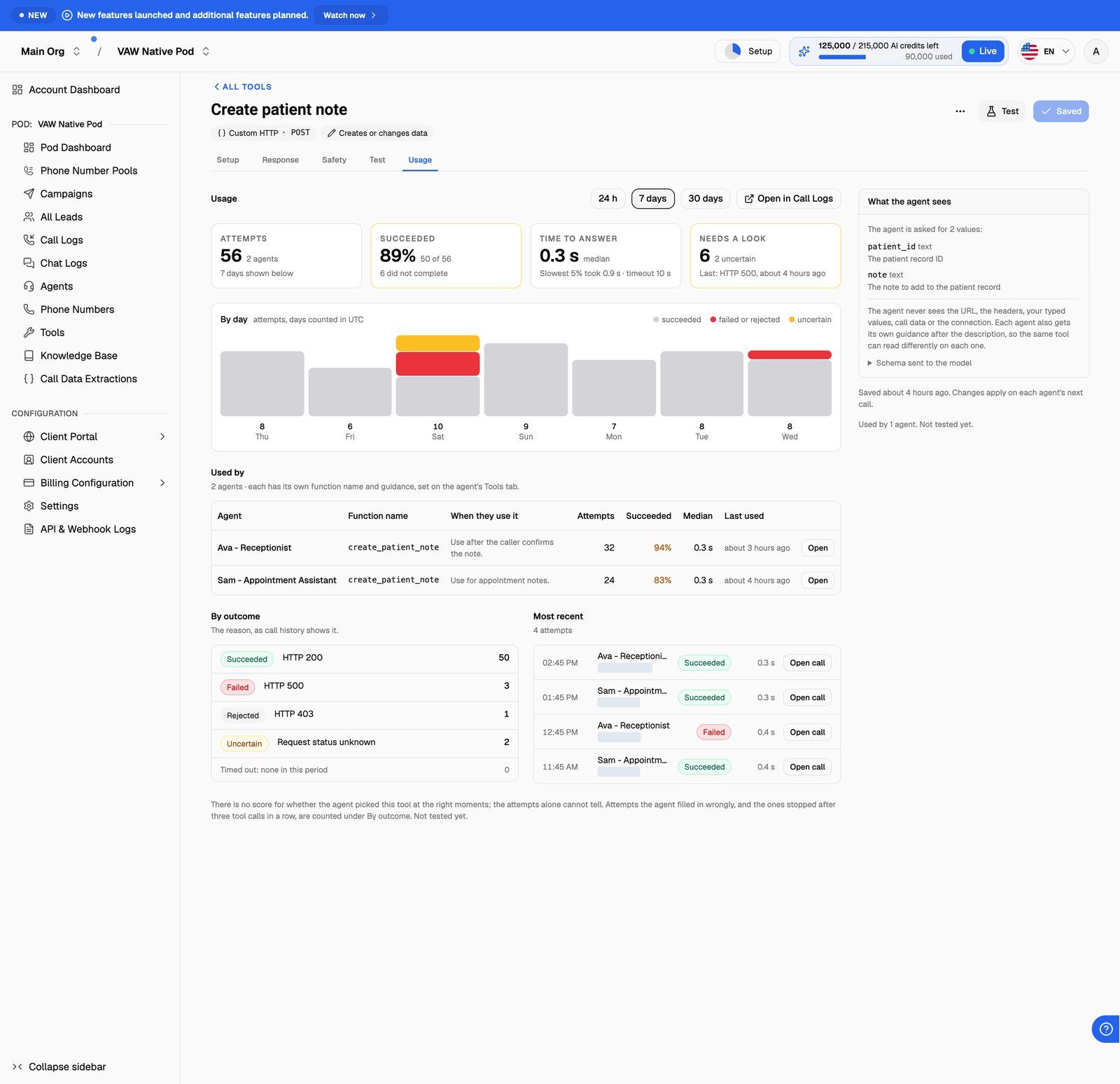
Open the tool and go to the Usage tab, or choose Usage from the row's menu on the Tools list. Pick a period: 24 h, 7 days (the default) or 30 days.
The four tiles
The rest of the tab
- By time of day / By day / By week: a bar for each slot, split into succeeded, failed or rejected, and uncertain. Daily and weekly slots are counted in UTC.
- Used by: each agent that ran the tool, with its Function name, When they use it, Attempts, Succeeded, Median and Last used. Agents that no longer have the tool are marked No longer attached or Agent deleted. Click Open to go to an agent.
- By outcome: every outcome in the period with its reason, as call history shows it.
- Most recent: the last five attempts, with the agent, caller, outcome and time. Click Open call to see the full call.
- Open in Call Logs takes you to the Pod's call logs.
The tab doesn't score whether the agent picked the tool at the right moments. The attempts alone can't tell you that. Read a few calls to judge it. Attempts the agent filled in wrongly, and attempts stopped because the agent ran three tool calls in a row without speaking, are counted under By outcome.
What each outcome means
For timeouts and how write tools handle them, see Tool Safety, Caller Confirmation and Timeouts.
Read the Tools list
The Tools list gives you a health check on every tool at once:
Use the Type and Data effect filters to narrow the list. Each row's menu has Open, Test, Usage and Delete.
If Last 7 days shows "VAW error today", the problem is on our side, not yours. Contact support with the tool's name.
Troubleshooting
The test says a call-data value had no value.
The test says a call-data value had no value.
The tool uses call data, such as the caller's number, and the field was empty. On a real call this comes from the call itself. For a test, type a value into the matching field under Call data, then run it again.
The test failed with a connection or authentication error.
The test failed with a connection or authentication error.
The API refused the key. Open Connections on the Tools page, click Replace key, paste a working key, then test again. Until it's fixed, the tool can't run: on a call, the agent tells the caller it couldn't complete the action and carries on.
The test passed but the tool fails on real calls.
The test passed but the tool fails on real calls.
Open Usage, look at By outcome for the reason, and click Open call on a recent attempt to see exactly what the agent sent. Common causes are the agent filling in a field differently from your test, or call data that's missing on some calls (for example, no caller number on a web call).
The Usage tab is empty.
The Usage tab is empty.
It shows "No attempts in the last 7 days" (or whichever period you picked). If no agent has the tool attached, attach it on an agent's Tools tab first. If it's attached, try a test call with the agent, or pick a longer period. Tests from the Test tab aren't counted here.
Related articles
Was this helpful?
Still need help? Share an idea