Manage Pods: Rename, Update Keys, Switch and Delete
Switch between Pods, rename them, replace API keys, read each Pod's stats, and understand exactly what deleting a Pod removes.
Written By voiceaiwrapper
Last updated 26 days ago
A Pod (an engine or provider connection) holds everything that runs on one engine: its agents, numbers, campaigns and call history. This article covers the day-to-day changes: moving between Pods, renaming them, replacing API keys after you roll them, reading each Pod's stats, and deleting a Pod you no longer need.
Where you manage Pods
You can reach Pod actions from two places:
While your only Pod is your VAW Native Pod, the sidebar doesn't show Account Dashboard. In that case, use the Pod selector.
Switch between Pods
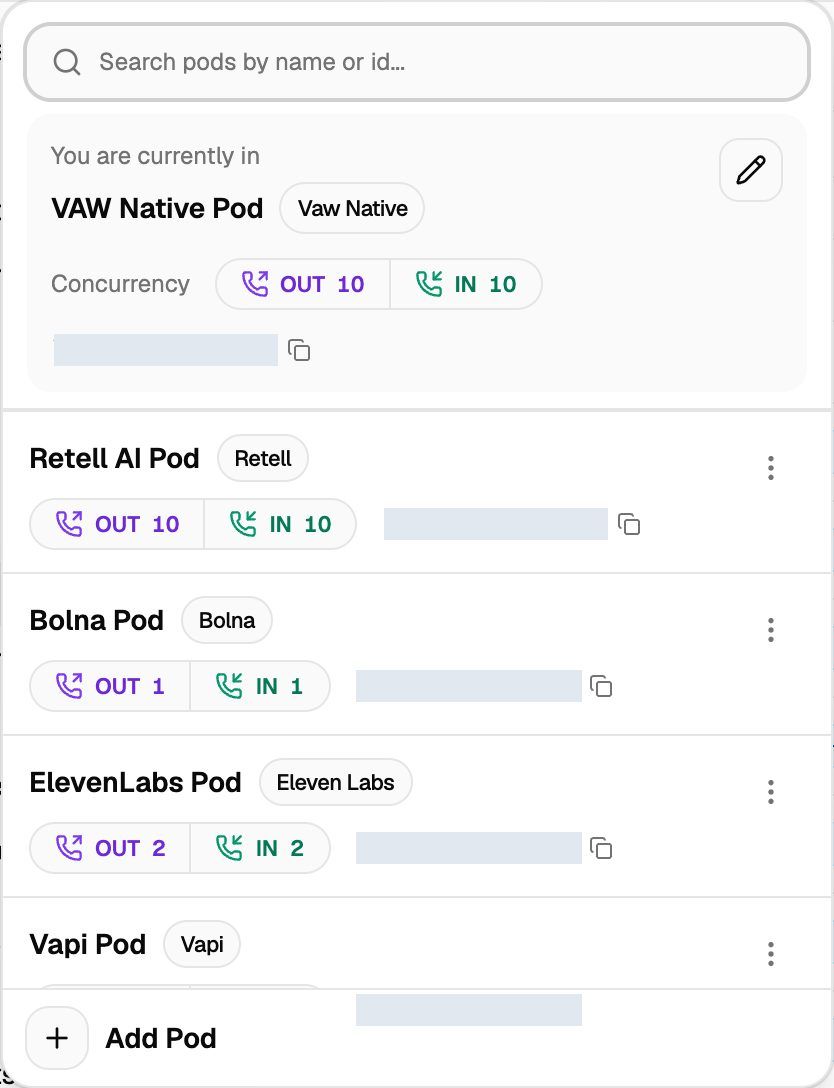
The sidebar, Call Logs, Campaigns and every other Pod page show one Pod at a time. To switch:
- Click the Pod name in the header.
- Find the Pod in the list, or type part of its name or ID in Search pods by name or id...
- Click the Pod.
If you're on a Pod page, such as Campaigns, you land on the same page for the new Pod. Otherwise you land on its Pod Dashboard. The webapp remembers the last Pod you chose in this browser.
Read each Pod's stats
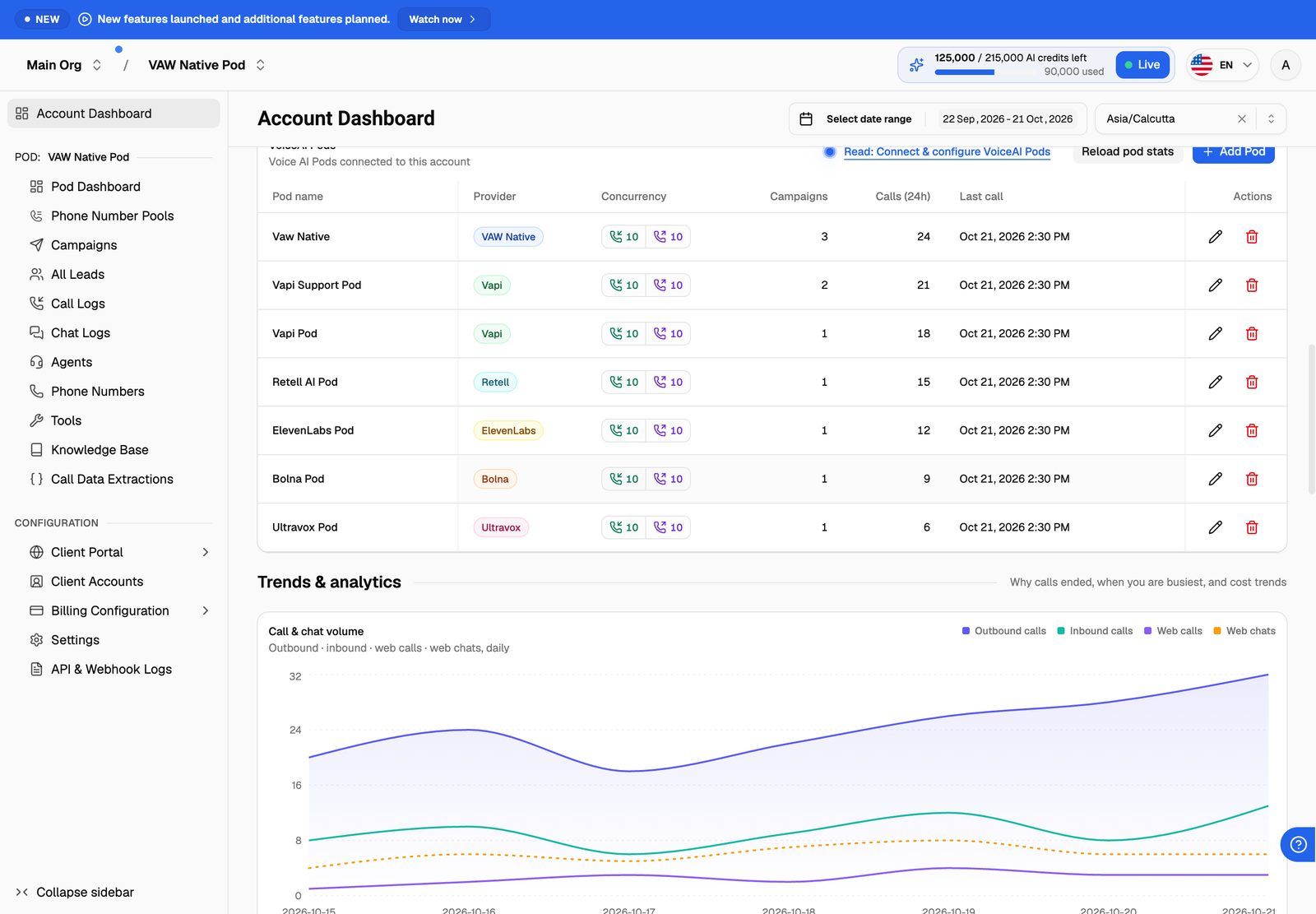
On the Account Dashboard, the VoiceAI Pods card lists every Pod with these columns:
The Campaigns, Calls (24h) and Last call columns stay hidden until you click Load pod stats. Click Reload pod stats to update them.
Rename a Pod
The Pod's name is how it appears in the Pod selector, on the dashboard and to your team. It doesn't change anything in your provider account.
- In the Pod selector, click the pencil icon (Edit) on the current Pod, or open the ⋮ menu on another Pod and click Edit. You can also click the pencil icon in the Account Dashboard's VoiceAI Pods card.
- The Update VoiceAI Pod drawer opens on Update Credentials. Change the name field:
- Vapi: Vapi Organization Name
- Retell AI: Retell Organization Name
- ElevenLabs: ElevenLabs Workspace Name
- VAW Native: Pod Name
- Click Next. You'll see "VoiceAI pod credential updated successfully".
- On Set Concurrency, click Update Concurrency to finish, or close the drawer.
On Vapi, Retell AI and ElevenLabs Pods, clicking Next checks the Pod's keys with the provider again, so a rename fails if the keys no longer work. Update the keys at the same time.
For your VAW Native Pod, the same screen also holds its settings: how long recordings and transcripts are kept, what callers hear when a number has no agent, and Knowledge bases on calls.
Update keys
Update the keys when you roll an API key in your provider dashboard, or when VoiceAIWrapper starts reporting that the key is invalid.
- Open the Pod for editing: Edit in the Pod selector, or the pencil in the Account Dashboard's VoiceAI Pods card.
- Replace the keys on Update Credentials:
- Vapi: Vapi Private Key and Vapi Public Key (and Vapi Organization ID if it changed).
- Retell AI: Retell API Key.
- ElevenLabs: ElevenLabs API Key, plus ElevenLabs Webhook Secret and ElevenLabs Webhook ID if you recreated the webhook.
- Click Next. VoiceAIWrapper checks the new keys before saving.
- Click Update Concurrency on the last step.
If the check fails, you'll see one of these messages:
Use the edit screen for new keys from the same provider account. To connect a different Vapi organization, Retell AI account or ElevenLabs workspace, add a new Pod instead. Your existing campaigns refer to agents and numbers in the original account.
You can't change a Pod's engine. To move from one provider to another, add a new Pod.
Delete a Pod
Deleting a Pod permanently deletes everything VoiceAIWrapper holds for it, and it can't be undone:
- all of its campaigns, and the leads in them
- its phone number pools
- all call and chat logs for the Pod
- its analytics data
- client workspace settings that use the Pod
- Stripe products linked to it, which can break the Stripe sync for SaaS Creator clients
To delete a Pod:
- In the Pod selector, click the bin icon on the current Pod, or open the ⋮ menu on another Pod and click Delete. You can also use the bin icon in the Account Dashboard's VoiceAI Pods card.
- Read the list in Delete VoiceAI Pod.
- Tick Yes, proceed to delete, then click Delete.
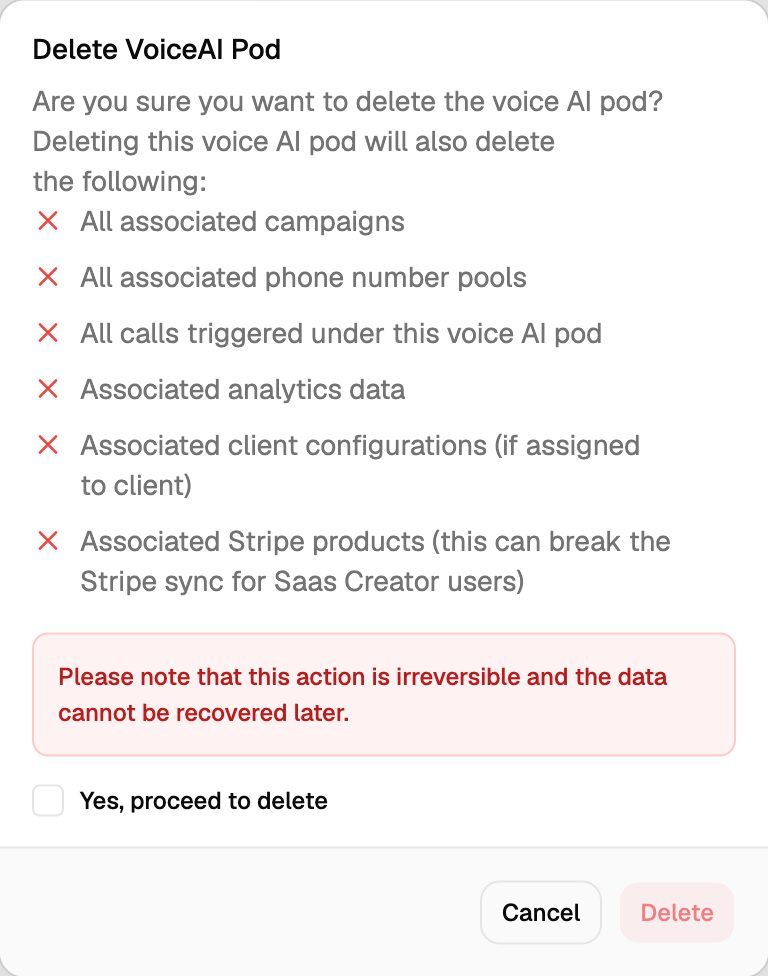
The confirmation opened from the Account Dashboard shows a shorter list, but deleting from there removes the same data.
After you delete a Pod from the Pod selector, you're taken to the Account Dashboard.
What isn't deleted:
- Your provider account. Agents, numbers, knowledge bases, tools and the provider's own call records stay in your Vapi, Retell AI or ElevenLabs account. Agents and numbers keep the webhook settings from your last sync, so update them in the provider dashboard if you'll use them without VoiceAIWrapper. Synced Vapi and Retell AI numbers have no agent attached, so attach one there before taking calls.
- Your plan. If your plan counts provider connections, deleting a BYOK Pod frees one connection for another Pod. It doesn't remove an add-on from your bill. See Use Several Providers and Organizations in One Account.
Your built-in VAW Native Pod can't be deleted, so the Pod selector shows no delete option for it. If you click the bin icon for it on the Account Dashboard, you'll see "The default VAW Native Pod is built-in and cannot be removed."
Frequently asked questions
I updated my key in Vapi and now nothing syncs. What do I do?
I updated my key in Vapi and now nothing syncs. What do I do?
Update the Pod's keys in VoiceAIWrapper (see Update keys above). Until you do, VoiceAIWrapper can't read your agents or change their webhooks.
Can I get a deleted Pod's call history back?
Can I get a deleted Pod's call history back?
No. Export anything you need from Call Logs before you delete the Pod. If you reconnect the same provider account later, it starts as a new Pod with no history.
Related articles
Was this helpful?
Still need help? Share an idea