Create Your Account and Sign In
Sign up with a business email or Google, verify your email, sign in (with two-factor authentication if it's on) and reset a forgotten password.
Written By voiceaiwrapper
Last updated 26 days ago
Create your VoiceAIWrapper agency account with your work email or Google account, confirm your email, and choose Pay-as-you-go, Growth or Scale with a payment card before setting up your first agent. This article also covers signing in, two-factor authentication and resetting a forgotten password.
Before you start
You'll need:
A business email address. Personal and disposable addresses, such as Gmail, can't be used to sign up. This applies to Google sign-up too.
Access to that inbox, to open the verification email.
Were you invited to join someone else's organization? Open the link in your invitation email first. If you don't have an account yet, click Create your account now next to New here? on that page, and sign up with the email address the invitation was sent to. You join their organization instead of getting your own, and you skip the setup wizard. See Invite Team Members and Assign Roles.
Step 1: Create your account
Go to agency signup. From the sign-in page, you can also use the sign-up link.
Fill in the form:
Click Create my free account.
By signing up, you agree to VoiceAIWrapper's Terms and Privacy Policy, which are linked below the form.
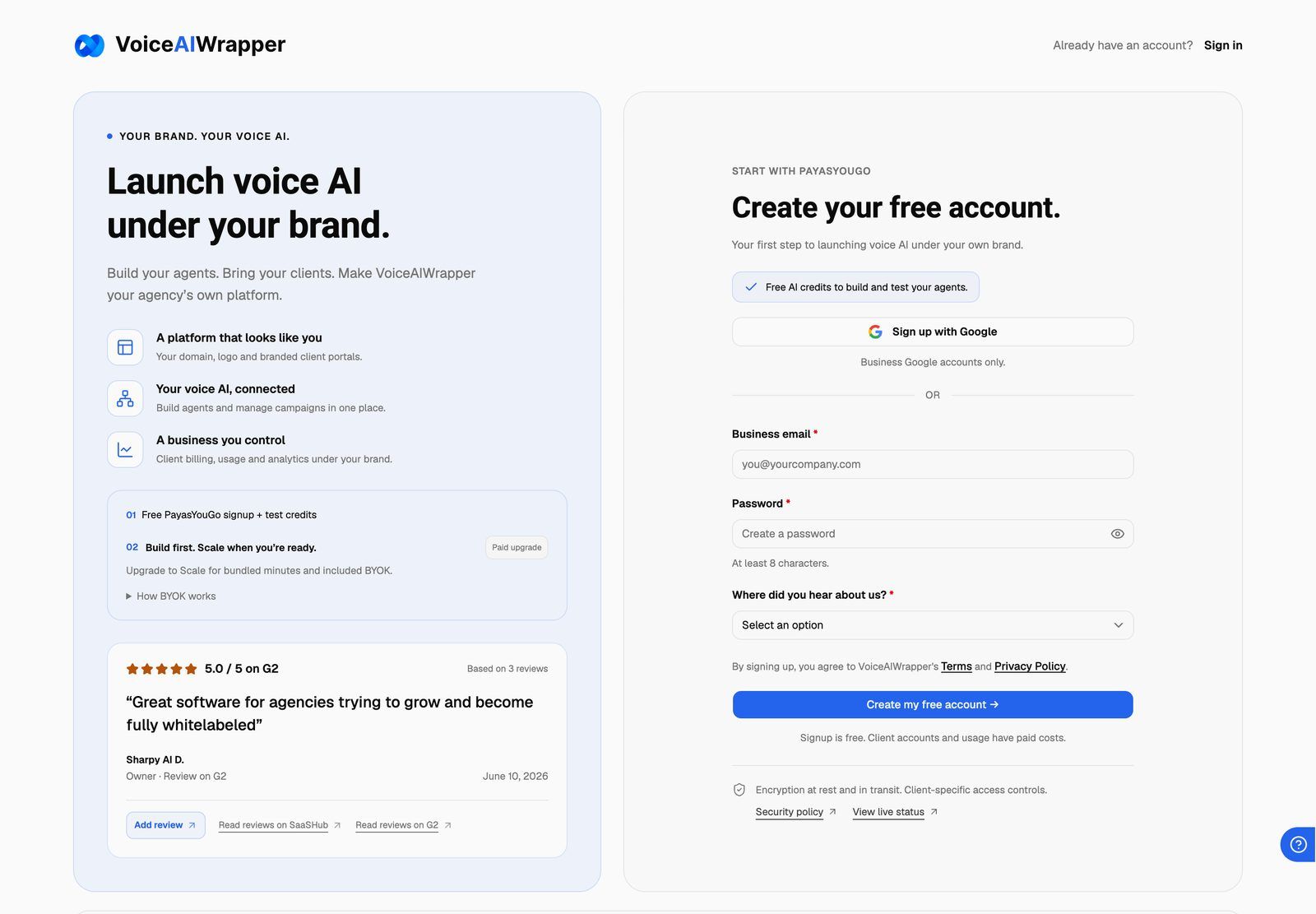
Or sign up with Google
Click Sign up with Google at the top of the form and choose your Google account. Only Google accounts with a business email address work.
Google has already confirmed your email address, so you skip Step 2 and go straight into the webapp.
If you opened the sign-up page inside another app's browser (for example from a link in Instagram or LinkedIn), the Google button is turned off and you'll see "Open this page in your browser to continue with Google." Open the page in your normal browser, or sign up with email and password instead.
Step 2: Verify your email
After you click Create my free account, you'll see Check your inbox. with the address you signed up with.
Open the email with the subject VoiceAIWrapper Account Verification.
Click the verification link in it.
The link confirms your email and signs you in. You'll see "Your account has been verified."
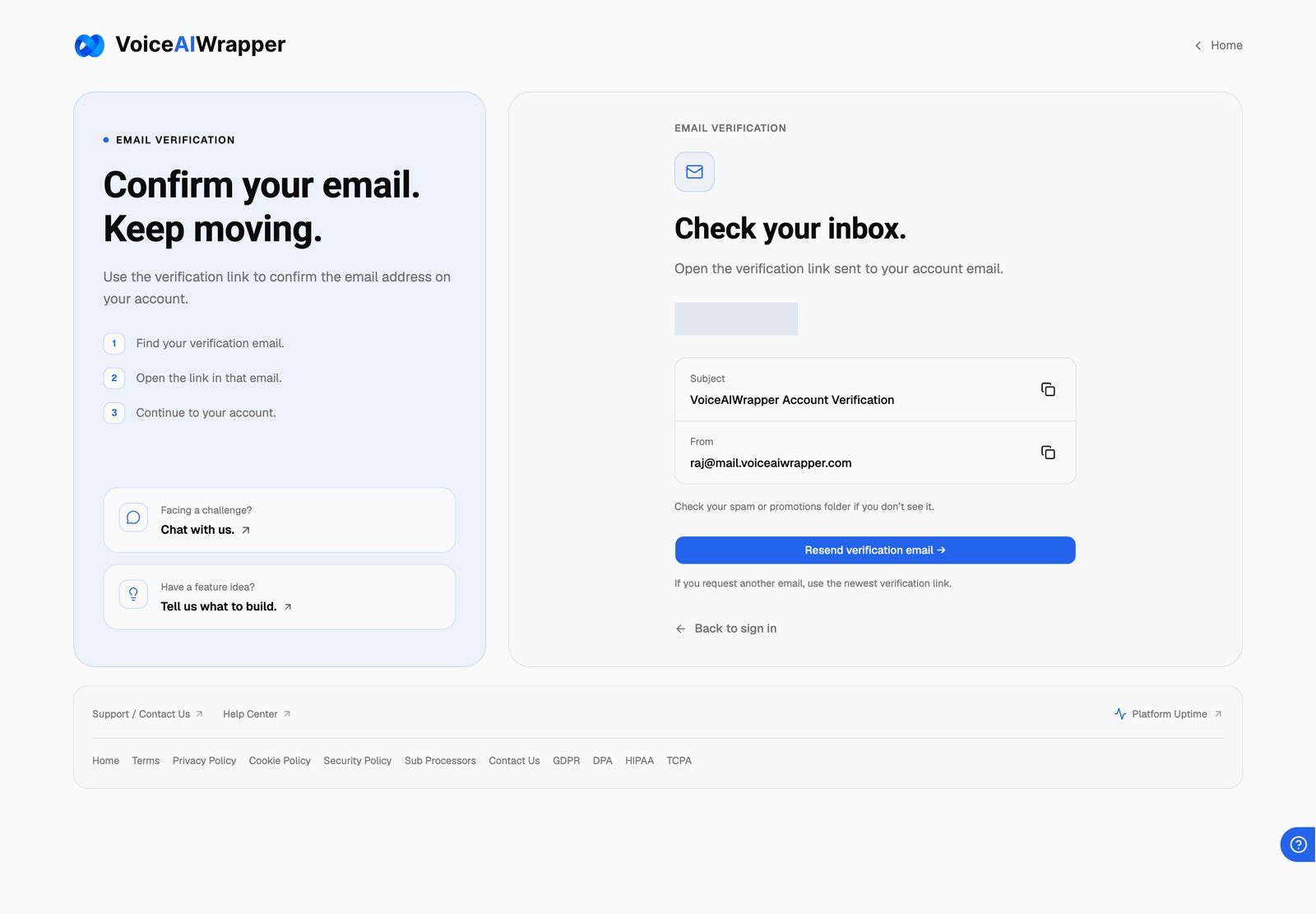
Email not there? Check your spam or promotions folder first. Then click Resend verification email on the same page. If you request another email, use the link in the newest one.
You can't sign in with your password until your email is verified.
Step 3: Set up your organization
Once you're signed in, the webapp walks you through setting up:
Choose your plan and add a payment card, including on Pay-as-you-go even when nothing is due today. Growth and Scale each offer a 7-day trial with 1,000 AI credits; both start billing automatically after 7 days unless cancelled. The full credit allowance starts with your first payment. See Choose a Plan and Add a Payment Method.
Then the onboarding wizard helps you build your first agent. See Your First Agent: The Onboarding Wizard.
Sign in
Go to the sign-in page (Sign in to your VoiceAIWrapper account.).
Enter your Email and Password, then click Sign in. Or click Sign in with Google.
If you signed up with email and password, you can also use Sign in with Google later, as long as it's the same email address.
If two-factor authentication is on
After your password, you'll see Enter your auth code.
Open your authenticator app (for example Google Authenticator or Authy).
Type the current 6-digit code for your VoiceAIWrapper account into Auth code.
Click Verify & sign in.
To turn two-factor authentication on or off, see Turn On Two-Factor Authentication.
Reset a forgotten password
On the sign-in page, click Forgot password? above the password field.
Enter the email address linked to your account in Account email and click Send reset instructions.
Open the email with the subject Reset your VoiceAIWrapper password and click the link. Use it soon: the link stops working once it expires or has been used.
Enter your new password in New password and Repeat password, then click Confirm the change.
For your security, the page says the same thing whether or not an account uses that email. Your password stays the same until you choose a new one. If the email doesn't arrive, you can click Resend reset instructions after a short wait.
Resetting your password signs you out of the webapp everywhere you're signed in. It also disconnects any AI apps you connected to your account.
If you signed up with Google and never set a password, you can use Forgot password? to create one.
To change a password you already know, use your profile instead. See Update Your Profile and Password.
Troubleshooting
"Please use a valid business email."
"Please use a valid business email."
Sign-up only accepts work email addresses. Addresses from free email services (such as Gmail) and disposable inbox services are rejected. Sign up with an address on your company's domain.
"Please use a Google account with a business email address (personal Gmail addresses aren't allowed)."
"Please use a Google account with a business email address (personal Gmail addresses aren't allowed)."
The Google account you picked uses a personal address. Choose a Google account on your company's domain, or sign up with email and password instead.
"Please verify your email address before logging in."
"Please verify your email address before logging in."
Your account exists, but the email address isn't confirmed yet. Find the VoiceAIWrapper Account Verification email and click its link. If you can't find it and have closed the Check your inbox. page, contact support through Chat with us on the sign-in page.
"This verification link isn't valid."
"This verification link isn't valid."
The link may be incomplete (some email apps break long links) or out of date. Open the newest verification email and click the full link. If it still doesn't work, contact support.
"Incorrect authentication credentials."
"Incorrect authentication credentials."
The email or password is wrong. Check for typos and that Caps Lock is off. If you've forgotten your password, use Forgot password?
"This reset link is no longer valid."
"This reset link is no longer valid."
The link has expired or has already been used. Click Request a new reset link and use the link in the new email. Signing in before you use a reset link also makes it stop working.
"Signups are not available in your region right now."
"Signups are not available in your region right now."
Sign-up isn't available from your current location. If you think this is a mistake, contact support through the chat.
"Your account has been restricted. Please contact support for assistance."
"Your account has been restricted. Please contact support for assistance."
Your account has been blocked from signing in. Contact support through Chat with us on the sign-in page.
I lost access to my authenticator app.
I lost access to my authenticator app.
There are no backup codes for two-factor sign-in. Contact support through Chat with us on the sign-in page to get back into your account.
Related articles
Was this helpful?
Still need help? Share an idea