What Is a Voice AI Pod?
A Pod is one voice engine or provider connection. Learn how the built-in VAW Native Pod differs from your own Vapi, Retell AI and ElevenLabs Pods, and how to switch between them.
Written By voiceaiwrapper
Last updated 26 days ago
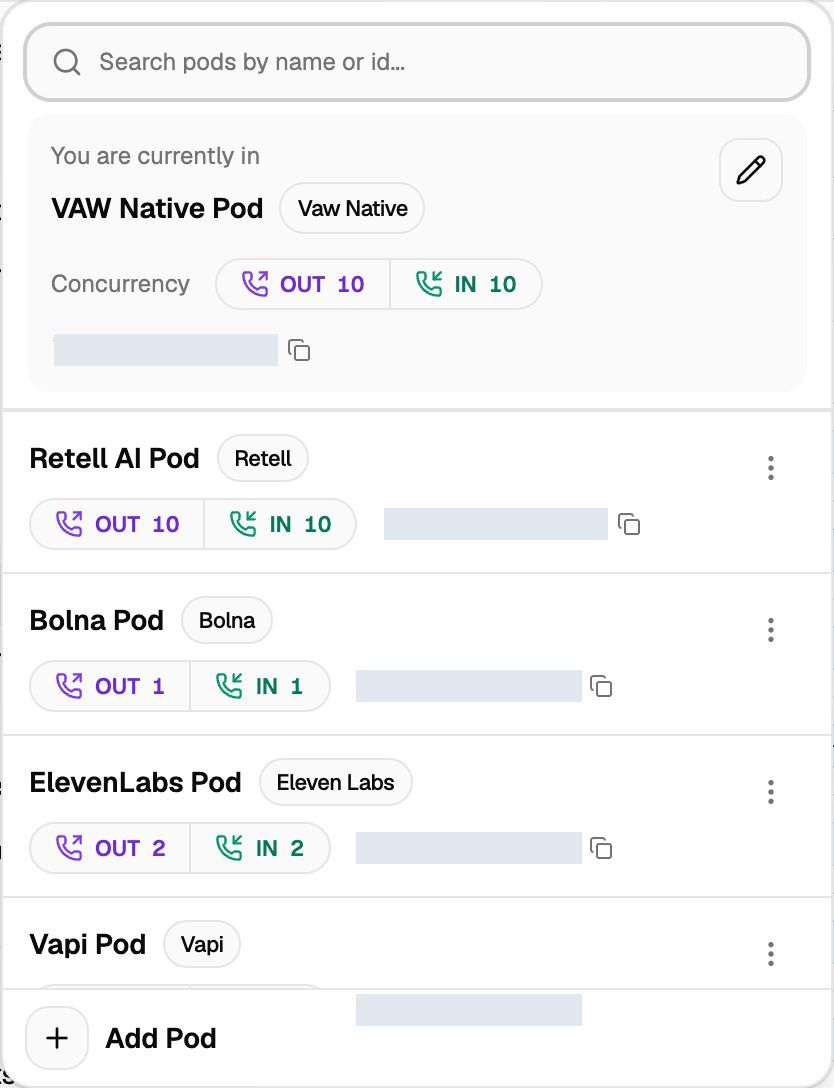
Every agent, phone number and campaign in VoiceAIWrapper belongs to a Pod (an engine or provider connection). Your organization starts with one Pod already set up: the built-in VAW Native Pod. You can add more Pods that connect your own Vapi, Retell AI or ElevenLabs accounts, and run them side by side.
This article explains the two kinds of Pod, what lives inside a Pod, and how to move between them.
The two kinds of Pod
The VAW Native Pod (built in)
VAW Native is VoiceAIWrapper's own voice engine. Every organization gets one VAW Native Pod automatically, named VAW Native Pod until you rename it.
- No keys or provider account. You don't connect anything. The Pod is ready the moment your organization exists.
- Paid with AI credits. Calls and chats on VAW Native use AI credits from your organization's balance.
- Concurrency is managed for you. The total number of calls the Pod can run at once comes from your plan. You choose how that total is split between inbound and outbound calls. To change the total itself, contact support.
- It can't be deleted. The built-in Pod has no delete option. You can rename it and change its settings.
- Available on every plan. VAW Native isn't behind a plan gate.
Each organization has one VAW Native Pod. You can't add a second one yet.
BYOK Pods (your own provider account)
A BYOK Pod connects your own account with Vapi, Retell AI or ElevenLabs. Your agents and phone numbers live in that provider account. You build them in the provider's dashboard, and they show up in VoiceAIWrapper. On plans that include VAW Assistant, you can also create agents in your provider account from inside VoiceAIWrapper. See Build a Provider Agent with VAW Assistant.
- You need an account and API keys with the provider. You paste them in when you add the Pod.
- The provider bills you directly for minutes and other usage on that account.
- Each provider needs a plan that includes it. If your plan doesn't include a provider, its card in Add Pod shows Not in your plan. On some plans, each BYOK Pod also uses one BYOK connection add-on.
- You can add several. You can connect more than one provider, and more than one organization from the same provider. The same provider keys can't be connected twice, though, in this organization or any other VoiceAIWrapper organization.
Bolna and Ultravox Pods that were connected earlier still work, but new ones can't be added. See Bolna and Ultravox Pods (Legacy).
What lives inside a Pod
When you're in a Pod, the sidebar section labelled POD: followed by the Pod's name shows that Pod's pages. Which pages you see depends on the engine:
Vapi calls its agents Assistants. Every other engine says Agents.
If the VAW Native Pod is your only Pod, the sidebar is simpler: Pod Dashboard is called Dashboard, and the Account Dashboard and the POD: label are hidden. They appear once you add a second Pod.
Switch between Pods
- In the header, click the Pod selector. It shows the name of the Pod you're in.
- Find the Pod you want. To find one quickly, type in Search pods by name or id...
- Click the Pod.
If you're on a page that the other Pod also has, such as Campaigns, you land on the same page in the new Pod. Otherwise you land on its Pod Dashboard. The webapp remembers the last Pod you picked.
On a phone, the Pod selector is at the top of the sidebar menu.
From the same menu you can also click Add Pod to connect a provider, or use the pencil or Edit to change a Pod's settings. See Manage Pods: Rename, Update Keys, Switch and Delete.
Why assets from different Pods don't mix
Each Pod is its own space. Agents, phone numbers, knowledge bases and tools belong to the Pod they were created in:
- A campaign belongs to one Pod. It can only use that Pod's agents and phone numbers. You can't run a Vapi assistant on a VAW Native number, for example.
- A client workspace is tied to one Pod. You pick the VoiceAI Pod when you create the workspace, and you can't change it afterwards. To give a client agents from another Pod, add a second workspace.
- Phone number pools are built from the numbers in the same Pod.
- BYOK assets live in your provider account. VoiceAIWrapper reads them from the provider, so any agent you create in your provider's dashboard appears in the matching Pod automatically.
Deleting a BYOK Pod also deletes its campaigns, phone number pools, calls, analytics, related Stripe products and the client configurations it's assigned to. This can't be undone. Agents and numbers in your provider account aren't affected.
Related articles
Was this helpful?
Still need help? Share an idea