Find and Filter Calls in Call Logs
Find any call on a Pod or in a campaign: search by name or number, and filter by status, end reason, type, agent, call success, sentiment, duration and more.
Written By voiceaiwrapper
Last updated 26 days ago
Every call your agents handle is logged with its outcome, transcript and recording. This article shows where to find those calls and how to narrow a long list down to the ones you care about, such as failed calls, unhappy customers or calls to one number.
Two places to look
On a VAW Native Pod, Call Logs lists every call, including ones that aren't part of a campaign: test calls from the agent page, calls from web widgets, calls started through the API, and calls on numbers without a campaign. On Vapi, Retell AI and ElevenLabs Pods, Call Logs only fills up once you run a campaign. Calls you place directly in your provider's dashboard don't appear. Chats from your web widgets are in Chat Logs, not here.
Click any row to open the call's details. See Call Details: Transcript, Recording, Analysis, Variables and What Ran.
Call Logs on a VAW Native Pod
Open Call Logs in the sidebar. The page lists every call this Pod handled, newest first, with a line under the filter bar showing how many calls match.
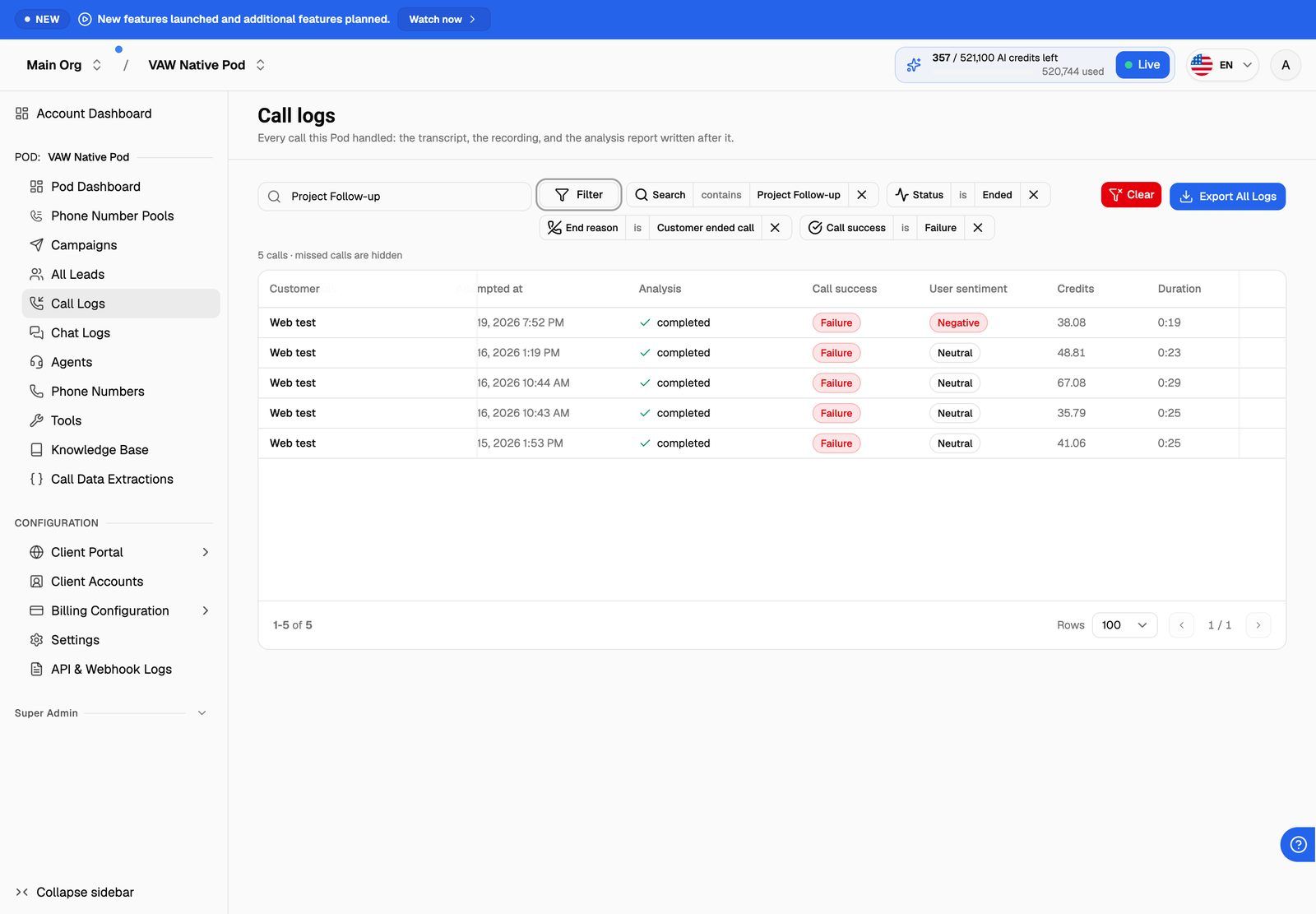
Columns
Click the Attempted at, Credits or Duration header to sort by that column.
Search
Type in Search by name, number, or agent. The list updates as you type and matches the customer's name, the customer's number and the agent's name.
Filters
Open the filter button next to the search box, pick a field, then pick one or more values. Each filter appears as a chip you can edit or remove. Click Clear to remove every filter and the search at once.
A few useful combinations:
- Calls that need a follow-up: Call success is Failure.
- Unhappy customers: User sentiment is Negative.
- Bookings that may not have gone through: Tool outcome is Uncertain. The agent tried to change data in another system but couldn't confirm it worked, so check that system by hand.
- Calls that dropped early: Duration (minutes) below 1, with Type set to Inbound.
Missed calls are hidden by default
A call that can't start because every line on the Pod is already busy ends with Concurrency limit reached. These missed calls are hidden from the list by default, and the line under the filter bar says "missed calls are hidden". To see them, add the Missed calls filter and choose Include missed calls or Only missed calls. Picking Concurrency limit reached in the End reason filter shows them too.
If you see many missed calls, raise the Pod's concurrency or move lines between inbound and outbound. See 'Concurrency Limit Reached' and '429 Too Many Requests'.
Call Logs on a Vapi, Retell AI or ElevenLabs Pod
Open Call Logs in the sidebar. The page says "View call logs across all campaigns in this pod." and shows a line with how many calls are on the page, the total and the current sort order.
- Search with Search by lead name, phone, or call ID.
- Filters include Status, End Reason, a success filter (Call Success; Vapi calls it Success Evaluation/Metric), Type (for example Inbound Phone Call, Outbound Phone Call and Web Call), Lead IDs, Call Log IDs, Test Call, Call Duration (Minutes) and Call attempted at. Retell AI Pods also get User Sentiment and Custom Analysis.
- Columns depend on the provider. Most Pods show the customer, type, status, the provider's call ID, the agent, the phone number, Test Call, End Reason, the success result, Attempted At, Duration and Provider Cost (shown in credits for ElevenLabs).
If a call is stuck on a status other than Ended, click the refresh icon (Sync Status) next to its status to fetch the latest state from your provider.
The status values come from each provider, so they differ between Vapi, Retell AI and ElevenLabs.
A campaign's Calls tab
Open the campaign, then the Calls tab.
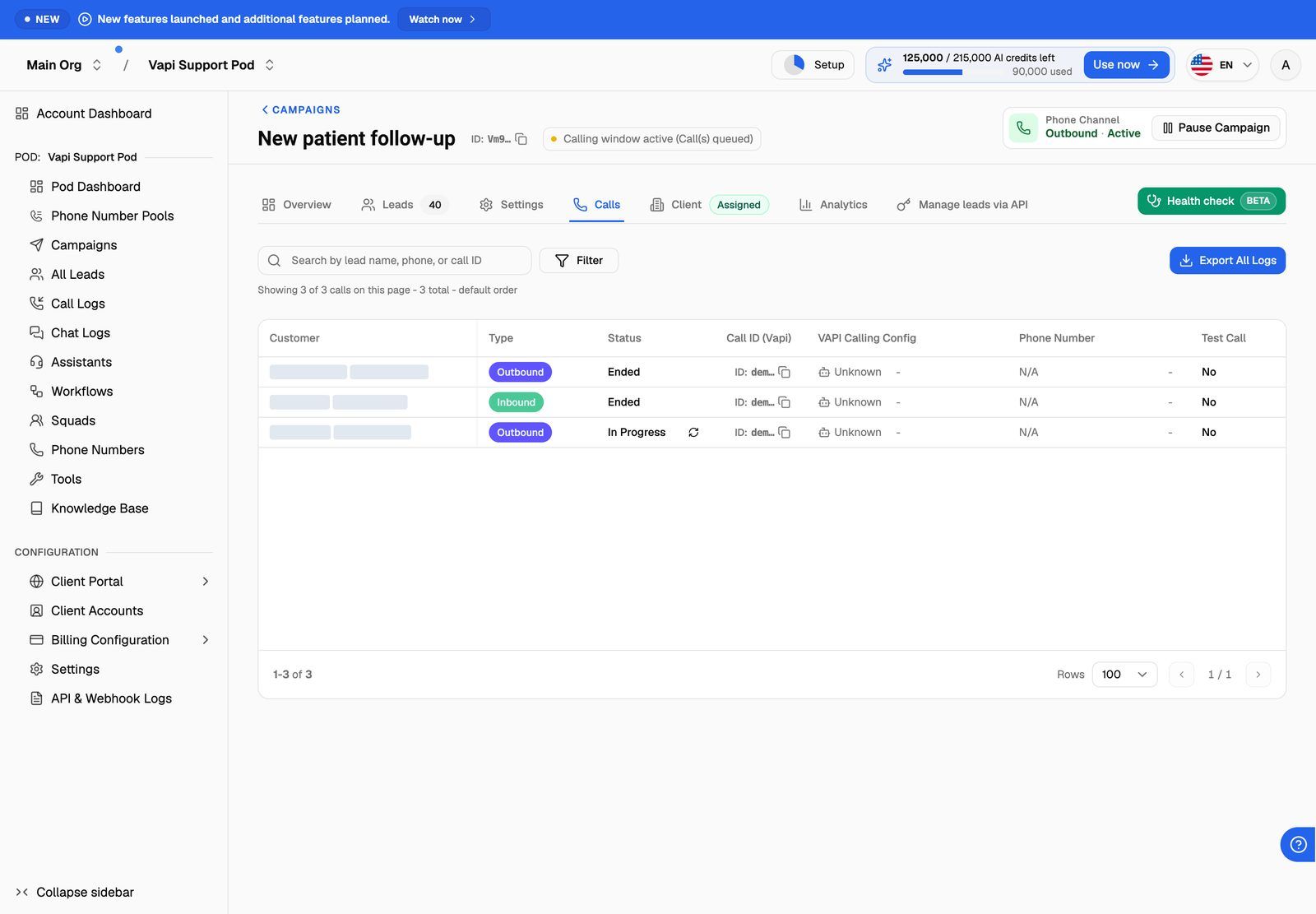
The tab has the same search box and filter bar as the Vapi, Retell AI and ElevenLabs Call Logs page, limited to this campaign. On a VAW Native campaign, the columns are Customer, Type, Status, End Reason, Summary, Attempted At, Duration and Credits, and clicking a row opens the same call details as the Pod's Call Logs.
Export what you've found
Both pages have Export All Logs. The export uses the filters you've applied. See Export Call and Chat Logs.
Troubleshooting
I filtered by Call success or User sentiment and a call I expected is missing.
I filtered by Call success or User sentiment and a call I expected is missing.
Calls whose analysis report is still being written, was skipped or failed never match a Call success or User sentiment filter. Remove the filter, or add Analysis is Completed to see only calls that have a report.
The page says "No calls yet".
The page says "No calls yet".
No calls have reached this Pod. On a VAW Native Pod, click Test an agent to place a browser call, or Connect a phone number so real customers can reach an agent. On other Pods, the page says "No call logs yet" until you create an inbound or outbound campaign.
A customer says they called but I can't find the call.
A customer says they called but I can't find the call.
Check that you're on the right Pod, then add the Missed calls filter with Include missed calls. If the call still isn't there, see Calls Are Missing from Call Logs.
Related articles
Was this helpful?
Still need help? Share an idea