Offer Free Trials to Clients
Add a free trial to a Stripe billing plan: by days or by minutes, with or without a card, and what clients see when the trial ends.
Written By voiceaiwrapper
Last updated 26 days ago
A free trial lets a client use your service before you charge them. You add the trial to a Stripe billing plan, and every client you assign that plan to gets it when they first subscribe. You can run trials for a number of days or for a number of free minutes, and choose whether the client must enter a card up front.
Setting up a trial takes a minute or two inside the billing plan wizard.
Before you start
- Stripe connected. See Connect Your Stripe Account.
- A billing plan, or be ready to create one. See Create a Billing Plan.
- Clients billed through Stripe. Trials apply to Stripe billing only.
Choose a trial type
Pick By days when you want a clear end date. Pick By minutes when you want clients to try a fixed amount of calling, however long that takes.
Add a trial to a billing plan
- In the sidebar, open Billing Configuration → Stripe.
- Open the Billing Plans tab and click Add Billing Plan. To add a trial to an existing plan, open the plan and click Edit plan.
- Click Next through the Model, Details and Pricing steps to reach Options. When you edit a plan, the wizard opens on Pricing.
- Turn on Offer a free trial.
- Under Trial Type, choose By days or By minutes, then fill in the fields below.
- Click Next to see the Review step. The Free trial row sums up your choice, for example "14 days · capped at 100 min · card captured at start".
- Click Create plan (or Update plan).
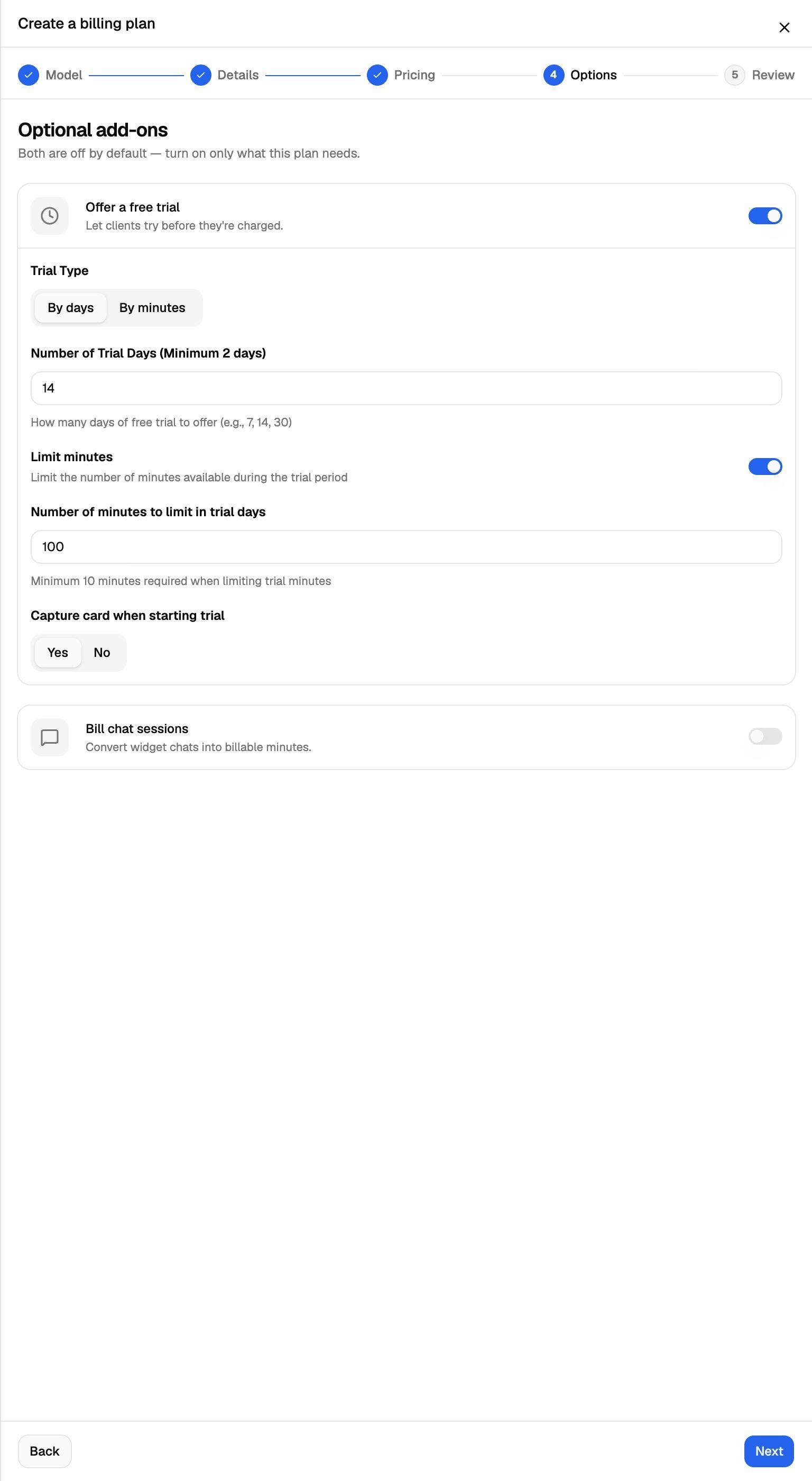
Trial settings
If you edit the trial on an existing plan, the change only applies to clients who subscribe after the edit. Clients already on the plan keep the trial they started with.
What your clients see
When you assign the plan to a client, the client sees a Ready to get started? screen the next time they log in to the portal. They can't use the portal until they start the trial.
If a day-based trial also has a minute cap, the screen adds "Your trial is for {days} days (includes {minutes} minutes)".
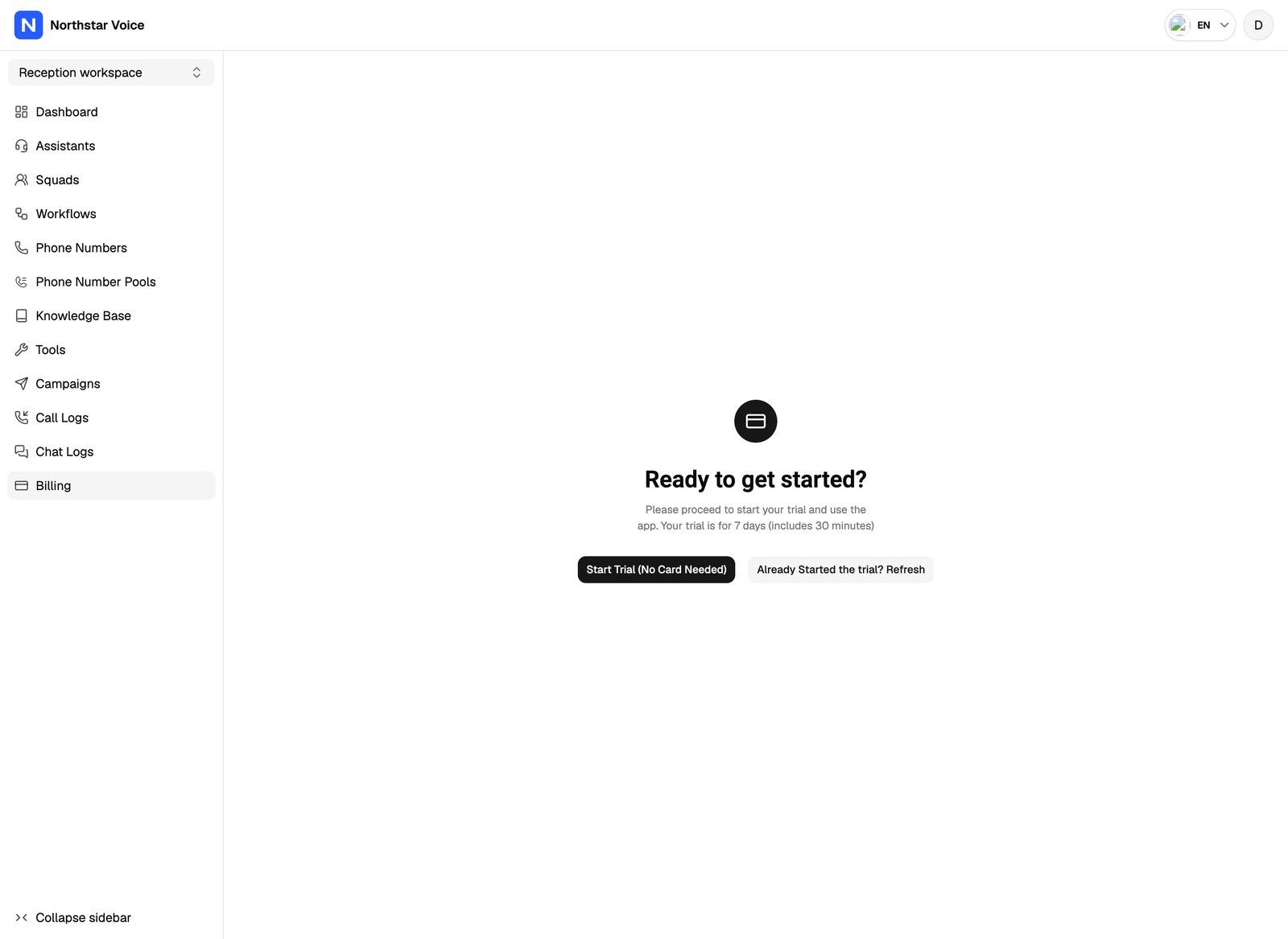
During the trial, the portal sidebar shows a You're in trial card with the days or minutes left. The client can click Activate Account to end the trial early. In a day-based trial, the paid plan then starts. In a minutes trial, the client goes on to checkout to add a card and subscribe.
With a minute cap or a minutes trial, each call (and each chat, if the plan bills chats) counts against the trial minutes. A minutes trial has no Stripe subscription until the client checks out, so nothing is charged before then.
When the trial ends
When trial minutes run out (in a minutes trial or because of a minute cap), the client's campaigns pause and the client gets an email that their trial minutes are exhausted. The campaigns resume once the client pays.
Track a client's trial
Open Client Accounts → the client → Billing → Current Plan:
- Day-based trial: the subscription status reads Trialing, with a Trial ends on {date} badge.
- Minutes trial: the card shows Currently in Trial, Minutes Remaining and Minutes Consumed. When the minutes are gone, it shows Trial minutes exhausted.
To end a minutes trial yourself, click Cancel Trial.
Cancel Trial doesn't ask you to confirm, and it can't be undone. The trial ends at once and the client can't start another one. If the plan is still assigned, the client sees Payment Pending - Action Required in the portal and has to check out to keep using it.
See Assign a Plan and Manage a Client's Subscription for cancelling other subscriptions.
Frequently asked questions
Can a client get a second trial?
Can a client get a second trial?
No. Each client gets one trial. If a client has already had a trial, for example on an earlier plan, they skip the trial and go straight to checkout the next time a plan is assigned. This also applies after you click Cancel Trial.
Does the trial work with every pricing model?
Does the trial work with every pricing model?
Yes. Offer a free trial is on the Options step for all four pricing models. See Choose a Pricing Model.
Do chat conversations use up trial minutes?
Do chat conversations use up trial minutes?
Yes, if the plan bills chats. Each chat counts as part of a minute at the rate you set. See Bill Chat Conversations.
I changed the trial length but a client still sees the old one.
I changed the trial length but a client still sees the old one.
Trial changes only apply to clients who subscribe after the change. Clients who already started the plan keep their original trial.
Related articles
Was this helpful?
Still need help? Share an idea