Store API Keys with Tool Connections
Keep the API keys your tools use in encrypted connections: add a bearer token, custom header or Cal.com key, check its status, replace it or disconnect it.
Written By voiceaiwrapper
Last updated 26 days ago
Most APIs need a key before they'll answer. A connection stores that key for your tools, encrypted, so it never appears in a tool's settings, in test results or in call history. You add a key once, and any tool can use it by picking the connection.
This article shows how to add a connection, read its status, replace a key and remove a connection you no longer need.
Applies to: tools in a VAW Native Pod (an engine or provider connection). Your Twilio account for phone numbers is connected separately. See Connect Your Twilio Account to VAW Native.
Before you start
- The API key or token from the service your tool calls, and how that API expects to receive it. The API's documentation usually says, often under "Authentication".
- For Cal.com: an API key from your Cal.com account settings.
Open the Connections sheet
- In your VAW Native Pod, open Tools in the sidebar.
- Click Connections at the top of the page.
You can also add a connection while editing a tool: on the Setup tab, under Connection, click Add a connection.
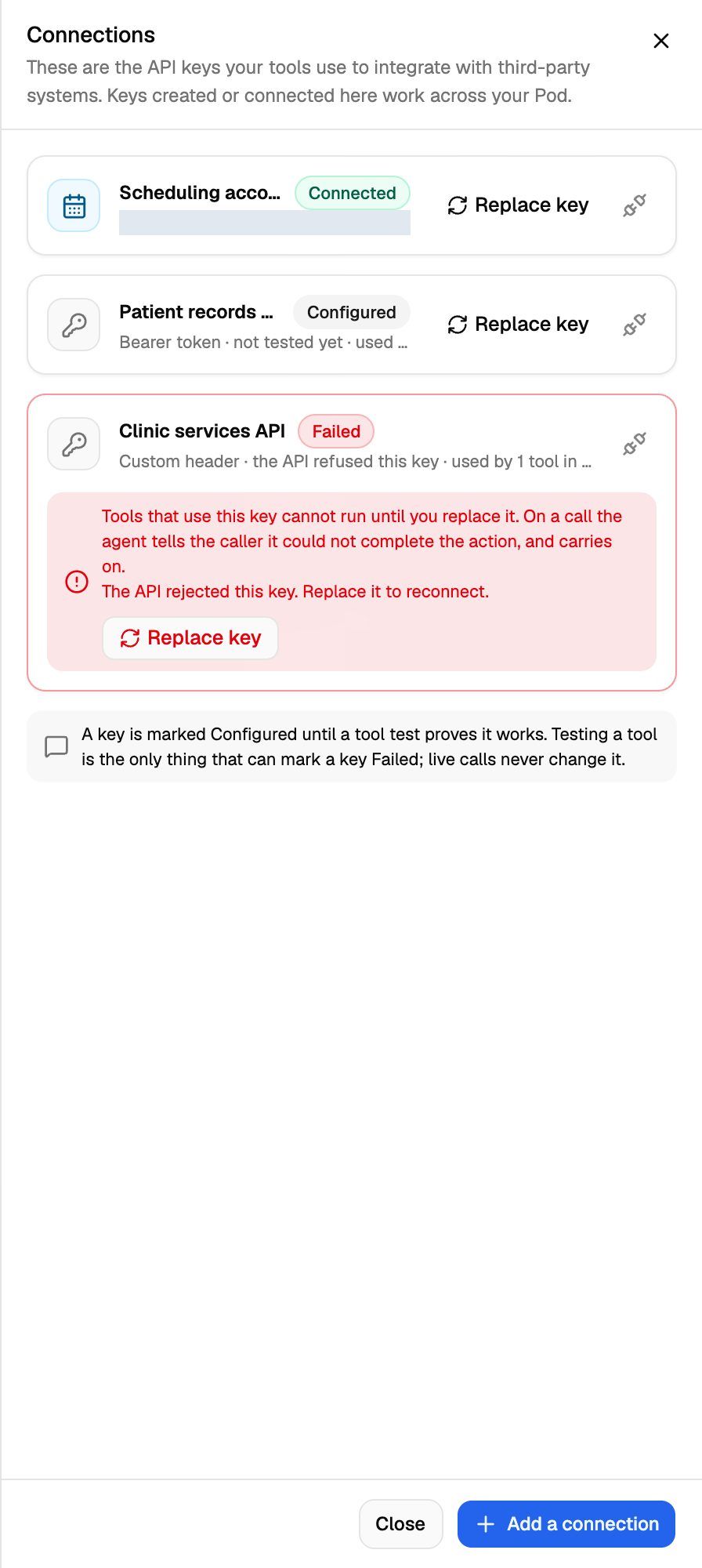
Each connection shows its type, a masked ID where there is one, its status and how many tools in this Pod use it.
Choose the right type
Custom HTTP tools can use Bearer token and Custom header connections. Cal.com tools use Cal.com API key connections. See Book Appointments with Cal.com.
Add a connection
- In the Connections sheet, click Add a connection. If you have none yet, click one of the type cards instead.
- Under How the API expects the key, choose the type.
- Enter a Name, such as "Dentrix Ascend API". This is your own label, and it's how you pick the connection on a tool.
- For Custom header, enter the Header name, such as
X-API-Key. - Paste the key into Token, Header value or API key.
- Click Add connection, or Verify and add for Cal.com.
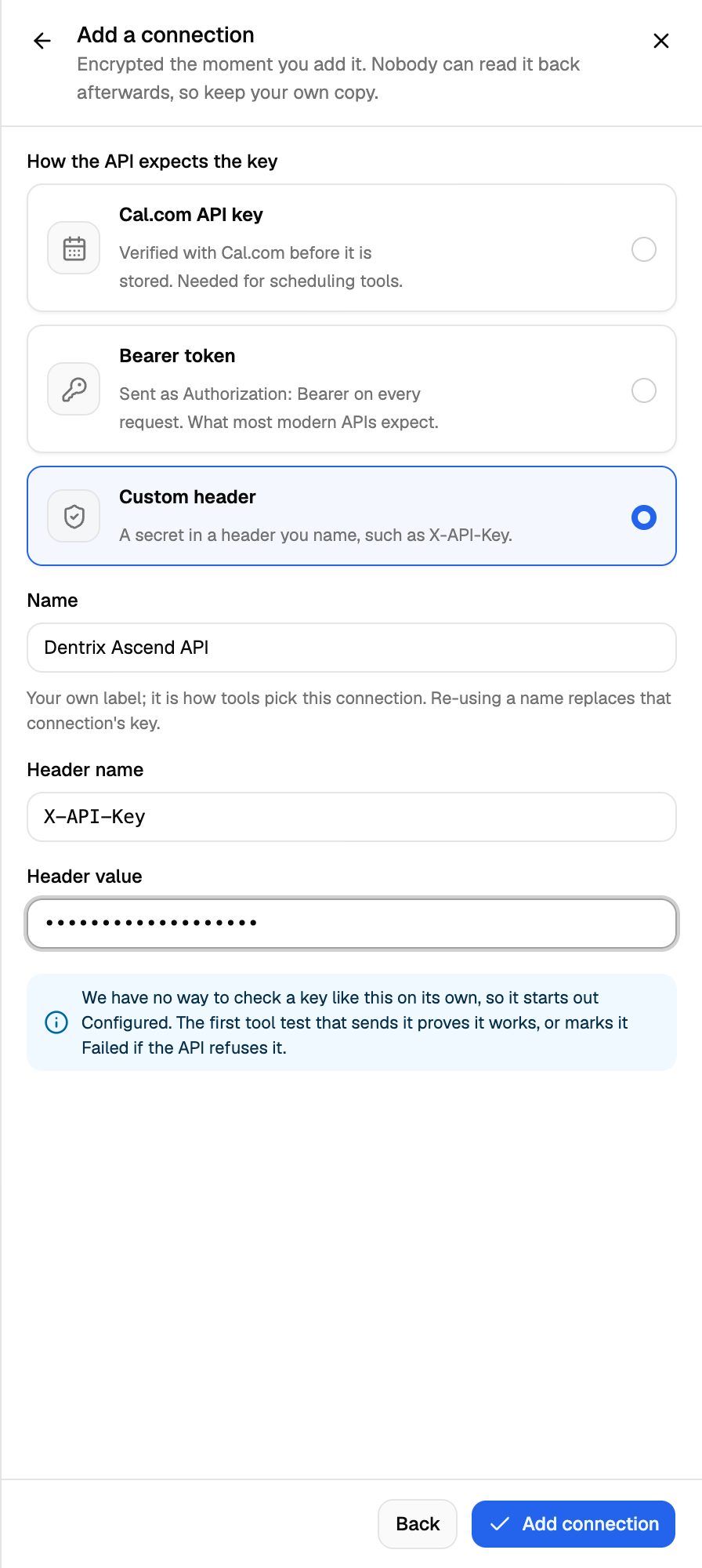
You'll see Connection added, and the connection appears in the list.
The key is encrypted the moment you add it, and nobody can read it back afterwards, including you. Keep your own copy somewhere safe.
A few rules:
- Re-using a name replaces the key. If you add a connection with the same type and name as an existing one, the existing connection gets the new key instead of a second one being created.
- One Cal.com account, one connection. A Cal.com key is checked with Cal.com before it's stored, and the same Cal.com account can't be added twice.
- Header names can use letters, numbers and common symbols such as
-and_, but no spaces.
Connection statuses
Only a tool test can mark a key Failed. Live calls never change a connection's status. A bearer token or custom header stays Configured ("not tested yet") even after a test that succeeds.
While a connection is Failed, tools that use it can't run. On a call, the agent tells the caller it couldn't complete the action and carries on. Each agent using one of those tools shows Connection failed on its Tools tab.
Replace a key
Replace a key when it's been rotated, has expired or shows Failed.
- In the Connections sheet, click Replace key on the connection. On a failed connection, the button is inside the red alert.
- Paste the new key. The type and name can't be changed here.
- Click Replace key.
The new key replaces the old one on this connection, and every tool using it keeps working. A Cal.com key is checked again before it's saved.
Connections are shared by every Pod in your organization, not only the Pod you opened them from. Replacing a key changes the next request of every tool that uses it, in every Pod. The "used by" count only counts tools in the current Pod.
Disconnect a connection
You can only disconnect a connection that no tool uses. While tools in this Pod still send with it, the disconnect button is greyed out, and hovering it shows how many tools still use the key. Point those tools at another connection first, on each tool's Setup tab.
- Click the disconnect icon on the connection.
- Click Disconnect to confirm.
You'll see Connection removed, and the connection disappears from the list.
Disconnecting deletes the connection and its stored key, and this can't be undone. To use the key again, add a new connection from your own copy.
If a tool in another Pod still uses the connection, the disconnect is refused with a message naming those tools: "… still send with this connection: … Point them at another connection first."
Connections your clients add
If a client adds a connection in their portal, it appears in your list with a badge showing the client's name and a line such as "Created in their portal by Asha on Sep 28, 2026." You keep full control: you can replace or disconnect it like your own.
Frequently asked questions
Is my key ever shown to the agent or in call history?
Is my key ever shown to the agent or in call history?
No. The key is added to the request only at the moment it's sent. The agent never sees it, and the header the connection sets is left out of the request builder and hidden in test results. If an API redirects a request to a different host, the key isn't sent to that host.
My bearer token works, but the connection still says "not tested yet".
My bearer token works, but the connection still says "not tested yet".
Configured means the key is stored and ready to use, and tools use it normally. There's no way to check a bearer token or custom header on its own, so the status stays Configured. To check the key, run a test on a tool that uses it. If the API refuses the key, the connection is marked Failed.
Why can't I find my Cal.com connection on a custom HTTP tool?
Why can't I find my Cal.com connection on a custom HTTP tool?
Custom HTTP tools only list Bearer token and Custom header connections. If an API needs the same key as a bearer token, add it again as a Bearer token connection.
I see "That Cal.com account is already connected as …".
I see "That Cal.com account is already connected as …".
The Cal.com account behind this key is already stored under another connection name. Use that connection, or click Replace key on it if the key has changed. If the message says the account is "already connected here by someone else", one of your clients added it in their portal.
I see "We could not load your connections."
I see "We could not load your connections."
Close the sheet and open it again. Your keys are safe and nothing has changed. If it keeps happening, contact support.
Related articles
Was this helpful?
Still need help? Share an idea