Offer the Portal in Multiple Languages
Choose which of the 12 supported languages your clients can switch the client portal to. English is always included.
Written By voiceaiwrapper
Last updated 26 days ago
Let your clients use the portal in their own language. You choose which languages are available, and clients switch between them from a menu in the portal's top bar. The portal's buttons, menus and messages change language. English is always included.
Available on: multilingual client portals and agency admin portals are included on Pay-as-you-go, Growth and Scale.
Before you start
Connect your custom domain. Until you do, the Localization tab shows "Please configure a white label domain first to enable localization settings." See Connect Your Custom Domain.
Supported languages
The portal is available in 12 languages. If you need an additional language, contact support.
Choose your languages
In the sidebar, open Client Portal → Portal Configuration.
Open the Localization tab.
Click each language you want to offer. Selected languages are highlighted, and the count above them updates (for example 3 selected). Click a selected language again to remove it.
Click Update. You'll see "Localization languages updated successfully."
English is marked Required and can't be removed. The Discard and Update buttons only appear once you've changed something. Discard puts back your saved selection.
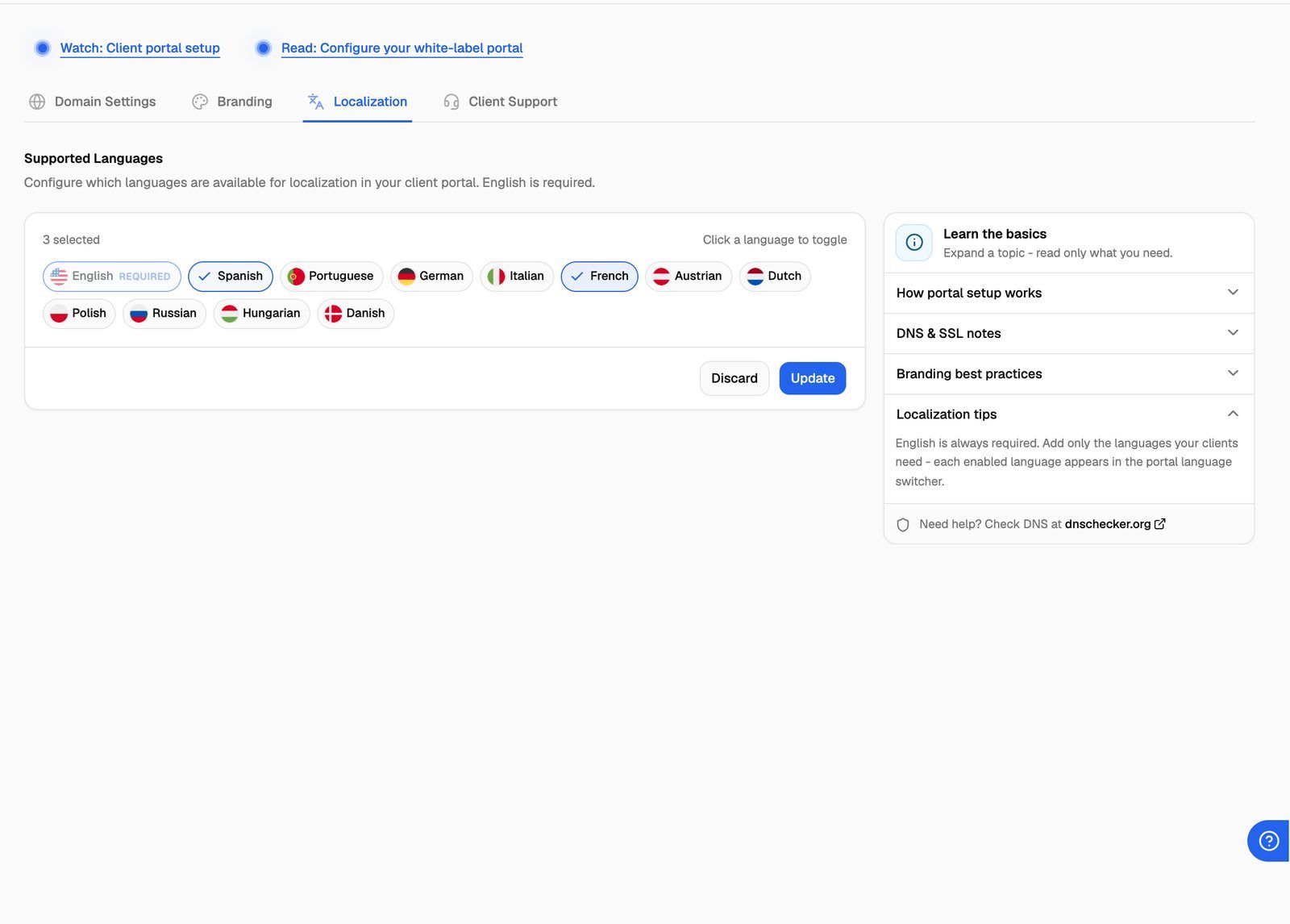
Add only the languages your clients use. Every language you turn on appears in the client's language menu.
How clients switch language
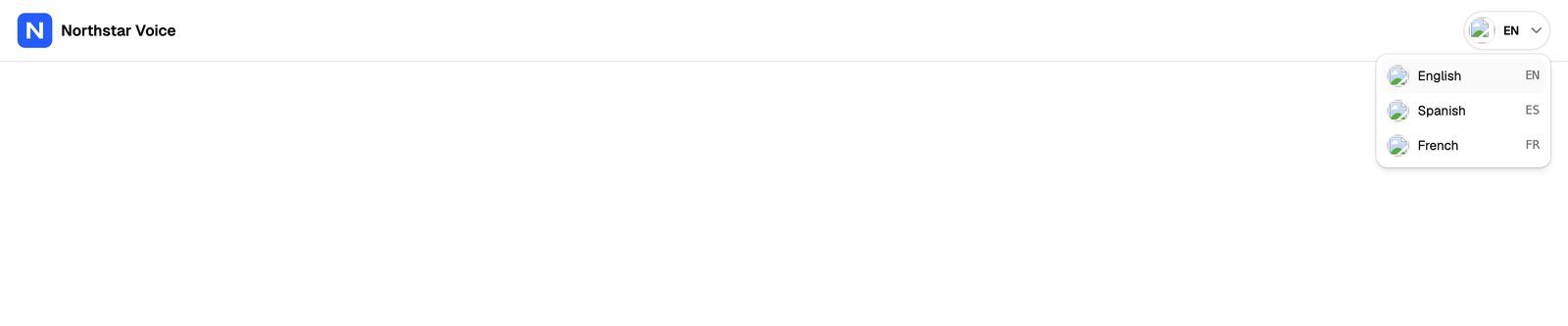
The portal opens in English. When you've turned on at least two languages, clients see a language menu in the top bar, showing a flag and the current language code (such as EN). They click it and pick a language. The menu is also on the login page, so clients can switch before they sign in.
If English is the only language turned on, the menu doesn't appear.
Your language choices apply on your custom domain. Clients who open the portal on the shared VoiceAIWrapper address see all 12 languages in the menu, whatever you've selected here.
What gets translated
The language setting changes the portal's own text: the sidebar, buttons, page titles, labels and messages. It doesn't translate content that you or your clients write, such as:
Agent names, prompts and greetings.
Campaign names and lead data.
Call transcripts and summaries.
Custom pages and links. You can give each custom page its own label and content per language. See Add Custom Pages and Links to the Portal.
If a piece of portal text hasn't been translated yet, it shows in English.
This setting doesn't change the language your agents speak. You set that on each agent.
Frequently asked questions
I clicked Update and got an upgrade prompt.
I clicked Update and got an upgrade prompt.
Pay-as-you-go, Growth and Scale include multilingual client portals and agency admin portals. If an upgrade prompt appears when you update the supported interface languages on one of these plans, contact support so the team can check your account.
I downgraded my plan. What happens to my languages?
I downgraded my plan. What happens to my languages?
Pay-as-you-go, Growth and Scale include multilingual client portals and agency admin portals. Moving between these plans does not remove language availability. If your language selection is unexpectedly reset, check the Localization tab and contact support.
Can I make another language the default?
Can I make another language the default?
No. The portal always opens in English, and each client picks their language from the menu.
Does this change the language of my own webapp?
Does this change the language of my own webapp?
No. This tab only controls the client portal. You choose the language of your own agency admin webapp from the language menu in its top bar. Both multilingual client portals and multilingual agency admin portals are included on Pay-as-you-go, Growth and Scale.
Related articles
Was this helpful?
Still need help? Share an idea