Place a One-Off Outbound Call
Have your agent call one person right now from the Deploy tab, without setting up a campaign, and follow the call live.
Written By voiceaiwrapper
Last updated 26 days ago
Sometimes you need your agent to call one person, right now: a lead who has asked for a callback, a customer you promised to follow up with, or yourself for a final check. The Outbound sub-tab on the agent's Deploy tab places a single real call from one of your numbers, with no campaign or lead list needed. You can watch the call's progress and hang up from the webapp.
Applies to: agents in a VAW Native Pod (an engine or provider connection).
This is a real call. It rings a real phone and uses AI credits, and Twilio charges the Twilio account your caller ID number belongs to. Only call people who have agreed to hear from you.
Before you start
- An active phone number in the Pod to call from. See Connect Your Twilio Account to VAW Native and Buy a New Phone Number.
- AI credits in your balance.
- A saved agent. The call uses the agent as it is saved, so click Save changes first if you've made edits.
Step 1: Open the Outbound sub-tab
- In the sidebar, open Agents and click the agent.
- Open the Deploy tab, then the Outbound sub-tab.
The sub-tab shows Ready when the Pod has at least one number that can be used as caller ID, and No caller ID when it has none.
At the top, a diagram shows the call's route: Calls out (your agent) → Caller ID (your number) → Calling (the person you're calling). If there's no active number, the Caller ID step reads Not connected and the call form is hidden. Click Connect number to go to Phone Numbers and add one.
Step 2: Enter who to call
- Under Number to call, choose the country and type the phone number.
- Under Show as caller ID, pick the number the person will see. The first active number is selected for you. You can pick any active number in the Pod, not only numbers this agent answers.
- If the agent uses call data, open Call data for this call and fill in the values. The header shows how many are filled, for example "· 1 of 3 filled".
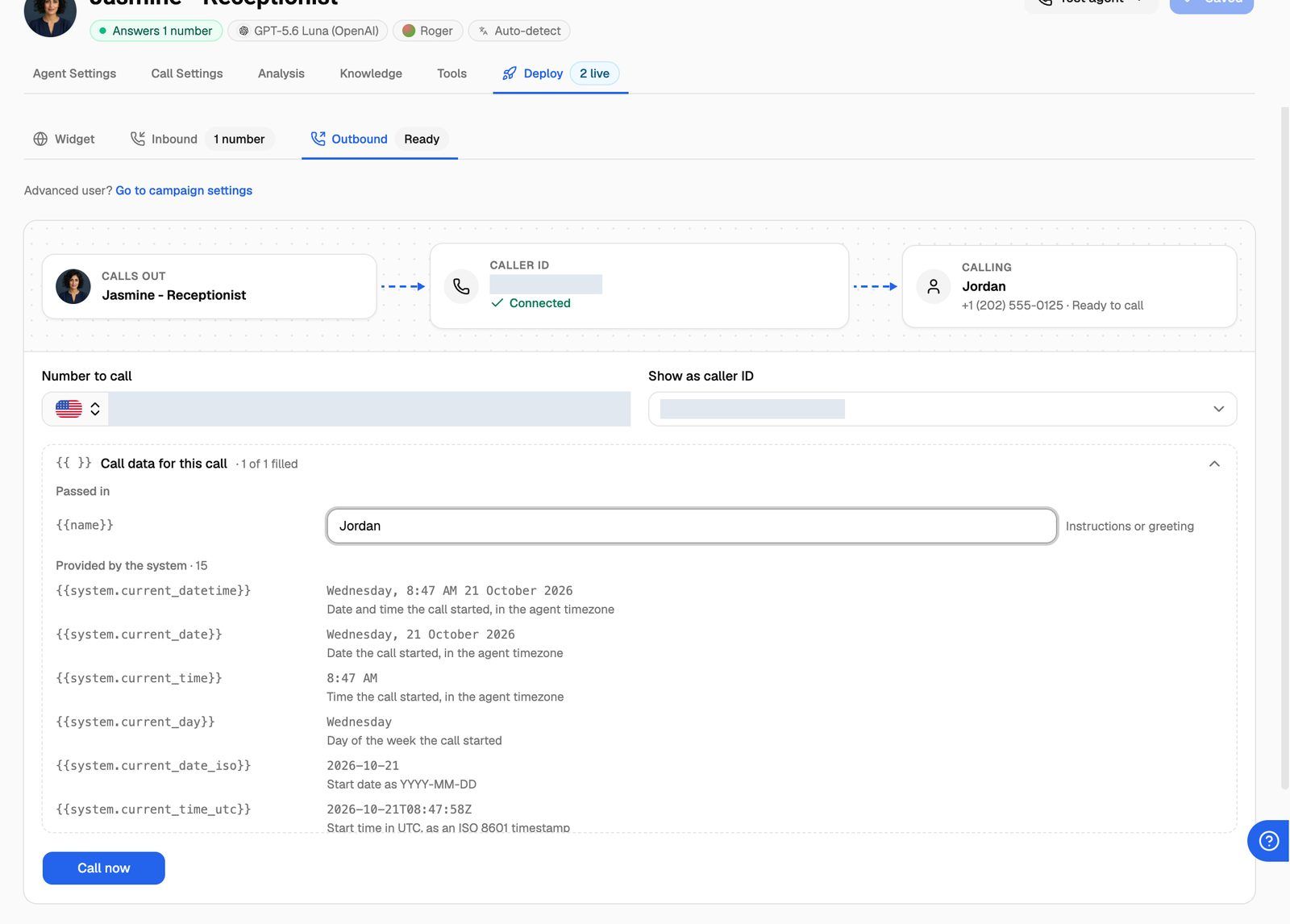
Call data works the same way as in a test:
- Passed in values are the ones you type, such as the person's name or appointment time. They're optional; an empty value is blank in the call.
- Provided by the system lists every value the system fills in when the call starts, with example values. Two of them show the real number you're calling and the caller ID you picked.
- If you fill in a value whose name contains "name" (such as
first_name), the diagram shows that name instead of the bare number.
See Use Call Data and Variables in Your Prompt.
If the agent has tools that create or change data, you'll see a warning before you dial: "This call can create or change real data through {tools}. This is the only warning: {agent} will not check with you during the call."
Step 3: Place the call
Click Call now. You'll see "Calling now. The call will appear in Call logs."
A status strip shows where the call is. It reads Dialling → Ringing → Connected → Ended, with the current step highlighted:
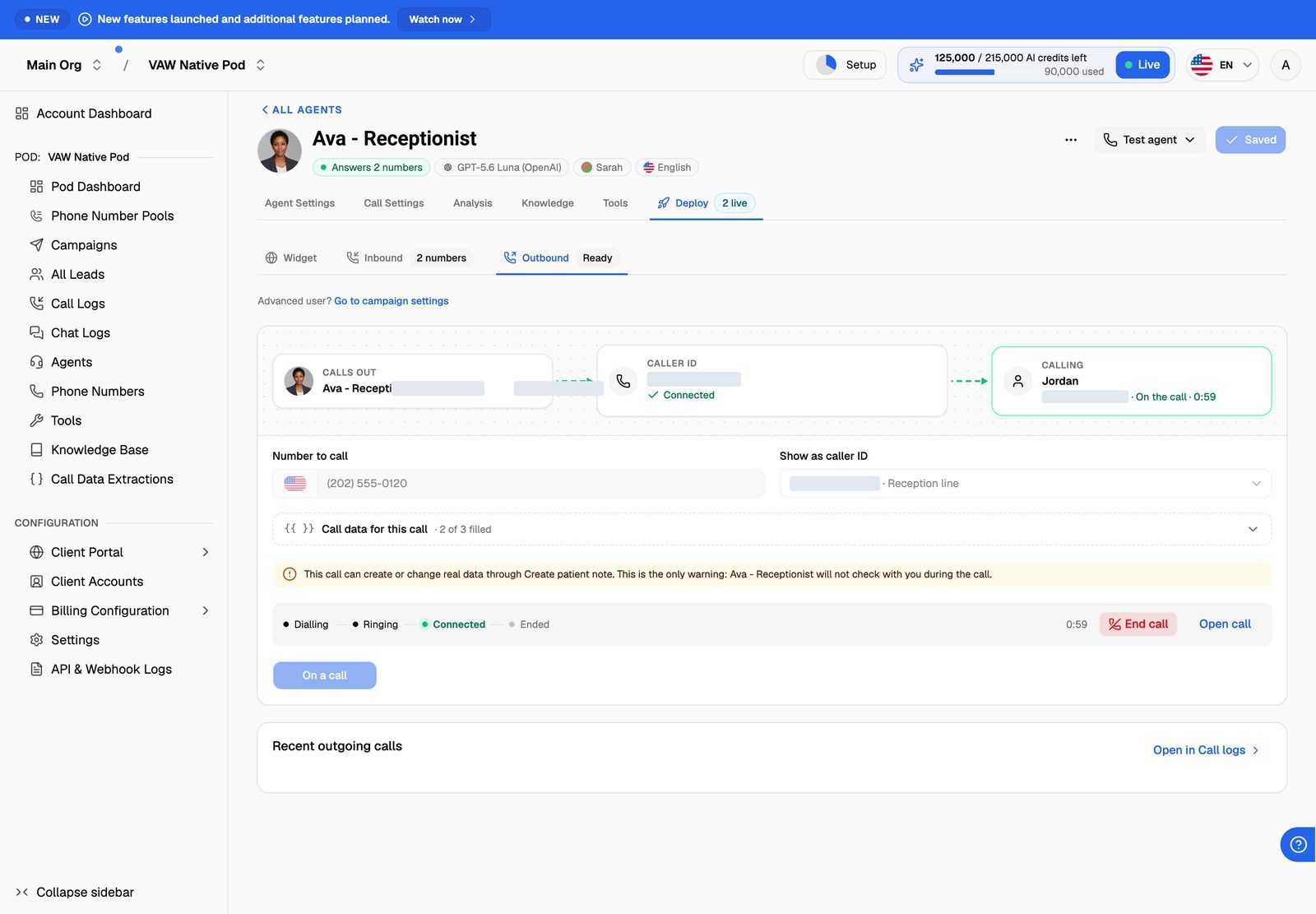
While the call runs:
- End call hangs up straight away.
- Open call appears once the person answers, and stays after the call ends. It opens the call's details.
- You can switch to another tab on the agent page. The status strip and End call are still there when you come back to Outbound.
When the call ends, the button changes to Call again.
VAW Native doesn't detect voicemail yet. If you hear the call go to voicemail, click End call.
Step 4: Review the call
The Recent outgoing calls card under the panel lists this agent's five most recent outgoing calls from the last 7 days. Click a call to open its transcript, recording and analysis, or click Open in Call logs to see every call.
See Call Details: Transcript, Recording, Analysis, Variables and What Ran.
When to use a campaign instead
A one-off call is for a single person at a time. Use an outbound campaign when you want to:
- Call a list of leads.
- Call only during set hours, with retries and limits on attempts.
- Rotate caller IDs with a phone number pool.
To get there, click Go to campaign settings next to Advanced user? above the panel. See Run an Outbound Phone Campaign.
Troubleshooting
"All outbound lines are busy right now."
"All outbound lines are busy right now."
Every outbound line in the Pod is in use. Wait for a call to finish and try again, or give outbound calls more lines. See Split Concurrency Between Inbound and Outbound Calls.
"Out of credits. Top up in Billing to start new calls — calls already running will finish."
"Out of credits. Top up in Billing to start new calls — calls already running will finish."
Your AI credit balance has run out. Calls that are already running will finish, but new ones can't start. Buy credits in Settings → Billing. See What Happens When You Run Out of Credits.
"That Twilio connection is not verified."
"That Twilio connection is not verified."
The Twilio account behind your caller ID number can't place calls. Open Phone Numbers → Connected telephony accounts, click Update credentials on that account, then try again. See Connect Your Twilio Account to VAW Native.
"… is not active yet, so it cannot place calls."
"… is not active yet, so it cannot place calls."
The caller ID number is still being set up. Wait a moment, or pick another number under Show as caller ID.
"A number cannot call itself."
"A number cannot call itself."
Number to call is the same as the caller ID. Enter a different number or pick a different caller ID.
"… can't take new calls while …'s billing is paused."
"… can't take new calls while …'s billing is paused."
The agent belongs to a client whose billing is paused. Calls start again once that client pays or tops up.
"Could not end the call. Hang up from the phone instead."
"Could not end the call. Hang up from the phone instead."
The webapp couldn't reach the call to end it. If you're the person on the call, hang up your phone. Otherwise the call ends when the person hangs up or the agent's maximum call length is reached. See Call Settings: Recording, Silence Timeout and Maximum Call Length.
Related articles
Was this helpful?
Still need help? Share an idea