Set Client Permissions on VAW Native Workspaces
Control exactly what a client can see, change and spend in a VAW Native workspace: levels per page and tab, action switches, number limits and safe white-label defaults.
Written By voiceaiwrapper
Last updated 26 days ago
On a VAW Native workspace you decide, page by page and action by action, what your client can see and do: which agent settings they can change, whether they can buy numbers or launch campaigns, and how many agents or knowledge bases they can have. This article explains how the form works, what each switch does, and which settings cost you money.
Applies to: VAW Native workspaces. For Vapi, Retell AI and ElevenLabs workspaces, see Set Client Permissions on Vapi, Retell and ElevenLabs Workspaces.
Plan-dependent rows: the widget rows need a plan that includes Web widget, and White labeled API needs Campaigns API and White-labeled campaigns API. Without them, those rows show Upgrade. The Phone Number Pools section only appears on plans that include Phone number pools.
Before you start
- Create the workspace and assign its assets. See Create a Workspace and Assign Assets.
- Open the settings: step 3 of Add Workspace (Access Control), or on an existing workspace click Update → Access on the client's Workspaces tab.
How the form works
Each page of the client's portal is a collapsible section: Dashboard, Agents, Phone Numbers, Phone Number Pools, Call Logs, Chat Logs, Tools, Knowledge Base, Call Data Extraction and Campaigns.
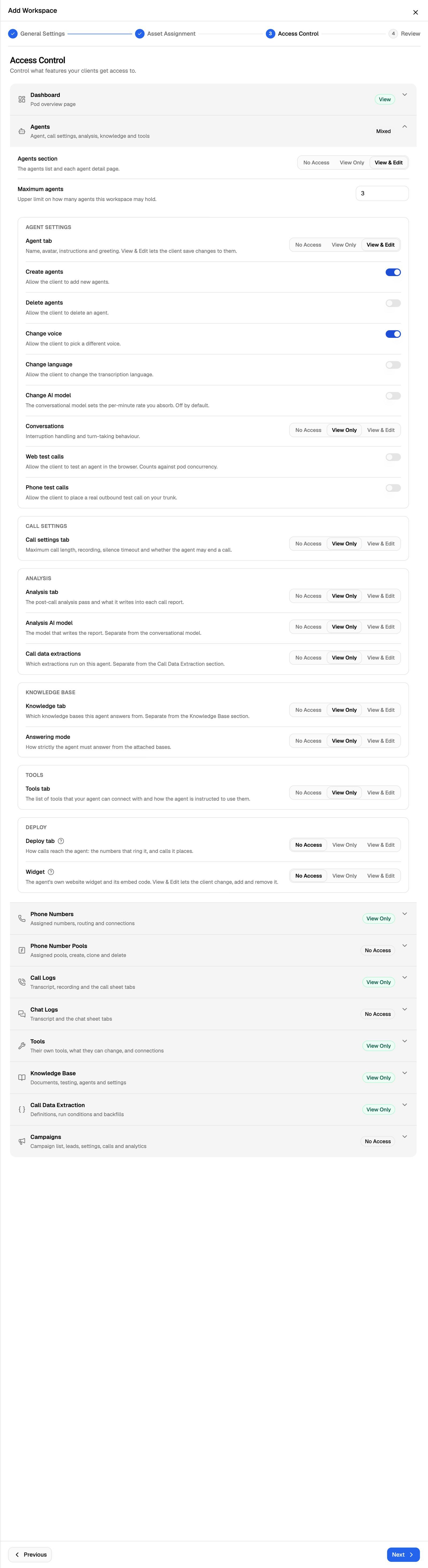
- Levels. Each section has a level: No Access (hidden in the portal), View Only (read it) or View & Edit (change and save it). Pages with nothing to save, like the Dashboard, offer No Access and View.
- Tabs. Sections with tabs (an agent's Agent, Calls and Analysis tabs, for example) give each tab its own level.
- A tab can't be more open than its section. A tab at View & Edit inside a section at View Only is saved as View Only.
- Switches appear when they can apply. Switches that only read (like Transcript) appear at View Only. Switches that create, delete, buy or spend appear only at View & Edit. Lowering a level turns off the switches it hides.
- Number limits (such as Maximum agents) can't go below 1. Most start at 1; Maximum documents per knowledge base starts at 10. They're kept when you hide a section, so turning it back on restores your last value.
- Badges sum up each section, including its tabs: No Access, View, View Only, View & Edit, or Mixed when the parts differ.
- A "?" next to a label lists extra conditions, such as other sections a tab also needs.
When you turn on a section that was No Access, open it and check its tabs. Tabs under a hidden section start at No Access too.
Dashboard
Dashboard access: No Access or View. The Pod overview: activity, asset counts and usage.
Agents
The Agents section level covers the agents list and each agent's page. Maximum agents limits how many agents the workspace can hold. Then each agent tab has its own level, plus switches, limits and nested levels (marked level below, with their own No Access / View Only / View & Edit choice):
Agent-side tabs are separate from the sections of the same name. The Knowledge tab on an agent and the Knowledge Base section are different permissions, and so are the Tools tab and the Tools section.
Deploy tab
The client only sees the agent's Deploy tab when the Deploy tab level is at least View Only, Phone Numbers is at least View Only, and Inbound or Outbound is at least View Only. Inbound and Outbound can only be View & Edit while the Deploy tab itself is View & Edit.
- Inbound: which numbers ring this agent. At View & Edit the client can only do what Phone Numbers also allows. For example, connecting a number needs Change answering agent, buying or importing one needs Buy a number or Import a number plus Connections at View & Edit, and seeing recent calls needs Call Logs at View Only.
- Outbound: places a real call from the agent. It also needs an active number in the workspace for caller ID, and Call Logs at View Only for live call status and recent calls.
- Widget: the agent's own web widget and its embed code. It's a level of its own, shown in the Deploy card, and starts at No Access. View & Edit lets the client change, add and remove it. Needs Web widget on your plan, but not the Deploy tab or Phone Numbers.
Outbound at View & Edit places real calls on the workspace's numbers and spends minutes.
Phone Numbers
The Phone numbers section level covers the client's Phone Numbers page. In the tables below, Shown at is the lowest level at which a row appears.
Disconnect/Release behaves differently depending on where the number came from. A number from your own telephony provider account is only removed from VoiceAIWrapper: it stays with your provider, who may keep billing you for it. A number connected through VoiceAIWrapper is also released from your provider account, and its billing stops.
Phone Number Pools
Shown only on plans that include Phone number pools. Starts at No Access.
- Maximum phone number pools: counts every pool in the workspace, including yours.
- Create pools, Clone pools (a copy counts toward the maximum) and Delete pools. Delete removes any pool in the workspace, including ones you assigned. Campaigns using it fall back to their default number.
Call Logs and Chat Logs
Call Logs covers the calls list and the call details sheet. Chat Logs is the same for chats, without recordings, and starts at No Access.
Choosing View & Edit turns on Play recordings, Download recordings and Export calls together. Turn off the ones you don't want. If you turn off all three, the level drops back to View Only.
To let a client listen to recordings without downloading or exporting them, set Call Logs to View & Edit, then turn off Download recordings and Export calls.
Tools
The Tools section level covers the client's Tools page: the tools you assign and the ones they create. Each level applies to every tool in their workspace, yours included.
- Create tools and Maximum tools: the client builds their own tools. The maximum counts the tools you assign too. The Maximum tools box only appears once Create tools is on, but the limit (1 by default) applies to the tools you assign either way.
- Delete tools: removes a tool the client created, from every agent using it. Tools you assigned can only be removed by you.
- Setup, Response, Safety, Test (levels): the endpoint a tool calls and what it sends; what the agent is told when the tool answers; whether the tool may change data in another system; and running a tool once with sample values. On tools you assign, the connection and its host stay yours.
- Usage: where a tool is used. View only.
- Connections (level), Create connections, Maximum connections: a connection holds the credentials a tool sends, like a calendar account or API key. Your connections stay read-only to the client, and their tools can't use them.
Knowledge Base
- Knowledge base allowed: how many knowledge bases the workspace can hold.
- Create knowledge base and Delete knowledge base.
- Documents tab: Maximum documents per knowledge base (starts at 10), Upload files, Add web addresses, Paste text, Edit pasted text, Refresh sources (re-crawls and re-indexes a web source) and Remove documents.
- Test tab (try questions), Agents tab (which agents answer from this knowledge base) and Settings tab (how many passages are retrieved and how close a match must be).
Call Data Extraction
- Maximum extractions.
- Run conditions and Attached agents (levels): when an extraction runs, and which agents it applies to.
- Preview (shown at View Only), Create extractions and Delete extractions.
- Run a backfill: re-analyses up to a hundred past calls per job.
Every call a backfill re-analyses is a model call you pay for.
Campaigns
Campaigns starts at No Access. The Campaign Access level covers the campaigns list and each campaign's page.
Each campaign tab has its own level:
- Overview tab and Analytics tab: No Access or View. Cost is never shown to clients.
- Leads tab: Export leads (at View Only), plus Add and import leads, White labeled API and Delete leads (at View & Edit). The API also needs a verified custom domain before the client sees it.
- Settings tab: agent, phone number, calling hours, retries and automation rules.
- Calls tab: the same switches as Call Logs, set separately for campaigns.
- Web Widget (needs Web widget): the inbound campaign widget. Its Web Widget Chat switch adds chat and shows the Chat tab, which has the same switches as Chat Logs.
Chats in the campaign widget are billed through the client's Stripe product plan. Check that chat billing is on in that plan before you turn on Web Widget Chat, or chat usage won't be charged. See Bill Chat Conversations.
What a new workspace starts with
Safe settings for a white-label portal
The defaults keep the client read-only and hide what reveals your setup. Before you open things up:
- Keep What ran tab off (in Call Logs, Chat Logs and each campaign's Calls and Chat tabs). It shows the models and providers behind the agent.
- Keep Change AI model off unless you've priced for it. The model sets the per-minute rate you absorb, and a client switching models changes your margin without seeing a bill.
- Think before turning on anything that spends:
- Web test calls: count against your Pod's concurrency.
- Phone test calls: place real outbound calls on your telephony account.
- Outbound at View & Edit on the Deploy tab: places real calls and spends minutes.
- Buy a number: billed monthly by the provider until released.
- Schedule, pause and resume: a running campaign spends your credits.
- Run a backfill: every re-analysed call is billed.
- Set limits before granting create switches. Raise Maximum agents, Maximum campaigns and the other limits to what you've sold. The client can't go past them.
Limits and assigned assets
Limits also apply to what you assign. If a workspace holds more agents, numbers, pools, tools, knowledge bases, extractions or campaigns than its limit allows (on a visible section), the Review step shows "This workspace assigns more than its limits allow, so it cannot be saved yet." and lists each one. Raise the limit here or remove assets on Asset Assignment, then save.
Troubleshooting
Save Workspace is greyed out on the Review step.
Save Workspace is greyed out on the Review step.
The workspace has more assets than one of its limits allows. The Review step lists them, for example "Agents: 2 assigned, limit 1." Raise that limit on Access Control, or remove assets on Asset Assignment.
The Review step says I'm over the tools limit, but I can't find Maximum tools.
The Review step says I'm over the tools limit, but I can't find Maximum tools.
Maximum tools only appears once Tools is at View & Edit with Create tools on. Set both, then raise Maximum tools. If you don't want the client to create tools, turn Create tools off again and set Tools back to View Only. The number you entered is kept.
My client can't see the Deploy tab on an agent.
My client can't see the Deploy tab on an agent.
Check three things: the Deploy tab is at least View Only, Inbound or Outbound is on, and Phone Numbers is at least View Only.
My client can't play recordings.
My client can't play recordings.
Recordings need View & Edit on Call Logs (or on the campaign's Calls tab) with Play recordings on. At View Only the client sees transcripts but not recordings.
I turned on Campaigns but my client sees empty campaign pages.
I turned on Campaigns but my client sees empty campaign pages.
The campaign tabs start at No Access. Open Campaigns and set Overview tab, Leads tab, Settings tab, Calls tab and Analytics tab to the levels you want.
Can I give different users at the client different permissions?
Can I give different users at the client different permissions?
No. Access belongs to the workspace, and every user of the client account has the same access. See How Client Accounts and Workspaces Work.
Related articles
Was this helpful?
Still need help? Share an idea