Choose a Plan and Add a Payment Method
Choose Pay-as-you-go, Growth or Scale, review the 7-day trial terms and optional add-ons, and add or update your payment card.
Written By voiceaiwrapper
Last updated 26 days ago
Before you start building, choose Pay-as-you-go, Growth or Scale and add a card. Pay-as-you-go has no base subscription fee. Growth and Scale each offer a 7-day free trial with 1,000 AI credits on monthly or annual billing; both start billing automatically after 7 days unless cancelled. Your full plan credit allowance starts with your first payment.
Before you start
You need to be the organization's owner or an admin. If you aren't, you'll see "You are not authorized. Ask your organization owner or admin to subscribe to a plan."
Have a card ready. A card is needed even if nothing is due today. It's used later for add-ons, AI credit top-ups or an upgrade.
Stripe also asks for your billing address and a phone number. Depending on your billing account, you may see an optional tax ID field too.
Step 1: Review your plan
Open agency signup, then review the current plan choices after creating your account:
Pay-as-you-go: no base subscription fee, 1,000 welcome AI credits for testing and 1 included client account. Usage and paid add-ons are separate.
Growth: 7-day trial with 1,000 AI credits, then $79/month or $790/year. Includes 3 client accounts and 1 BYOK connection. Full allowance after first payment: 11,000 credits on monthly billing or 110,000 on annual billing.
Scale: 7-day trial with 1,000 AI credits, then $499/month or $4,990/year. Includes 20 client accounts and Vapi, Retell AI and ElevenLabs BYOK. Full allowance after first payment: 70,000 credits on monthly billing or 700,000 on annual billing.
A card is required for every option. Growth and Scale each offer a 7-day free trial with 1,000 AI credits, on monthly or annual billing. A card is required, and billing starts automatically after 7 days unless cancelled. The full plan credit allowance starts with your first payment. See Compare Plans.
Step 2: Add any add-ons you need (optional)
Review any optional add-ons available for your selected plan. Pay-as-you-go and Growth offer paid BYOK connections, client accounts and team-member add-ons; Growth already includes 1 BYOK connection. You can add:
Click + next to an add-on to add one, or − to remove one. You can also type a number.
Each row shows its price per unit and the total for that add-on.
Use the Monthly / Yearly switch to choose how paid add-ons are billed. Yearly is marked (2 months free).
You can skip this step entirely and add any of these later from Settings → Billing. See Add-Ons: BYOK Connections, Client Accounts and Team Members.
An eligible Pay-as-you-go BYOK add-on may show a separate 7-day free trial badge. Review the offer and future charges shown for that order. This is separate from the Growth and Scale plan trials. See Free Trials Explained.
Step 3: Check the summary
The summary at the bottom of the page shows what happens to your card. Growth and Scale each require a card and start billing automatically after 7 days unless cancelled. The screenshot and message examples below describe the separate Pay-as-you-go add-on order:
Due today: what's charged when you finish checkout.
Then (or From a date, if a trial applies): your recurring amount per month or per year.
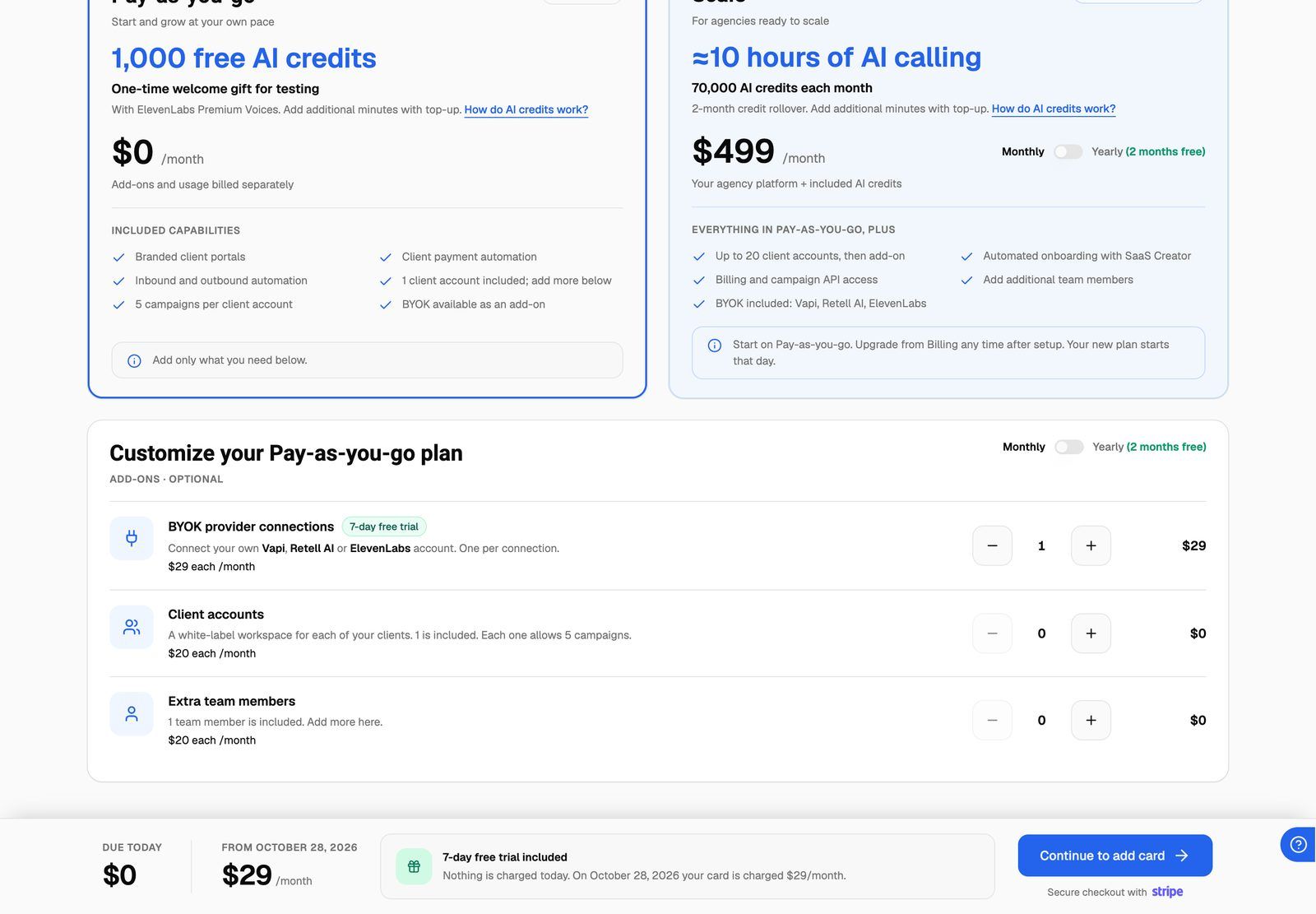
The message next to the amounts tells you which case you're in:
On a Pay-as-you-go order with paid add-ons but no eligible BYOK trial, review the amount due today before finishing checkout. Do not apply this PAYG example to a Growth or Scale plan trial.
Step 4: Add your card on Stripe
Click the continue button for your selected plan, then review the checkout summary.
Stripe's secure checkout page opens. Enter your card details, billing address and phone number.
Confirm on the Stripe page.
If you leave the Stripe page without finishing (for example with its back link), you return to the plan setup page and nothing is charged. You'll need to choose your add-ons again.
Step 5: Wait a moment while your organization is set up
After checkout, you'll see Setting up your workspace… while VoiceAIWrapper confirms your subscription with Stripe. This usually takes a few seconds. Keep the page open.
When it's done, you go straight to the onboarding wizard to build your first agent. See Your First Agent: The Onboarding Wizard.
Review trial terms before confirming
For Growth or Scale, select monthly or annual billing and review the plan price, 7-day trial end date and automatic charge after the trial. The trial includes 1,000 AI credits; the full allowance starts with the first payment. Cancel before the trial ends if you do not want paid billing to begin.
If your subscription has ended
Open Billing and review the options available for your account. Do not assume that returning or switching plans grants another trial or another 1,000 credits. Contact support if the payment timing is unclear before confirming.
Add or update your card later
In the sidebar, click Settings, then scroll to Billing.
Under Payment method, click Add card (if there's no card on file) or Update.
Stripe opens. Add or change your card, then return to VoiceAIWrapper. You're brought back to the Billing page.
To change your billing address or tax ID, click Update next to Billing details. See Invoices, Payment Methods and Tax Details.
Growth and Scale trials require a card at the start. Review the current payment method and trial end date in Billing.
Troubleshooting
"You are not authorized. Ask your organization owner or admin to subscribe to a plan."
"You are not authorized. Ask your organization owner or admin to subscribe to a plan."
Only the owner or an admin can set up the plan. Ask them to sign in and finish the steps above, or to make you an admin. See Invite Team Members and Assign Roles.
"We couldn't start the checkout. Please try again."
"We couldn't start the checkout. Please try again."
Stripe's checkout page couldn't be opened. Wait a moment and click Continue to add card again. If it keeps happening, contact support from the Help Chat.
"Something went wrong confirming your subscription. Please try again. You have not been charged."
"Something went wrong confirming your subscription. Please try again. You have not been charged."
Stripe reported that checkout didn't complete, for example because the session expired. You're taken back to the plan page. Go through checkout again.
The page said "free trial included", but Stripe wants to charge me today.
The page said "free trial included", but Stripe wants to charge me today.
Do not confirm a charge you do not understand. Check the selected plan, billing interval, optional add-ons and trial terms. Contact support if checkout does not match the offer you selected. Do not assume a previous subscription grants another trial.
I'm stuck on "Setting up your workspace…".
I'm stuck on "Setting up your workspace…".
Keep the page open. VoiceAIWrapper checks with Stripe every few seconds and runs an extra check if it takes longer. If it still doesn't move after a minute or two, reload the page. Contact support from the Help Chat if it's still stuck.
I want to leave without subscribing.
I want to leave without subscribing.
Use Log out at the top of the plan page. To remove your account completely, see Delete Your Account.
Related articles
Was this helpful?
Still need help? Share an idea