Lead Statuses Explained
What the Leads tab's status tabs and columns mean, what moves a lead from one to the next, and how to read the pre-call decision labels.
Written By voiceaiwrapper
Last updated 26 days ago
Every lead in a campaign has a status that tells you whether it will be called, is waiting in line, has been reached, or has been stopped. Reading these statuses tells you how far a campaign has got and why a particular person hasn't been called yet.
You'll find them on a campaign's Leads tab, as a row of status tabs and as columns in the table. This article explains each one and what moves a lead between them.
The status tabs
Open your Pod (an engine or provider connection), select Campaigns, open a campaign and go to the Leads tab. The tabs above the table filter the list:
A lead can appear under more than one tab. For example, an answered lead that later asked not to be called shows under Answered and Do not call.
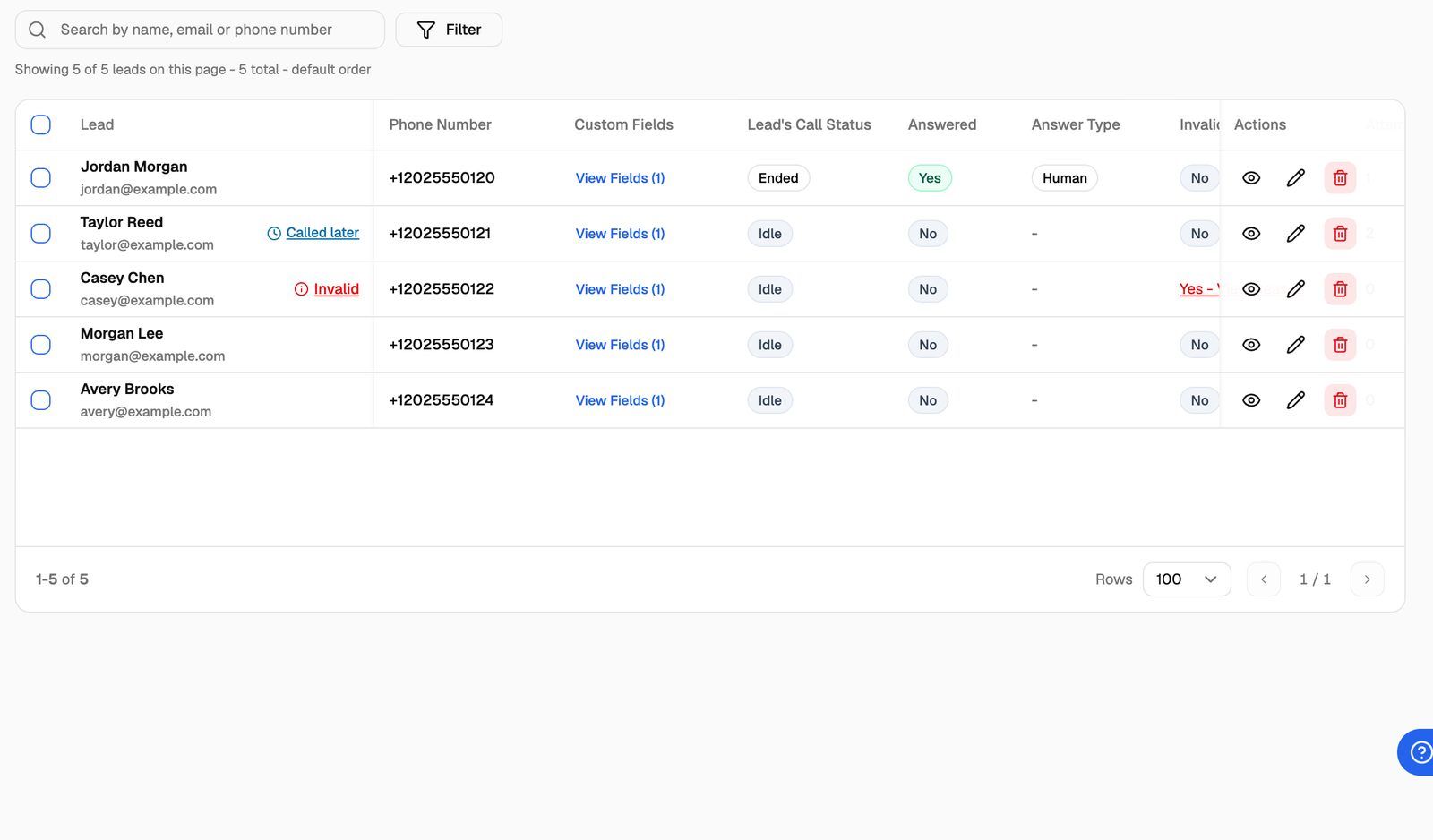
The status columns
On outbound campaigns, the table adds columns that show each lead's details:
Inbound campaigns show the lead, phone number, custom fields and the date the lead was added.
What moves a lead between statuses
A new lead starts as Eligible. When the campaign runs, it picks eligible leads, moves them to Queued, then dials them. After each call, the outcome decides what happens next:
Callback and smart do-not-call depend on how the campaign is set up. See Smart Callback and Smart Do-Not-Call. The number of attempts, the wait between them and the voicemail rule are set in the campaign's dialing rules. See Outbound Dialing Rules: Attempts, Redial Wait, Voicemail and Priority.
Changing a status yourself
You can also move leads by hand. Select them in the table and use Bulk Actions, or use the Do not call switch on a row:
See Bulk Actions on Leads for the full list, and Do-Not-Call: Sources and Reasons for every way do-not-call can be turned on.
Invalid leads
A lead is marked Invalid when a call to it fails with an error, for example because the number is wrong or the call couldn't be placed. On ElevenLabs, a lead is also marked invalid if your agent uses a dynamic variable that the lead has no value for. The error then names the missing variables, and you fix it by adding them as custom fields.
Point at the red Invalid label beside the lead's name, or click Yes - View Reason in the Invalid column, to see:
Lead is marked as invalid because it triggered an error and will not be called again. If this error has been resolved, you can mark the lead as valid. (Select it and go to Bulk Actions to mark it as valid)
Below it, Current Error shows the error that was recorded. Fix the cause (for example, correct the number by deleting the lead and adding it again), or mark the lead valid if the problem was temporary. See CSV Import Errors and Invalid Leads.
Pre-call decision labels
If the campaign uses a Pre-call context webhook, your webhook can decide what happens right before each call. When it changes the normal flow, a small label appears beside the lead's name. Point at it to see the details.
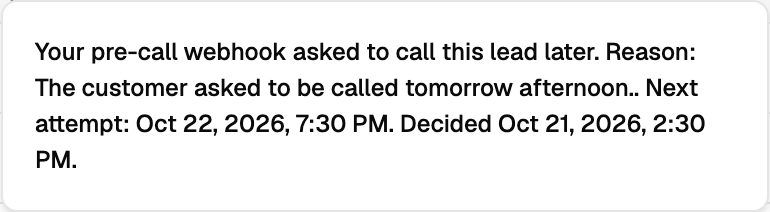
When the webhook says not to call at all, there's no label. Instead the lead's Do not call switch turns on, and the info icon says Your pre-call webhook said not to call. See Pre-Call Decisions: Call Later, Do Not Call and Reject.
Frequently asked questions
Why isn't my lead being called even though it's eligible?
Why isn't my lead being called even though it's eligible?
Eligible means the lead can be called, not that it's next. The campaign also has to be active, inside its calling window and below its concurrency limit, and the lead's Next Attempt After time has to have passed. See My Outbound Campaign Isn't Calling.
A lead shows Answered with answer type Callback. Will it be called again?
A lead shows Answered with answer type Callback. Will it be called again?
Yes. A callback lead counts as answered because the first call connected, but the campaign calls it back at the time the person asked for.
The Eligible leads and Max attempts tabs are missing.
The Eligible leads and Max attempts tabs are missing.
They only appear on outbound campaigns. Inbound campaigns don't dial leads, so they show All, Answered, Invalid, Queued and Do not call.
Where can I see these numbers as totals?
Where can I see these numbers as totals?
The campaign's Overview tab counts leads in each status. See Campaign Overview: Lead Health, Live Calls and Next in Line.
Related articles
Was this helpful?
Still need help? Share an idea