Add Website Pages and Crawl a Site
Add one web page, or a page and every page underneath it, to a VAW Native knowledge base. Pages are re-read every day so answers stay current.
Written By voiceaiwrapper
Last updated 26 days ago
Your client's pricing page, FAQ and service pages already answer most of what callers ask. Add them to a knowledge base by web address, and your agents can answer from them. You can add a single page, or a page plus every page underneath it, up to 500 pages.
Web pages are read again every day, so when the page changes, your agent's answers change with it.
Applies to: VAW Native Pods. Vapi, Retell AI and ElevenLabs Pods show their own knowledge bases read-only. See Provider Knowledge Bases and Tools in VoiceAIWrapper.
Before you start
- A knowledge base to add the pages to. See Create a Knowledge Base and Upload Files.
- A public address. Pages behind a login, or on a private network, can't be read.
- For a whole section, the right starting page. The crawl only goes down from the address you give it (see below), so start at the section you want, such as
https://example.com/help.
Add a single page
- Open the knowledge base and click Add to knowledge base.
- Select Web address.
- Paste the full address into Web address, starting with
https://. - Leave Also add every page underneath this one off.
- Click Add page.
You'll see Page queued and the sheet closes. The page appears on the Documents tab and goes from Waiting to Reading to Ready.
Only the main content of the page is kept. Menus, headers, footers and cookie banners are dropped. The address can also point straight at a PDF or CSV file.
Add a page and everything underneath it
- Open the knowledge base and click Add to knowledge base.
- Select Web address and paste the starting address.
- Turn on Also add every page underneath this one.
- Optionally, list parts of the site to leave out in Skip addresses containing, one per line (for example
/blogand/careers). - Click Add site.
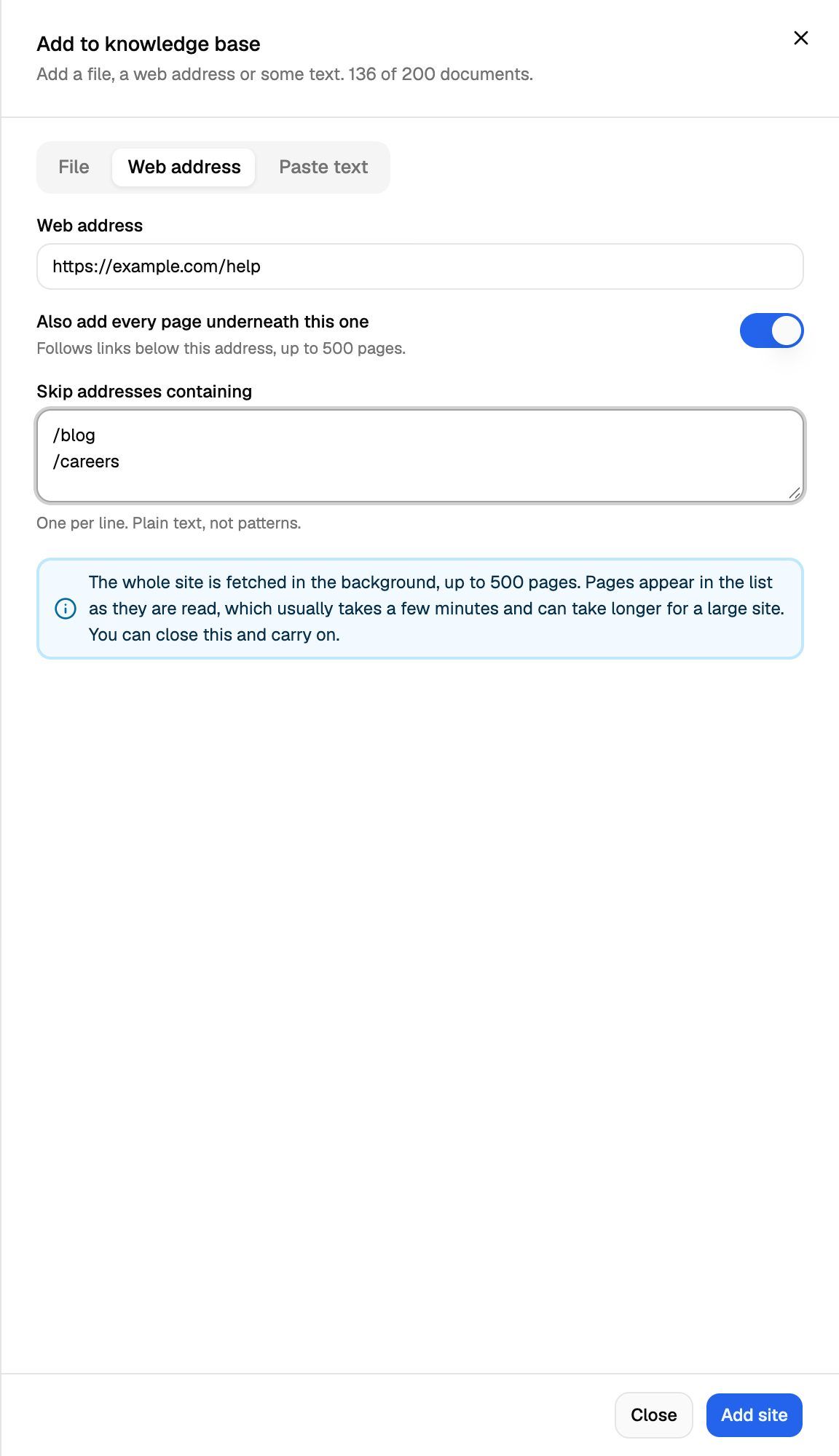
You'll see Crawl queued and the sheet closes. The site is read in the background. Pages appear as they're read, which usually takes a few minutes and can take longer for a large site. You can carry on working in the meantime.
The crawl appears as one row on the Documents tab (a Site section). Click the arrow next to its name to see every page it found.
Which pages a crawl adds
The crawl starts at your address and follows the links it finds on each page.
The crawler reads each page as the server sends it. It doesn't run JavaScript, so pages that build their content in the browser may come back with little or no text. If that happens, upload the content as a file or paste it as text instead.
See what was added and what was left out
Expand the site section row to see a summary like "42 pages found underneath · 38 added, 4 left out". Each page shows Added or the reason it was left out.
Pages that are still being read count as left out and show Left out until they're ready, so check again once the crawl has finished.
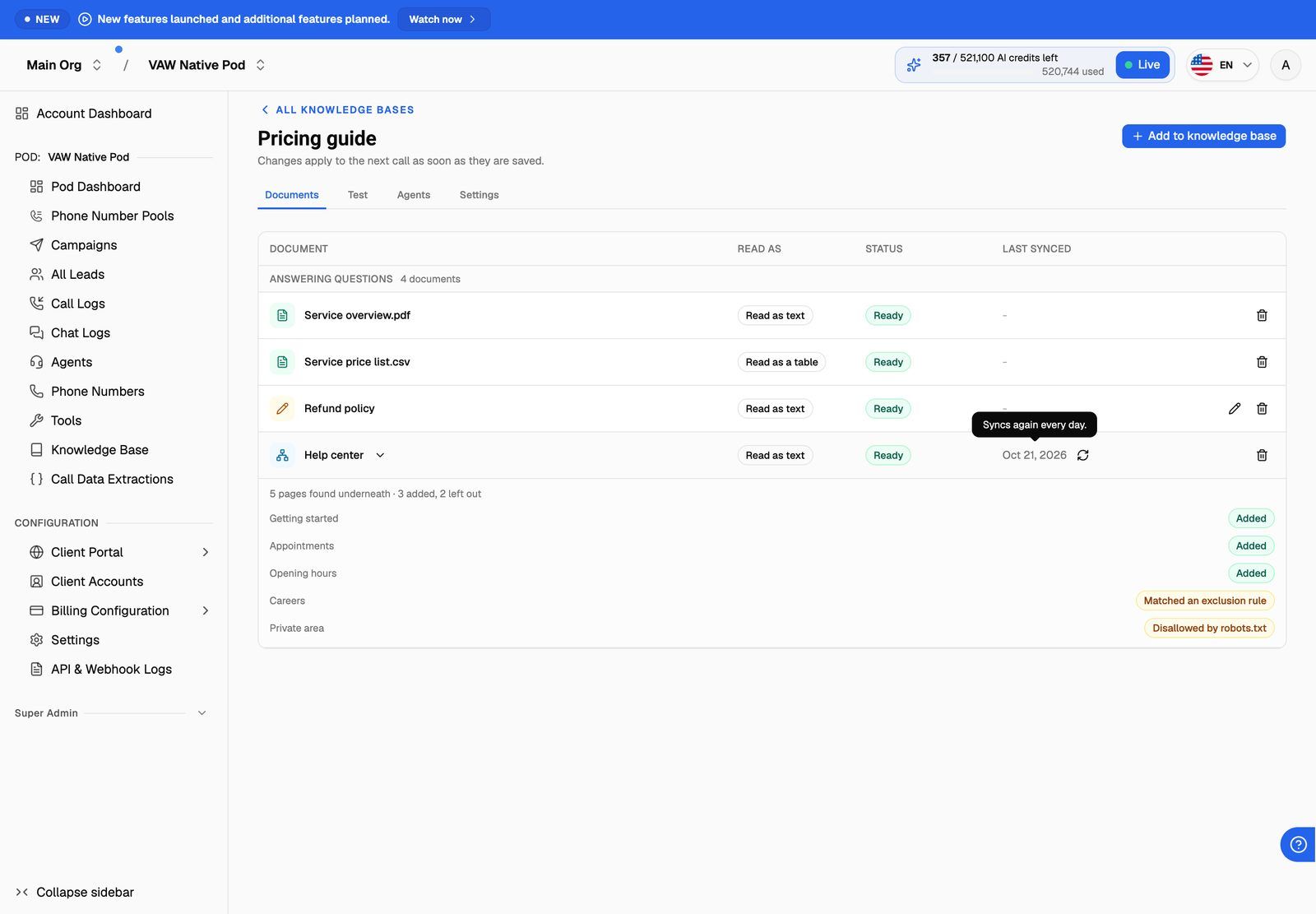
Left-out pages aren't used for answers. In most cases there's nothing to fix. For more on statuses, see Document Statuses, Syncing and Failed Documents.
Every page a crawl finds counts toward the 200-document limit, including pages it leaves out. A crawl of a large site can fill the knowledge base, after which you can't add anything else to it. To avoid this, start from a narrower section, use the skip list, or give the crawl a knowledge base of its own.
How web pages stay up to date
Web pages and site sections sync once a day. The Last synced column shows when each one was last checked. If a page hasn't changed since the last check, it's left as it is.
To sync a page now instead of waiting, hover over its row and click the sync icon next to the Last synced date. You'll see Refresh queued.
If a sync fails (for example, the site is briefly down), the page keeps answering from its last good copy. Its status changes to Out of date and Last synced shows Failed with the date. It tries again the next day.
A few things to know:
- The daily sync re-reads the pages already in the list. It doesn't look for new pages. To pick up pages added to the site since your crawl, remove the site section and add it again.
- Syncing a site section row re-reads its starting page only. The pages underneath it are kept up to date by the daily sync.
- Adding an address that's already in the knowledge base doesn't create a duplicate. You'll see "That address is already here — refreshing it" and the existing page is read again. This happens even with Also add every page underneath this one turned on, so it doesn't start a new crawl.
- Removing a site section removes every page underneath it too.
Troubleshooting
"Start the address with https://"
"Start the address with https://"
Paste the full address, including https:// (or http://). Copying it from your browser's address bar is the easiest way.
"That web address cannot be reached. Check it points at a public page."
"That web address cannot be reached. Check it points at a public page."
The address points somewhere we can't connect to, such as a private network or a local address. Use the public address of the page, and open it in a private browser window to check it loads without signing in.
The page shows Failed.
The page shows Failed.
The page couldn't be loaded or had no usable text. Common causes are a page that needs a login, a page that no longer exists, or a page that builds its content with JavaScript. Hover over the status to see the reason. Fix the cause, then click Try again in the question-mark popover on the row.
The crawl found far fewer pages than the site has.
The crawl found far fewer pages than the site has.
Check that:
- You started at the right level. Pages outside the starting address aren't followed.
- The pages are linked from other pages in that section. The crawl only finds pages through links, up to 5 clicks deep.
- Your skip list isn't too broad.
/helpwould also skip/helpdesk. - The site's robots.txt isn't blocking crawlers. Expand the row to see the reasons.
I can't add anything else to the knowledge base after a crawl.
I can't add anything else to the knowledge base after a crawl.
The crawl filled the 200-document limit. Remove the site section and crawl a narrower part of the site, or move the crawl into its own knowledge base and attach both to your agent.
Related articles
Was this helpful?
Still need help? Share an idea