Test Your Agent: Web Calls, Phone Calls and Chat
Talk to your agent in the browser, have it call your phone, or chat with it by text before it takes real calls.
Written By voiceaiwrapper
Last updated 26 days ago
Before your agent answers real customers, try it yourself. You can talk to it in your browser, have it ring your own phone, or chat with it by text. Each test is a real conversation with the saved agent, so you can hear the greeting, check its answers and see what your tools do.
Applies to: agents in a VAW Native Pod (an engine or provider connection). For agents on Vapi, Retell AI or ElevenLabs, see How Provider Agents Appear in VoiceAIWrapper.
Before you start
- Save your changes. A test runs the agent as it is saved. If the Save changes button is active, click it first.
- AI credits. Every test is a real conversation and uses credits, like a live call or chat. If you're out of credits, the test won't start.
- For a phone test: the Pod needs at least one active phone number to call from. See Connect Your Twilio Account to VAW Native.
Open the Test sheet
- In the sidebar, open Agents and click the agent you want to test.
- In the top-right corner, click Test agent.
- Choose Web call, Phone call or Chat.
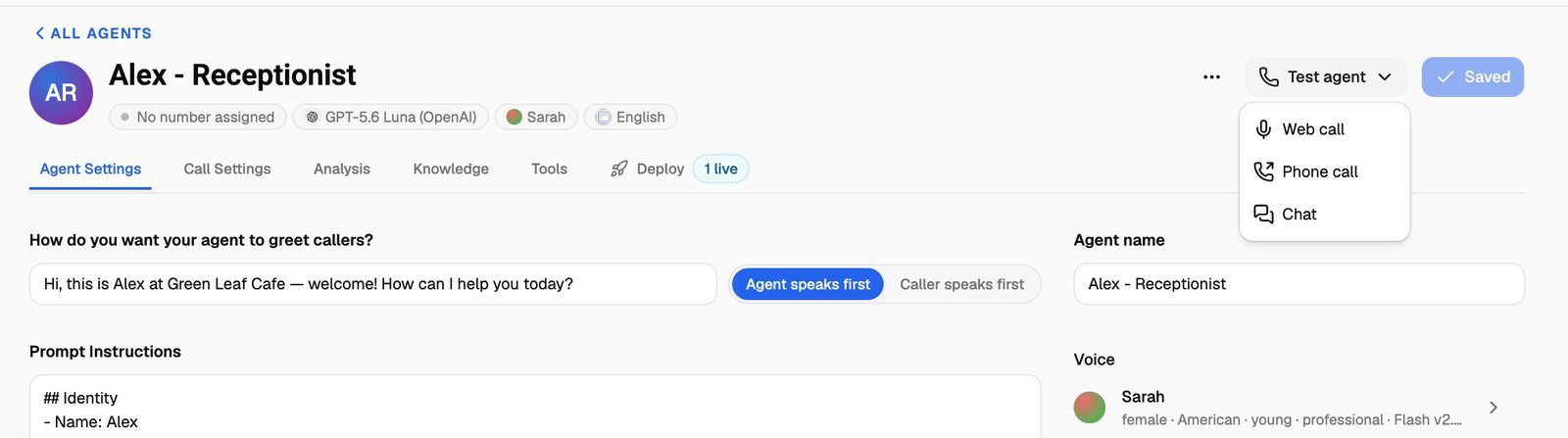
The Test {agent name} sheet opens on the right, with the mode you picked shown as a badge next to the title. To switch to a different mode, close the sheet and pick again from Test agent.
Fill in call data for this test
If your prompt, greeting or tools use variables (such as {{first_name}}), the sheet shows a Call data for this test panel. It lists:
- Passed in: values you supply. Type example values here, such as a customer name, to see how the agent uses them.
- Provided by the system: values filled in automatically when the call starts, such as the date and time. You can't edit these.
- Saved by a tool: values one of the agent's tools fills in during the call. Anything you type is used until the tool replaces it.
All values are optional. Left empty, they're blank in the conversation, as in a real call without that value. While you stay on the agent's page, the values you type stay in the sheet if you close it and open it again, so you can change one and test again quickly. They're only used for tests and never change the agent's settings.
To learn how variables work, see Use Call Data and Variables in Your Prompt.
Tests can change real data. If the agent has tools that create or change data (for example, booking an appointment or updating a record), the sheet warns you: "This call can create or change real data through {tools}. This is the only warning: {agent} will not check with you during the call." (In a chat, it says "This chat can…".) Anything the tool does during a test really happens. Point those tools at test accounts or test calendars first if you don't want real records created.
Test with a web call
- Choose Test agent → Web call.
- Fill in any call data you want to use.
- Click Start test call. Allow microphone access if your browser asks.
- When the badge reads Connected — speak now, start talking. The transcript fills in as you speak, with your lines labelled You and the agent's labelled Agent.
- Click End test when you're done.
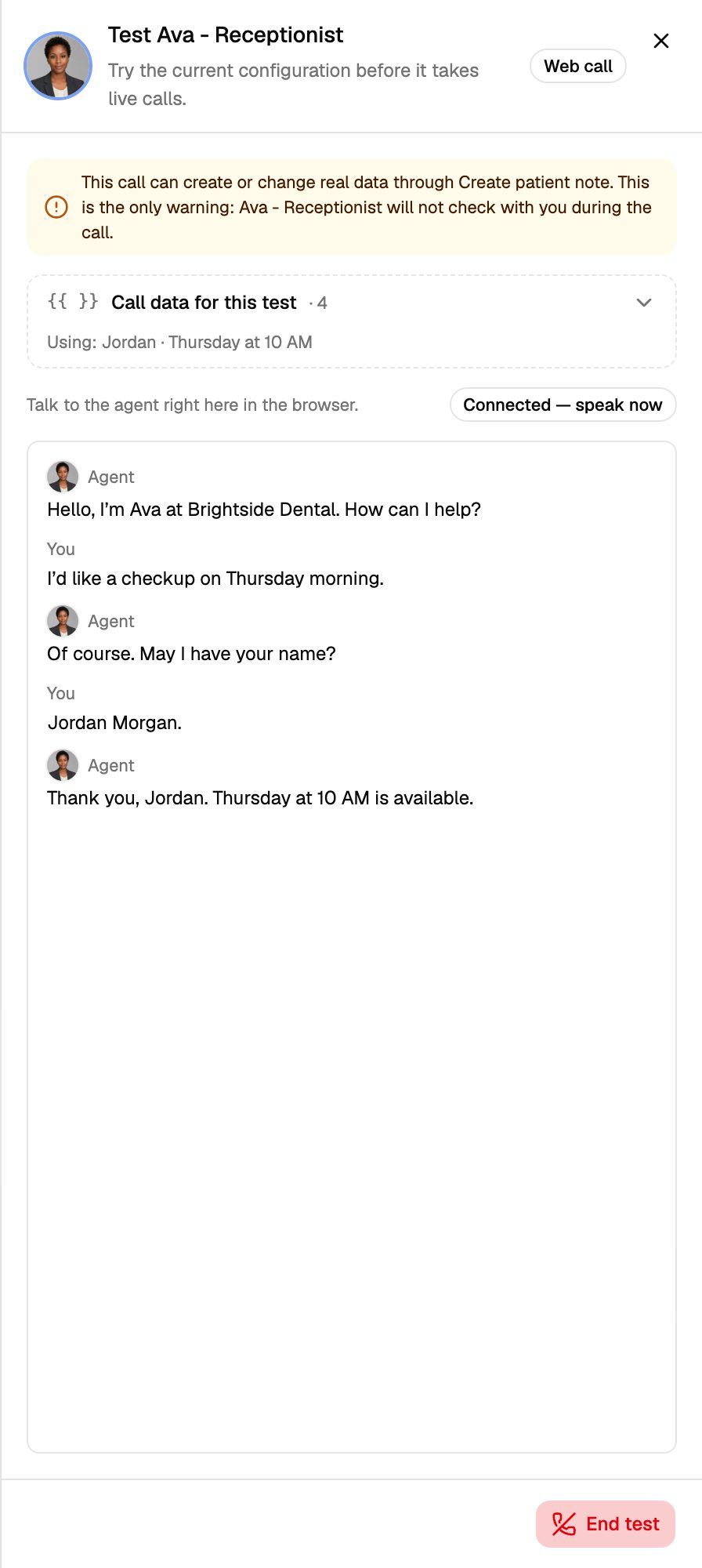
Closing the sheet also ends the call.
If the agent should check calendar availability, connect the calendar in the agent's settings first. The sheet reminds you: the agent can only check availability when a calendar is connected.
Test with a phone call
A phone test is a real outbound call. The agent rings the number you enter, from one of your Pod's numbers.
- Choose Test agent → Phone call.
- Under Show as caller ID, choose one of your numbers. Only active numbers are listed.
- Under Number to call, choose the country and type your phone number. The hint under the field reminds you to use international format, starting with
+and the country code. - Fill in any call data you want to use.
- Click Place test call, then pick up your phone and talk to the agent.
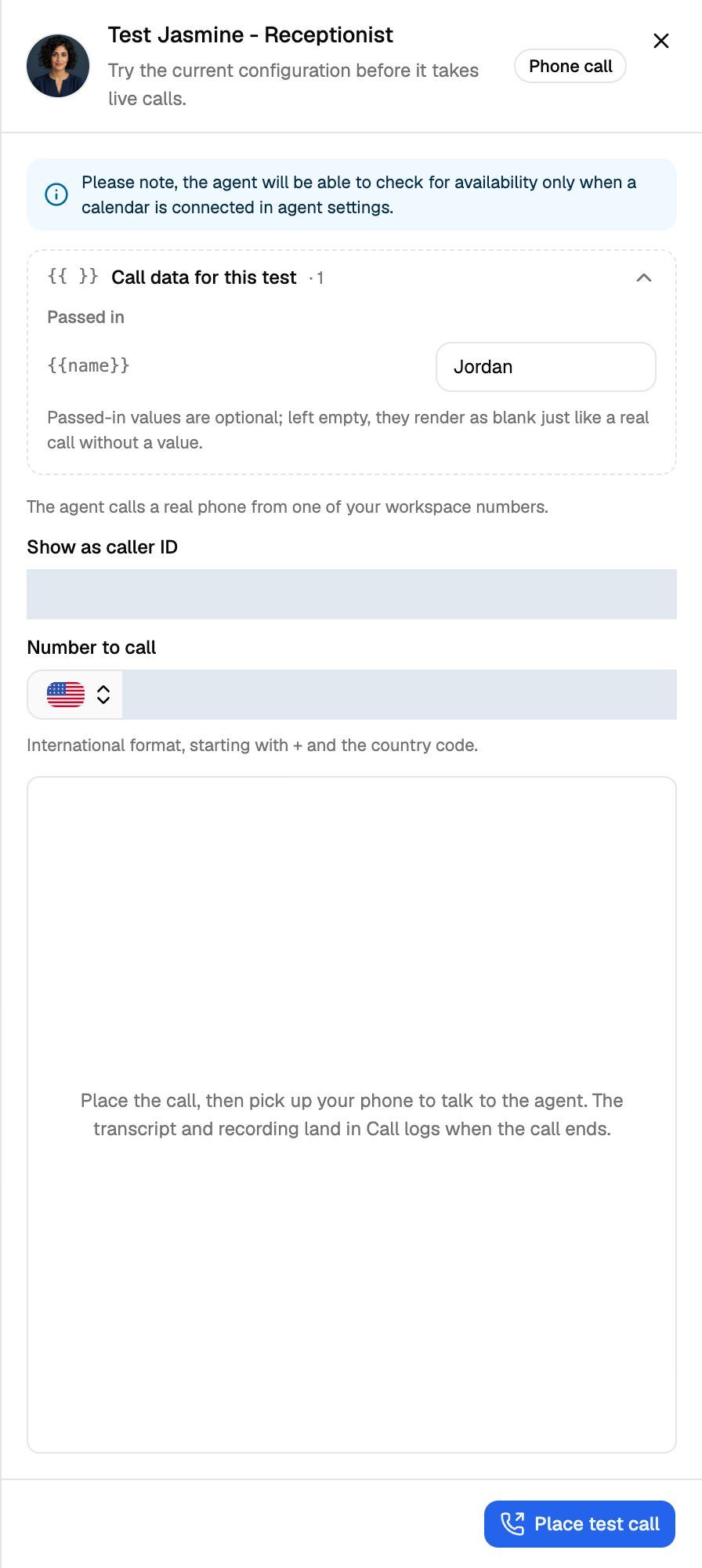
You'll see "Calling now. The call will appear in Call logs." To hang up, end the call on your phone. The transcript and recording appear in Call Logs once the call ends.
If the Pod has no active number, the sheet says "This Pod has no active number yet. Add one under Phone numbers before calling out." Click Test with a web call instead, or add a number first.
A phone test uses AI credits, and Twilio also charges the Twilio account the caller ID number belongs to, as it would for any call.
Want to watch the call's progress and hang up from the webapp? Use the agent's Deploy → Outbound tab instead. See Place a One-Off Outbound Call.
Test with a chat
- Choose Test agent → Chat.
- Fill in any call data you want to use.
- Click Start chat.
- Type in the Message {agent} box and send. The agent's reply appears below your message.
- Click End chat at the top of the conversation when you're done.
After the chat ends, click View chat log to open the full record, or Start new chat to try again. Closing the sheet also ends the chat.
What tests can't do
- Transfers and text messages only work on phone calls. On a web call or chat, Transfer call and Send SMS are switched off for that conversation, so the agent can't transfer you or text you. To test either tool, use a phone test.
- Tests use the saved agent. Unsaved edits aren't part of the test.
- Voicemail isn't detected. VAW Native doesn't detect voicemail yet, so answer the phone yourself when you run a phone test.
Where tests are logged
Open a log to read the transcript and, once it has run, the call analysis. See Call Details: Transcript, Recording, Analysis, Variables and What Ran.
Troubleshooting
It says "Out of credits" when I start a test.
It says "Out of credits" when I start a test.
Tests use AI credits like any other call or chat, so they stop when your balance runs out. Buy credits in Settings → Billing, then try again. See What Happens When You Run Out of Credits.
It says "Concurrency limit reached" when I start a web call.
It says "Concurrency limit reached" when I start a web call.
A web test uses one of the Pod's inbound call lines. If every inbound line is busy, end an active call or test and try again. You can also give inbound calls more lines. See Split Concurrency Between Inbound and Outbound Calls.
A phone test says the number "is not active yet" or "cannot call itself".
A phone test says the number "is not active yet" or "cannot call itself".
The caller ID number is still being set up, so wait a moment and try again, or pick another number. "A number cannot call itself" means Number to call is the same as the caller ID. Enter a different phone.
The agent says it "can't take new calls while" a client's billing is paused.
The agent says it "can't take new calls while" a client's billing is paused.
The agent belongs to a client whose billing is paused. Tests start again once that client pays or tops up.
The agent didn't use the change I made.
The agent didn't use the change I made.
Tests use the saved agent. Close the sheet, click Save changes, and start a new test.
Related articles
Was this helpful?
Still need help? Share an idea