The Account Dashboard
See calls, spend, concurrency, Pods, campaigns and clients across your whole organization on one page, and act on inactive campaigns.
Written By voiceaiwrapper
Last updated 26 days ago
The Account Dashboard is your home page in the webapp. It adds up activity across every Pod (an engine or provider connection) in your organization, so you can see call volume, spend, concurrency, your best campaigns and your busiest clients without opening each Pod. It also flags campaigns that have gone quiet before they're removed.
To open it, click Account Dashboard at the top of the sidebar.
Only one VAW Native Pod? If the only Pod in your organization is a VAW Native Pod, the Account Dashboard is hidden. The sidebar shows Dashboard instead, and the home page opens your Pod's dashboard. See The Pod Dashboard.
Choose the date range and timezone
The controls at the top right of the page set the period for the charts and KPIs:
- Date range: click the date button to open a two-month calendar, then pick a start and end day. On a wider screen you can also pick a preset such as Last 7 Days, This Month or Last Month. The dashboard opens on the last 30 days.
- Timezone: the timezone used to group calls into days and hours. It starts on your browser's timezone. Pick another one if your team or clients work in a different region.
Counts that aren't tied to a period, such as how many Pods, campaigns or clients you have, don't change with the date range.
What's on the page
The page reads top to bottom in sections.
Badges and setup checklist
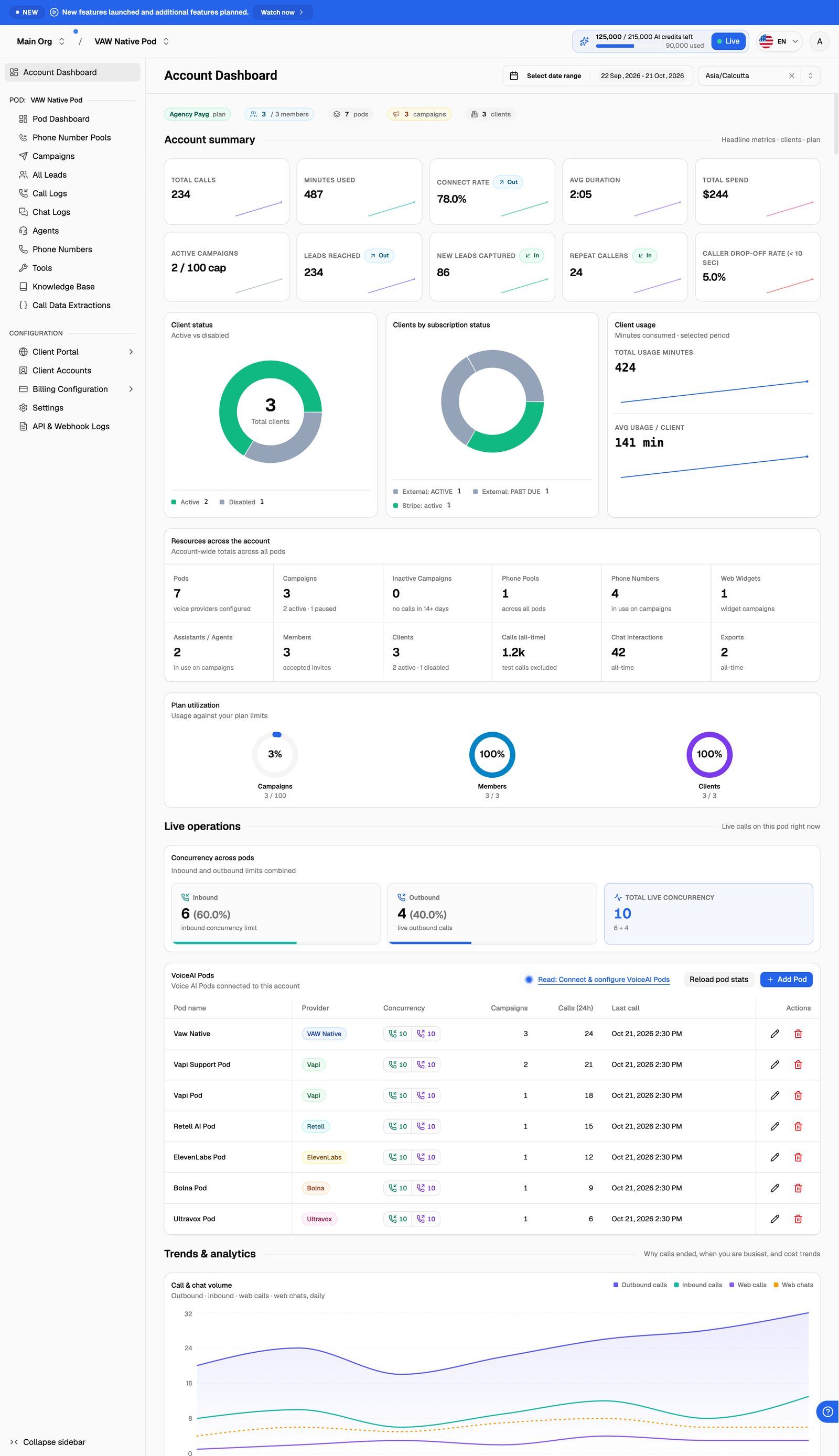
The row at the top shows your plan, your members (against your plan's cap, if it has one), and how many Pods, campaigns and clients you have.
Until you've finished setting up, a Get started checklist appears below it. Click Hide to tuck it away and Show setup checklist to bring it back. It shows again the next time you open the dashboard, until every step is done. See The Setup Checklist: From First Agent to First Paying Client.
If the Pod you have selected is a Vapi, Retell AI or ElevenLabs Pod, a banner may also offer to build a ready-to-call agent in your provider account. See Build a Provider Agent with VAW Assistant.
Account summary
Headline numbers for the selected period, each with a small trend line:
ElevenLabs and VAW Native report cost in credits, so their spend isn't in Total Spend. Check each of those Pods on its Pod Dashboard.
Below the KPIs you'll find:
- Client status (active vs disabled clients), Clients by subscription status and Client usage (total usage minutes and average per client).
- Resources across the account: current counts of Pods, campaigns, inactive campaigns, phone pools, phone numbers in use on campaigns, web widgets, agents in use, members and clients, plus all-time totals of calls (test calls excluded), chat interactions and exports.
- Plan utilization: campaigns, members and clients used against your plan limits.
Operations: concurrency and Pods
Concurrency across pods adds up the inbound and outbound concurrency limits of all your Pods and shows the split as a percentage. To change a Pod's split, see Split Concurrency Between Inbound and Outbound Calls.
The VoiceAI Pods table lists every Pod with Pod name, Provider, Concurrency, Campaigns, Calls (24h) and Last call. The campaign and call figures stay hidden until you click Load pod stats (then Reload pod stats to refresh them). From here you can also:
- Click Add Pod to connect another engine or provider.
- Click the edit icon on a row to update that Pod.
- Click the delete icon to delete a Pod, then confirm in the Delete VoiceAI Pod dialog. Your built-in VAW Native Pod can't be deleted.
Deleting a Pod also deletes all its campaigns, all its phone number pools and all calls made under it. This can't be undone.
Trends and performance
- Call & chat volume: outbound calls, inbound calls, web calls and web chats per day.
- Total client usage trend: voice minutes, chat-equivalent minutes and the total your clients used.
- Outcome funnel (outbound): leads added, attempted, connected and answered.
- Caller journey (inbound): total inbound calls and how many stayed engaged for 10 seconds or more.
- Calls by pod and Campaign status distribution.
- Spend by provider: Vapi, Retell AI and Bolna in USD, with ElevenLabs in credits on the right axis.
- Lead pipeline: answered, invalid and do-not-call leads. Switch between By campaign and By pod.
- Activity heatmap: call volume by day and hour, so you can see your busiest times.
Leaderboard
- Top campaigns: your 10 campaigns with the most calls in the selected period, with Pod, type, status, calls, minutes, spend, connect rate and success. Spend here is in US dollars, so VAW Native and ElevenLabs campaigns show no spend. Click View all to open the Campaigns page of the Pod you have selected.
- Top clients by usage: the 10 clients that used the most minutes in the selected period.
Deal with inactive campaigns
Campaigns with no recent activity are flagged and, after a while, removed automatically. When you have any, an Action required section with an Inactive campaigns card appears near the top of the dashboard.
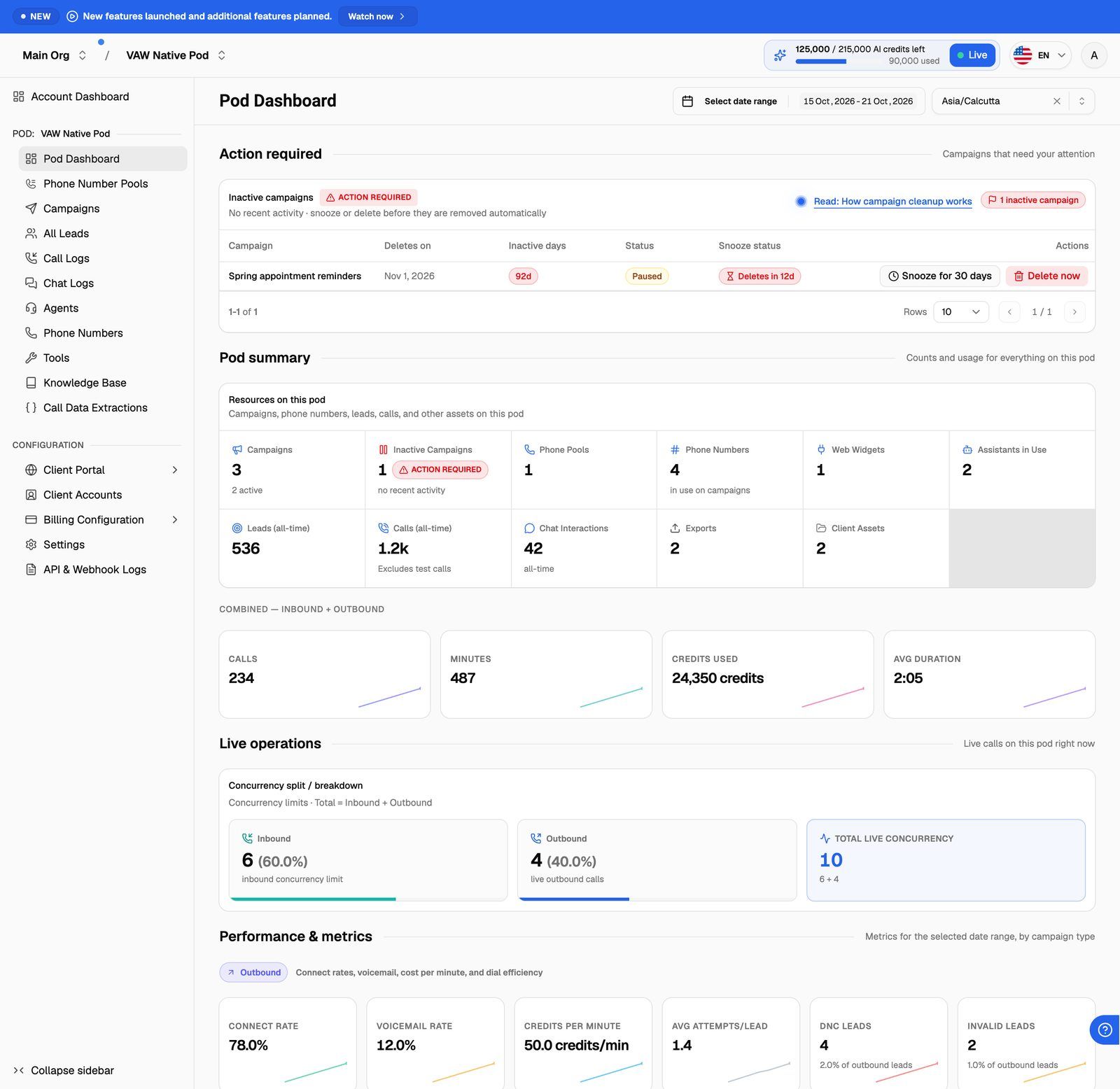
Each row shows the campaign, its Pod, the Deletes on date, Inactive days, its status and its Snooze status. For each one, choose:
- Snooze for N days to postpone the deletion and keep the campaign. You'll see "Deletion postponed." and the next scheduled deletion date. Snoozing only becomes available as the deletion date gets close, and you can only snooze a campaign a limited number of times. When the button is greyed out, check Snooze status: it shows how many snoozes you've used, or Max snoozes once you've used them all.
- Delete now to remove the campaign straight away. A Delete voice campaign dialog asks you to confirm.
Delete now permanently deletes the campaign and its related data. This can't be undone.
The surest way to keep a campaign is to use it again: new activity on a flagged campaign clears the flag. For the full timeline, click How campaign cleanup works on the card or see How Campaign Cleanup Works.
Frequently asked questions
Why doesn't the dashboard match my provider's own dashboard?
Why doesn't the dashboard match my provider's own dashboard?
The Account Dashboard counts calls made through your campaigns and leaves out test calls. Calls placed directly in your provider's dashboard, outside any campaign, aren't included. On VAW Native, calls that aren't tied to a campaign (test calls, API calls and inbound calls on numbers without a campaign) show only on the Pod Dashboard, under Outside campaigns.
Why is Total Spend lower than I expected?
Why is Total Spend lower than I expected?
Total Spend only adds up USD costs from Vapi, Retell AI, Bolna and Ultravox Pods. ElevenLabs and VAW Native costs are in credits and show on each Pod's own dashboard.
The Pods table shows icons instead of numbers.
The Pods table shows icons instead of numbers.
Pod stats load on request. Click Load pod stats above the table.
I can't find the Account Dashboard in the sidebar.
I can't find the Account Dashboard in the sidebar.
It's hidden when your only Pod is a VAW Native Pod. Use Dashboard in the sidebar instead. The Account Dashboard comes back as soon as you add a second Pod.
Related articles
Was this helpful?
Still need help? Share an idea