Billing, Trials and Usage Packs in Your Portal
Check your plan and usage, manage your card and invoices, buy usage packs, pay payment requests, end a trial and fix a blocked portal.
Written By voiceaiwrapper
Last updated 26 days ago
The Billing page shows your plan, how much you've used and what you owe. Depending on how your provider bills you, you can also update your card, see invoices, buy extra minutes and end a free trial early. This article also explains the full-page screens that can appear when a payment or trial needs your attention.
Two ways your provider can bill you
Your provider bills you in one of two ways. The Billing page looks different for each:
- You pay by card in the portal. Payments go through a secure checkout page. The Billing page shows Current Subscription, and on some plans Usage Packs and Auto-Recharge Settings.
- You pay your provider directly, for example by invoice. The Billing page shows Current Plan, Payment requests and sometimes Available Usage Packs. You can't pay inside the portal; you arrange payment with your provider.
Billing appears in the sidebar once you have a subscription.
If you pay by card in the portal
Current Subscription
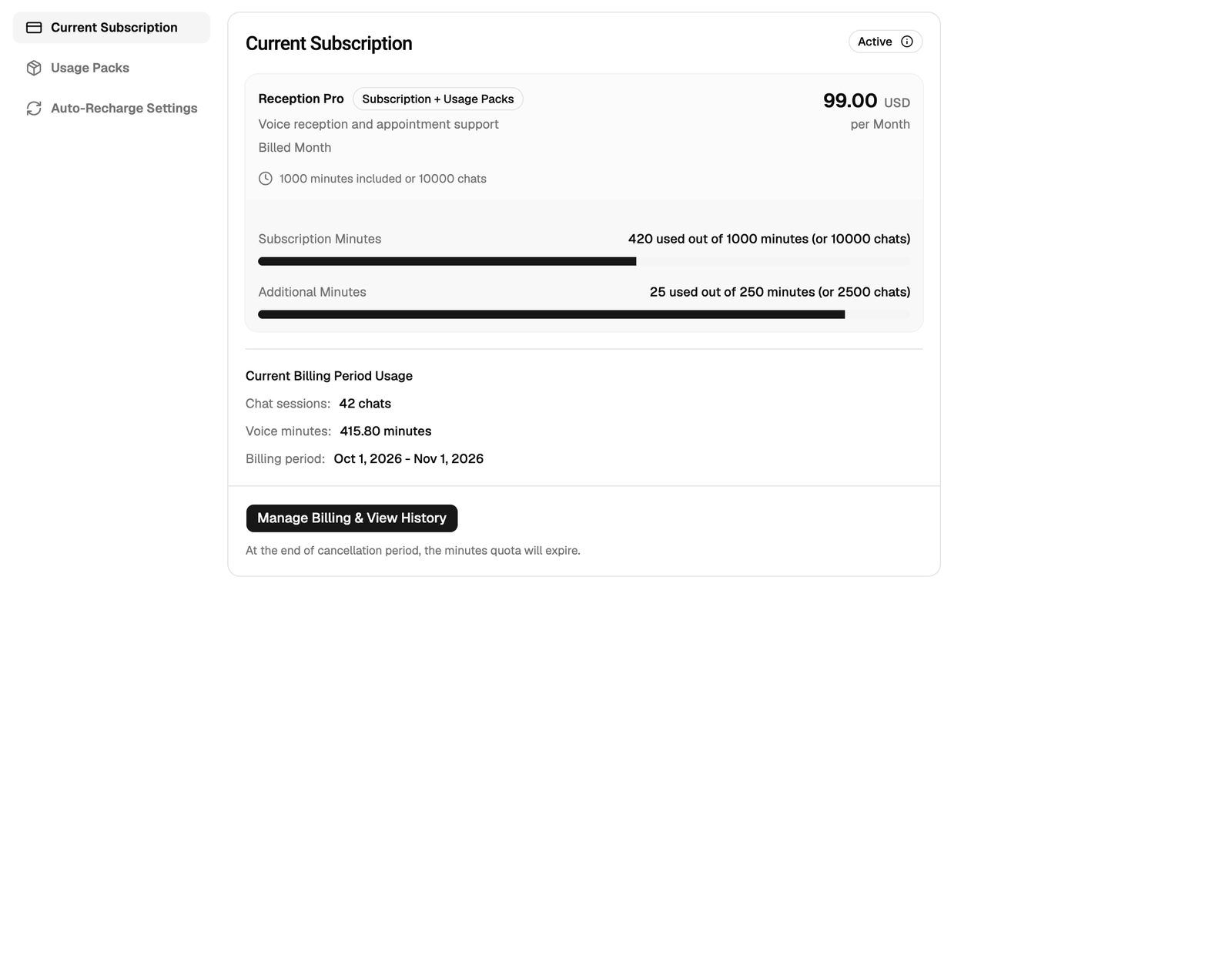
Open Billing → Current Subscription to see:
- Your status. Hover over the badge for what it means, for example "Subscription is active and in good standing" or "Subscription is in trial period". During a trial, you'll also see Trial ends on and the date.
- Your plan. The price and how you're charged, such as Usage Only, Subscription + Overage, Subscription + Usage Packs or Subscription + Usage.
- Your usage. Under Current Billing Period Usage, the minutes used so far and the Billing period dates. If your plan includes chat, chats and voice minutes are shown separately. On usage-pack plans you'll see Subscription Minutes and Additional Minutes used out of your limit.
At checkout, prices can show per unit instead of per minute. 1 minute = 100 units, so a $1.00/min rate may appear as $0.01 per unit.
Update your card and see invoices
Click Manage Billing & View History. You're taken to a secure billing page where you can see past invoices and manage your payment method. What else you can do there, such as cancelling, depends on your provider's settings.
If you cancel, your included minutes stop at the end of the cancellation period.
Buy usage packs
On plans with usage packs, open Usage Packs. Each pack shows its price and Minutes Included.
- Click Buy Now on the pack you want.
- Complete the checkout.
Buy Now charges your card for the pack.
Auto-recharge
Auto-recharge buys a usage pack for you when your minutes run low, so your calls don't stop.
- Open Auto-Recharge Settings.
- Turn on Enable auto-recharge of usage packs.
- Set Threshold (minutes). A pack is bought when your remaining minutes fall below this number.
- Pick the Usage Pack to buy.
- Click Save Settings.
The page also shows your Current remaining minutes and the result of the Last Attempt.
Auto-recharge charges the card saved on your account each time it buys a pack. After each purchase it waits 7 minutes before it can buy again, so set a threshold that covers at least that long.
End your trial early
During a trial, a You're in trial card sits at the bottom of the sidebar. It shows the days left (or Ends today) and the end date, or your remaining trial minutes.
To start your paid plan now, click Activate Account, tick "I understand that my trial will end and my paid plan will begin.", and click Activate. Your trial ends straight away and your paid plan starts. On a minutes-based trial, you'll then be asked to complete checkout.
Activating ends your trial for good, and you start paying for your plan from that moment. You can't go back to the trial.
Payment requests
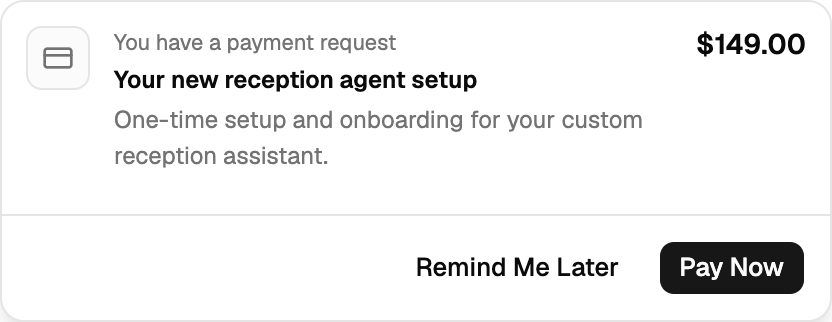
Your provider can send you a one-time charge. It appears as a card at the top of the portal saying You have a payment request, with the title, description and amount.
- Pay Now opens checkout to pay it.
- Remind Me Later hides the card. It comes back the next time you reload or open the portal.
If a previous attempt failed, the card shows "Your last payment attempt failed. Reason:" followed by the reason. While requests are open, the header also shows a button with the count, such as 2 Payment Requests. Click it to see every open request and pay it.
Pay Now charges you the amount shown on the card once you complete checkout.
If you pay your provider directly
Open Billing to see:
- Current Plan. Your plan, its status (Active, Past Due, Blocked or Canceled), the billing period, your Included minutes per period and any Usage pack minutes (wallet). Included minutes reset each period and don't carry over. Usage-pack minutes are marked Never expires and stay until you use them. If your plan has an overage rate, Additional usage this period shows what you've used beyond your included minutes.
- Available Usage Packs. Packs you can buy. Contact your provider to purchase one.
- Payment requests. Your invoices and charges with their due date and status: Pending, Paid, Failed, Canceled or Overdue. Hover over the info icon next to a status for due dates and grace details.
If you have an unpaid invoice, a banner at the top of the page shows the amount. The header also shows an Outstanding balance button that takes you to Billing.
Screens that block the portal
Sometimes the portal shows a full-page screen instead of your pages. You need to act on it before you can continue.
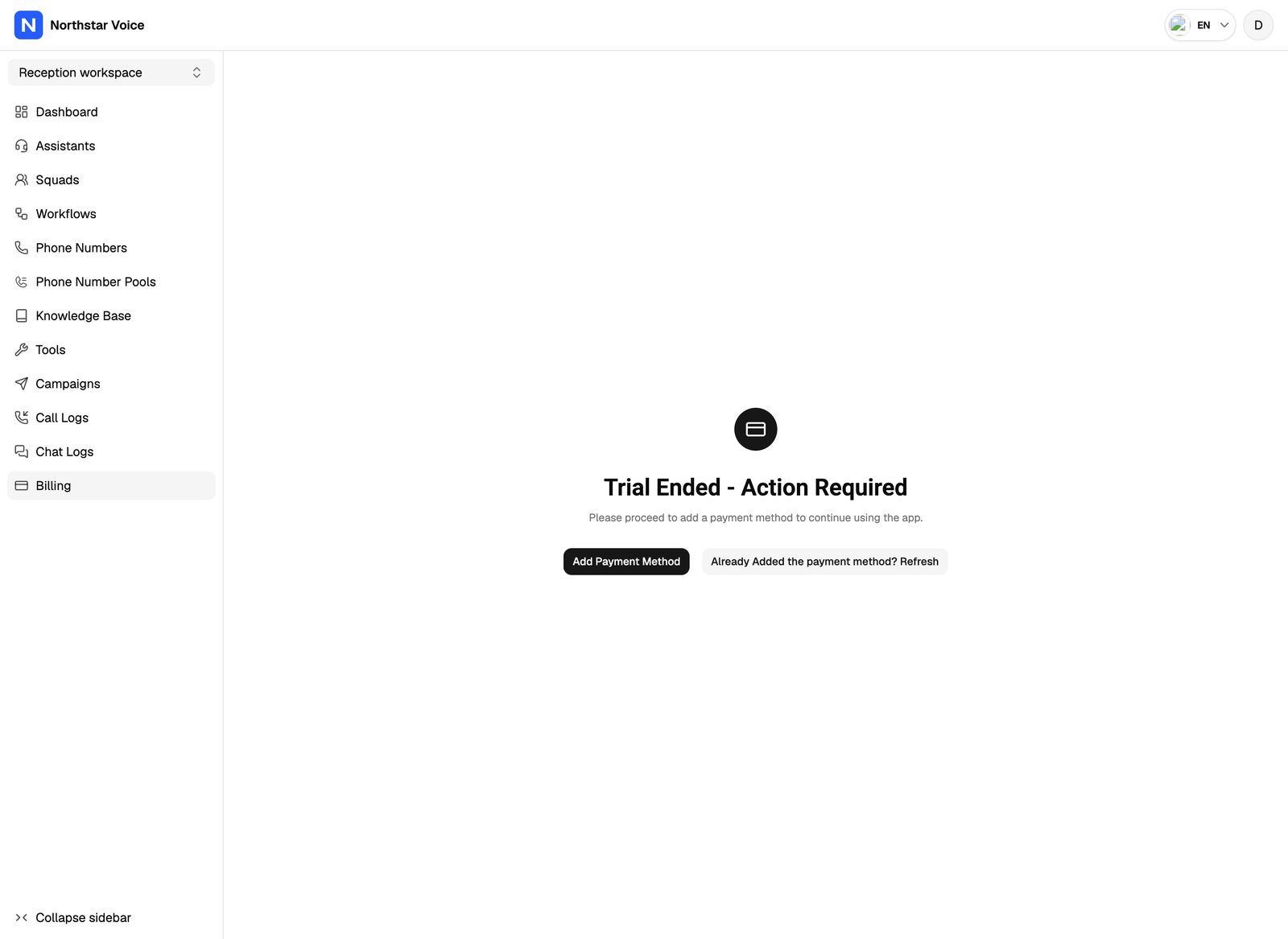
If you pay by card:
If you pay your provider directly:
After you've finished checkout or paid, use the refresh button on the screen, such as Already paid? Refresh, so the portal picks up the change.
When campaigns pause for billing
If your minutes run out or a payment fails, your campaigns stop automatically. Active campaigns pause and show Paused due to billing, and scheduled campaigns go back to draft. You can't resume them from the portal while this is the case. They start again on their own once your payment goes through or you top up, for example by buying a usage pack.
Frequently asked questions
I paid, but I still see the payment screen.
I paid, but I still see the payment screen.
Click the refresh button on the screen. If you pay your provider directly, the screen clears only once your provider has recorded your payment.
I don't see Billing in the sidebar.
I don't see Billing in the sidebar.
Billing appears once you have a subscription. If you expected one, ask your provider.
I don't see Usage Packs or Auto-Recharge Settings.
I don't see Usage Packs or Auto-Recharge Settings.
Those tabs only appear on plans that use usage packs. If you pay your provider directly, usage packs are listed under Available Usage Packs and you buy them through your provider.
My card was declined.
My card was declined.
Click Billing → Manage Billing & View History and update your payment method. Your campaigns restart once the payment goes through.
Related articles
Was this helpful?
Still need help? Share an idea