Change the Webapp Language
Switch the webapp to one of 12 supported interface languages from the header, and understand how this differs from your clients' portal language.
Written By voiceaiwrapper
Last updated 26 days ago
You can use the webapp in your own language or your team's. The language selector in the header switches every menu, button and message to one of 12 languages. It changes only what you see. It doesn't change your agents' spoken language or your clients' portal. Use the header selector for your own interface language; client portal localization is configured separately.
Client portal localization is included on PayasYouGo, Growth and Scale. Your own webapp language is controlled by the header selector.
Change the language
In the header, click the language selector. It shows a round flag and the current language code, such as EN, just left of your avatar.
Pick a language from the list.
The webapp switches to the new language right away, and you stay on the same page.
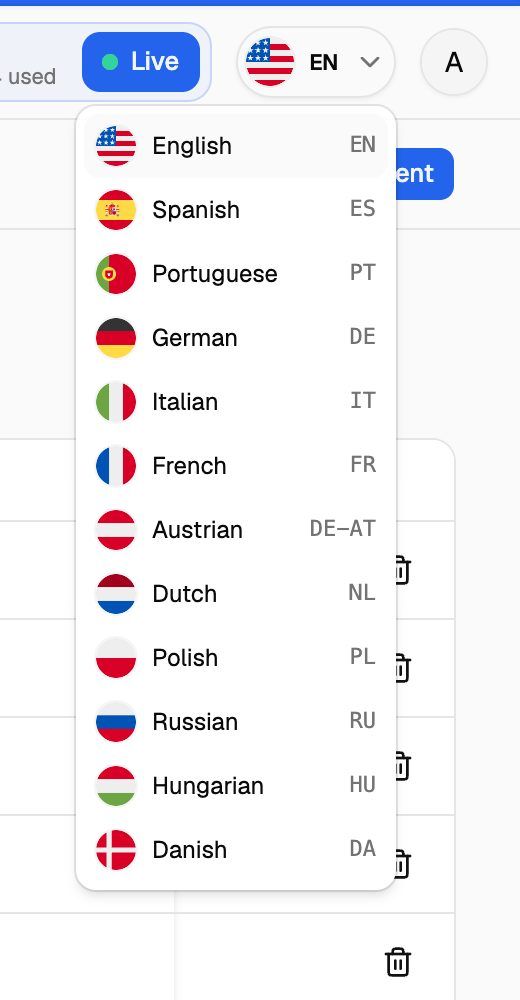
Available languages
Austrian is German as used in Austria. Language names in the list always show in English, whichever language you're using. If you need an additional interface language, contact support.
Interface language and client portal localization
Choose your interface language from the header selector. Client portal localization is included on PayasYouGo, Growth and Scale and is configured separately for your clients.
If an upgrade prompt appears when you choose an interface language, contact support so the team can check your account.
For the current plan comparison, see Compare Plans.
What the language setting doesn't change
Frequently asked questions
Some text is still in English after I switched.
Some text is still in English after I switched.
Some newer screens and messages may not be translated yet and show in English. Names and text you entered yourself are never translated.
Does my choice apply to my whole team?
Does my choice apply to my whole team?
No. Each person picks their own language in their own browser. Your teammates keep seeing the webapp in the language they chose.
The webapp opened in English again.
The webapp opened in English again.
The language is part of the page address, for example /es/ for Spanish. If you open the webapp from a link or bookmark that has a different language code, or none, it opens in that language or in English. Pick your language again from the selector, then bookmark a page while it's in your language.
Related articles
Was this helpful?
Still need help? Share an idea