Choose a Voice for Your Agent
Browse, preview and pick the voice your VAW Native agent speaks with, choose its voice model, then tune its delivery and background sound.
Written By voiceaiwrapper
Last updated 26 days ago
The voice is the first thing a caller notices about your agent. On VAW Native you pick it from a curated library of ElevenLabs voices, listen to samples, choose the voice model it runs on, and then fine-tune how it speaks. This takes a few minutes, and you can change the voice at any time.
Applies to: agents on a VAW Native Pod (an engine or provider connection). For Vapi, Retell AI and ElevenLabs agents, voices are set in the provider's own account. See How Provider Agents Appear in VoiceAIWrapper.
Before you start
- An agent on a VAW Native Pod. See Create an Agent from Scratch if you don't have one yet.
- The agent's language, if callers won't speak English. The voice list and the voice models both depend on it. See Choose the Agent's Language.
Agents you create from scratch start on the voice Sarah.
Step 1: Open the voice library
- In the sidebar, open Agents and click your agent.
- On the Agent Settings tab, click the Voice row. The Voice sheet opens and shows your Current voice.
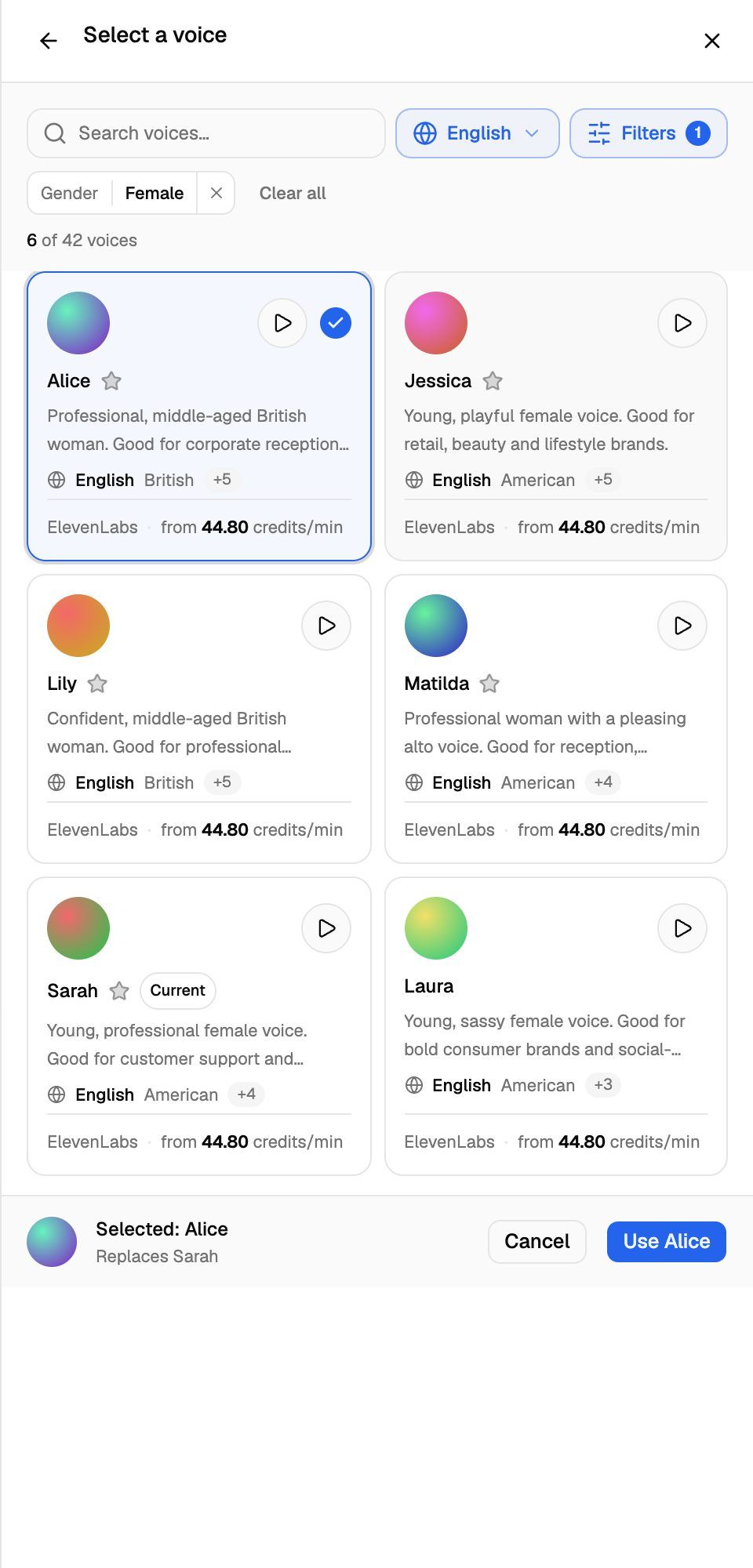
- Click the current voice to open Select a voice.
Step 2: Find a voice
Use the toolbar at the top of the list to narrow it down:
In the language menu, the languages your agent can understand are listed under Your agent understands, and Agent language marks the one your agent is set to.
Active filters appear as chips under the search box. Click the × on a chip to remove it, or Clear all to remove them all. The counter shows how many voices match.
Each voice tile shows:
- Name and description, with the kinds of calls the voice suits.
- Language line: the language the voice is made for, with its accent where it has one (for example English, British). A +N badge means the voice is also made for other languages. Hover over it to see which.
- from X credits/min: the lowest a minute of the voice can cost, on its cheapest voice model. What you pay depends on the voice model you choose in Step 4. A + after the number marks a Voice Library voice: ElevenLabs can add the voice creator's rate on top. Hover over the figure for details.
Credits/min figures are estimates from typical call usage. What a call actually costs depends on how much the agent says. The voice is one part of a call's cost, alongside the AI model and the platform. See Credit History and Per-Call Costs.
Step 3: Preview and pick a voice
- Click the play button on a tile to hear a sample. Click it again to stop. Only one sample plays at a time.
- Click a tile to select it. A bar at the bottom shows Selected: and which voice it Replaces. If the voice isn't made for your agent's language, the bar warns that it "may have a slight accent" instead.
- Click Use to confirm, or Cancel to keep the current voice. You can also double-click a tile to use it straight away.
- Click Save changes in the sheet's footer or on the Unsaved changes bar. The new voice isn't used on calls until you save.
Test the voice on a real call before going live. A sample can sound different from a full conversation, especially on a phone line. See Test Your Agent: Web Calls, Phone Calls and Chat.
Match the voice to the agent's language
Any voice can speak any language, but a voice made for that language sounds the most natural. When the agent's language is set (not Auto-detect):
- The list opens on the voices made for that language.
- If no voice is made for it yet, you'll see "No voice is made for {language} yet. Any voice below can speak it, with a slight accent. Play a few and pick the most natural."
- If you choose a voice that isn't made for the language, the Voice sheet shows a warning: "{name} isn't made for {language}, so callers may hear a slight accent." Click See {language} voices to switch.
The warning never blocks you. It's there so the choice is deliberate.
Step 4: Choose a voice model
The voice decides who your agent sounds like. The Voice model decides how natural it sounds, how quickly it starts speaking, which languages it can speak and what it costs per minute. You can change the model at any time without changing the voice.
- On the Voice sheet, click the box under Voice model.
- Search with Search models, or sort the list by Recommended, Fastest, Most natural or Lowest cost.
- Compare the models. Each one shows a tag, what it's good for, how many languages it speaks, then roughly how fast it starts speaking (for example ~75ms), its credits/min and a Natural rating of up to 5 bars.
- Click a model to use it, then click Save changes.
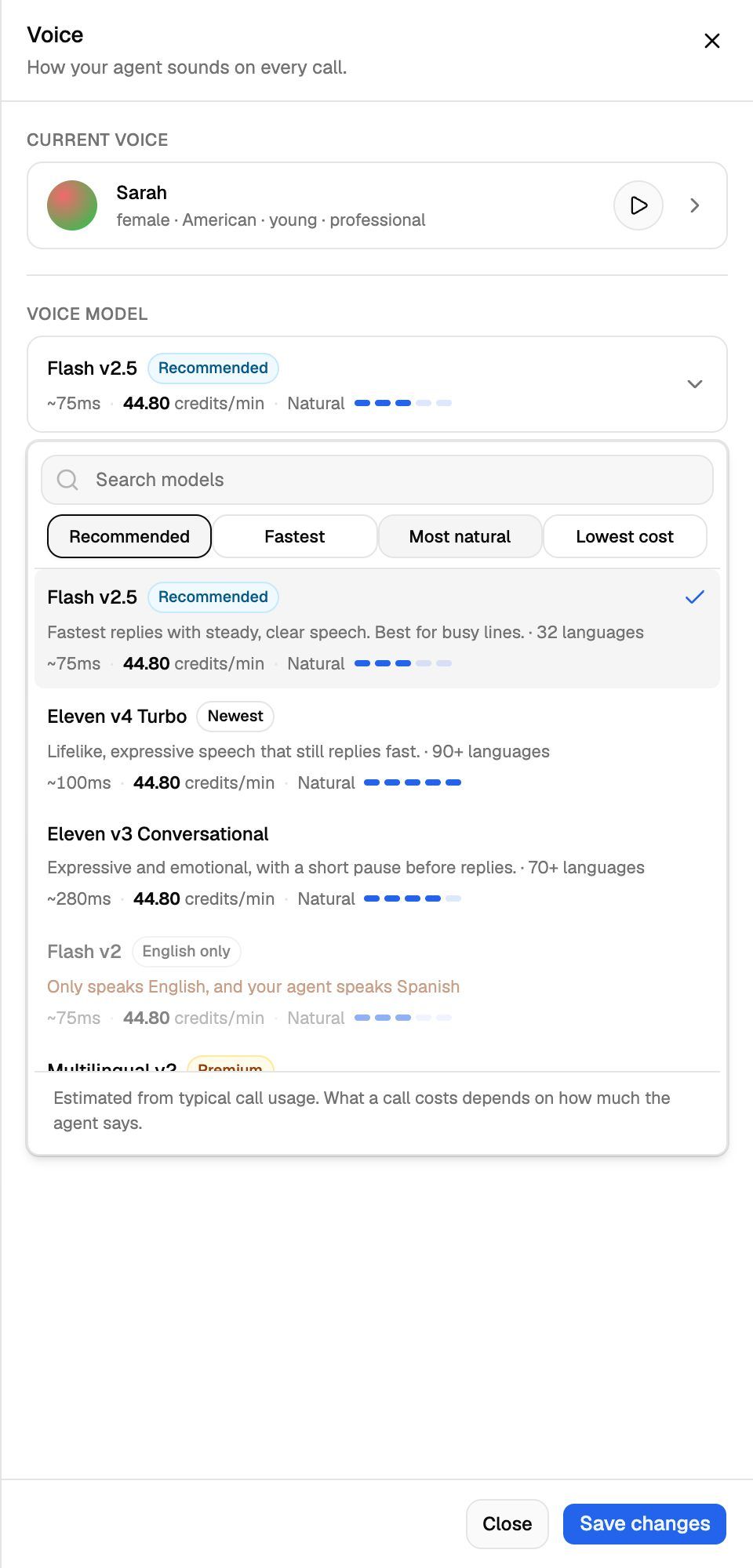
The models on offer today:
Things to know:
- If you never pick a model, the agent uses the default, Flash v2.5, and the sheet says Using the default model. If your agent's language is one Flash v2.5 can't speak, such as Thai or Hebrew, the default moves to the first model that can, Eleven v4 Turbo.
- Premium models cost more credits per minute. Compare the figures in the list before you switch, especially for agents that take a lot of calls.
- Multilingual v2 and Eleven v3 aren't built for live calls. Their speed figure shows in amber, and callers hear a pause before each reply.
- Models that can't speak your agent's language stay in the list but are greyed out, with the reason, for example "Doesn't speak {language}, your agent's language". Flash v2 needs the agent's language set to English; Auto-detect doesn't count.
- Under the box, the sheet tells you which model is recommended for the voice you picked.
If you later change the agent's language to one your saved model can't speak, the Voice and Language sheets show an amber note with a Use {model} link that switches to a model that can. The agent can't be saved until you switch.
Step 5: Tune the delivery
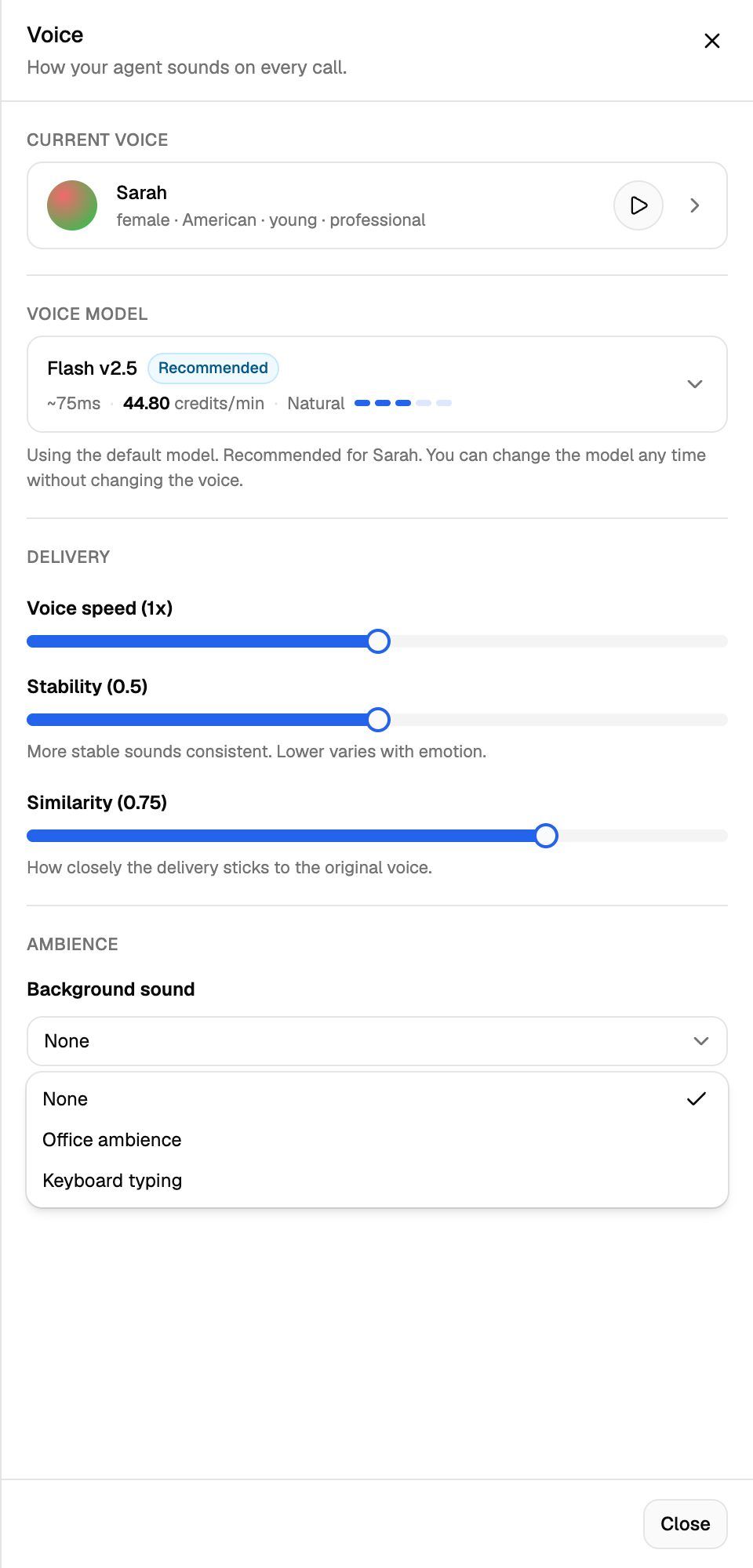
The Delivery section controls how the voice speaks:
If you never touch these sliders, the voice uses its own default settings.
Change one slider at a time and test a call after each change. Small steps make it easier to hear what helped.
Step 6: Add background sound (optional)
In the Ambience section, Background sound plays a subtle sound under the whole call so the line doesn't sound dead:
- None (default)
- Office ambience
- Keyboard typing
Click Save changes when you're done.
The Voice row on the Agent Settings tab sums up your choice: the voice, its voice model and the model's credits/min.
OpenAI voices are no longer offered
The voice library offers ElevenLabs voices only. OpenAI voices were removed for reliability, so you can't pick one for a new agent.
If an older agent still uses an OpenAI voice, it keeps working. Its Voice sheet shows Voice speed (0.5x to 2x) and a Voice style box instead of Stability and Similarity, and its voice models are OpenAI ones. We recommend switching it to an ElevenLabs voice. When you do, the agent moves to an ElevenLabs voice model. If it had an OpenAI model saved, the sheet tells you which ElevenLabs model it uses now. Once you switch and save, you can't pick the OpenAI voice again.
Frequently asked questions
A sample takes a moment to start, or says a different line.
A sample takes a moment to start, or says a different line.
A few voices have no ready-made sample. For those, the webapp creates one on the spot with the line "Hi, thanks for calling. How can I help you today?", which can take a second or two. If a sample won't play, select the voice and place a test call to hear it instead.
I picked a voice, but calls still use the old one.
I picked a voice, but calls still use the old one.
Picking a voice only changes the form. Click Save changes on the sheet or on the Unsaved changes bar, then start a new call. Calls already in progress keep the voice they started with.
Callers hear a pause before every reply.
Callers hear a pause before every reply.
Check the Voice model. Multilingual v2 and Eleven v3 pause before each reply. Switch to Flash v2.5 or Eleven v4 Turbo for faster replies. If the pause comes from the agent waiting for the caller to finish, see Fine-Tune Conversation Behaviour.
The agent sounds robotic or rushed.
The agent sounds robotic or rushed.
Try a voice model with a higher Natural rating, lower Voice speed a little, or raise Stability so the delivery is more even. If callers find the agent talks over them, the fix is usually on the Conversation sheet instead. See Fine-Tune Conversation Behaviour.
Can my clients change the voice?
Can my clients change the voice?
Only if you allow it. In a client's portal, the Voice row is hidden unless you give them that permission, and they can only change it with edit access. See Set Client Permissions on VAW Native Workspaces.
Related articles
Was this helpful?
Still need help? Share an idea