Campaign Overview: Lead Health, Live Calls and Next in Line
Read a campaign's Overview tab: lead health numbers, success rates, live calls, who's next in line, and how to fix calls stuck in progress.
Written By voiceaiwrapper
Last updated 26 days ago
The Overview tab is the first thing you see when you open a campaign. It answers the everyday questions: how many leads are left to call, what's happening right now, who gets called next, and whether calls are succeeding. It refreshes by itself every 30 seconds, so you can leave it open while a campaign runs.
To open it, go to your Pod (an engine or provider connection), select Campaigns, and click the campaign. Overview is the first tab.
Lead health & campaign stats
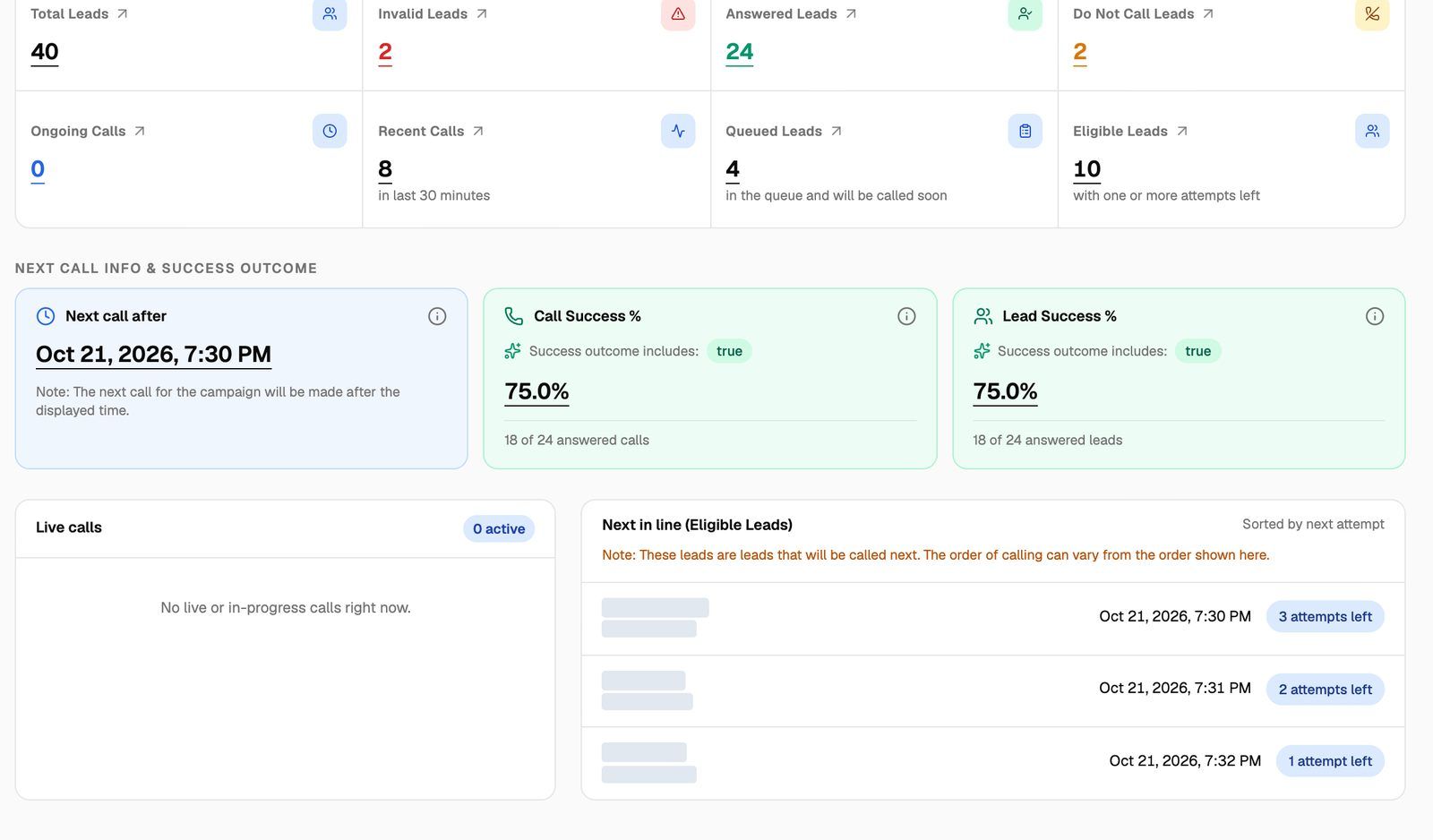
The top row of tiles changes with the campaign type. Click any tile to jump to the matching leads or calls.
Outbound campaigns
A healthy running campaign usually has Eligible Leads going down over time as leads are answered or run out of attempts. When Eligible Leads reaches 0, the campaign has no one left to call. Add more leads or raise the attempt limit. See Outbound Dialing Rules: Attempts, Redial Wait, Voicemail and Priority.
Inbound campaigns
All inbound numbers cover the campaign's whole life, not a date range. For trends over time, use the Analytics tab. See Campaign Analytics.
Next call info & success outcome
This row has up to three cards:
- Next call after (outbound only): the earliest time the next eligible lead is due. "Note: The next call for the campaign will be made after the displayed time." If it says No lead available, nobody is waiting to be called.
- Call Success % and Lead Success %: how many answered calls and answered leads ended in success. These only fill in once you've set a success metric. Until then they read "Enable success metric in settings to see insights." See Define a Campaign Success Metric.
Live calls and next in line
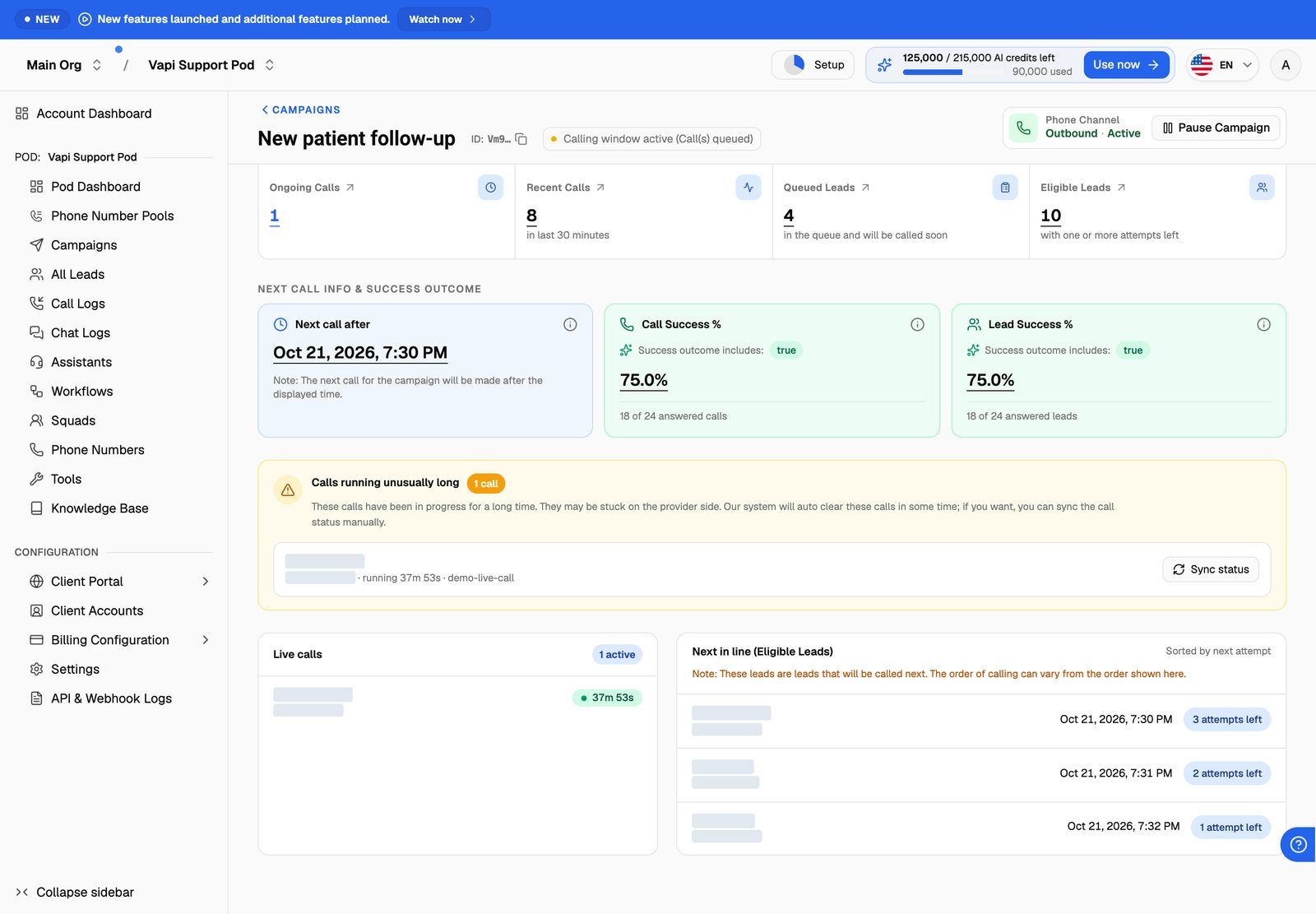
Live calls lists every call in progress, with the lead's name (or number) and a timer that counts up each second. The badge shows how many are active. When nothing is happening, you'll see "No live or in-progress calls right now."
Next in line (Eligible Leads) is for outbound campaigns. It lists up to 20 eligible leads that aren't being called right now, "Sorted by next attempt". Each row shows when the lead is next due and how many attempts it has left. The dialer may not follow this exact order: "These leads are leads that will be called next. The order of calling can vary from the order shown here." If nobody is waiting, you'll see "No leads in line."
Calls running unusually long
If a call has been in progress for 20 minutes or more, it appears in a Calls running unusually long alert above the live calls. This usually means your provider never told VoiceAIWrapper the call ended, so it still looks live.
VoiceAIWrapper clears these calls automatically after a while. To fix one now:
- Click Sync status next to the call.
- VoiceAIWrapper asks your provider for the call's real status and updates it.
You'll see one of these messages:
Sync status is available on Vapi, Retell AI, ElevenLabs, Bolna and Ultravox. VAW Native Pods don't show this alert.
If calls keep getting stuck, check that webhooks are synced on the campaign's agent and number. See Sync Webhooks So VoiceAIWrapper Can Track Calls.
Frequently asked questions
Eligible Leads is high, but Queued Leads is 0.
Eligible Leads is high, but Queued Leads is 0.
Eligible leads still have attempts left, but none is due yet. Each is waiting for its minimum wait between redials, its daily limit to reset, or the next calling window. Next call after shows when the first one is due.
The campaign is Active, but Live calls is empty.
The campaign is Active, but Live calls is empty.
Check the Calling Status pill in the header. Outside the calling window, or on a day not in the schedule, an Active campaign waits. If Queued Leads is 0, nobody is due. See My Outbound Campaign Isn't Calling.
Do my clients see this tab?
Do my clients see this tab?
Clients see a campaign's Overview in their portal only if you give them access to it when you set up their workspace. See Set Client Permissions on Vapi, Retell and ElevenLabs Workspaces or Set Client Permissions on VAW Native Workspaces.
Related articles
Was this helpful?
Still need help? Share an idea