Attach Tools to an Agent
Give an agent a tool from your Pod's library and set how that agent uses it: its function name, when to use it, what it says while it runs and whether it confirms first.
Written By voiceaiwrapper
Last updated 26 days ago
A tool only does something once it's attached to an agent. You build a tool once in your Pod's Tools library, then attach it to any agent in that Pod. Each agent gets its own settings for the tool: what to call it, when to use it, what to say while it runs and whether to check with the caller first.
This article covers attaching a tool and every per-agent setting. To build a tool, see Create a Custom HTTP Tool or Book Appointments with Cal.com.
Applies to: agents in a VAW Native Pod (an engine or provider connection). The built-in tools (End conversation, Transfer call and Send SMS) aren't attached this way. You switch them on from the same tab. See Built-In Tools: End Conversation, Transfer Call and Send SMS.
Before you start
- A tool in the Pod's Tools library. Tools belong to one Pod, so you can only attach tools from the agent's own Pod.
- A passing test is a good idea. The Tools list shows Never tested with "Run one before attaching it" until you've tested a tool. See Test Tools and Monitor Usage.
Attach a tool
- In your VAW Native Pod, open Agents and choose the agent.
- Open the Tools tab.
- Under Additional tools, click Attach a tool.
- Find the tool in the list. The sheet shows up to 25 tools at a time, so use Search tools if the Pod has more. Tools this agent already has show an Attached badge and can't be picked again.
- Click the tool. The attachment sheet opens.
- Fill in the settings below, then click Attach tool.
The tool is saved to the agent straight away. You don't need the agent's main save bar, and the agent uses the tool from its next call.
Don't see the tool you need? Click Create a tool in the same sheet. Build and save it, then come back and attach it.
The per-agent settings
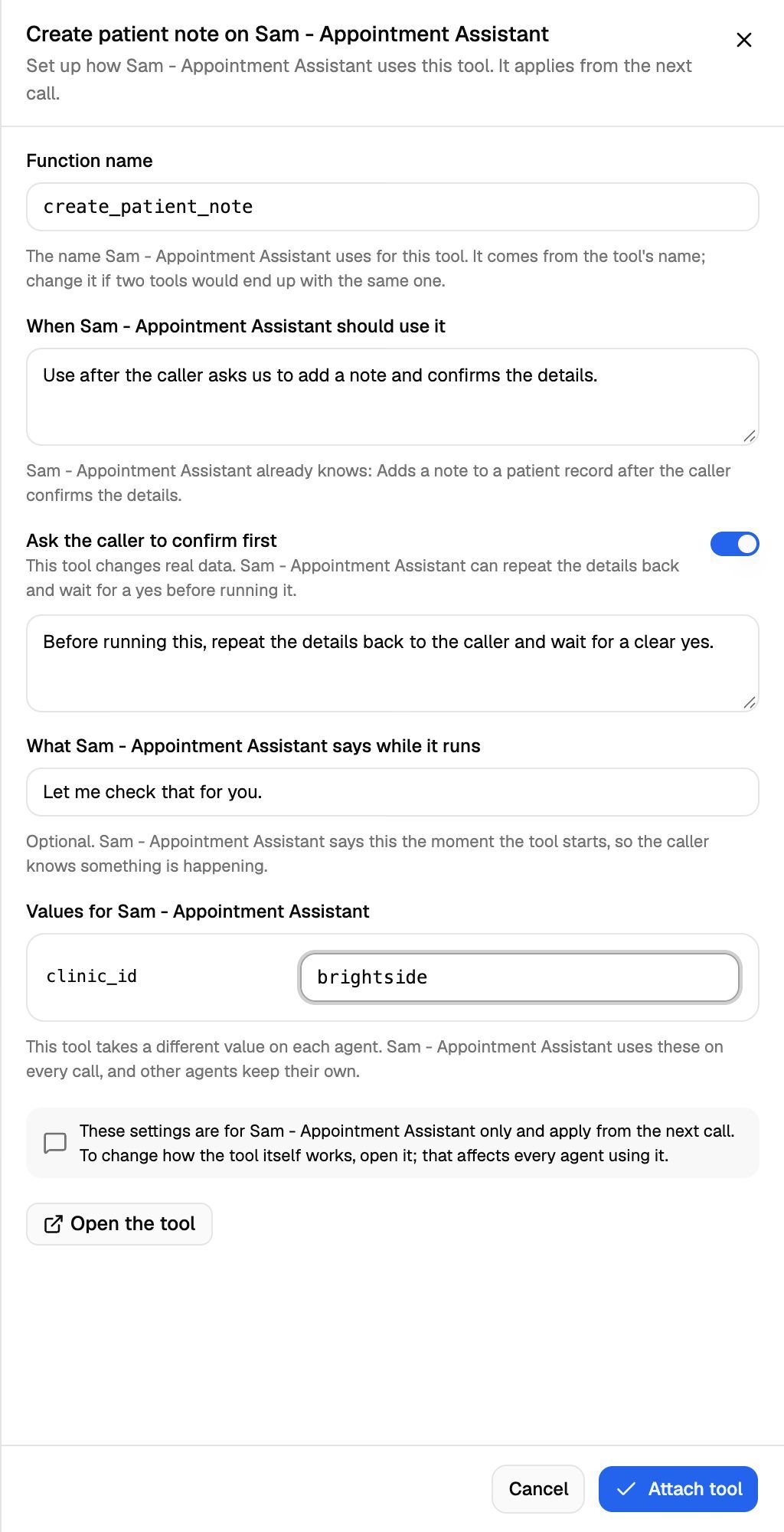
Function name
The agent sees the tool under this name. It's filled in from the tool's name, so "Book a demo" becomes book_a_demo. Change it only if two tools on the same agent would end up with the same name.
Function names can use letters, numbers, dashes and underscores, up to 64 characters. Each one must be unique on the agent. You also can't use the names of the built-in tools: end_conversation, transfer_call and send_sms.
When the agent should use it
Describe the situation in plain words, such as "When the caller asks about an appointment they already have." The agent already reads the tool's own description, which the sheet shows below the field. Use this field for what's specific to this agent. You can write up to 2,000 characters.
If the tool has no description, the sheet warns you that this field is all the agent will know about it. Fill it in.
Ask the caller to confirm first
This appears only for tools marked Creates or changes data, such as a booking or a CRM update. Turn it on and the agent repeats the details back and waits for a clear yes before running the tool. The default instruction is "Before running this, repeat the details back to the caller and wait for a clear yes." You can edit it, but it can't be empty while the switch is on.
For a tool that only looks things up, the sheet tells you the agent can run it without checking with the caller first.
For how confirmation fits with a tool's other safety settings, see Tool Safety, Caller Confirmation and Timeouts.
What the agent says while it runs
An optional line such as "Let me check that for you." It fills the silence while the tool works. The agent only says it if the tool is still running after about 1.5 seconds, so quick lookups don't get an unnecessary pause. In chats, the line isn't used.
Values for the agent
Some tools need a value that's different for each agent, such as a location ID or a calendar ID. The tool's builder marks those fields Set per agent when building the tool. Each one appears here by name, and you must fill in every one before you can save. Other agents using the same tool keep their own values.
Tools without per-agent fields don't show this section. Cal.com tools never have one.
Check your attached tools
Attached tools are listed under Additional tools. Each row shows the tool's name, your guidance and badges:
A waiting line, if you set one, appears in quotes on the row.
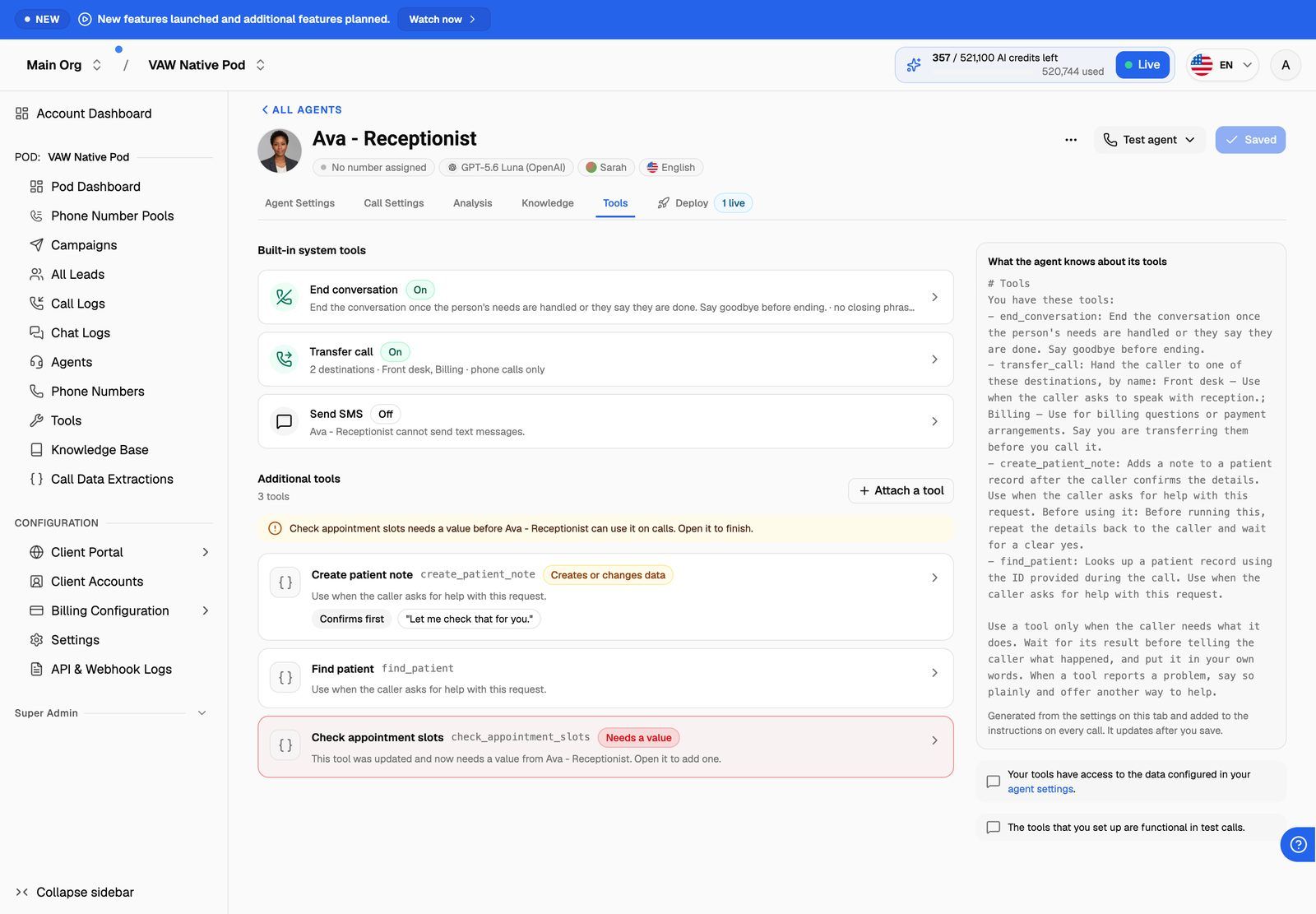
To see exactly what the agent is told, read the What the agent knows about its tools panel beside the list (below it on a narrow screen). It lists each attached tool by function name with its description, your guidance and any confirmation instruction, plus the built-in tools you've switched on. It updates after you save.
Change or detach a tool
Click a tool's row to reopen its sheet:
- Change settings: edit any field, then click Save changes. Changes apply from the agent's next call. Other agents aren't affected.
- Change the tool itself: click Open the tool. Changes there affect every agent using it.
- Detach: click Detach, then confirm. The agent stops using the tool from its next call. The tool stays in your library, other agents keep it, and past calls are unchanged.
Frequently asked questions
Is there a limit on how many tools an agent can have?
Is there a limit on how many tools an agent can have?
Not in your webapp. In the client portal, you set a cap per workspace with Maximum tools per agent, in the Tools section of the workspace's VAW Native permissions. Clients see it as "X of Y attached" on the agent's Tools tab, and Attach a tool is greyed out once they reach it. See Set Client Permissions on VAW Native Workspaces.
I can't attach a tool to this agent. It says the tool belongs to a client.
I can't attach a tool to this agent. It says the tool belongs to a client.
Tools created by a client, or that use a client's own connection, can only be attached to agents in that client's workspaces. This stops one client's API keys from being used on another client's calls. The Owner column on the Tools list shows who owns each tool.
The agent never uses my tool.
The agent never uses my tool.
Check that the tool's description and your When <agent> should use it text clearly describe the situation. Then read What the agent knows about its tools to see what the agent is told. You can also mention the tool's purpose in the prompt, for example "Look up the caller's order before answering questions about delivery." Look for a Needs a value or Connection failed badge too. Either one stops the tool from working on calls.
Do tools work in test calls and chats?
Do tools work in test calls and chats?
Yes. Attached tools work in test calls and chats, and they make real requests, so a tool that changes data really changes it. See Test Your Agent: Web Calls, Phone Calls and Chat.
Related articles
Was this helpful?
Still need help? Share an idea