Capture Lead Details from Provider Calls
Set up your Vapi, Retell AI or ElevenLabs agent so the caller's first name, last name and email land on the lead in VoiceAIWrapper after each call.
Written By voiceaiwrapper
Last updated 26 days ago
Your agent hears the caller's name and email during the call, but VoiceAIWrapper only knows what the provider sends back afterwards. Set up a small extraction in your provider so the agent pulls out the first name, last name and email. VoiceAIWrapper then saves them on the lead after every call, so your Leads table shows who called, not just a phone number.
It takes a few minutes per agent: one setting in your provider, and one paragraph in the agent's prompt.
Applies to: Vapi, Retell AI and ElevenLabs Pods (an engine or provider connection). On VAW Native, use Call Data Extractions instead. See Capture Structured Data with Call Data Extractions.
Before you start
- A campaign on your Pod that uses the agent you want to set up. Lead details are saved on the campaign's leads, so calls need to run through a VoiceAIWrapper campaign.
- Access to that agent in your provider's dashboard.
Step 1: Open the instructions
VoiceAIWrapper shows the exact values to copy for your provider.
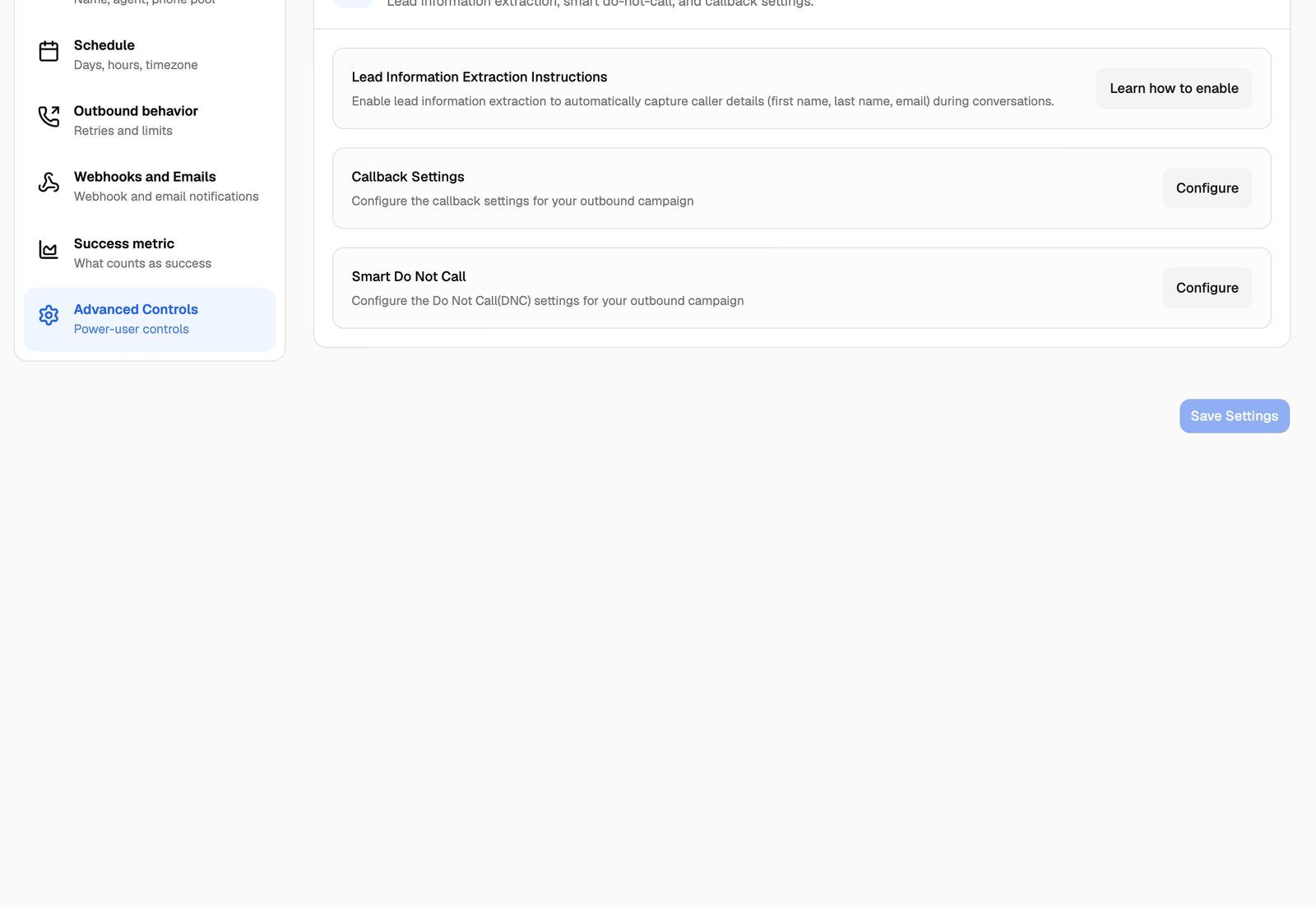
- Open the campaign, then the Settings tab.
- Open Advanced Controls.
- On the Lead Information Extraction Instructions card, click Learn how to enable.
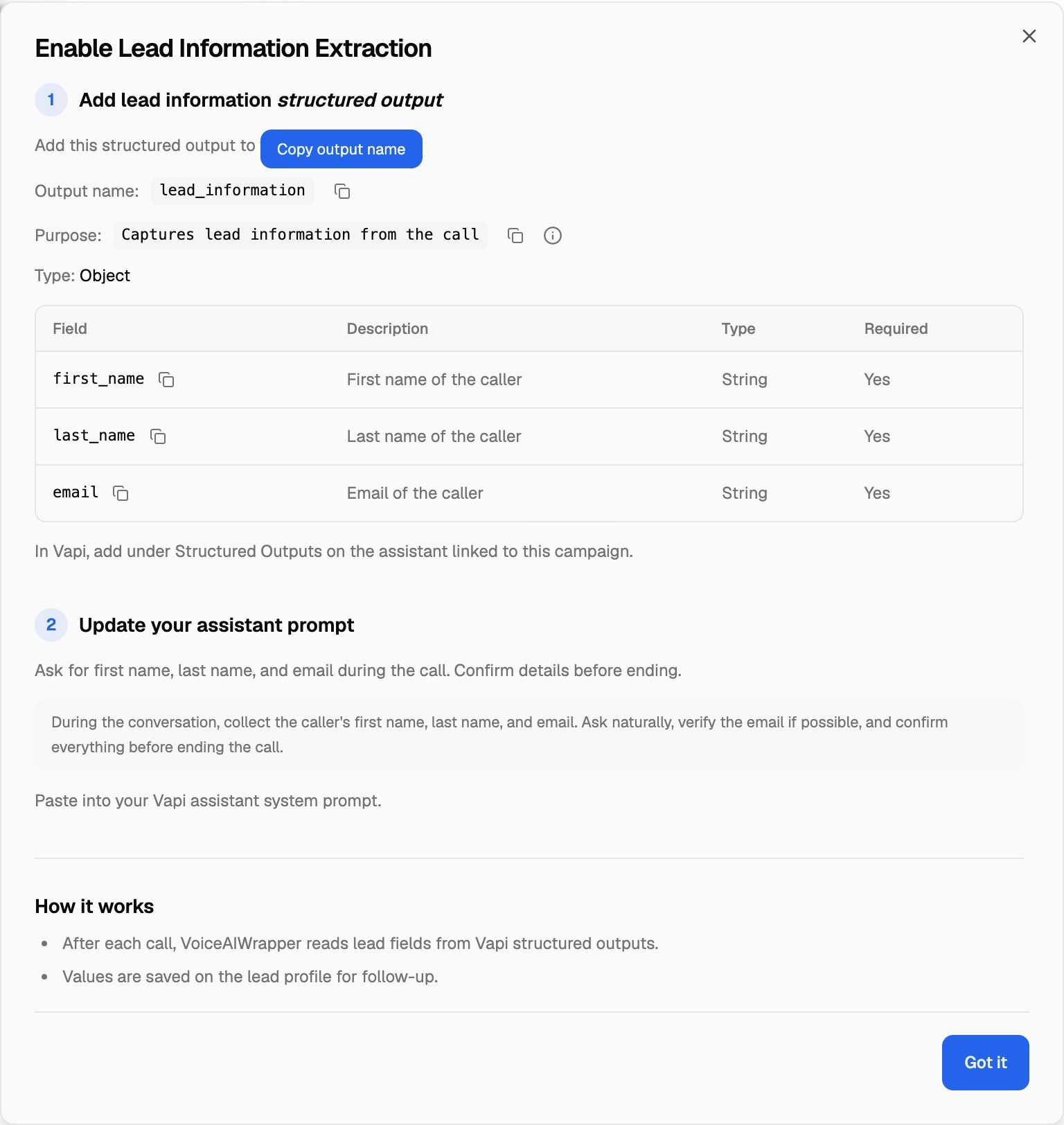
The Enable Lead Information Extraction dialog opens. Each field name and value has a copy button. Click Got it to close it. The dialog only shows instructions; nothing is saved to your campaign.
Where the card appears:
- Vapi and Retell AI campaigns: in Settings → Advanced Controls.
- Vapi inbound campaigns: also at the top of the Leads tab.
- ElevenLabs campaigns: the card isn't shown. Use the ElevenLabs steps below.
Step 2: Add the extraction in your provider
Every provider uses the same three fields, all of type string:
Spell the field names exactly as shown, in lowercase with underscores. VoiceAIWrapper looks for these names.
Vapi: add a structured output
On the assistant linked to your campaign, add a structured output under Structured Outputs in Vapi:
- Output name:
lead_information - Purpose:
Captures lead information from the call - Type: Object, with the three fields above as required string properties.
VoiceAIWrapper also picks up separate structured outputs named first_name, last_name and email, and the same three fields in Vapi's older structured data, if your assistant already uses those. If a field comes back from both, the older structured data value is the one saved.
Retell AI: add post-call extraction fields
- In your Retell dashboard, select the agent linked to your campaign.
- Go to Post Call Analysis → Post Call extraction.
- Add
first_name,last_nameandemailas string fields, and save.
Retell saves them in the call's custom analysis data, which is where VoiceAIWrapper reads them.
ElevenLabs: add data collection fields
On the ElevenLabs agent linked to your campaign, go to Analysis → Data Collection and add first_name, last_name and email as string fields.
Step 3: Ask for the details in the prompt
The extraction can only find what the caller actually said. Add this to the agent's system prompt so it asks:
During the conversation, collect the caller's first name, last name, and email. Ask naturally, verify the email if possible, and confirm everything before ending the call.
You can paste it in your provider's dashboard, or from VoiceAIWrapper with Edit prompt on the agents list. See Edit Prompts and Greetings for Provider Agents.
What happens after a call
After each call, VoiceAIWrapper reads the three fields from the provider's post-call data and saves them on the lead. You'll see the name and email in the Lead column of the campaign's Leads tab.
- A field is only updated when the call returns a value for it. An empty value never wipes out details you already have.
- A new value replaces the old one. If a caller gives a different email on a later call, the lead gets the new email.
- Only phone calls update a lead. Calls from a web widget have no lead attached, so their details aren't saved this way.
Use provider outputs as a success metric
The same provider settings can also tell VoiceAIWrapper which calls count as successful. In the campaign's Settings → Success metric, turn on Enable Call Success Metric, then:
Type each success value and press Enter to add it. A call whose value matches any of them counts as successful. Click Save Settings when you're done.
Settings are locked while a campaign is active or scheduled. Pause an active campaign (or move a scheduled one back to draft) first, then make the change. See Define a Campaign Success Metric.
Troubleshooting
Calls finish, but the lead's name and email stay empty.
Calls finish, but the lead's name and email stay empty.
Check that:
- The field names are exactly
first_name,last_nameandemail. For Vapi, the structured output is namedlead_information. - You set it up on the agent the campaign actually uses, not a copy.
- The agent's prompt asks for the details, and the caller gave them. Open the call in Call Logs and check the transcript.
- The call ran through a VoiceAIWrapper campaign, and the agent's webhook shows Synced. See Sync Webhooks So VoiceAIWrapper Can Track Calls.
It works on phone calls but not on web widget calls.
It works on phone calls but not on web widget calls.
That's expected. Web widget calls don't have a lead to update, so VoiceAIWrapper only saves these details from phone calls.
The email on the lead is spelled wrong.
The email on the lead is spelled wrong.
The email comes from what the agent heard. Ask the agent to read the email back and confirm it, as in the prompt text above. You can correct a lead by hand: on the campaign's Leads tab, click the pencil icon (Edit Lead) on that row.
Related articles
Was this helpful?
Still need help? Share an idea