Transfer Calls to a Person
Let your VAW Native agent hand callers to your team: set up to 10 destinations, choose cold or warm transfer, ring time, hold audio and when to use each.
Written By voiceaiwrapper
Last updated 26 days ago
Transfer call lets your agent hand a caller to a real person, such as your front desk, a sales rep or an on-call technician. You set up the people or lines the agent can transfer to, and the agent picks the right one by name when the conversation calls for it.
You can transfer cold (the caller is connected as soon as someone answers) or warm (the agent briefs the person first).
Applies to: agents in a VAW Native Pod (an engine or provider connection), on phone calls only. Transfers aren't offered on web calls, web widget conversations or chats.
Before you start
You'll need:
- A connected Twilio account with at least one active number. Transfers dial out through the Twilio account of the number the call is on. See Connect Your Twilio Account to VAW Native.
- Elastic SIP Trunking enabled on that Twilio account. VoiceAIWrapper uses it to place the transfer leg. If it isn't available, you'll see an error when you save (see Troubleshooting below).
- The phone numbers to transfer to, in international format (for example
+14155550123). Extensions and SIP addresses aren't supported yet. - A long enough maximum call length. A transferred call still ends at the agent's Maximum call length (see Step 4 below).
Transfers place a real outgoing call on your Twilio account, so Twilio charges its usual rates for the transferred leg.
Step 1: Switch on Transfer call
- In your VAW Native Pod, open Agents and choose the agent.
- Open the Tools tab.
- Under Built-in system tools, click Transfer call.
- Turn on Enabled.
The panel reminds you that this is for phone calls only. Don't promise transfers in your prompt for every conversation, because the agent can't transfer on a web call or chat.
Step 2: Add a destination
- Click Add a destination. The panel switches to the Destination editor.
- Fill in the fields in the table below.
- Click Done (or Back to destinations) to return to the list.
- Repeat for each destination. You can add up to 10.
Most phone networks stop ringing on their own after about 30 seconds, so a much longer ring time often makes no difference.
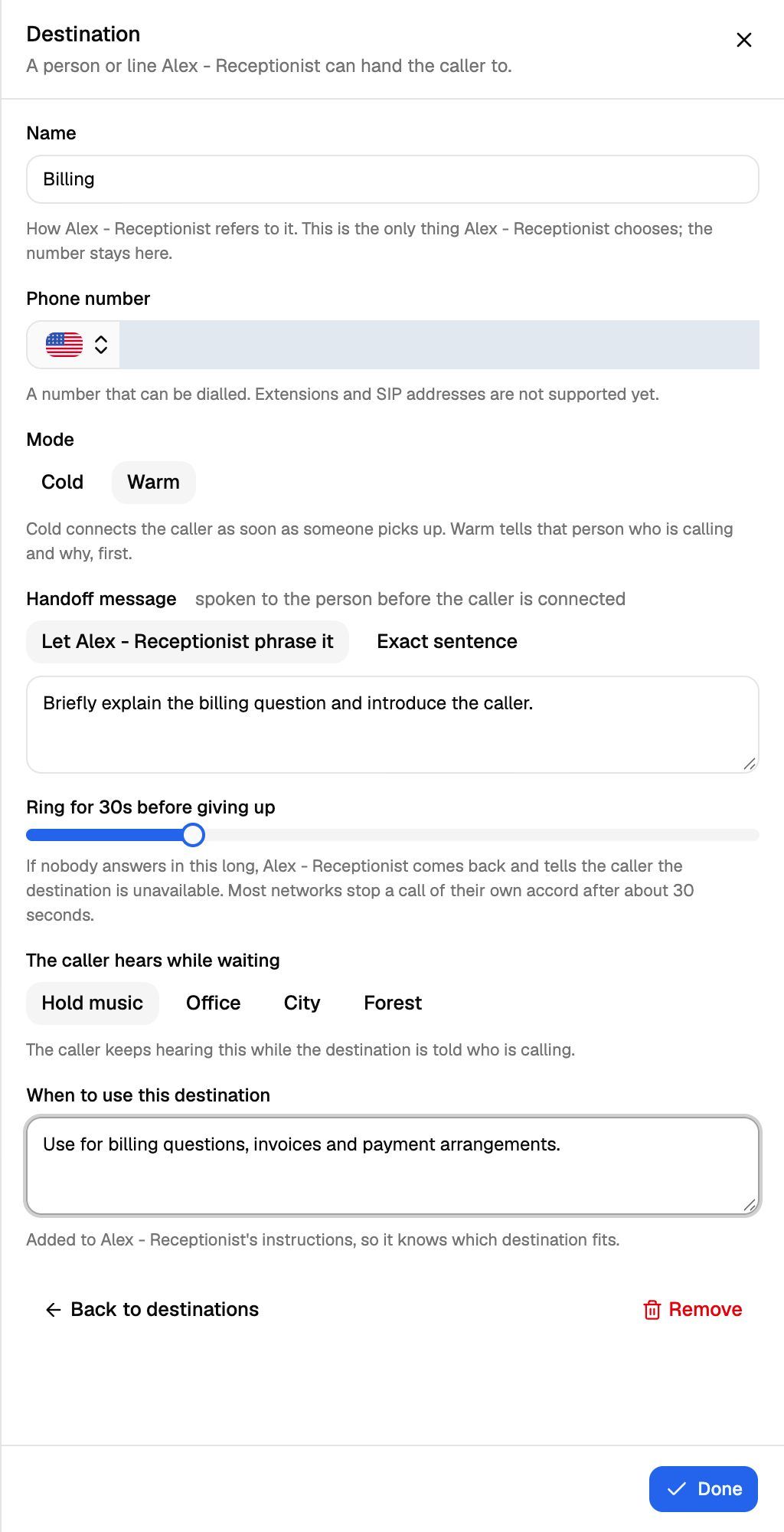
Cold or warm
For a warm transfer, choose how the handoff message is used:
- Let agent phrase it: your text is a brief. The agent turns it into a few short sentences for the person answering, using what it learned on the call. For example: "Say who is calling, what they need, and anything already agreed."
- Exact sentence: the agent reads your text word for word.
Warm transfers can't use Nothing as hold audio. If you switch a destination from cold to warm while Nothing is selected, it changes to Hold music, so the caller never sits in silence during the briefing.
Step 3: Save
Back on the list, check your destinations. Each shows its name, a Cold or Warm badge and its number. Click Save changes.
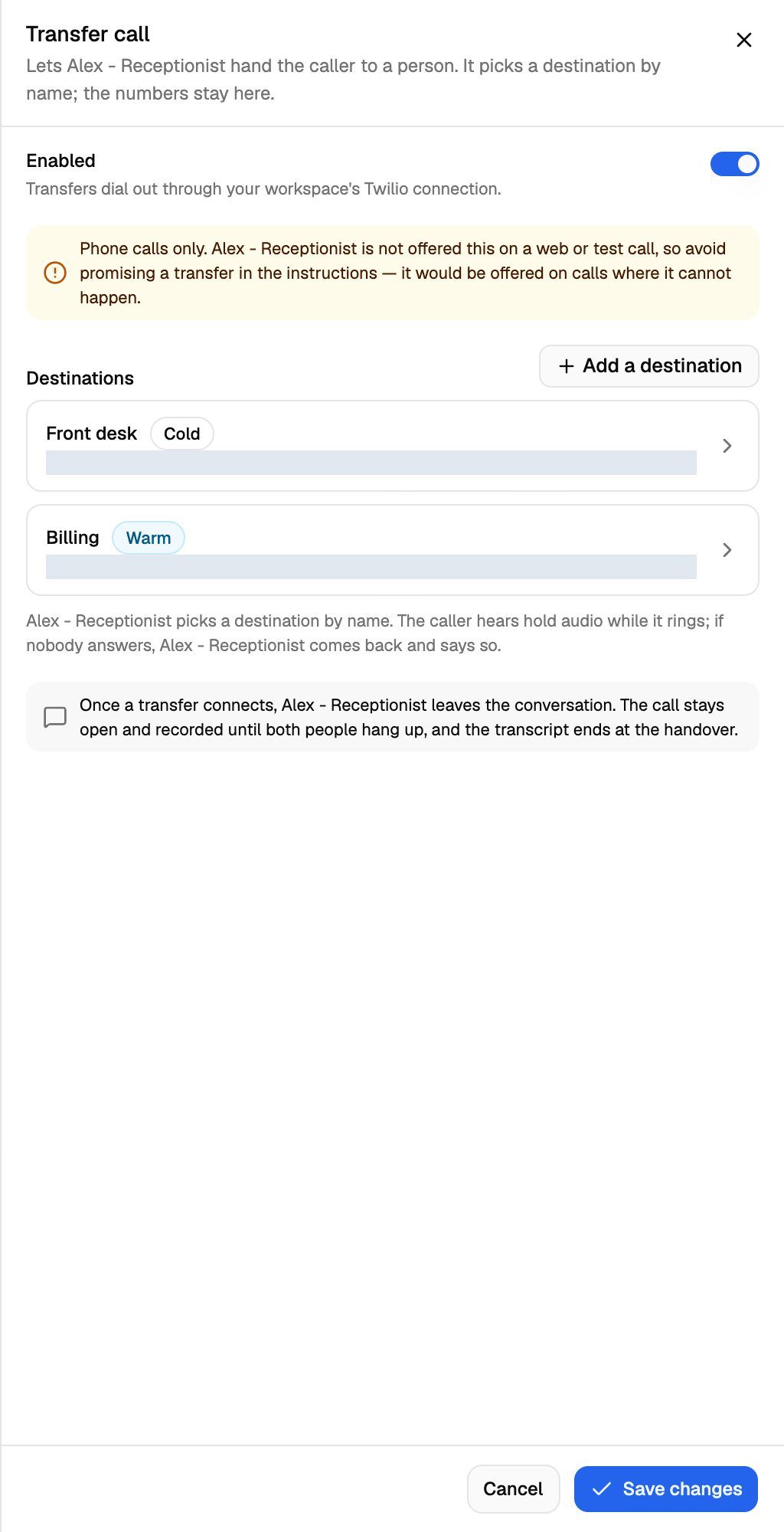
When you save with Transfer call on, VoiceAIWrapper sets up outbound calling in the Twilio account behind each of your active numbers, if it isn't set up already. These settings save on their own, so you don't need the agent's main save bar. Changes apply from the next call.
Step 4: Raise the maximum call length
A transferred call still ends at the agent's Maximum call length, counted from the start of the call. When the limit is reached, the call closes without a goodbye, even if your caller and your team member are mid-conversation. New agents start at 5 minutes.
Open the Call Settings tab and set Maximum call length high enough to cover the AI part of the call plus the conversation with your team. It can be 1 to 240 minutes. See Call Settings: Recording, Silence Timeout and Maximum Call Length.
What happens during a transfer
- The agent decides a transfer is needed and picks a destination by name, guided by When to use this destination.
- The caller hears your hold audio while the destination rings.
- The person answering sees your number (the number the call is on) as the caller ID, not the caller's own number.
- If nobody answers within the ring time, the hold audio stops and the agent comes back to tell the caller the destination is unavailable. The call continues with the agent.
- If someone answers, a warm transfer plays the briefing first. Then the caller and your team member are connected, and the agent leaves the conversation. If the person answering hangs up during the briefing, the agent comes back to the caller and the call continues.
- The call stays open, and recorded if recording is on, until both people hang up. The silence timeout doesn't run during a transfer.
Check a transfer in Call Logs
Open the call in Call Logs and look at the transcript:
- A divider reads transferred to destination · recording continues · transcript ends here. The transcript stops at the handover, because the agent no longer listens.
- For warm transfers, the briefing appears under What the agent told destination before connecting the call.
- The recording, if on, includes the whole call, including the conversation after the transfer.
- The call's End reason reads Assistant forwarded call once the caller was connected, or Customer ended call during transfer if the caller hung up while the destination was ringing or being briefed.
Remove a destination
Open the destination and click Remove. If it has a name, you'll be asked to confirm. The agent stops offering it from the next call; past calls are unchanged. Click Save changes on the list to keep the change.
Troubleshooting
Saving fails with an error about outbound calling or Elastic SIP Trunking.
Saving fails with an error about outbound calling or Elastic SIP Trunking.
When you switch Transfer call on, VoiceAIWrapper sets up the outbound connection it uses for transfers in each Twilio account behind your active numbers. If Twilio refuses, the panel shows Twilio's own error, or "Could not set up outbound calling in your Twilio account. Elastic SIP Trunking may not be enabled on it." Check in Twilio that Elastic SIP Trunking is enabled on that account, then click Save changes again.
If you see "Could not set up outbound calling for transfers. Try again in a moment." or "Could not reach Twilio to set up outbound calling.", wait a minute and save again.
I see "Destination 2 still needs a name and a phone number."
I see "Destination 2 still needs a name and a phone number."
Every destination needs both before you can save. Open the destination named in the message, fill in the missing field, or remove it.
I see "… is a warm transfer, so it needs a handoff message."
I see "… is a warm transfer, so it needs a handoff message."
Warm destinations must have a handoff message. Open that destination and write one, or switch it to Cold.
I see "Two destinations are called … Give one of them a different name."
I see "Two destinations are called … Give one of them a different name."
The agent picks destinations by name, so each name must be different. Names that differ only in capital letters or spacing count as the same.
The agent talks about transferring but never does it.
The agent talks about transferring but never does it.
Check the call type first: transfers only happen on phone calls, not on web calls or chats. To test, use Test agent → Phone call. Then check that Enabled is on, there is at least one destination, and When to use this destination clearly describes when to use it.
The caller gets cut off a few minutes after being transferred.
The caller gets cut off a few minutes after being transferred.
The call reached the agent's Maximum call length. Raise it on the Call Settings tab, as described in Step 4 above.
Can I transfer to an extension or a SIP address?
Can I transfer to an extension or a SIP address?
Not yet. Destinations must be phone numbers that can be dialled directly.
Related articles
Was this helpful?
Still need help? Share an idea