Fine-Tune Conversation Behaviour
Fix agents that talk over callers, reply too slowly or mishear names, using the Conversation settings on VAW Native agents.
Written By voiceaiwrapper
Last updated 26 days ago
Good phone conversations depend on timing. If your agent talks over callers, waits too long to answer, or keeps mishearing a name, the Conversation settings are usually the fix. They control how the agent listens, when it takes its turn and how well it understands what callers say.
Applies to: agents on a VAW Native Pod (an engine or provider connection). Vapi, Retell AI and ElevenLabs agents have similar settings in the provider's own account.
Before you start
- An agent on a VAW Native Pod. See Create an Agent from Scratch.
- A few test calls, so you know which problem you're fixing. See Test Your Agent: Web Calls, Phone Calls and Chat.
Open the Conversation settings
- In the sidebar, open Agents and click your agent.
- On the Agent Settings tab, click the Conversation row. It shows your current patience level and whether interruptions are on.
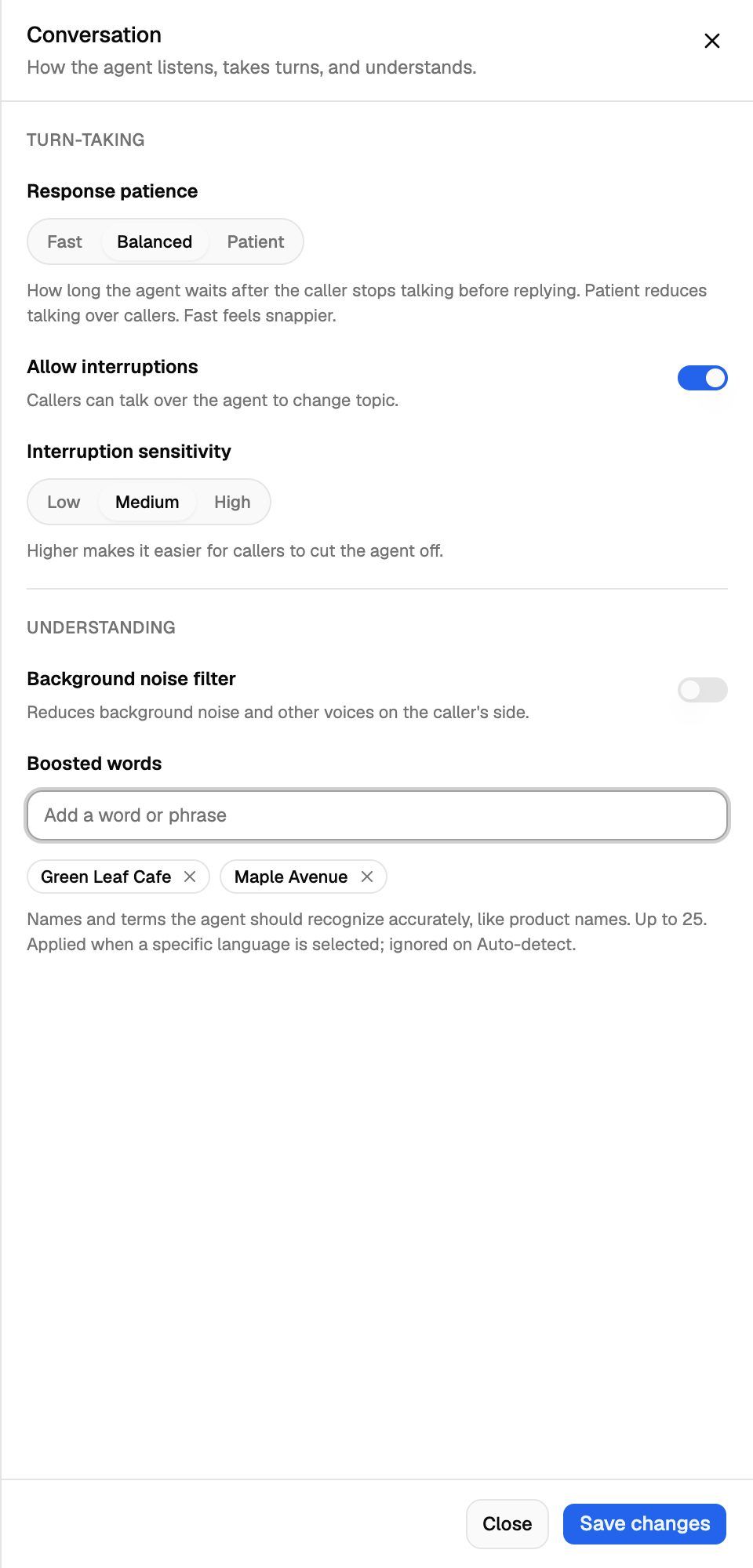
- Change the settings below, then click Save changes in the sheet's footer or on the Unsaved changes bar.
Quick fixes by symptom
Change one setting at a time and test after each change, so you know what made the difference.
Turn-taking
Response patience
How long the agent waits after the caller stops talking before it replies.
Allow interruptions
When on (the default), callers can talk over the agent to change topic, and the agent stops to listen. Turn it off if you need the agent to finish every sentence, for example when reading out a legal notice. Callers will then have to wait for the agent to finish.
Interruption sensitivity
How easily a caller can cut the agent off. It only applies while Allow interruptions is on.
Understanding
Background noise filter
Reduces background noise and other voices on the caller's side. It's off by default. Turn it on if many callers ring from cars, shops, building sites or busy homes.
Boosted words
Names and terms the agent should recognise accurately, such as product names, brand names, staff names or local street names.
- Type a word or phrase in Add a word or phrase, then press Enter or type a comma to add it. Clicking away from the field also adds it.
- Add up to 25. Each can be up to 40 characters.
- Click the × on a word to remove it.
Boosted words only work when the agent's language is set to a specific language. On Auto-detect they're ignored. See Choose the Agent's Language.
Boost only the words the agent gets wrong. Common everyday words don't need it.
Troubleshooting
The Interruption sensitivity control is greyed out.
The Interruption sensitivity control is greyed out.
Allow interruptions is off. Turn it on to change the sensitivity. Your previous sensitivity level is kept while it's off.
I can't add another boosted word.
I can't add another boosted word.
You've reached the limit of 25 words, so the field is disabled. Remove a word you no longer need. The field also won't take more than 40 characters, and a word that's already on the list isn't added twice.
The agent still mishears a word after I boosted it.
The agent still mishears a word after I boosted it.
Check that the agent's Language isn't set to Auto-detect, and that you clicked Save changes. Then add the word the way callers say it. For example, add both the full name and a common short form if callers use both.
The agent takes a long time to answer even on Fast.
The agent takes a long time to answer even on Fast.
Patience only controls the wait after the caller stops talking. The rest of the delay comes from the AI model and the length of its replies. Try a faster model or a shorter Response length limit. See Choose an AI Model.
Related articles
Was this helpful?
Still need help? Share an idea