Split Concurrency Between Inbound and Outbound Calls
Decide how many of a Pod's call lines answer incoming calls and how many dial out, and how campaigns share the outbound lines.
Written By voiceaiwrapper
Last updated 26 days ago
Concurrency is how many calls a Pod (an engine or provider connection) can run at the same time. Each Pod has a total number of call lines, and you decide how many of them answer incoming calls and how many dial out. Getting the split right means inbound callers always reach an agent while your outbound campaigns still have room to dial.
Changing the split takes about a minute.
How concurrency works
Every Pod has three numbers:
Inbound and outbound together can't be more than the total. When you connect a Pod, VoiceAIWrapper splits the total evenly. If the total is an odd number, the extra line goes to outbound.
Where the total comes from depends on the engine:
When a Retell AI refresh finds a different total, the split resets to an even split. Check your inbound and outbound numbers afterwards.
Change the split
- In the header, open the Pod selector (it shows your current Pod's name).
- For the Pod you're in, click the pencil icon (Edit). For any other Pod, click the ⋮ menu on its row, then Edit. You can also click the pencil icon in the VoiceAI Pods card on the Account Dashboard.
- The Update VoiceAI Pod drawer opens on Update Credentials. Click Next to continue to Set Concurrency. Clicking Next saves the credentials as they are, and on Vapi, Retell AI and ElevenLabs Pods it checks the keys with the provider again. Leave them unchanged unless you mean to update them.
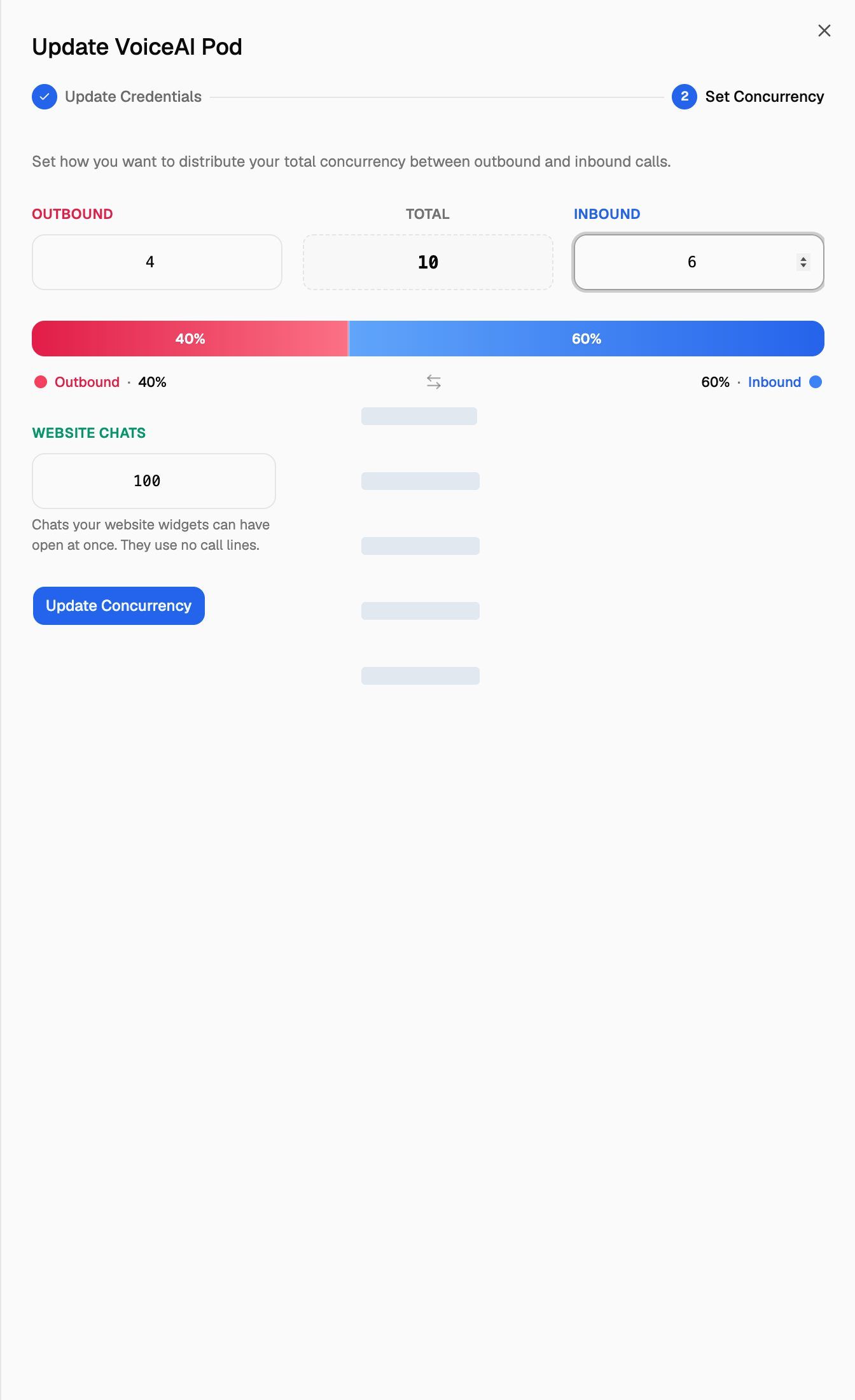
- Type a number in Outbound or Inbound. The other field updates automatically so the two always add up to the Total, and the bar underneath shows the split as percentages.
- Click Update Concurrency. You'll see "Concurrency distribution updated successfully".
How to choose a split
- Mostly inbound (a receptionist or support line): give inbound most of the lines. Lines you give to outbound can't answer incoming calls, even when no campaign is dialing.
- Mostly outbound (lead follow-up, reminders): give outbound most of the lines, but keep at least one inbound line if leads can call back.
- Both: start with the even split and adjust after a week of real traffic. The Live operations section of the Pod Dashboard shows the calls running on the Pod right now.
Widget chats on VAW Native
VAW Native Pods have one more field on the Set Concurrency step: Website chats. It's the number of chats your website widgets can have open at once. Chats use no call lines, so this number is separate from the split.
- Default: 20.
- Range: 1 to 500.
When the limit is reached, new visitors can't start a chat until an open one ends.
Voice calls started from a website widget are different: they use the Pod's inbound lines, the same as phone calls. So do test calls you make in the browser from an agent's page. Test calls to a phone number use outbound lines.
What happens when every line is busy
On VAW Native, Call Logs hide these refused calls by default, and the call count says "missed calls are hidden". To see them, use the Missed calls filter, or filter by the end reason Concurrency limit reached.
Share outbound lines between campaigns with Campaign Priority
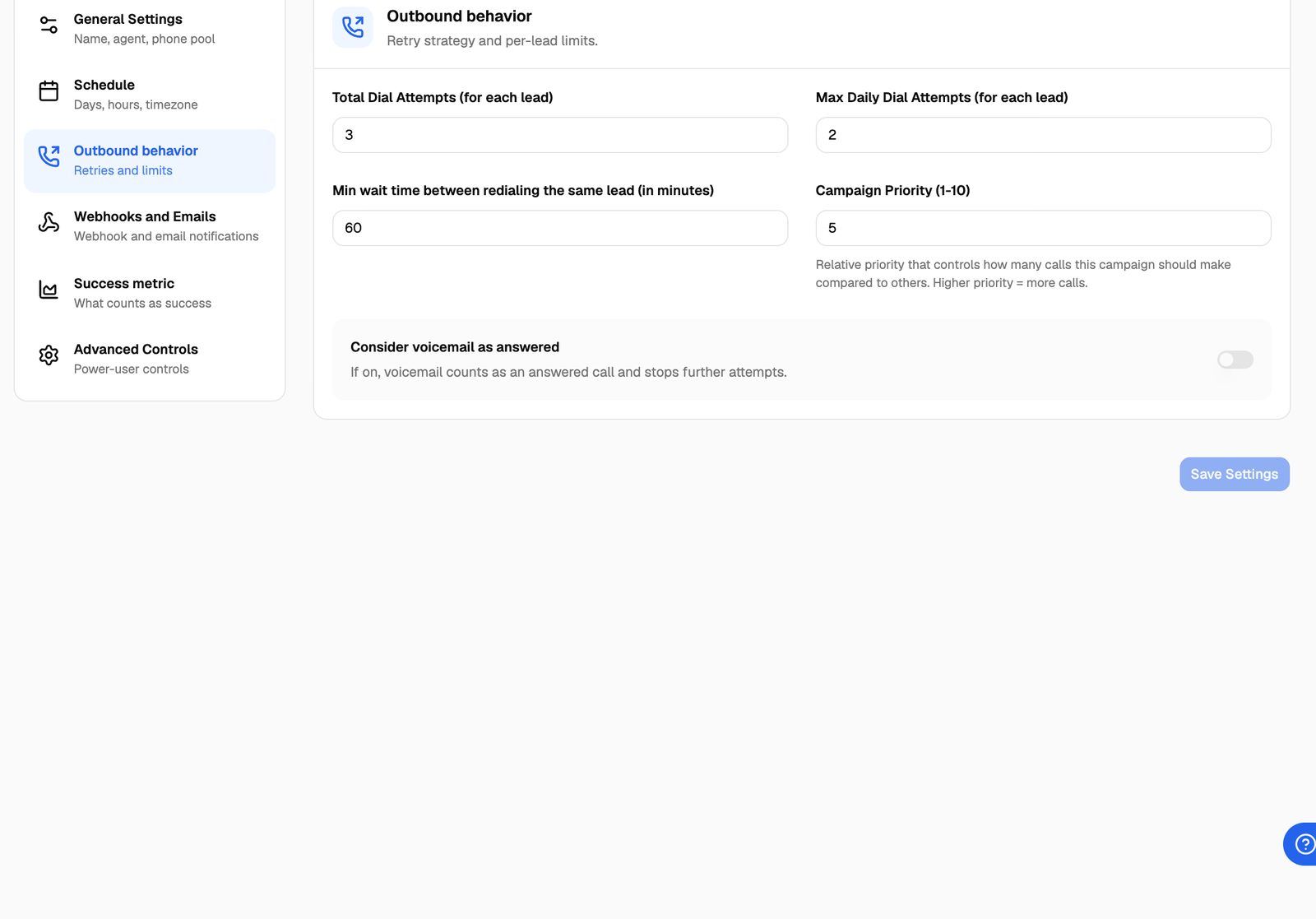
All outbound campaigns on a Pod share the Pod's outbound lines. On some accounts, outbound campaigns also have a Campaign Priority (1-10) field that decides how those lines are shared. A campaign with a higher number gets more of the calls: a campaign set to 10 gets about twice as many calls as one set to 5 while both have leads to dial. New campaigns start at 10.
To set it:
- Open the campaign and go to Settings.
- Open Outbound behavior.
- Enter a number from 1 to 10 in Campaign Priority (1-10).
- Click Save Settings.
Priority doesn't reserve lines. A campaign with priority 1 still uses every free line when no other campaign has leads waiting.
If you don't see the field, your outbound campaigns share the Pod's lines without a priority setting.
Frequently asked questions
Why can't I change the total on my VAW Native Pod?
Why can't I change the total on my VAW Native Pod?
The total for VAW Native is set by VoiceAIWrapper based on your plan. You can move lines between inbound and outbound, but to change the total, contact support through Need help? → Help Chat.
My Vapi or Retell AI calls fail even though VoiceAIWrapper shows free lines.
My Vapi or Retell AI calls fail even though VoiceAIWrapper shows free lines.
Your provider has its own limit. If the total in VoiceAIWrapper is higher than the limit in your provider account, the provider rejects the extra calls. For Vapi, set Vapi Concurrency Limit to the same number as your Vapi organization. For Retell AI, refresh the total from Retell AI (see the table above).
Does a chat in a website widget use one of my call lines?
Does a chat in a website widget use one of my call lines?
No. Chats are limited by Website chats only. Voice calls from a website widget do use inbound lines.
Related articles
Was this helpful?
Still need help? Share an idea