Add Consent and Legal Notices
Ask visitors to accept a privacy notice before they talk or chat with your widget, and choose the wording, buttons and how acceptance is remembered.
Written By voiceaiwrapper
Last updated 26 days ago
Your widget can show a short privacy notice before a visitor starts a call or a chat. The visitor has to click accept before anything starts. This helps you tell people that the conversation is with an AI agent and how their data is handled. In some countries and states, the law requires this.
Consent is switched on for every new widget, with a ready-made notice you can edit. Setting it up takes a couple of minutes.
Before you start
- A widget to edit. Create one on a VAW Native agent or in an inbound widget campaign. See Add a Widget to a VAW Native Agent or Create an Inbound Widget Campaign.
- Your notice text. If you're setting this up for a client, ask them for the wording their privacy policy needs. The text you write here is shown to their visitors as is.
Step 1: Open the consent settings
- Open the widget builder:
- For a VAW Native agent: open the agent, then Deploy → Widget.
- For a campaign: open the campaign, then the Web Widget tab.
- Open the Settings tab of the builder.
- Scroll to Legal & Consent.
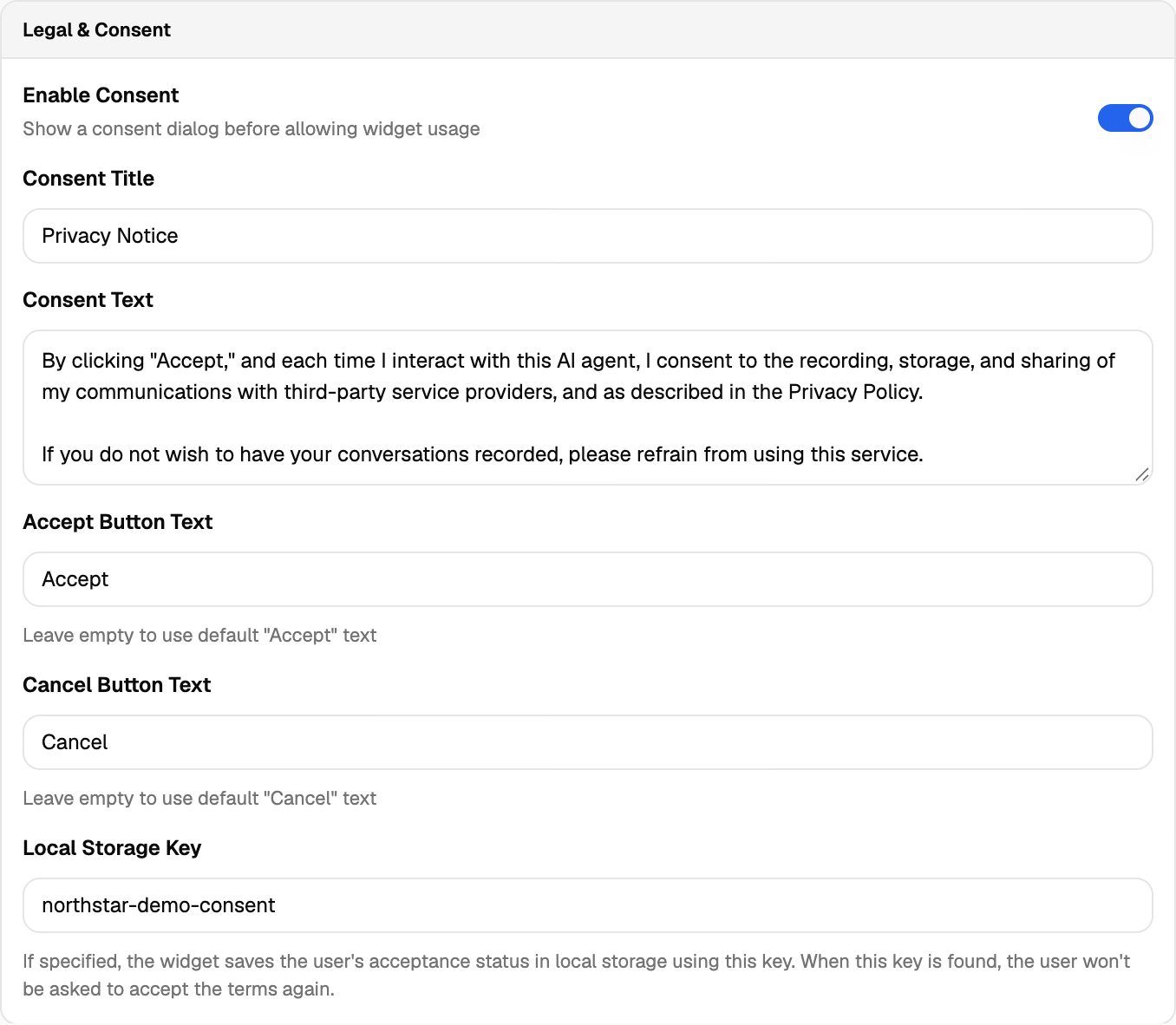
Step 2: Write your notice
With Enable Consent on, fill in these fields:
When you're done, click Update Widget Configuration. Sites that already have the widget pick up the change the next time a page loads. You don't need to copy the embed code again.
The consent text is plain text, so links in it aren't clickable. To point visitors to a privacy policy, use Footer Text and Footer Link URL on the builder's Content tab. The footer then opens your policy in a new tab. See Customize Layout, Branding and Colors.
Step 3: Decide how acceptance is remembered
When a visitor clicks accept, the widget saves that in their browser's local storage under the Local Storage Key. While it's there, the visitor isn't asked again on that site.
Things to know:
- It's per browser. The same person on another device, in another browser, in a private window or after clearing their browser data will see the dialog again.
- Change the key to ask everyone again. If you change your notice and want returning visitors to accept the new version, enter a new key (for example
ai-widget-consent-v2) and save. - Widgets that share a key share the answer. If you put two widgets on the same site with the same key, accepting one counts for both. Give each widget its own key if each needs its own consent.
The Live Preview remembers your own acceptance the same way. If the dialog stops showing in the preview after you accept it once, change the Local Storage Key or clear your browser's site data for the webapp to see it again.
What your visitors see
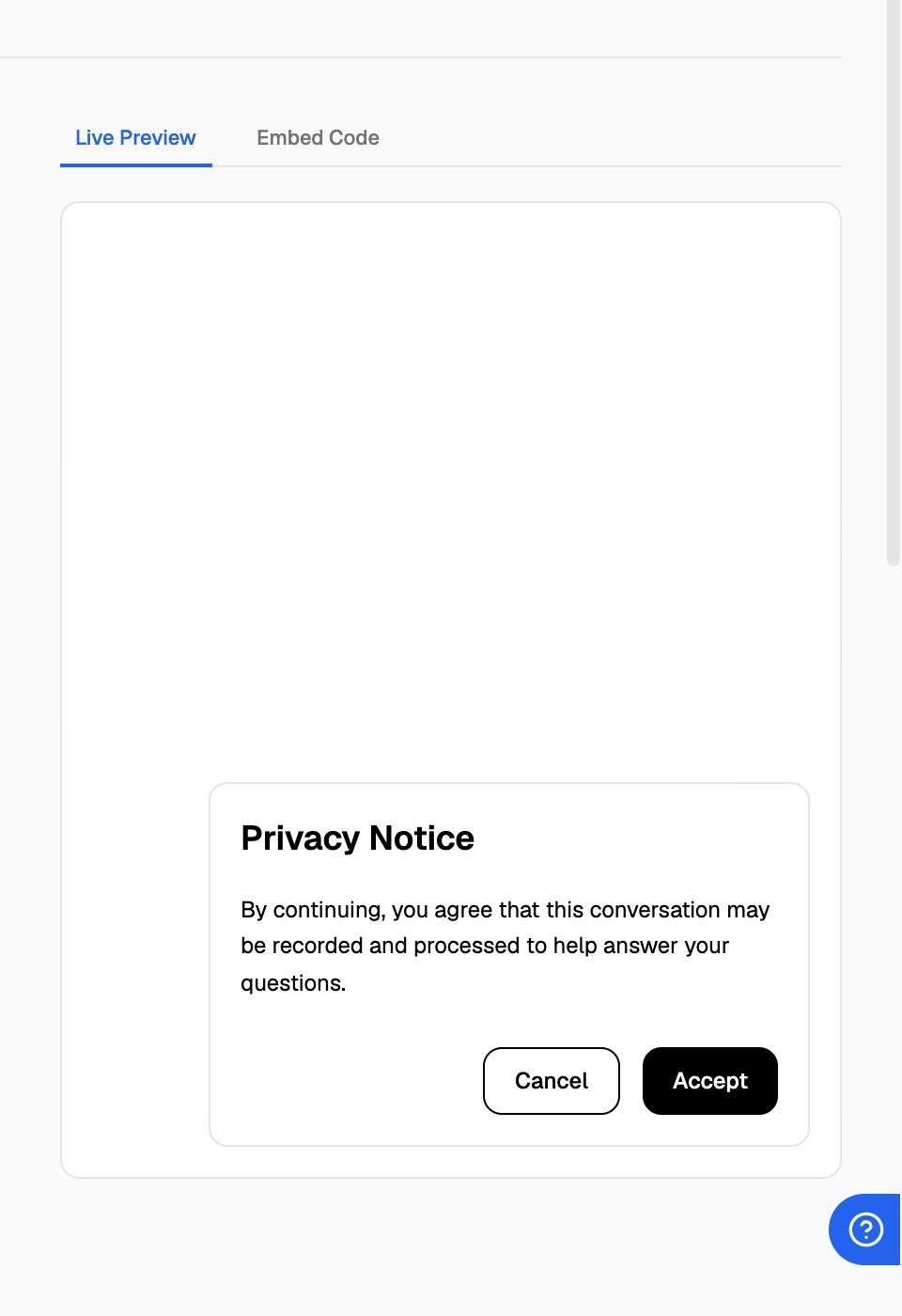
When a visitor clicks the widget's start button (or picks voice or chat, if the widget offers both), the consent dialog opens where the widget sits on the page.
- Accept saves their answer and opens what they chose. A chat opens straight away. For a voice call, the call panel opens and the visitor clicks the call button (Start Voice Call unless you renamed it) to start talking.
- Cancel closes the dialog. Nothing starts, and nothing is saved, so the dialog shows again the next time they try.
Turn consent off
You can switch Enable Consent off. Visitors then go straight to the call or chat panel. The builder shows a Legal Warning: "Disabling consent might have legal implications. Please check regulations in your local country."
Only switch consent off if you, or your client, have checked that the site doesn't need it. Rules about recording and AI disclosure differ by country and state. If in doubt, leave it on.
Using your own consent screen (headless mode)
If you hide the floating widget and drive it from your own buttons, the widget can't show its dialog. Instead, it sends a widget.consent-required event when consent is needed. Your page shows its own notice and calls acceptConsent() when the visitor agrees. The answer is saved under the same Local Storage Key. See Headless Mode: Build Your Own Widget UI.
Frequently asked questions
Does consent apply to both voice calls and chat?
Does consent apply to both voice calls and chat?
Yes. With Enable Consent on, the dialog shows before either one starts. Once a visitor accepts, they can use both without being asked again.
Can I see which visitors accepted?
Can I see which visitors accepted?
No. Acceptance is only stored in each visitor's own browser. It isn't sent to the webapp or shown in your logs.
Can I translate the notice?
Can I translate the notice?
Yes. Type the title, text and button labels in any language. The widget shows exactly what you enter. Each widget has one version of the text, so for a site in several languages, use a separate widget per language.
I changed the notice, but returning visitors aren't asked again.
I changed the notice, but returning visitors aren't asked again.
They already accepted under the current key. Change the Local Storage Key and click Update Widget Configuration. Everyone is asked again on their next visit.
Related articles
Was this helpful?
Still need help? Share an idea