Create and Manage API Keys
Generate, copy, turn off and delete the API keys your tools use to call the VoiceAIWrapper API, and keep them safe.
Written By voiceaiwrapper
Last updated 26 days ago
An API key lets your own code, CRM or automation tool talk to VoiceAIWrapper on your behalf. Every API request sends a key, and VoiceAIWrapper uses it to know which organization the request belongs to. This article shows you how to create keys, copy them, turn them off and delete them, and how to keep them safe.
Creating a key takes under a minute.
Available on: plans that include Platform API. Most endpoints, including every campaign and lead endpoint, also need Campaigns API. See API Reference Overview and Rate Limits for which feature each endpoint needs.
Before you start
- You need to be an Owner or Admin of the organization to open Settings. Other roles see Access Restricted there.
- Decide what each key is for. Create one key per tool or integration (for example "Zapier lead form" or "CRM sync"). Then you can turn off one integration without breaking the others.
Where to find your API keys
- In the sidebar, click Settings.
- Scroll to the API keys section, below Billing.
If your plan includes Campaigns API, you'll also find the same list on every outbound campaign: open the campaign, then Manage leads via API → API Keys. Both places show the same keys, because keys belong to your organization, not to a campaign.
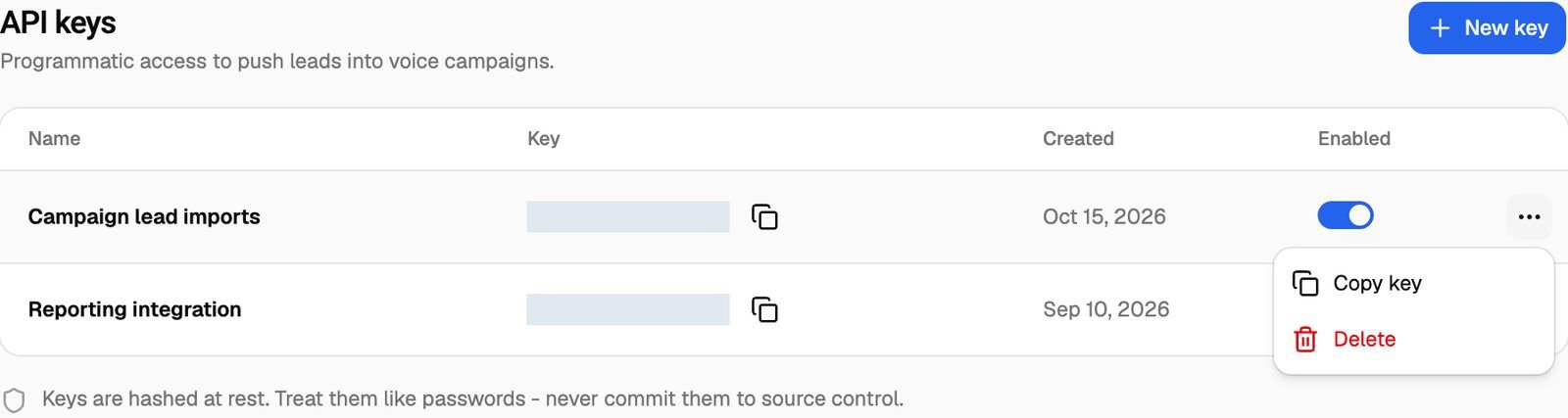
Create a key
- In the API keys section, click New key. If you have no keys yet, click Create API key in the empty state instead. On a campaign's API Keys tab, the button is called Generate API Key.
- In the Create API key sheet, type a Name ("Give your key a recognizable name.").
- Click Generate key.
You'll see API key created successfully. and the new key appears at the top of the table. It's switched on straight away.
Copy a key
The Key column shows only the start and end of each key. To copy the full key, do either of these:
- Click the copy icon next to the key. It turns into a check mark once copied.
- Open the row menu (⋯) and click Copy key. You'll see API key copied to clipboard.
You can copy a key again at any time, so you don't need to store it anywhere else.
Turn a key off or on
Use the Enabled switch on the key's row. You'll see API key updated successfully.
While a key is off, every request that uses it is refused with the message API key is disabled. Nothing else changes: turn the switch back on and the key works again.
Turning a key off is the safe way to test whether anything still uses it. If nothing breaks after a few days, delete it.
Delete a key
- Open the row menu (⋯) and click Delete.
- In the Delete API key dialog, click Delete to confirm.
You'll see API key deleted successfully.
Deleting a key can't be undone. Any tool still using it stops working at once. Its requests are refused, usually with API key not found. If you only want to pause a tool, turn the key off instead.
Keep your keys safe
An API key works for your whole organization. Anyone who has one can add, change and remove leads in any of your campaigns, and use every other endpoint your plan includes.
- Store keys in your tool's secret or credential settings, not in shared documents, screenshots or public code.
- Use a separate key for each tool, and name it after that tool.
- If a key may have leaked, generate a new key, switch your tools over to it, then delete the old one.
- Team members who can open an outbound campaign can see and copy keys on its Manage leads via API tab, even if they can't open Settings.
- Clients you give the White labeled API permission can see your organization's keys in their portal. See Use the API on Your White-Label Domain.
Troubleshooting
I click Generate key and see "Failed to create API key."
I click Generate key and see "Failed to create API key."
The most common cause is that your plan doesn't include Platform API. Check your plan, or upgrade, then try again. See Plan Limits and Upgrade Prompts. Turning keys off and deleting them keep working on any plan.
I can't see the API keys section.
I can't see the API keys section.
Settings is only open to Owners and Admins. Ask an Owner or Admin to create a key for you, or to change your role. Team members who can open campaigns can also reach the keys from an outbound campaign's Manage leads via API → API Keys tab, if your plan includes Campaigns API.
My requests say "API key not found" or "API key is disabled".
My requests say "API key not found" or "API key is disabled".
"API key not found" means the key was deleted or copied incorrectly. Copy it again from the table. "API key is disabled" means the key's Enabled switch is off. Turn it on, or use another key.
Do I need a separate key for each campaign?
Do I need a separate key for each campaign?
No. One key works for every campaign in your organization. The campaign is picked by the campaign ID in the request URL.
Related articles
Was this helpful?
Still need help? Share an idea