Export Leads
Download a campaign's leads as a CSV file, including call results and do-not-call reasons. Exports run in the background and are kept for 7 days.
Written By voiceaiwrapper
Last updated 26 days ago
Export a campaign's leads to a CSV file when you want to report on results, share them with a client, back them up, or work on them in a spreadsheet or CRM. The file includes each lead's contact details, call results, invalid and do-not-call flags, and custom fields.
Exports run in the background, so you can keep working while the file is prepared. Completed files stay available for 7 days.
Before you start
- Exports work per campaign. To export leads from several campaigns, export each one.
- Decide which leads you want. The export uses the search box and any filters you've added on the Leads tab. It doesn't use the status tab (All, Answered, Do not call and so on) you have open.
Step 1: Choose which leads to export
- Open your Pod (an engine or provider connection), select Campaigns, and click the campaign.
- Open the Leads tab and select the All status tab.
- Optional: type in the search box (Search by name, email or phone number) or add filters, such as Lead Added At or Answered, to narrow the list.
Stay on the All tab while you export. The Total Records number in the export sheet counts the leads in the tab you have open, but the file includes leads from every status that match your search and filters. On All, the two numbers match.
Step 2: Create the export
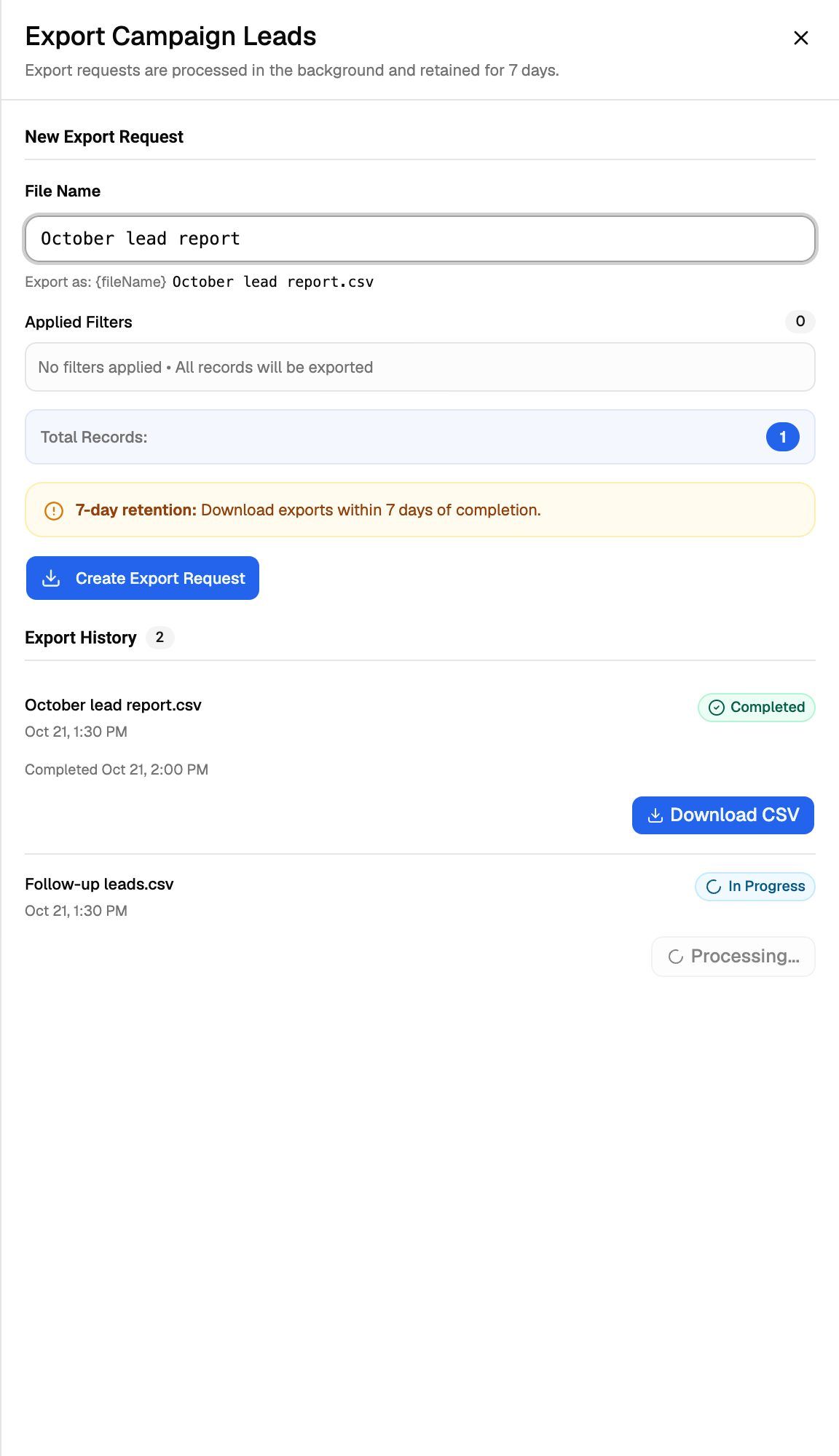
- Click Export leads at the top right of the table. The Export Campaign Leads sheet opens.
- Check the File Name. It's filled in for you as the campaign name,
Leads_Exportand today's date. You can change it. Use only letters, numbers, spaces, hyphens and underscores, up to 200 characters. Export as: shows the final file name, ending in.csv. - Check Applied Filters. It lists your search and filters. If it says No filters applied • All records will be exported, the file will contain every lead in the campaign.
- Click Create Export Request.
You'll see Export request created successfully, and the request appears under Export History. If Total Records is 0, the form is greyed out because there's nothing to export.
Step 3: Download the file
Keep the sheet open or come back to it later. Export History updates on its own while the sheet is open.
Download within 7 days. Completed exports, and the files themselves, are deleted 7 days after they finish. Failed requests are removed 7 days after you created them. To get a fresh copy later, create a new export.
Export History shows the exports your team has made for this campaign. Exports your clients make from their portal aren't listed here.
What's in the file
One row per lead, newest first. Dates and times use the time zone of the browser you created the export from.
For what the do-not-call sources mean, see Do-Not-Call: Sources and Reasons.
Troubleshooting
My export failed with "No campaign leads found".
My export failed with "No campaign leads found".
No leads matched your search and filters when the export ran. Check Applied Filters in the sheet, remove filters you don't need, and create the export again.
The file has more leads than the Total Records number showed.
The file has more leads than the Total Records number showed.
You probably exported from a status tab other than All. The file ignores the status tab and includes every lead that matches your search and filters. Go to All, apply the filter you need (for example Answered), then export again.
An export disappeared from Export History.
An export disappeared from Export History.
Completed exports are deleted 7 days after they finish, and failed ones 7 days after they were created. The request and its file are both removed. Create a new export.
How do I put custom fields into separate spreadsheet columns?
How do I put custom fields into separate spreadsheet columns?
The export keeps every custom field in the custom_fields column as JSON, for example {"company": "Acme", "plan": "Pro"}. Most spreadsheet tools can split it with a text-to-columns or JSON import feature.
Can I export leads from every campaign in a Pod at once?
Can I export leads from every campaign in a Pod at once?
Not from the webapp. The All Leads page lets you search across campaigns but doesn't export. Export each campaign from its Leads tab.
Related articles
Was this helpful?
Still need help? Share an idea