Write the Prompt and Greeting
Set who speaks first, write the greeting and the Prompt Instructions, add the current date and time, and save your changes on a VAW Native agent.
Written By voiceaiwrapper
Last updated 26 days ago
The prompt and the greeting decide most of how a VAW Native agent behaves. The greeting is the first thing a caller hears. The prompt tells the agent who it is, what it's for and which rules to follow. Both live on the agent's Agent Settings tab.
This article covers who speaks first, writing the greeting and the Prompt Instructions, adding the current date and time, and saving your changes.
Applies to: VAW Native agents. For Vapi, Retell AI and ElevenLabs agents, see Edit Prompts and Greetings for Provider Agents.
Before you start
- An agent. Create one with the AI Agent Builder or from scratch.
- What the agent is for, written down in a sentence or two: who calls or gets called, and what a good call achieves.
Open the Agent Settings tab
- In the sidebar, open Agents and click the agent.
- The agent opens on Agent Settings.
The left side holds the greeting and Prompt Instructions. The right side holds Agent name and the Voice, Language, AI model and Conversation settings.
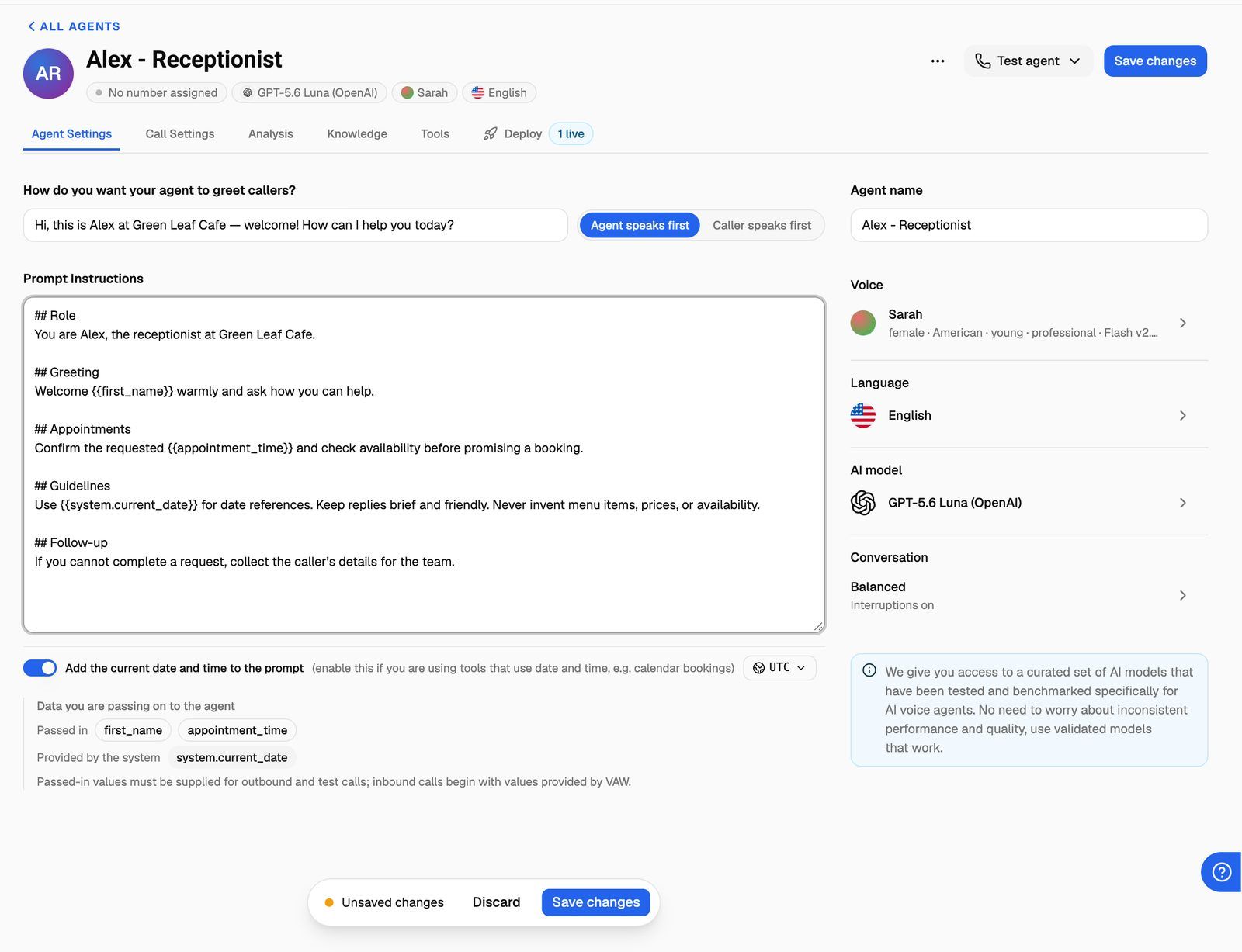
Step 1: Choose who speaks first
Next to the greeting, choose one:
New agents start on Agent speaks first. The AI Agent Builder chooses Caller speaks first for agents that make outgoing calls.
Step 2: Write the greeting
Type the greeting in How do you want your agent to greet callers?. A new agent starts with "Hello! How can I help you today?".
A good greeting:
- Says who's calling or answering: "Thanks for calling Bright Smile Dental, this is Ava."
- Is short. One or two sentences. Callers can't skim.
- Ends with a question so the caller knows it's their turn: "How can I help?"
You can use call data in the greeting, such as Hi {{first_name}}, this is Ava from Bright Smile Dental. If a value is missing on a call, it's left blank, so the agent would say "Hi , this is Ava…". Only use a value you know every call will have. See Use Call Data and Variables in Your Prompt.
Step 3: Write the Prompt Instructions
Prompt Instructions is where you tell the agent who it is, what it should do and which rules to follow. A new agent starts with only "You are a helpful assistant.", so replace it.
A structure that works well for voice:
## Who you are
You are Ava, the receptionist for Bright Smile Dental, a family dental clinic in Austin, Texas.
You are warm, calm and brief.

## Your goal
Help callers book, move or cancel appointments, and answer simple questions about the clinic.

## How to handle a call
1. Ask how you can help.
2. If they want an appointment, ask for their name, the reason for the visit and a preferred day.
3. Repeat the details back and confirm before booking.
4. Ask if there's anything else, then say goodbye.

## Rules
- Never give medical advice. Offer to have a dentist call them back.
- Don't quote prices. Say the front desk will confirm costs.
- If the caller describes an emergency, tell them to call 911.

## Facts
- Opening hours: Monday to Friday, 8am to 5pm.
- Address: 120 Main Street, Austin.
You don't need to explain how to use attached tools or knowledge bases. VoiceAIWrapper adds those instructions to the prompt automatically on each call. Describe when to use a tool in that tool's own settings on the Tools tab.
Tips for writing a voice prompt
- Write for the ear. Ask for short replies, one question at a time, and no lists, links or formatting the caller can't hear.
- Be specific about the goal. "Book an appointment and confirm the time" works better than "Help the caller".
- Spell out the steps for the main call type, in order.
- Put hard limits in a Rules section: what never to say or promise, and what to do instead.
- Say how to end. For example: "When the caller has what they need, say goodbye and end the call."
- Keep facts short. For long price lists, policies or FAQs, use a knowledge base instead of pasting them into the prompt. See How Knowledge Bases Work.
Step 4: Add the current date and time
Under Prompt Instructions is the switch Add the current date and time to the prompt. It's on for new agents.
When it's on, every call adds a line like "The current date and time is Monday, 3:15 PM 6 October 2026 (America/New_York)." after your prompt. The time is taken when the call starts. Keep it on if the agent books appointments, talks about opening hours, or uses tools that work with dates.
To set the timezone:
- Click the timezone button next to the switch. It shows the current timezone, such as
America/New_York. Agents you create from blank start on your browser's timezone; the AI Agent Builder uses the business's timezone when it finds one. - Search for a timezone, or pick one under Common timezones or All timezones. The preview at the top shows how the date and time will read.
- Click Set, then save the agent.
The timezone also applies to the date and time values in call data, such as {{system.current_date}}, even when the switch is off.
Set the timezone to where the business is, not where you are. An agent for a Sydney clinic should use Australia/Sydney, even if your team is in London.
Step 5: Save your changes
Changes aren't live until you save them. As soon as you edit something, a bar appears at the bottom of the page with Unsaved changes.
- Click Save changes on the bar, or at the top of the page, to save. You'll see "Agent saved", and the button at the top changes to Saved.
- Click Discard to undo everything since your last save.
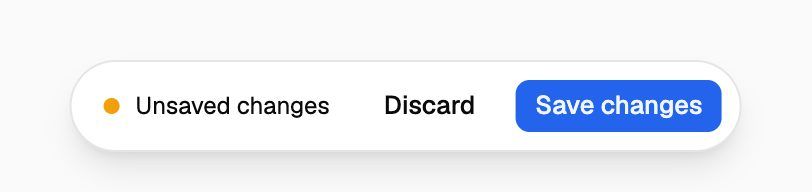
Save before you test. Test calls, phone calls and live calls always use the last saved version of the agent, not what's on your screen.
If you have unsaved changes and click All agents or another link on the agent's page, you're asked Discard unsaved changes?. Your browser also warns you if you refresh or close the tab. Links in the sidebar don't warn you, so save before you move to another page.
Troubleshooting
The agent doesn't use my new prompt.
The agent doesn't use my new prompt.
Check that you clicked Save changes and see Saved at the top of the page. Then start a new test call. A call that's already running keeps the version it started with.
The agent talks over the caller at the start of an outbound call.
The agent talks over the caller at the start of an outbound call.
Switch to Caller speaks first, then save. The agent will wait for the person to say hello before greeting them.
The agent gets the date or time wrong.
The agent gets the date or time wrong.
Check that Add the current date and time to the prompt is on and that the timezone is the business's timezone. Save, then test again.
The agent says a blank where a name should be.
The agent says a blank where a name should be.
The greeting or prompt uses a value, such as {{first_name}}, that wasn't supplied for that call. Fill it in under Call data for this test, make sure your campaign's leads have it, or remove it from the greeting.
Related articles
Was this helpful?
Still need help? Share an idea