Add and Manage Client Users
Give your clients their own portal logins, by set-password email or a password you choose, and manage them from the client's Users tab.
Written By voiceaiwrapper
Last updated 26 days ago
A client user is a login to your client portal. Each client account can have as many users as you need, for example the business owner and their office manager. You add them from the client's Users tab, either by emailing them a link to set their own password or by setting a password yourself and sharing it.
Every user of a client sees the same workspaces and permissions. Permissions are set per workspace, not per user.
Before you start
- A client account. See Add a Client Account.
- At least one workspace, so the user has something to see when they log in. See Create a Workspace and Assign Assets.
- To send set-password emails: SendGrid connected under Client Portal → Client Emails, and the set-password email template turned on. Without these you can still add users with a password you set. See Send Branded Emails to Clients with SendGrid.
Add a user
- In the sidebar, open Client Accounts and click the client.
- Open the Users tab and click Add User.
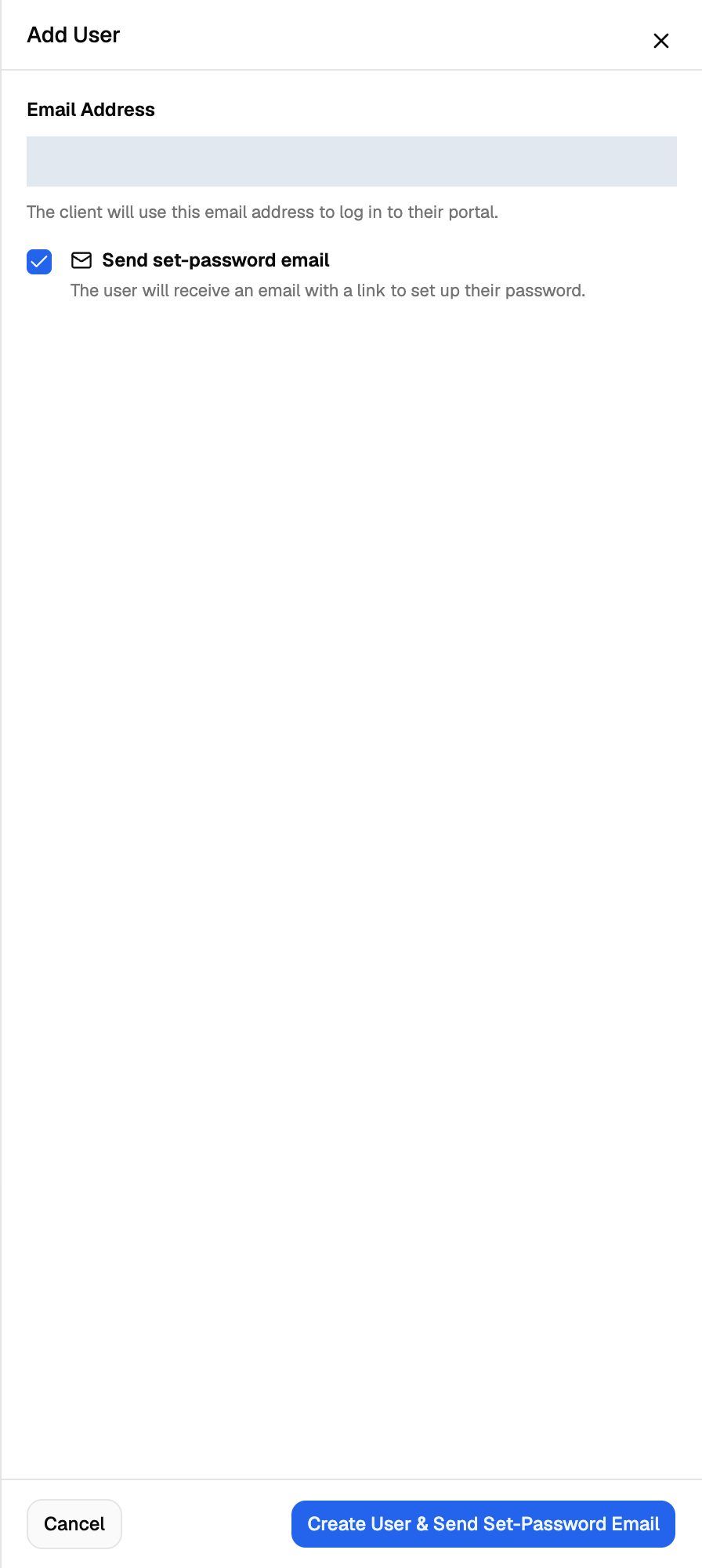
- Enter the Email Address. The client uses this address to log in, and you can't change it later.
- Choose how the user gets their password:
- Let them set it themselves: tick Send set-password email, then click Create User & Send Set-Password Email.
- Set it yourself: leave the box unticked, type a password or click Generate secure password, then click Create User.
A password you set must be at least 8 characters and include an uppercase letter, a lowercase letter, a number and a special character.
Copy the password before you close the panel. It isn't shown again. If you lose it, set a new one with Update Password.
What the client sees with a set-password email
The user gets an email with a link. The link opens your portal on a Welcome to page where they create a password and click Create account & Login. They go straight to their dashboard.
The link works for 72 hours and only once. If it expires, the page shows This invitation has expired and the user can click Request a new link, or you can send a new one with Resend set-password email.
If "Send set-password email" is greyed out
Hover over the box to see why. It means SendGrid isn't connected, email sending is off, or the set-password template is turned off. To fix it:
- Open Client Portal → Client Emails → Email Configuration, add your SendGrid key and turn email on.
- If email already works, open Email Templates and turn on the set-password template (Client User Password Setup).
Or set a password yourself instead.
Read the Users table
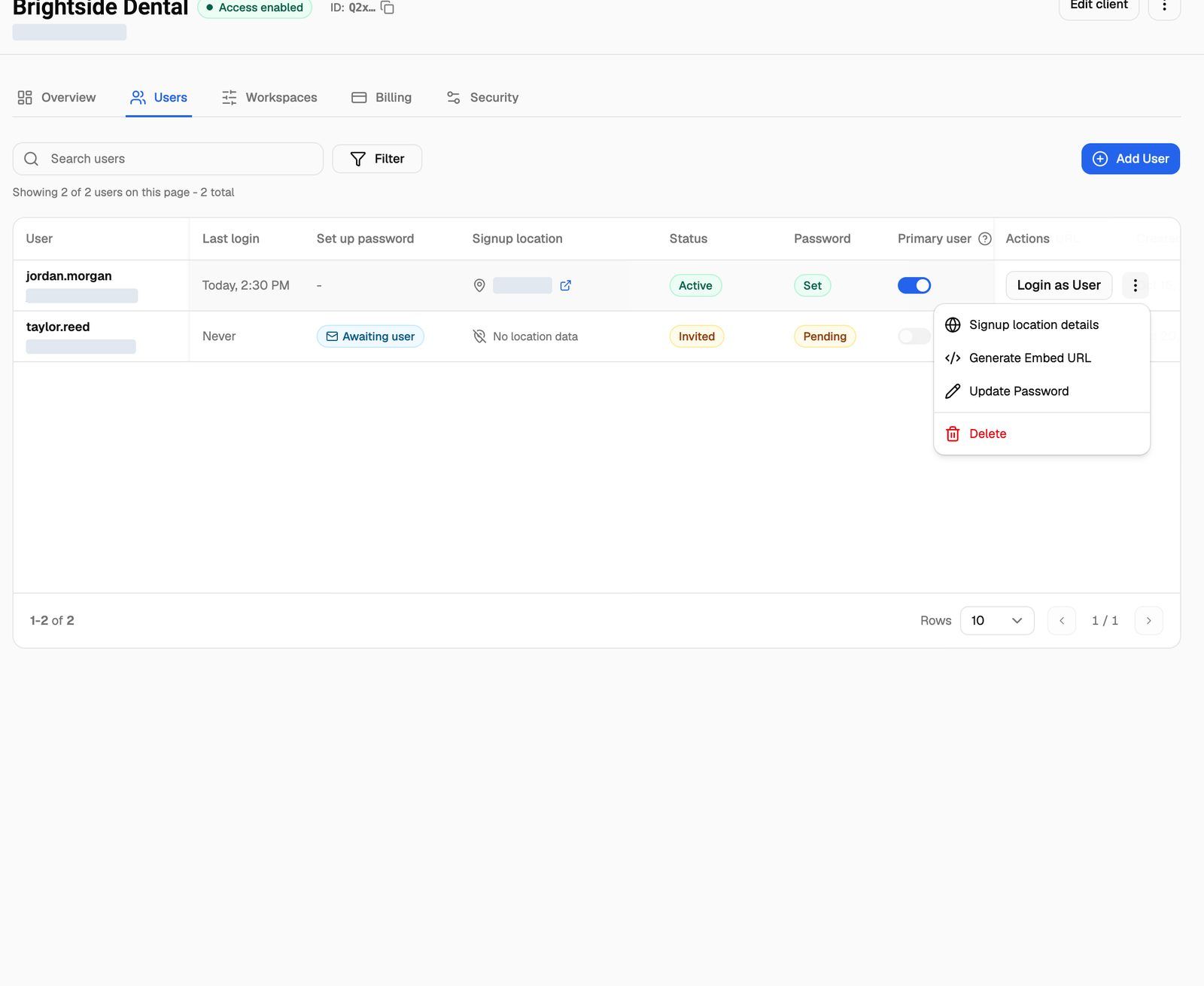
Use Search users and the filters (Status, Password, Primary user, Embed URL) to narrow a long list.
Manage a user
Each row has a Login as User button and a menu (three dots) with the other actions.
Login as User and Generate Embed URL are unavailable until the user has set their password.
Choose a primary user
Turn on the Primary user switch for the person you usually log in as. Only one user can be primary at a time, so turning it on for one user turns it off for the previous one. Turn it off to clear it. An invited user can't be primary until they've set their password.
Change a password
Click Update Password, enter a new password or click Generate secure password, then click Update Password. If the user still has an unused set-password email, setting a password here stops that link working, so send them the new password directly.
Delete a user
Click Delete and confirm. The user can no longer log in, and any embed links you created for them stop working. If they were the primary user, the client is left with no primary user.
Deleting a user can't be undone. To give the person access again, add them as a new user.
Legacy users
Some older client accounts show a Legacy Users section below the table. These logins use an older sign-in method. Each one moves to the new method automatically the next time the person logs in, and then appears in the main table. A legacy login with no email address can't move over, so its user gets an error at sign-in. Click Edit in its menu and add an email address first.
You can edit or delete a legacy user from its menu, but you add new users only through Add User.
Troubleshooting
The user didn't get the set-password email.
The user didn't get the set-password email.
Ask them to check spam. Then check that the email was sent: open Client Portal → Client Emails → Email Delivery Logs (see Customize Email Templates and Check Delivery Logs). To send a fresh link, open the user's menu and click Resend set-password email.
The link says "Account already active".
The link says "Account already active".
The user already set their password with this link. They should sign in with their email and password, or use the portal's password reset if they've forgotten it.
The link says "We couldn't find this invitation" or "Invalid link".
The link says "We couldn't find this invitation" or "Invalid link".
The link was copied incompletely, the user was deleted, or you sent a newer set-password email (only the latest link works). Send a new one with Resend set-password email. If you deleted the user, add them again first.
I can't change a user's email address.
I can't change a user's email address.
Email addresses can't be changed after a user is created. Add a new user with the right address, then delete the old one.
Related articles
Was this helpful?
Still need help? Share an idea