Connect GoHighLevel and Map Sub-Accounts
Connect your GoHighLevel agency once, then match each sub-account to the client and workspace it belongs to so leads and call results sync.
Written By voiceaiwrapper
Last updated 26 days ago
Connect your GoHighLevel agency to VoiceAIWrapper once, and your GoHighLevel workflows can add contacts to your campaigns. After each call, the result is written back onto the contact in the right client's sub-account.
You connect at the agency level, then tell VoiceAIWrapper which client each GoHighLevel sub-account belongs to. Only the sub-accounts you map are used. The rest are ignored.
Available on: plans that include GoHighLevel integration. Without it, the GoHighLevel card doesn't appear on the Integrations page. If your plan stops including it later, syncing stops for every sub-account until you upgrade again.
Before you start
You'll need:
- Owner or Admin access to your VoiceAIWrapper organization. Only owners and admins can open Settings and change the GoHighLevel connection. Members see Access Restricted instead.
- Agency-level access to GoHighLevel, so you can approve the app for your agency and its sub-accounts.
- Your clients set up in VoiceAIWrapper, each with at least one workspace. Each GoHighLevel sub-account is matched to one client's workspace. See Add a Client Account and Create a Workspace and Assign Assets.
Installing from the GoHighLevel marketplace instead? You finish the connection when you sign in. See Install from the GoHighLevel Marketplace.
Step 1: Connect your agency
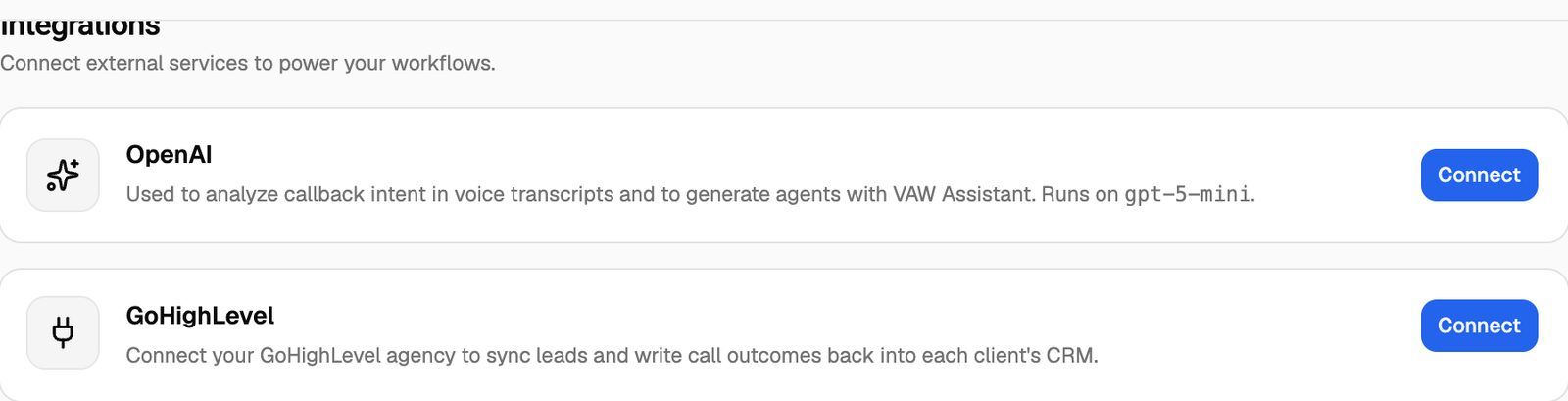
- In the sidebar, open Settings and scroll to Integrations.
- On the GoHighLevel card, click Connect.
- You're taken to GoHighLevel in the same tab. Choose your agency and the sub-accounts to install the app into, then approve.
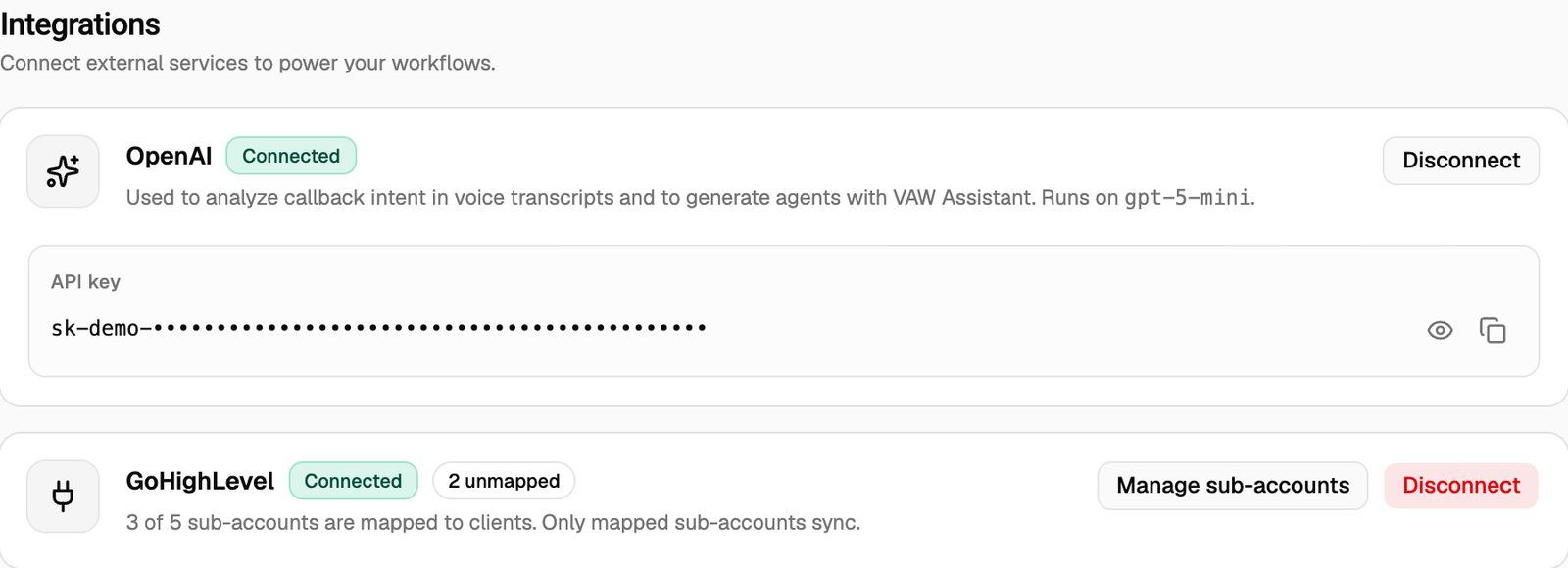
- GoHighLevel sends you back to Settings → Integrations. The card now shows Connected.
Finish the approval in GoHighLevel within about 10 minutes of clicking Connect. If you take longer, you'll see "This link expired, please start the connection again". Click Connect again to get a fresh link.
VoiceAIWrapper reads the list of sub-accounts straight away. Nothing syncs yet: every sub-account starts unmapped, and the card shows how many with a badge such as 3 unmapped.
Step 2: Map each sub-account to a client and workspace
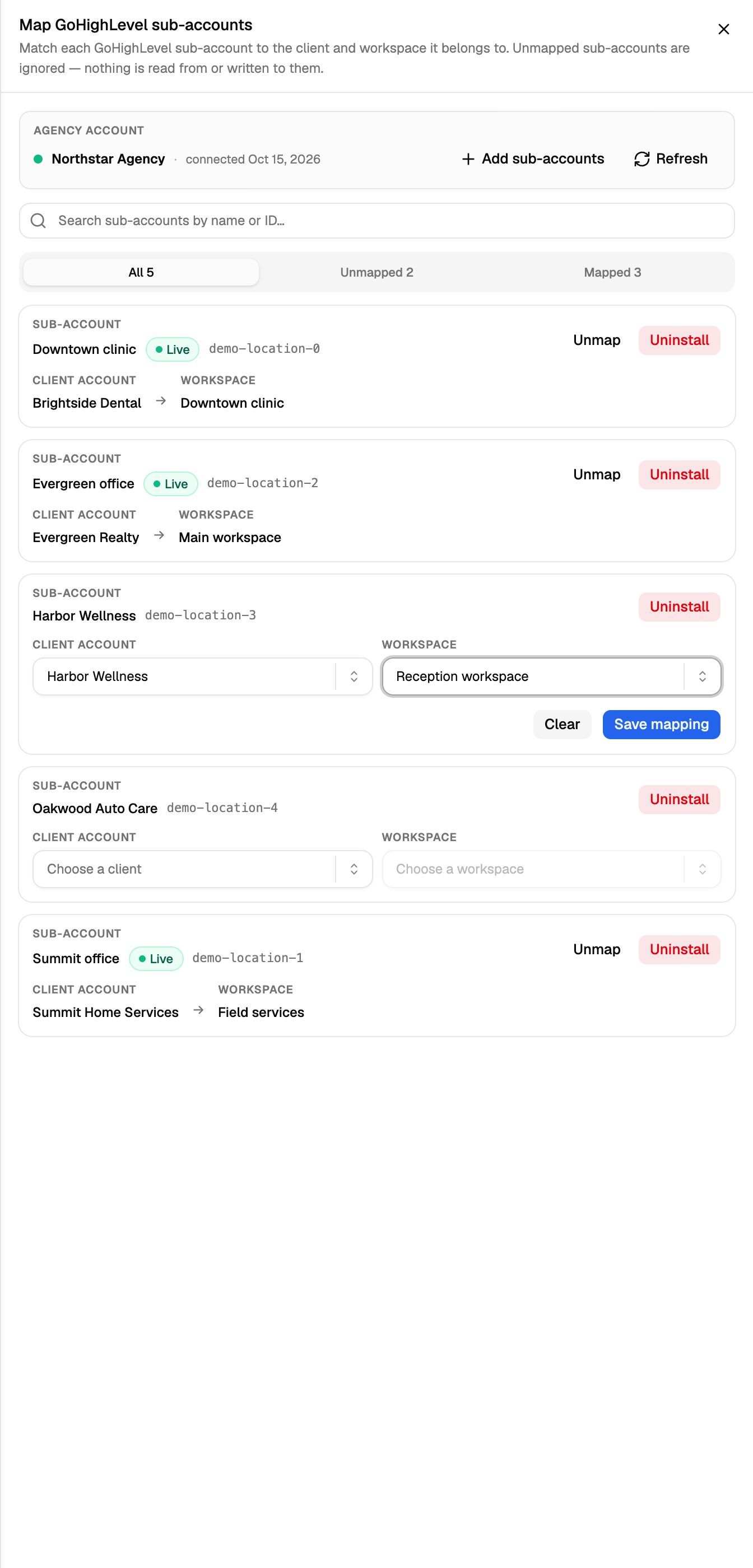
- On the GoHighLevel card, click Manage sub-accounts. The Map GoHighLevel sub-accounts sheet opens.
- Find the sub-account. Use the search box (Search sub-accounts by name or ID…) or the Unmapped tab.
- In Client account, choose the client (Choose a client).
- In Workspace, choose that client's workspace (Choose a workspace).
- Click Save mapping. You'll see Sub-account mapped, and the row shows a Live badge.
To start over on a row before saving, click Clear.
Rules for mapping:
- One sub-account per workspace. A client's workspace can be mapped to only one sub-account. If it's already taken, you'll see a message like "'Acme / Main' is already mapped to another GoHighLevel sub-account."
- Only enabled clients are offered. Disabled clients don't appear in Choose a client.
- Unmapped sub-accounts are ignored. Nothing is read from or written to them, and their workflow steps fail with a message asking you to map the sub-account.
- The workspace decides which campaigns a sub-account sees. GoHighLevel workflow steps can only use campaigns assigned to the mapped workspace. See Assign a Campaign to a Client.
Once a sub-account is mapped, you can use VoiceAIWrapper steps in its workflows. See GoHighLevel Workflow Actions and Triggers.
What the badges mean
Manage sub-accounts later
Everything below happens in the Map GoHighLevel sub-accounts sheet.
- Add sub-accounts: sends you back to GoHighLevel to install the app into more sub-accounts. The app is installed by your agency, so clients can't add it to their own sub-accounts.
- Refresh: re-reads the sub-account list from GoHighLevel. You'll see how many were found, for example 5 sub-account(s) found.
- Reinstall: shown on a row with App removed. It opens the same GoHighLevel screen as Add sub-accounts.
- Unmap: removes the client and workspace from a row. The app stays installed, and you can map the row again at any time.
- Uninstall: removes the app from that one sub-account in GoHighLevel and clears its mapping. You're asked to confirm first (Uninstall the app from …?), then click Uninstall again. Your agency connection and every other sub-account keep working.
Uninstall can't be undone from VoiceAIWrapper. To bring the sub-account back, you have to install the app into it again from GoHighLevel (Reinstall) and map it again.
Reconnect
If the card shows Needs reconnect, click Reconnect and approve the app in GoHighLevel again. Leads stop flowing in and call results stop being written back until you do.
Disconnect everywhere
Click Disconnect on the card, then Disconnect again in the Disconnect GoHighLevel? dialog.
Disconnecting uninstalls the app from your GoHighLevel agency and all of its sub-accounts, and deletes your GoHighLevel data in VoiceAIWrapper, including every sub-account mapping. It can't be undone. Your clients, campaigns, leads and call history are not affected, but VoiceAIWrapper workflow steps stop working and call results stop being written to contacts. If you reconnect later, you'll need to map your sub-accounts again.
If VoiceAIWrapper can't remove the app on the GoHighLevel side, you'll see "Disconnected and removed your GoHighLevel data, but the app could not be uninstalled from GoHighLevel. Remove it from your GoHighLevel marketplace to finish." Remove the app in GoHighLevel to complete the disconnect.
Troubleshooting
I don't see the GoHighLevel card.
I don't see the GoHighLevel card.
Your plan doesn't include GoHighLevel integration. Check your plan in Settings → Billing. See Plan Limits and Upgrade Prompts.
Settings shows "Access Restricted".
Settings shows "Access Restricted".
Your role in the organization is Member, and only owners and admins can open Settings. Ask an owner or admin to connect or change GoHighLevel, or to change your role. See Invite Team Members and Assign Roles.
A sub-account is missing from the list.
A sub-account is missing from the list.
The app isn't installed in that sub-account. Click Add sub-accounts, select it in GoHighLevel and approve. If it's still missing, click Refresh.
"Choose a workspace" says "This client has no workspaces".
"Choose a workspace" says "This client has no workspaces".
Create a workspace for that client first, then come back and map the sub-account. See Create a Workspace and Assign Assets.
"Could not start the connection" when I click Connect.
"Could not start the connection" when I click Connect.
Try again in a moment. If it keeps happening, open Need help? → Help Chat and include a screenshot of the card.
Related articles
Was this helpful?
Still need help? Share an idea