Upgrade, Downgrade or Switch Billing Interval
Review Growth, Scale and Pay-as-you-go plan changes, monthly or annual billing, trial terms and the effective dates and charges to check before confirming.
Written By voiceaiwrapper
Last updated 26 days ago
Manage your agency plan in Settings → Billing. The current plans are Pay-as-you-go, Growth and Scale. This article explains what to check before changing plans or billing intervals, including the separate terms for a Growth or Scale trial.
Before confirming a change, review the available plan, billing interval, effective date, charge due now and future renewal amount. Contact support if any of those terms are unclear.
Before you start
You need to be an Owner or Admin. Billing lives in Settings, which other roles can't open.
Have a card on file. Growth and Scale trials require a card and bill automatically after 7 days unless cancelled. A plan change does not by itself establish a new trial or another credit grant. To check your card, see Invoices, Payment Methods and Tax Details.
To get to your plan, open Settings in the sidebar and scroll to Billing.
How changes take effect
Both monthly and annual Growth and Scale trials require a card. Cancel before the 7-day trial ends to avoid automatic selected-plan billing.
Move to Growth or Scale
Open Settings → Billing and review the plan changes available to your account.
Choose the plan and monthly or annual billing interval you want.
Read any trial terms, the effective date, the charge due now and the next renewal amount. Check how existing add-ons and unused credits will be treated.
Confirm only when those terms match your intended change. Then check Billing for the resulting plan and upcoming charge.
Switching plans is not a promise of a new 7-day trial, another 1,000 credits or automatic removal of BYOK add-ons. If the review is unclear, contact Need help? → Help Chat before confirming.
See Plan Limits and Upgrade Prompts for feature and capacity prompts.
Move to Pay-as-you-go
Pay-as-you-go has no base subscription fee. Usage and paid add-ons, including BYOK connections, extra client accounts and extra team members, are separate.
Review the plan-change options in Settings → Billing.
Check the effective date, future add-on charges and any changes to included credits, client capacity, team capacity and features.
Review any campaign or provider-connection warnings before confirming. Do not assume everything on your paid plan remains included.
After confirming, check Billing for the resulting plan or scheduled change.
Pay-as-you-go allows 5 campaigns per client account. Check your current campaign count and the warnings shown for the change.
Choose monthly or yearly billing
Growth is $79/month or $790/year; Scale is $499/month or $4,990/year after the trial. Their 7-day trials, 1,000 trial credits, card requirement and automatic billing unless cancelled apply to both billing intervals.
Pay-as-you-go has no base subscription fee; its paid add-ons can have their own billing interval. Before changing an existing interval, check the available controls, effective date and charge in Billing. If the change you need is not offered or its terms are unclear, contact support.
Annual plan credit totals do not establish a monthly release schedule. See How AI Credits Work.
Scheduled changes: keep your plan or undo
If Billing shows a scheduled change, check its effective date and what will happen to the plan and add-ons. Review any available undo or keep-plan control before using it. If no such control is shown, contact support rather than creating another change.
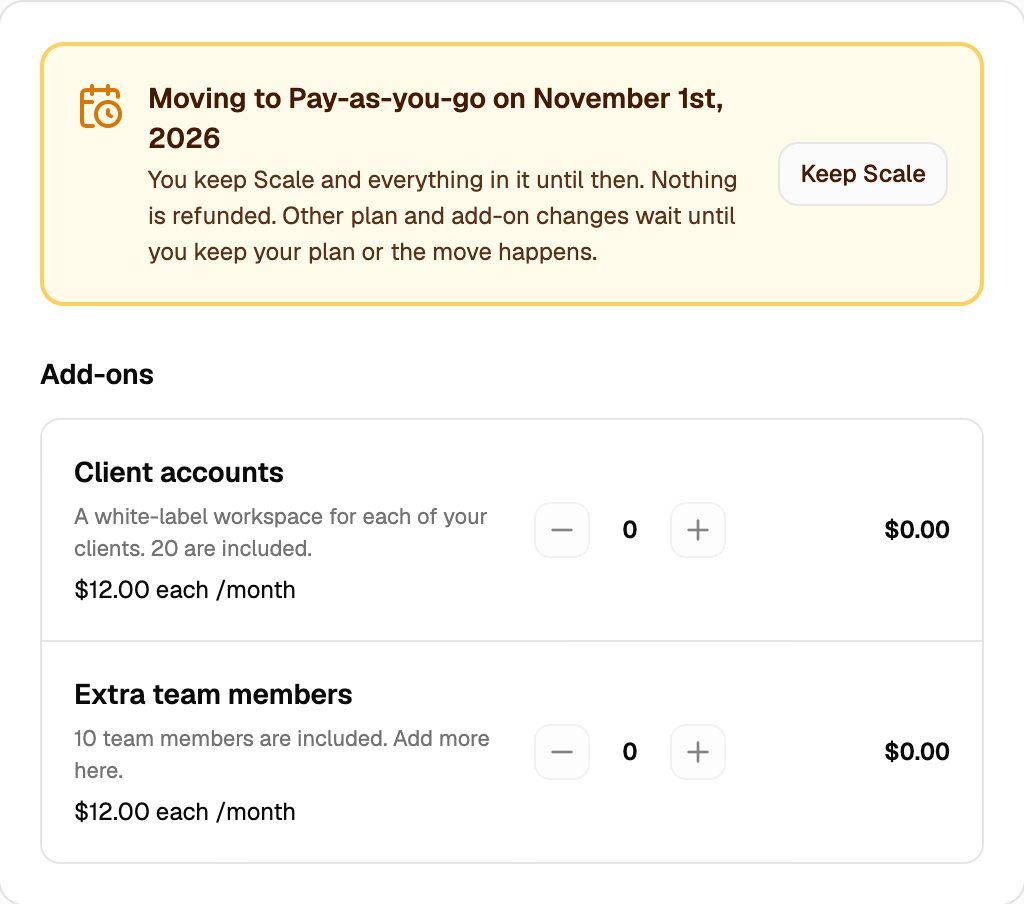
Example of a scheduled paid-Scale change. Review the date, charges and available controls shown for your own account; this is not Growth or Scale trial-cancellation guidance.
Older plan names
Some older subscriptions used names such as Starter, Growth, Scale and Pro. An older plan named Growth is not evidence that it has the current $79/month Growth plan's allowances.
For a legacy subscription, review the exact plan and transition terms in Billing or contact support before changing it. Do not assume the current trial, pricing, credit grant, proration or migration rules apply automatically.
Troubleshooting
It says "You have … but this plan includes only …".
It says "You have … but this plan includes only …".
The plan you picked can't hold all the team members or client accounts you have now. The message says how many to remove. Remove them, then try again.
It says "Resume your subscription to change plans."
It says "Resume your subscription to change plans."
Your account is showing a paused-subscription restriction. Review its billing status and the effect of resuming before proceeding. If you only want to cancel or are unsure of the charge, contact support first. See Pause, Cancel or Resume Your Subscription.
It says "Change the plan and the billing interval separately."
It says "Change the plan and the billing interval separately."
Follow the separate-change requirement shown for your account, and review the effective date and price at each step. Contact support if the sequence or charges are unclear.
There's no Keep button on my scheduled change.
There's no Keep button on my scheduled change.
Contact support through Need help? → Help Chat before making another change. Do not assume a scheduled change can be undone when Billing does not offer that option.
It says "We couldn't work out the price. Please try again."
It says "We couldn't work out the price. Please try again."
The price preview didn't load. Close the review box and open it again. If it keeps happening, check that your card is valid in the Billing details panel.
Related articles
Was this helpful?
Still need help? Share an idea