Book Appointments with Cal.com
Connect Cal.com, pick an event type and get two tools: one checks open times, one books. Attach both so your agent can book callers in during the conversation.
Written By voiceaiwrapper
Last updated 26 days ago
Your agent can book appointments straight into your Cal.com calendar while the caller is on the line. It checks which times are free, offers a few, takes the caller's name and email, and books the one they choose. Cal.com then sends its usual confirmation email.
You set this up once per Cal.com event type. VoiceAIWrapper creates two tools for it, and you attach both to any agent that should take bookings. Setup takes about 5 minutes.
Applies to: agents in a VAW Native Pod (an engine or provider connection). For agents on Vapi or ElevenLabs, see Add Booking Tools to Vapi and ElevenLabs Agents.
Before you start
- A Cal.com account with at least one event type, such as "30 Min Meeting".
- A Cal.com API key. Create one in your Cal.com settings. Cal.com keys start with
cal_. - No required custom questions on the event type. If you added your own booking questions in Cal.com and marked them required, the agent can't answer them, so every booking would be refused. Make them optional in Cal.com first. Cal.com's standard name and email fields are fine.
- The agent's time zone set on its Agent Settings tab. Both tools work in that time zone, and new agents start on UTC.
Step 1: Connect Cal.com and pick an event type
- In your VAW Native Pod, open Tools in the sidebar.
- Click New tool, then choose Cal.com scheduling.
- Under Cal.com connection, choose your Cal.com account. If none is listed, click Add a connection (see below).
- Under Event type, pick the event type the agent should book. The list is fetched from Cal.com when you open it, and shows each type's length and URL slug.
- Check the This creates box, then click Create both tools.
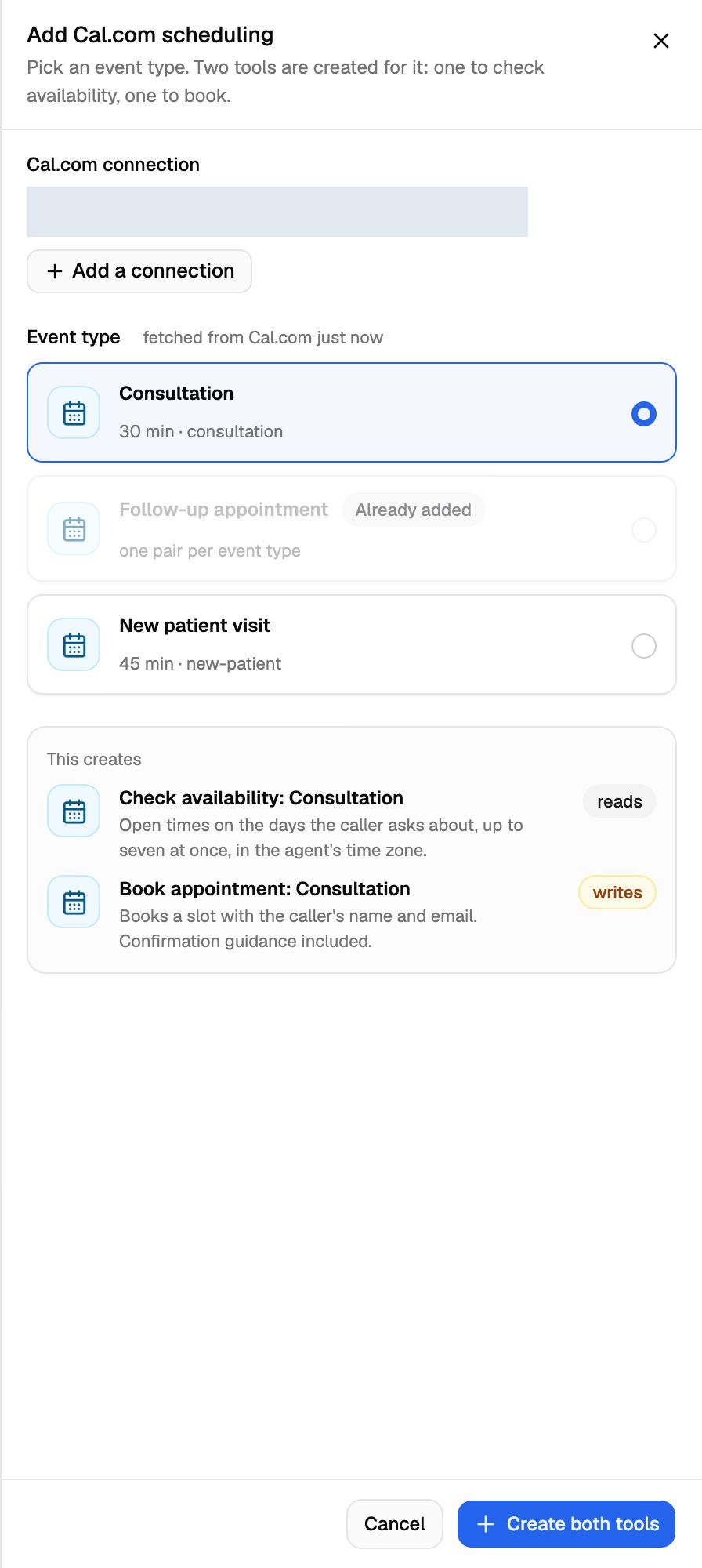
Add your Cal.com API key
If no Cal.com account is connected yet, you'll see "No Cal.com account is connected to this workspace yet." To add one:
- Click Add a connection. The Connections sheet opens on top, with Cal.com API key already selected under How the API expects the key.
- Enter a Name you'll recognise, such as "Main Cal.com".
- Paste your key into API key.
- Click Verify and add.
VoiceAIWrapper checks the key with Cal.com before storing it, and stores it encrypted. Nobody can read it back afterwards, so keep your own copy. The same Cal.com account can't be connected twice. Close the Connections sheet, and back on the Cal.com sheet, pick the new connection.
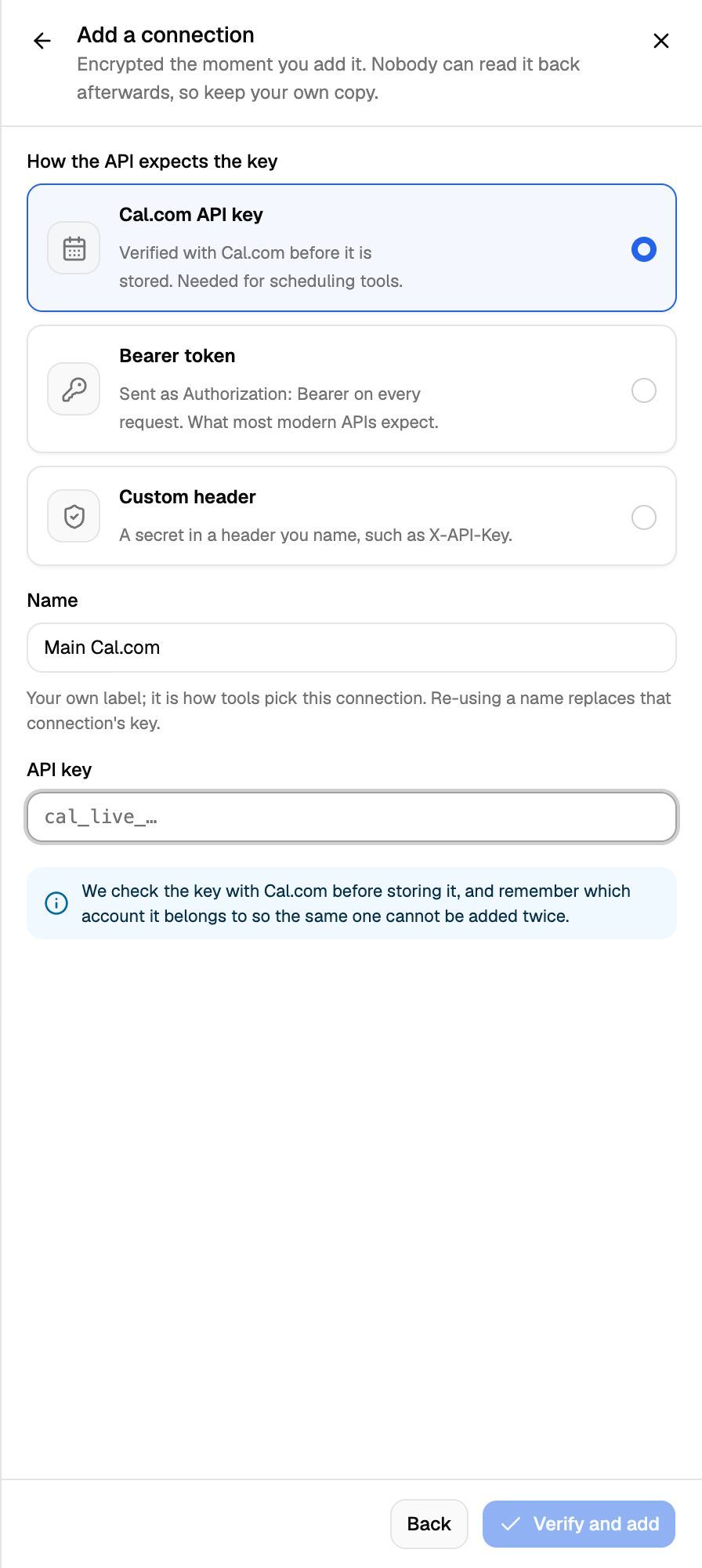
For more on connections, including replacing a key, see Store API Keys with Tool Connections.
If you pick a Cal.com connection that one of your clients added, the sheet tells you both tools will belong to that client. The client can edit them, and you can only attach them to agents in that client's workspaces.
The two tools it creates
Each event type gets one pair, named after it:
How they behave on a call:
- The agent checks before it books. The booking tool's description tells the agent to book only a time that the availability check offered on this call, and to read the email address back in full first. If you edit the description, keep those rules in.
- Seven days at a time. If a caller asks about a longer stretch, the agent gets the first seven days and can ask again for later ones.
- Every booking carries the caller's name and email, the agent's time zone, the caller's phone number when there is one, and the call's ID so you can trace a booking back to its call.
- Email is required. The agent asks for it. Placeholder addresses such as
none@none.comor anything atexample.comare refused before anything reaches Cal.com, and the tool's instructions tell the agent to ask for the detail again. - A time that was just taken gets Cal.com's refusal, and the agent hears "That time was just taken. Offer another one."
- If Cal.com doesn't answer in time (10 seconds for availability, 20 for booking), the booking's outcome is recorded as unknown. The agent tells the caller it may not have gone through and doesn't try again. Check Cal.com to see whether it landed.
Step 2: Check the tool settings (optional)
Open either tool from the Tools list to see its Setup tab. A Cal.com tool has three tabs: Setup, Test and Usage.
On Setup you can change:
- Name and Description. The agent reads the description word for word to decide when the tool fits.
- Connection: which Cal.com account the tool books against. The event type must exist on the new account, and the change applies to every attached agent's next call.
- Save for later tools (booking tool only): turn on Keep the booking reference as booking_uid if a later tool on the same call needs the booking's reference. For example, a custom tool that texts a confirmation or writes the booking into your CRM can read it as
{{booking_uid}}. It's off by default.
The Event type is fixed. To offer a different event type, add Cal.com scheduling again and pick it there.
Click Save changes when you're done.
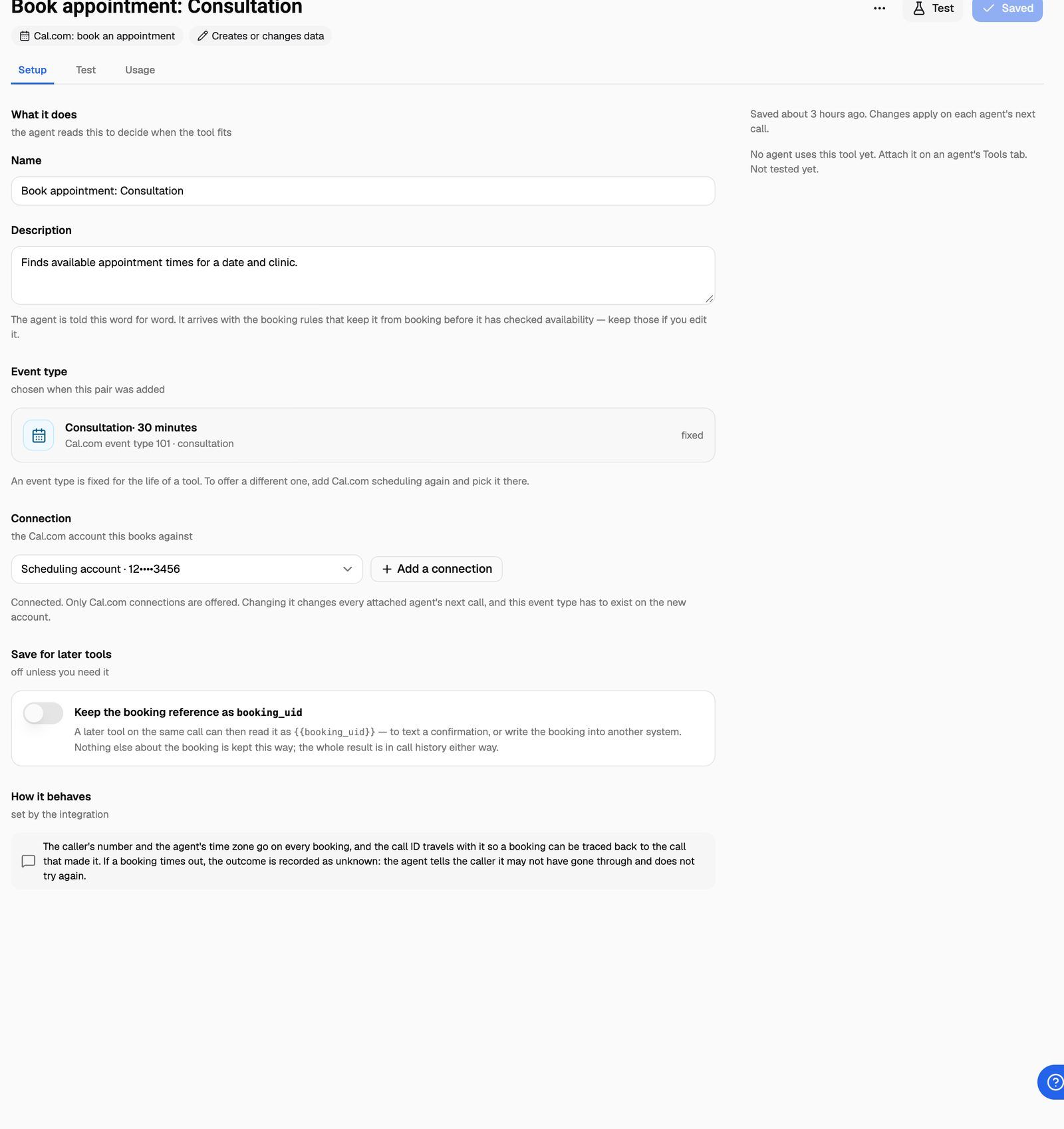
Step 3: Attach both tools to your agent
- Open the agent and go to its Tools tab.
- Under Additional tools, click Attach a tool, pick Check availability: <event type> and click Attach tool.
- Do the same for Book appointment: <event type>.
Attach both. Without the availability tool the agent has no times to offer, and without the booking tool it can't book. Because the booking tool creates real bookings, its attach sheet offers Ask the caller to confirm first. See Attach Tools to an Agent for every per-agent setting.
Step 4: Help the agent book well
The tools carry their own booking rules, so your prompt only needs the basics:
- Keep Add the current date and time to the prompt on. It's on the agent's Agent Settings tab and on by default. Without it, the agent can't work out what "tomorrow" or "next Tuesday" means.
- Say when to offer a booking. For example: "If the caller wants a consultation, check availability and offer two or three times."
- Ask for the email early and let the agent spell it back. Email is the detail most often misheard on a call.
- Don't list available times in the prompt. The availability tool reads them live from Cal.com.
See Write the Prompt and Greeting for more prompt guidance.
Step 5: Test a booking
You can test from the tool's Test tab or with a test call.
Test bookings are real. A test of the booking tool, or a test call where the agent books, creates a real appointment on your Cal.com calendar and Cal.com emails the attendee. Use an email address you can check, and cancel the booking in Cal.com afterwards.
The availability tool only reads your calendar, so you can test it as often as you like. See Test Tools and Monitor Usage.
Frequently asked questions
An event type is greyed out with "Needs a Cal.com change".
An event type is greyed out with "Needs a Cal.com change".
That event type has a required question you added in Cal.com, such as "Which insurance provider?". The agent has no way to answer custom questions, so Cal.com would refuse every booking. In Cal.com, make the question optional, then open Add Cal.com scheduling again.
An event type says "Already added".
An event type says "Already added".
This Pod already has the two tools for that event type. Each event type gets one pair per Pod. Attach the existing tools to more agents instead of creating new ones.
"This Cal.com account has no event types yet."
"This Cal.com account has no event types yet."
Create an event type in Cal.com, then come back and open Add Cal.com scheduling again. The list is fetched fresh each time.
My key was refused when I added it.
My key was refused when I added it.
Copy the key again from Cal.com and check that it starts with cal_. If Cal.com was briefly unreachable, you'll see "Could not reach Cal.com. Try again in a moment."
The agent offers times in the wrong time zone.
The agent offers times in the wrong time zone.
Both tools use the agent's time zone, not the caller's. New agents start on UTC. On the agent's Agent Settings tab, click the time zone button next to Add the current date and time to the prompt (it shows the current zone, such as UTC), pick yours, click Set, then save the agent.
Can I offer more than one event type?
Can I offer more than one event type?
Yes. Run Add Cal.com scheduling once per event type and attach each pair to the agent. When you attach each tool, use its When <agent> should use it field to say which kind of appointment it books, so the agent picks the right one.
How do I remove Cal.com booking?
How do I remove Cal.com booking?
To stop one agent booking, detach both tools on the agent's Tools tab. To remove the tools completely, delete either one from the Tools list.
Deleting either Cal.com tool deletes both. They're removed from every agent that uses them from the next call, and this can't be undone. Calls in progress finish normally, and past calls keep their history. Your Cal.com bookings aren't affected.
Related articles
Was this helpful?
Still need help? Share an idea