Rotate Caller IDs with Phone Number Pools
Group numbers into a pool so campaigns spread calls across them, always using the number idle longest. Create, use, edit, clone and delete pools.
Written By voiceaiwrapper
Last updated 26 days ago
A phone number pool is a group of numbers that a campaign shares. Instead of placing every call from one number, an outbound campaign rotates through the pool, always using the number that has been idle longest. Spreading calls this way keeps any single number from being overused. You can also use a pool for an inbound campaign, so calls to any number in it are answered the same way.
Available on: plans that include Phone number pools. Without it, clicking Create pool shows an upgrade prompt, and the Phone Number Pool option in campaign settings shows Upgrade required.
Pools work on every Pod (an engine or provider connection). Each pool belongs to one Pod and can only hold that Pod's numbers.
Before you start
- Add the numbers to the Pod first. On VAW Native, buy or connect them on the Pod's Phone Numbers page (see Buy a New Phone Number). On Vapi, Retell AI, ElevenLabs and Bolna, add them in your provider account (see Phone Numbers on Vapi, Retell, ElevenLabs and Bolna).
- On Vapi and Retell AI, sync each number's webhook. You can do it on the Phone Numbers page, or from the pool's details after you create it.
- On VAW Native, make sure each number is active. Only numbers that are set up and working can be ticked.
Step 1: Create a pool
- In the sidebar, under your Pod, open Phone Number Pools.
- Click Create pool. The Create phone number pool sheet opens.
- Enter a Pool name your team will recognise when picking a pool in campaign setup, such as
Outbound Sales - US. - Under Phone numbers, tick the numbers to include. Use the search box to find numbers, or Select all to tick every number shown.
- Click Create pool.
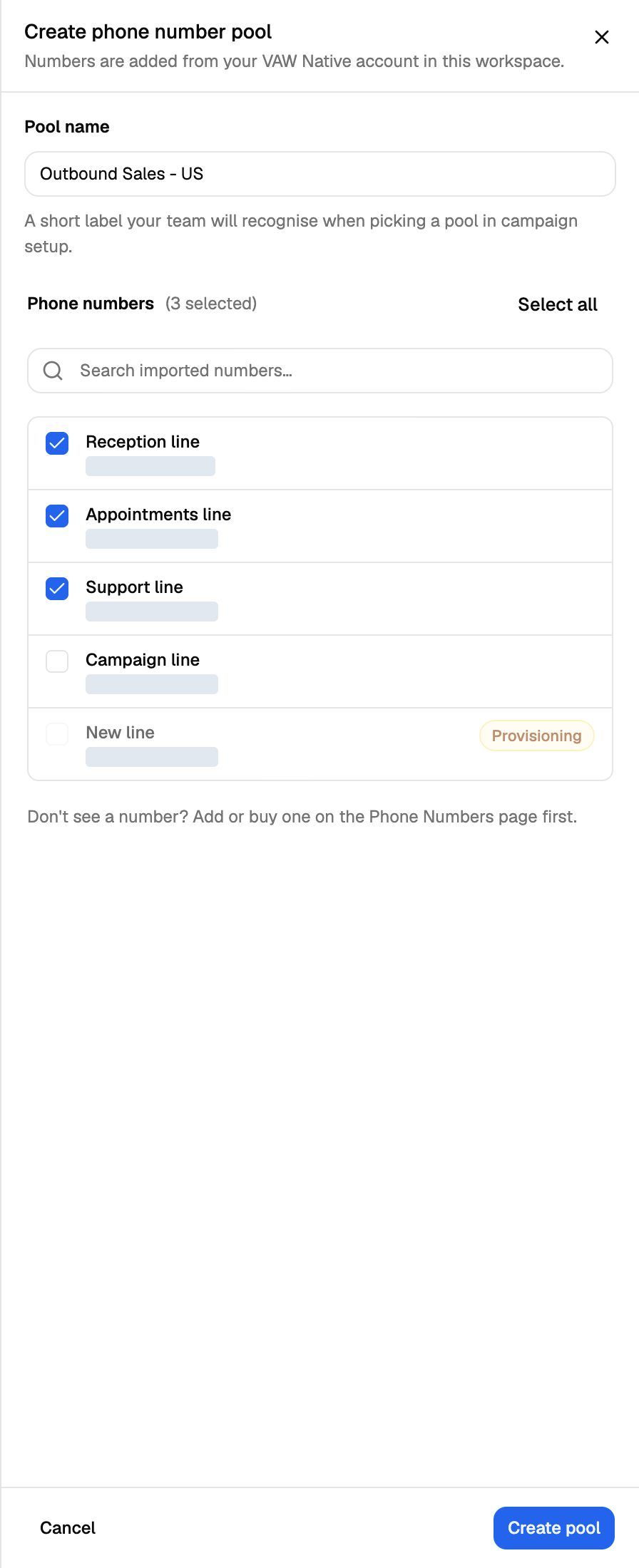
A badge next to a number in the picker tells you something about it:
Don't see a number? Add or buy it on the Pod's Phone Numbers page (or in your provider account) first, then come back.
Ultravox Pods (legacy) don't list numbers. Instead, you type each number in E.164 format (for example +14155550142), pick its telephony provider (Twilio, Telnyx or Plivo) and click Add number for the next one. Each number must already exist with that provider. See Bolna and Ultravox Pods (Legacy).
Step 2: Use the pool in a campaign
In the campaign wizard, or later in the campaign's settings, find Dialer Type and choose:
- Single Number: "Use one phone number for all calls in this campaign."
- Phone Number Pool: "Rotate calls across a pool of phone numbers."
Then pick your pool under Phone Number Pool. Each pool shows how many numbers it has.
For an outbound campaign, each call is placed from the next number in the rotation. For an inbound campaign, a call to any number in the pool is answered by that campaign while it's active.
On VAW Native, a campaign with a pool only starts when every number in the pool is active, and a number can't answer for two inbound campaigns at once. See Run an Outbound Phone Campaign and Run an Inbound Phone Campaign.
How rotation works
Click a pool's row (or View Details in its actions menu) to open its details.
- The header shows how many Numbers and Campaigns the pool has, its Last Activity, and Rotation: Least-used first.
- The Numbers tab says "Numbers rotate automatically" and "Each call uses the number idle longest. The one up next is marked below." Each number shows when it was last used, and the one that will place the next call has an Up next badge.
- The Campaigns tab lists the campaigns dialing from the pool, with links to them. To take the pool off a campaign, change that campaign's settings.
If several campaigns use the same pool, they share one rotation.
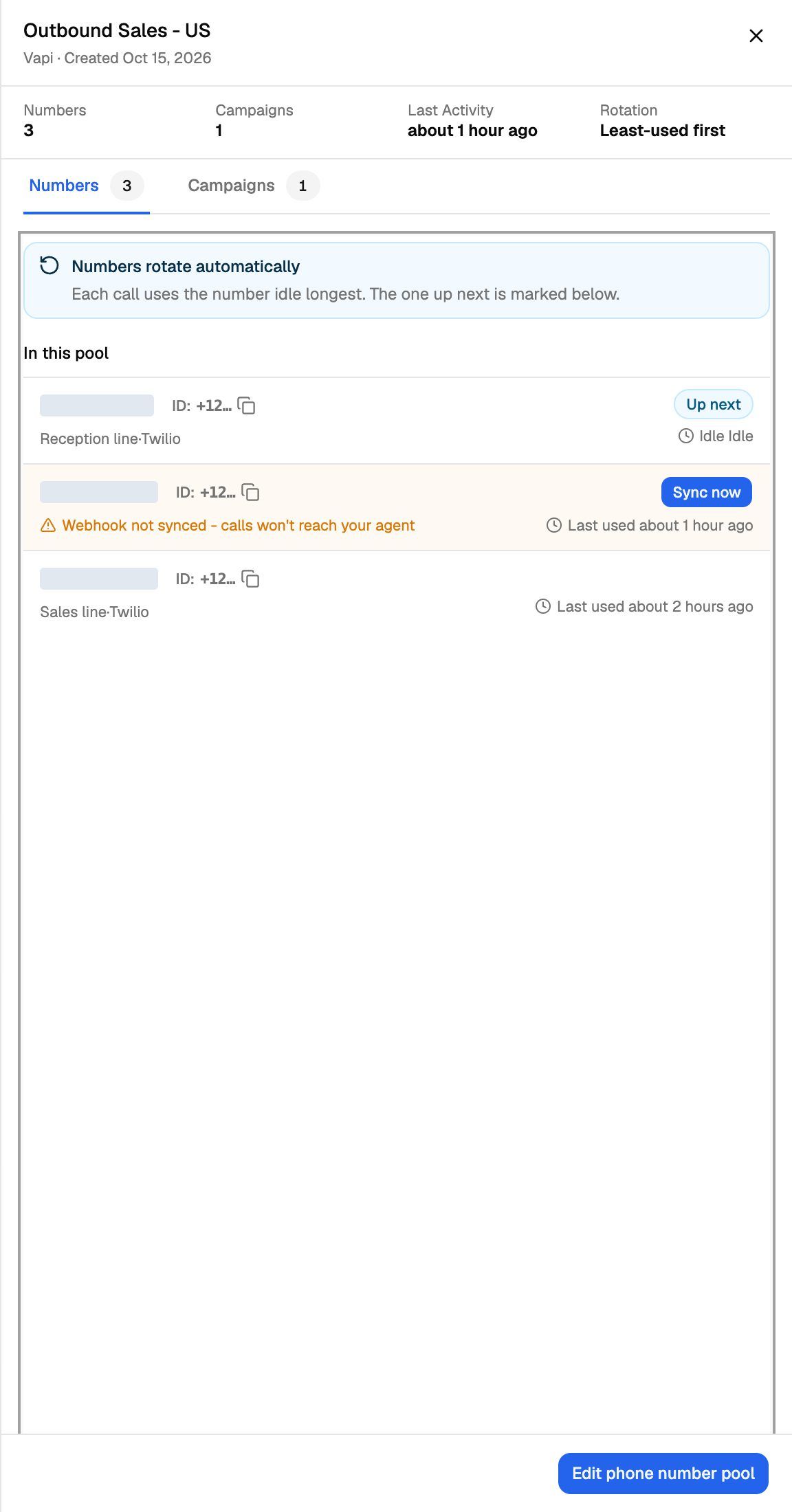
Number warnings in a pool
When a Vapi or Retell AI number isn't synced, or a number has disappeared from your account, the pools list shows "{count} need attention" in the Numbers column. Open the pool to see which number it is:
Edit, clone or delete a pool
Open the actions menu (⋯) on a pool's row:
- Edit: change the name or the numbers in the Edit phone number pool sheet, then click Save. You can also click Edit pool in the pool's details.
- Clone: creates a copy straight away, named after the original with "(Clone)" added, holding the same numbers. Edit the copy to rename it or change its numbers.
- Delete: removes the pool after you confirm in the Delete this pool? dialog with Delete pool. The numbers stay on your account and aren't released. If campaigns use the pool, the dialog tells you how many.
Deleting a pool can't be undone. Before you delete a pool that campaigns use, switch each of those campaigns to another pool or a single number in its settings. A campaign left without its pool has no numbers to call from.
On VAW Native, a number that belongs to a pool can't be disconnected or released until you remove it from the pool. See Disconnect or Release a Number.
Troubleshooting
I clicked Create pool and got an upgrade prompt.
I clicked Create pool and got an upgrade prompt.
Your plan doesn't include Phone number pools. Upgrade to a plan that does, or use Single Number in your campaigns. See Plan Limits and Upgrade Prompts.
My VAW Native campaign won't start with its pool.
My VAW Native campaign won't start with its pool.
The message names the problem:
- "This pool has no phone numbers. Add one before starting the campaign." Edit the pool and add a number.
- "A phone number in this pool is no longer on this Pod. Remove it from the pool." Edit the pool and untick the number marked Not found.
- "{number} in this pool is not active. Remove it or fix it on the Phone Numbers page." Fix the number, or untick it in the pool.
- "{number} in this pool is already used by the inbound campaign "{name}". End that campaign or pick another pool." A number can only answer for one inbound campaign at a time.
My VAW Native campaign paused partway through.
My VAW Native campaign paused partway through.
When an inactive number's turn comes up, the campaign pauses instead of calling from it. Open the pool's details to find the number marked Not active. Fix it on the Phone Numbers page or remove it from the pool, then resume the campaign.
A number I want isn't in the picker.
A number I want isn't in the picker.
The picker only lists numbers already on this Pod. Add the number on the Phone Numbers page (VAW Native) or in your provider account (other Pods). A VAW Native number that isn't active shows in the list but can't be ticked.
Related articles
Was this helpful?
Still need help? Share an idea