How Client Accounts and Workspaces Work
How client accounts, workspaces, assigned assets, access settings and client users fit together, and what to set up before a client logs in.
Written By voiceaiwrapper
Last updated 26 days ago
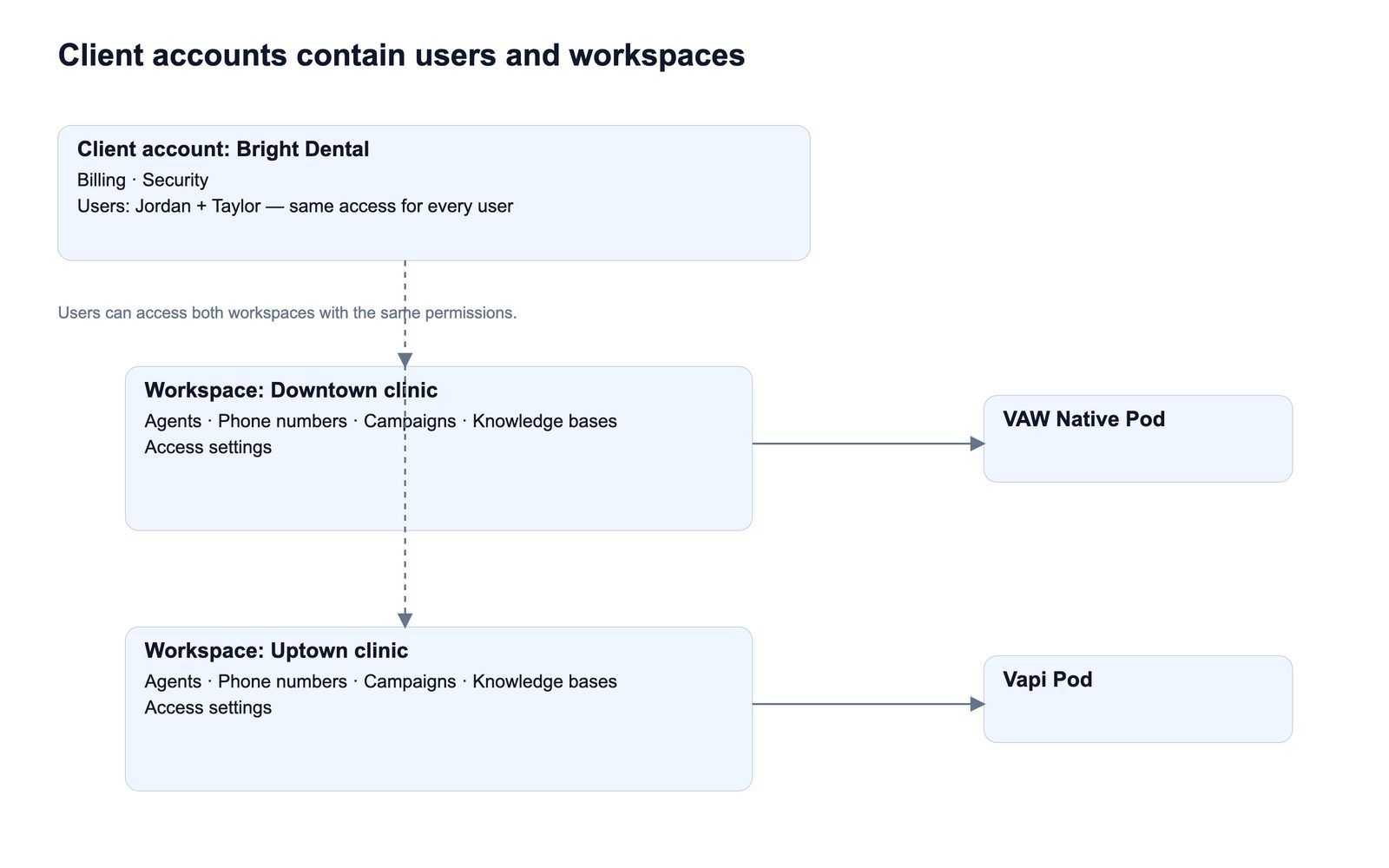
A client account is how you give one of your clients their own login to your white-label portal. Inside it, workspaces decide what that client can see: which Pod, which agents and campaigns, and what they're allowed to change. This article explains how the pieces fit together, so you can plan a client's setup before you build it.
The building blocks
Client account
Each client account is one business. It's separate from every other client: a client's users never see your other clients, and they never see parts of your Pods you didn't put in their workspaces.
The Type column on the Client Accounts list shows how the account was created:
- Manual: you created it with Add Client Account.
- Saas: the client signed up themselves through SaaS Creator. See What Is SaaS Creator?
Workspace
A workspace connects to exactly one Pod (an engine or provider connection), such as your VAW Native Pod or a Vapi, Retell AI or ElevenLabs Pod. A few rules follow from that:
- You choose the Pod when you create the workspace, and you can't change it later. To move a client to another Pod, create a new workspace on that Pod.
- A client can have one workspace per Pod. When you add a workspace, Pods this client already has a workspace on aren't offered.
- Workspace names must be unique within a client account. The client sees the name you give it.
- Several clients can use the same Pod. Each gets their own workspace on it.
If a client has more than one workspace, they switch between them with the workspace switcher at the top of the portal's sidebar. It shows the name of the workspace they're in.
Assigned assets
A workspace only shows what you assign to it. You pick the assets when you create the workspace, and you can change them later. What you can assign depends on the engine: for example, squads and workflows exist only on Vapi Pods, and call data extractions only on VAW Native Pods. See Create a Workspace and Assign Assets.
Two ownership rules apply on VAW Native Pods:
- An agent can belong to only one client. It can sit in several workspaces of the same client, but not in another client's workspace.
- A tool a client created belongs to that client. You can't assign it to a different client's workspace.
Access settings
Each workspace has its own access settings. They work differently depending on the Pod:
- Vapi, Retell AI and ElevenLabs workspaces set one access level per area (Dashboard, Agents, Campaigns and so on), plus a few switches. See Set Client Permissions on Vapi, Retell and ElevenLabs Workspaces.
- VAW Native workspaces go much further: a level per page and per tab, separate switches for actions like deleting agents or buying numbers, and number limits. See Set Client Permissions on VAW Native Workspaces.
Pages a client isn't allowed to see don't appear in their portal's sidebar. If a workspace hides everything, the client sees "Your account doesn't seem to have the right configurations. Please reach out to our support team."
Client users
Client users are the logins for the portal. Every user of a client account can open all of that client's workspaces and has exactly the same access inside them. There are no per-user roles.
If two people at the same business need different access, they need separate client accounts. Keep in mind that each client account also has its own billing.
The client readiness checklist
Every client account has an Overview tab with a Client readiness check. It tells you whether the client can use the portal yet and what to do next.
A workspace counts as Ready when it has at least one campaign and at least one agent assigned. A workspace without both shows Empty: users can open it, but they see no calls or data.
Billing and Security are shown on the Overview too, but they don't affect readiness.
How many client accounts you can have
Client accounts are a plan feature (Client accounts), and your plan includes a set number of them.
- Every client account counts, enabled or disabled, until you delete it.
- When you're at the limit, Add Client Account opens an upgrade prompt instead of the form.
- On most plans you can buy more client account seats in Settings → Billing. On some older plans, the message asks you to upgrade to the latest plan instead.
- Re-enabling a disabled client also needs a free seat among your enabled clients. If there isn't one, you'll see "You've reached your client account limit. Buy more seats in Billing to re-enable this client."
To see how many client accounts your plan includes, see Compare Plans and Add-Ons: BYOK Connections, Client Accounts and Team Members.
Self-serve clients
When a client signs up through a SaaS Creator pricing table, VoiceAIWrapper creates the client account and one workspace for them automatically. The workspace is named after the client's email, uses the Pod of the plan they chose, and copies that plan's access settings. You can edit it afterwards like any other workspace.
Recommended setup order
- Add a client account.
- Create a workspace and assign at least one agent and one campaign.
- Set the workspace's access: Vapi, Retell AI and ElevenLabs or VAW Native.
- Add the client's users.
- Log in as the client to check what they'll see.
- Set up billing. See Ways to Bill Your Clients: Stripe or External Billing.
Frequently asked questions
Can I give one user at a client less access than another?
Can I give one user at a client less access than another?
No. Access belongs to the workspace, and every user of the client account can open every workspace. If people need different access, create a separate client account for them.
Can I move a workspace to a different Pod?
Can I move a workspace to a different Pod?
No. The Pod is locked once the workspace is saved. Create a new workspace on the other Pod and assign the assets there. When you no longer need the old workspace, delete it.
Can two clients share the same Pod?
Can two clients share the same Pod?
Does a disabled client still use one of my client account seats?
Does a disabled client still use one of my client account seats?
Yes. Every client account counts toward your limit until you delete it. See Enable, Disable or Delete a Client.
Related articles
Was this helpful?
Still need help? Share an idea