Review Calls, Recordings and Chats
Find a call or chat in your portal, read the transcript, play the recording, check the analysis and export your logs.
Written By voiceaiwrapper
Last updated 26 days ago
Every call and chat your agents handle is logged in the portal. You can read what was said, listen to the recording, see how the call went and download your logs for your own records.
What you see depends on your access. Your provider decides whether you can see logs, recordings, analysis and exports. If a part of this article is missing from your portal, it isn't turned on for you.
Where to find your logs
If you use more than one workspace, switch workspace first. Each workspace has its own logs.
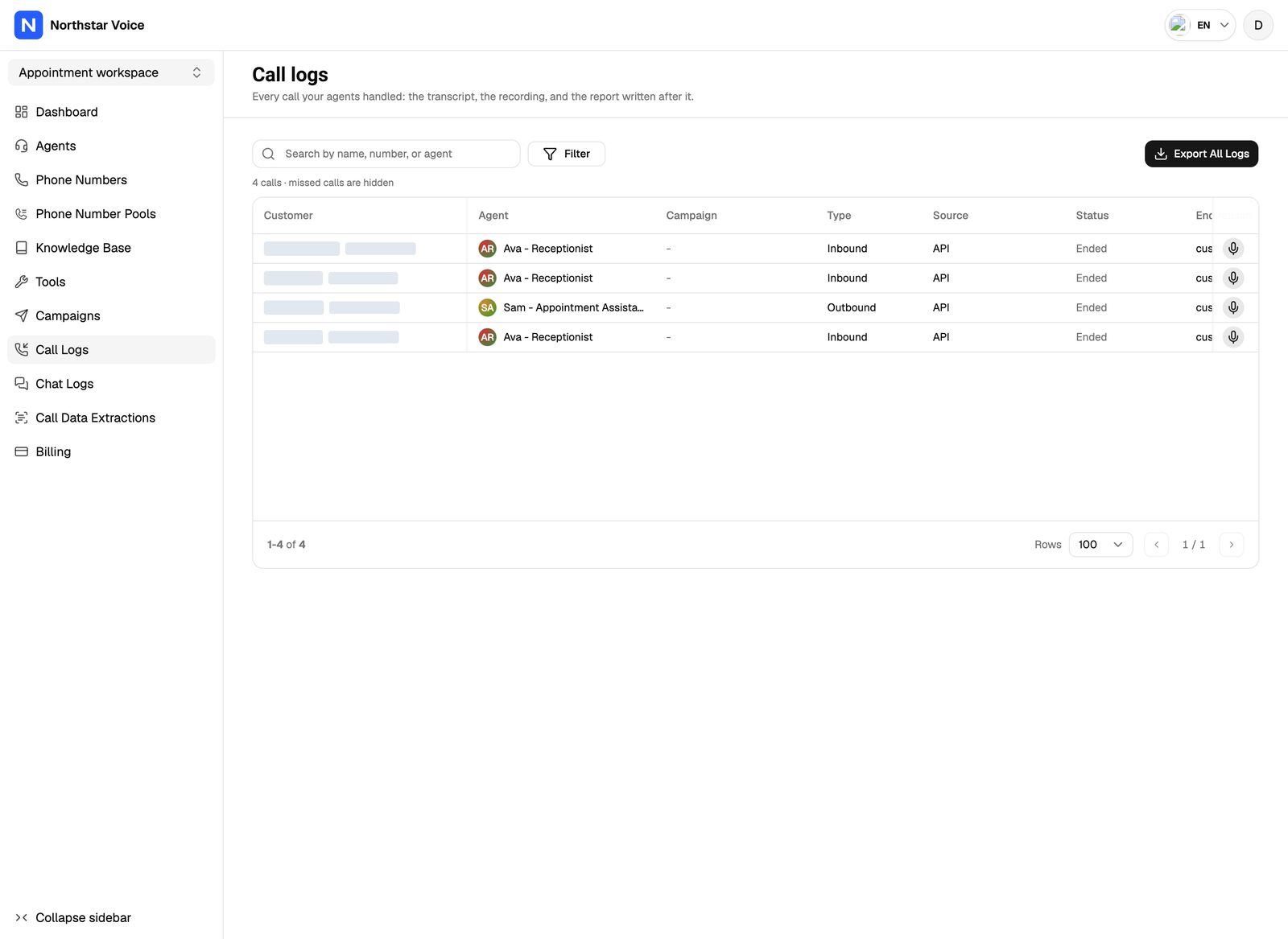
The Call Logs page looks slightly different depending on how your provider set up your workspace. One version is titled Call Logs ("View Call Logs for your organization"). The other is titled Call logs ("Every call your agents handled: the transcript, the recording, and the report written after it."). Both work the same way: find a call in the list, then click it to open the details.
Find a call
- Open Call Logs.
- Use the search box to look up a call. Depending on your version, you can search by lead name, phone number or call ID, or by name, number or agent.
- Use the filters to narrow the list, for example by status, end reason, type, agent, call success, user sentiment, duration or date.
- Click a row to open the call.
What's in a call
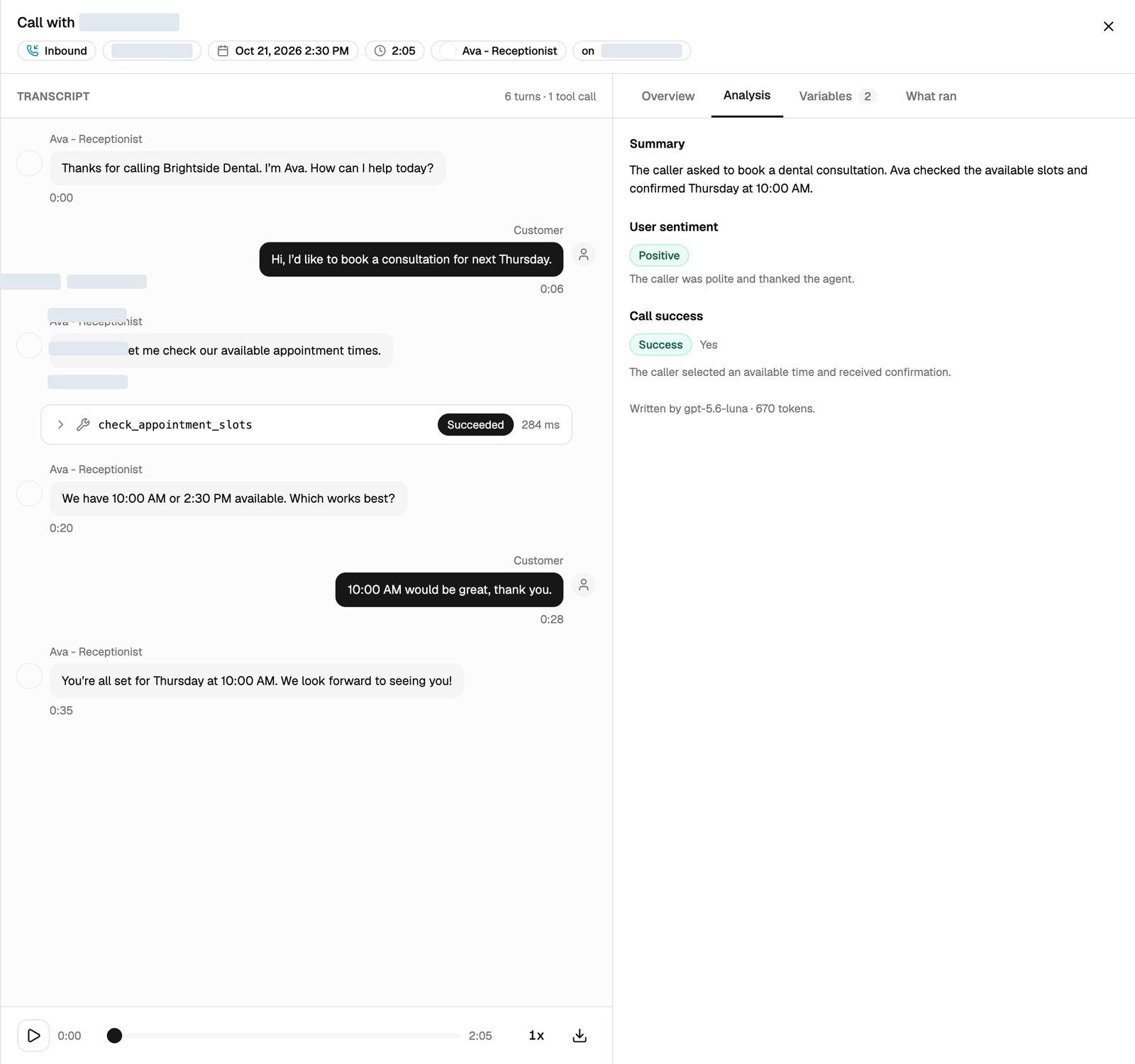
The call opens in a panel on the right. It can include:
- Transcript. The conversation turn by turn. In one version you can search the transcript and switch between All, the agent's lines and the User's lines.
- Recording. A player to listen to the call. In the version titled Call logs, your provider can also allow a Download recording button. The download link is only valid for a short while, so download the file straight away.
- Lead details. For campaign calls, the lead's name, email, phone and fields. If you're allowed to edit leads, you can update them here.
- Analysis. What happened on the call, such as a summary, the end reason, whether the call succeeded and how the customer felt.
In the version titled Call logs, the details are split into tabs:
When things appear
In the version titled Call logs:
- The analysis report is written about a minute after a call ends, and the panel updates on its own. Some calls don't get a report: calls nobody answered, calls that reached voicemail, and very short calls where only one side spoke. The Analysis tab then says "Skipped" with the reason.
- The recording usually arrives a minute or two after the call ends. Until then it shows as pending.
- Calls in progress show a live transcript ("turns appear as they are spoken").
Review chats
Open Chat Logs in the sidebar, or the Chats tab of an inbound campaign. Click a session to open it. You'll see the conversation and, where available, a summary and the details the agent collected. Chats have no recordings.
You'll only see Chat Logs if your provider has set up chat for your workspace.
Export your logs
Exports create a file you can download, filtered the same way as the list on screen.
- Go to where the export button is:
- In the version titled Call logs: the Call logs or Chat logs page, or a campaign's Calls or Chats tab.
- In the version titled Call Logs: a campaign's Calls or Chats tab only. The Call Logs and Chat Logs pages have no export.
- Filter the list to the calls or chats you want, then click Export All Logs.
- Enter a File Name and click Create Export Request.
- Wait for the export to finish under Export History, then click Download (for chats, Download CSV).
Exports run in the background and are kept for 7 days, so download yours within that time.
Frequently asked questions
I can read the transcript but there's no recording.
I can read the transcript but there's no recording.
Either recordings aren't part of your access, recording is turned off for that agent, or the recording isn't ready yet. If the panel says the recording is pending, check back in a minute or two. Otherwise, ask your provider.
The Analysis tab says the report is still being written.
The Analysis tab says the report is still being written.
The report is written about a minute after the call ends and the panel refreshes on its own. Unanswered calls, voicemail and very short calls don't get a report. If no call gets a report, analysis may be turned off for that agent. Ask your provider.
A call is missing from Call Logs.
A call is missing from Call Logs.
Check that you're in the right workspace and clear any filters or search text. If the call was very recent, give it a moment to appear.
I can't see Export All Logs.
I can't see Export All Logs.
Exporting is a separate permission, and on some setups the button is only on a campaign's Calls or Chats tab. Check there first. If it isn't there either, ask your provider to turn exports on.
Related articles
Was this helpful?
Still need help? Share an idea